
1. Introduzione
This manual provides essential information for setting up, operating, maintaining, and troubleshooting your TCL TAB A1 Plus tablet. Please read this manual thoroughly before using your device to ensure proper and safe operation.
The TCL TAB A1 Plus features a large 12.2-inch 2.4K display with a 120 Hz refresh rate, powered by a 4 nm Qualcomm Snapdragon 4 Gen 2 processor. It boasts a slim metal unibody design and integrates AI features like Google Gemini for enhanced productivity and an intuitive user interface for seamless multitasking.
2. Impostazione
2.1 Disimballaggio e ispezione iniziale
Carefully remove all components from the packaging. Verify that all items are present and undamaged. If any items are missing or damaged, contact your retailer.
2.2 Ricarica del dispositivo
Before first use, fully charge your TCL TAB A1 Plus. Connect the provided USB cable to the tablet's charging port and the other end to a compatible power adapter. Plug the adapter into a wall outlet. The charging indicator will show the charging status.
2.3 Accensione e configurazione iniziale
- Tenere premuto il pulsante di accensione finché non viene visualizzato il logo TCL.
- Segui le istruzioni sullo schermo per selezionare la lingua, connetterti a una rete Wi-Fi e configurare il tuo account Google.
- Complete the initial setup steps, including setting up security features like a PIN, pattern, or fingerprint.
3. Utilizzo del tablet
3.1 Visualizzazione ed esperienza visiva
The TCL TAB A1 Plus features a 12.2-inch 2.4K display with a 120 Hz refresh rate, providing a sharp, fluid, and natural viewing experience for videos, browsing, and multitasking.

Image: The TCL TAB A1 Plus display showcasing vibrant colors and a large screen. This image highlights the immersive visual experience.

Image: A visual representation of the 120Hz refresh rate on the TCL TAB A1 Plus, indicating smooth motion and responsiveness.
3.2 Prestazioni e processore
Powered by a Qualcomm Snapdragon 4 Gen 2 (4 nm) processor, the tablet delivers quick responses, stable performance, and efficient power consumption, suitable for daily tasks, entertainment, and multitasking.

Image: A close-up of the Snapdragon 4 Gen 2 processor, illustrating the advanced technology powering the tablet.
3.3 AI Features with Google Gemini
The integrated Google Gemini AI assistant enhances daily activities, making them smoother and smarter. Features like Circle to Search, Writing Assist, Text Assist, and Smart Translator assist with research, writing, summarizing, and translation.
3.4 User Interface and Multitasking
The intuitive user interface includes Magic Hub, Sidebar, and Large Folders for organization. Quick-launch Split Screen and Floating Window features enable seamless multitasking, allowing you to work, watch, and interact simultaneously.

Image: A screenshot of the Magic Hub feature on the TCL TAB A1 Plus, demonstrating its organizational capabilities for saving and sharing content.
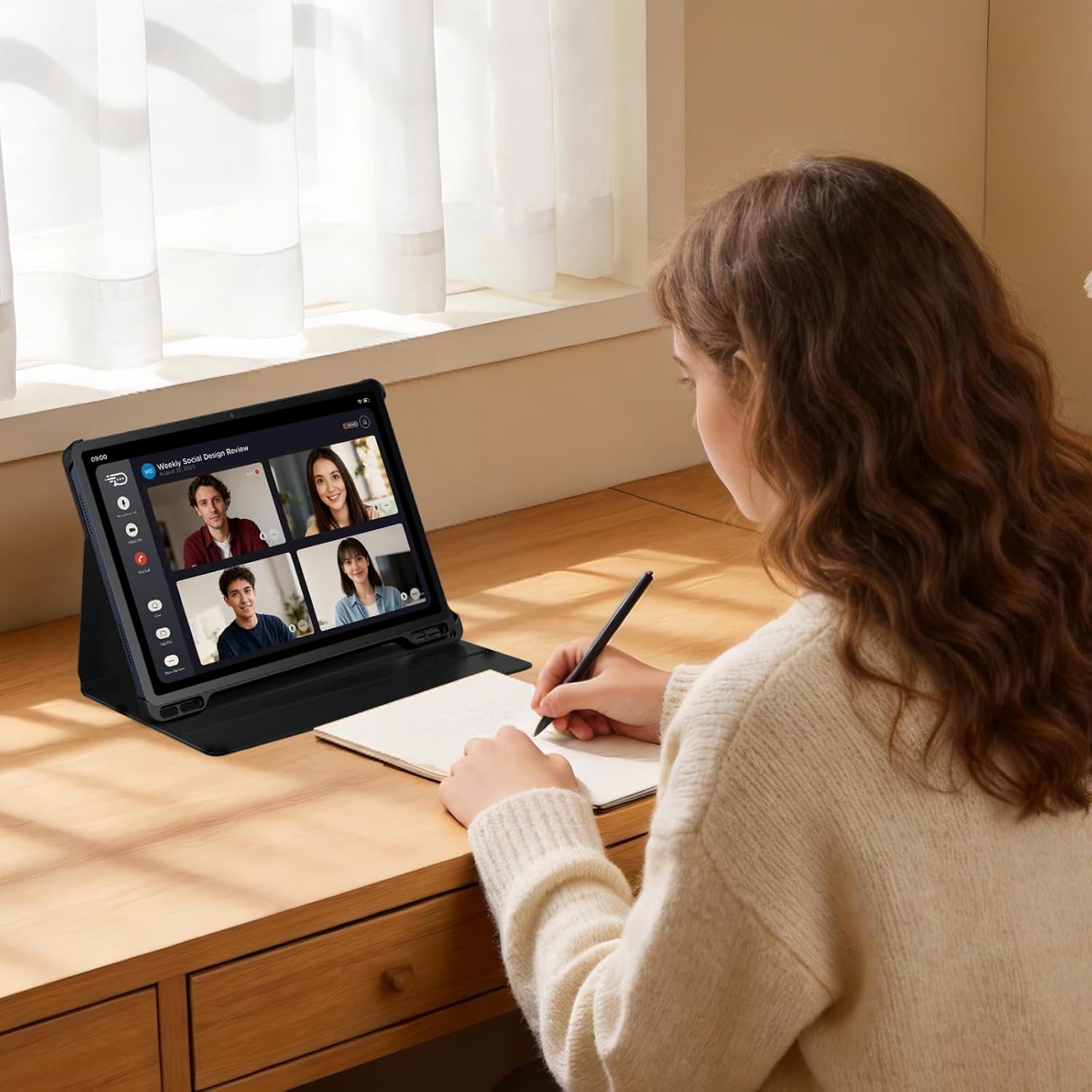
Image: A user participating in a video call on the TCL TAB A1 Plus, illustrating its use for communication and productivity.

Image: A user interacting with the TCL TAB A1 Plus using a T-Pen, demonstrating its suitability for creative and note-taking tasks.
4. Manutenzione
4.1 Pulizia del tablet
Per pulire il tablet, utilizzare un panno morbido e privo di lanugine. Per le macchie ostinate, leggermente dampen the cloth with water or a screen cleaner specifically designed for electronics. Avoid using harsh chemicals, abrasive materials, or aerosol sprays.
4.2 Cura della batteria
To prolong battery life, avoid exposing the tablet to extreme temperatures. Do not leave it fully charged or fully discharged for extended periods. For optimal performance, keep the battery charge between 20% and 80% when possible.
4.3 Aggiornamenti software
Regularly check for and install software updates to ensure your tablet has the latest features, security patches, and performance improvements. You can usually find this option in the tablet's settings under "System" or "About tablet."
5. Risoluzione Dei Problemi
5.1 Il dispositivo non si accende
- Ensure the battery is sufficiently charged. Connect the tablet to a charger and wait a few minutes before attempting to power it on again.
- Per eseguire un riavvio forzato, tenere premuto il pulsante di accensione per almeno 10-15 secondi.
5.2 Schermo non reattivo
- Riavviare il tablet.
- If the screen remains unresponsive, try a factory reset (note: this will erase all data). Consult the TCL support websito per istruzioni dettagliate su come eseguire un ripristino delle impostazioni di fabbrica.
5.3 Problemi di connessione Wi-Fi
- Assicurati che il Wi-Fi sia abilitato sul tuo tablet.
- Riavvia il router Wi-Fi.
- Dimentica la rete nelle impostazioni Wi-Fi del tuo tablet e riconnettiti.
5.4 Problemi generali di prestazioni
- Chiudere le applicazioni non utilizzate in esecuzione in background.
- Clear cache data for apps that are slowing down.
- Assicurarsi che vi sia spazio di archiviazione sufficiente.
6. Specifiche

Immagine: Un overview graphic highlighting key features of the TCL TAB A1 Plus, including 120Hz refresh rate, 2.4K display, Snapdragon 4 Gen 2 processor, metal unibody design, 8000mAh battery, and Google Gemini integration.
| Caratteristica | Dettaglio |
|---|---|
| Marca | TCL |
| Nome del modello | TCL TAB A1 Plus |
| Capacità di archiviazione | 128 GB |
| Dimensioni dello schermo | 12.2 pollici |
| Risoluzione massima dello schermo | 2560 Pixels (2.4K) |
| Sistema operativo | Androide 16 |
| Colore | Spazio Blu |
| Dimensioni RAM | 6 GB |
| Caratteristiche speciali | 2.4K Display with 120 Hz, Advanced 4 nm Processor, AI with Google Gemini, Intuitive User Interface |
| Anno del modello | 2026 |
7. Garanzia e supporto
Per informazioni dettagliate sulla garanzia, fare riferimento alla scheda di garanzia inclusa con il prodotto o visitare il sito ufficiale di supporto TCL website. You can find support resources, FAQs, and contact information for customer service there.
TCL Official Support: https://www.tcl.com/global/en/support