
1. Introduzione
The Huawei OptiXstar K251a-21 is a sub-FTTR (Fiber to the Room) unit designed to extend the high-speed network provided by the Huawei FTTR OptiXstar F50 Plus main unit. This device supports ultra-Gigabit high-speed access via upstream fiber optic lines and delivers Ultra Gigabit dual-band Wi-Fi and ultra-Gigabit network ports to users. It integrates next-generation Wi-Fi 7 technology for higher speeds and lower latency, ensuring a superior home network experience.
2. Informazioni sulla sicurezza
Please read and understand all safety instructions before using this device. Failure to follow these instructions may result in injury, damage to the device, or property damage.
- Utilizzare solo l'alimentatore fornito con il dispositivo.
- Non esporre il dispositivo ad acqua, umidità o temperature estreme.
- Evitare di posizionare il dispositivo vicino a fonti di calore o alla luce diretta del sole.
- Garantire una ventilazione adeguata per evitare il surriscaldamento.
- Non tentare di aprire o riparare il dispositivo da soli. Contattare personale qualificato per assistenza.
- Tenere il dispositivo lontano dalla portata dei bambini e degli animali domestici.
3. Contenuto della confezione
Verifica che tutti gli articoli siano presenti nel tuo pacco:
- Huawei OptiXstar K251a-21 Sub FTTR Device
- Cavo di alimentazione
- Guida rapida (se inclusa)
4. Prodotto finitoview
Familiarize yourself with the device's components and indicators.
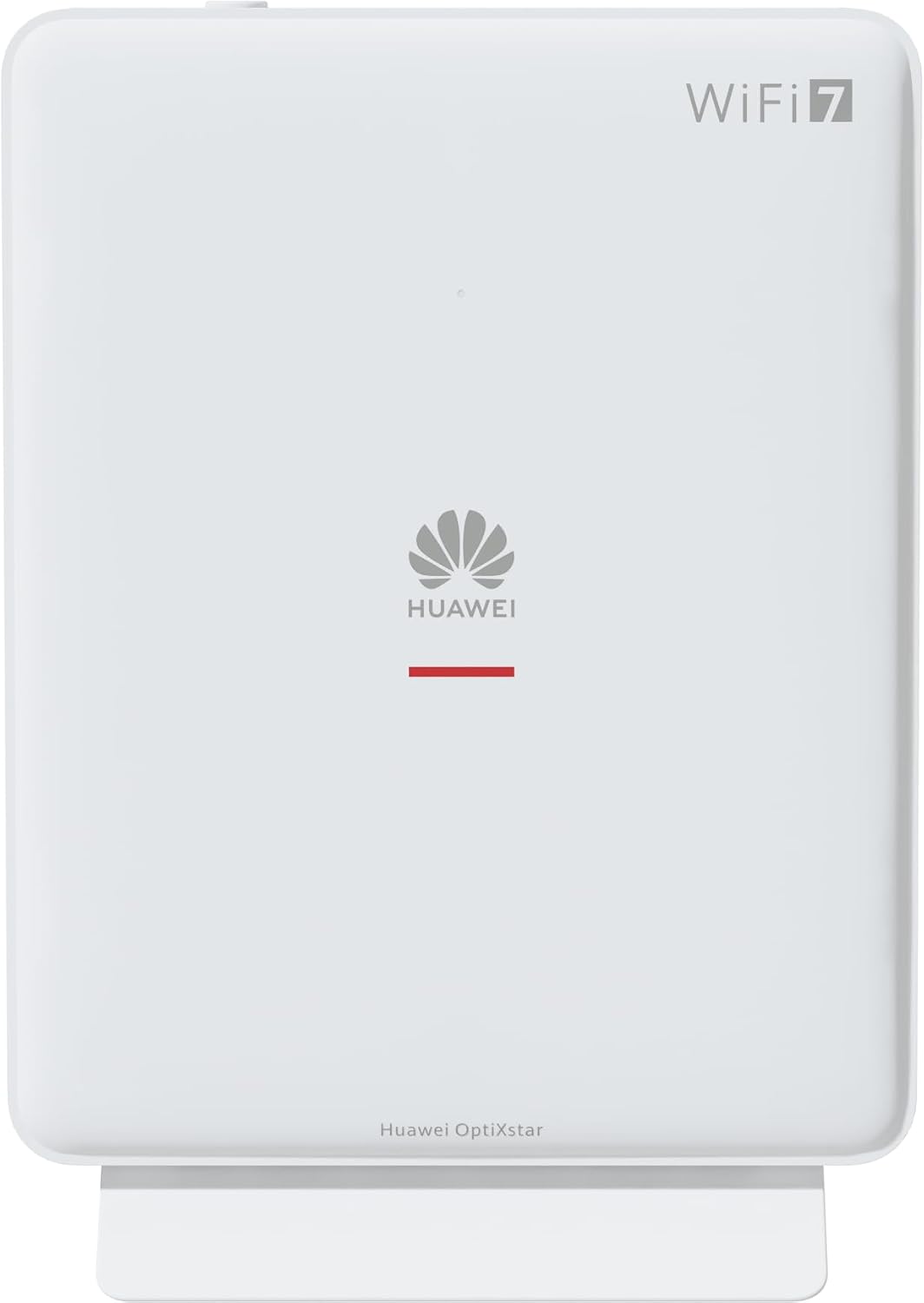
Figura 1: Fronte view of the Huawei OptiXstar K251a-21 Sub FTTR device, showing the Huawei logo and "WiFi 7" branding.

Figure 2: Angled front-side view of the Huawei OptiXstar K251a-21 Sub FTTR, highlighting its sleek design and ventilation.

Figura 3: Posteriore view of the Huawei OptiXstar K251a-21 Sub FTTR, displaying the ports (Reset, 2-GE, 1-2.5GE, Power, FTTR) and mounting options.

Figura 4: Prospettiva lateralefile of the Huawei OptiXstar K251a-21 Sub FTTR, showing its slim form factor and ventilation grilles.

Figura 5: Parte posteriore angolata view of the Huawei OptiXstar K251a-21 Sub FTTR, providing a clear look at the port labels and layout.

Figura 6: in alto view of the Huawei OptiXstar K251a-21 Sub FTTR, featuring the WPS/LED button.
Porte e pulsanti:
- FTTR Port: Connects to the main FTTR unit via a fiber optic cable.
- 1-2.5GE Port: Gigabit Ethernet port for high-speed wired connections.
- 2-GE Port: Porta Gigabit Ethernet per connessioni cablate.
- Porta di alimentazione: Si collega all'alimentatore.
- Pulsante di reset: Used to restore factory settings (press and hold for 5-10 seconds).
- WPS/LED Button: Initiates Wi-Fi Protected Setup (WPS) for easy device connection and controls LED indicators.
5. Impostazione
Follow these steps to set up your Huawei OptiXstar K251a-21 Sub FTTR device:
- Posizionamento: Choose a central location in your home for optimal Wi-Fi coverage. The device is suitable for various installation scenarios, including vertical placement on a desk, wall-mounting, plugging into a power strip, or mounting in an 86mm junction box with a bracket.
- Collegare il cavo in fibra ottica: Connect one end of the fiber optic cable to the FTTR port on the Sub FTTR unit and the other end to the corresponding FTTR port on your Huawei FTTR OptiXstar F50 Plus main unit or wall outlet. Ensure the connection is secure.
- Connetti alimentazione: Plug the power adapter into the Power port on the Sub FTTR unit, then plug the other end into a power outlet.
- Accensione: The device will automatically power on. Wait for the indicator lights to stabilize, typically indicating a successful connection to the main FTTR unit and active Wi-Fi.
- Wired Connections (Optional): For wired devices, connect an Ethernet cable from the 1-2.5GE or 2-GE ports on the Sub FTTR to your computer, gaming console, or other network devices.
6. Operativo
Once set up, your OptiXstar K251a-21 provides seamless Wi-Fi 7 connectivity.
- Connessione Wi-Fi: Cercare the Wi-Fi network name (SSID) broadcast by your FTTR system on your devices (smartphones, laptops, etc.). Enter the Wi-Fi password. The system's unique SRCN (Seamless Roaming Coordinate Network) technology ensures seamless roaming throughout your home.
- C-WAN Architecture: The C-WAN architecture centrally controls and coordinates network-wide Wi-Fi resources via the Main FTTR, providing an ultra-Gigabit high-speed experience.
- IoT Casing: The device features an IoT casing designed to protect home network security and privacy.
- Funzione WPS: Press the WPS/LED button briefly to use Wi-Fi Protected Setup (WPS) for quick connection of compatible devices without entering the password.
- Indicatori LED: The LED indicators provide status information. Refer to the main FTTR unit's manual or the device's specific documentation for detailed LED status meanings.
7. Manutenzione
Regular maintenance helps ensure optimal performance and longevity of your device.
- Pulizia: Pulire delicatamente il dispositivo con un panno morbido e asciutto. Non utilizzare detergenti liquidi o materiali abrasivi.
- Aggiornamenti del firmware: Huawei periodically releases firmware updates to improve performance and security. These updates are typically managed through the main FTTR unit or a dedicated mobile application. Ensure your system is always running the latest firmware.
- Ventilazione: Assicurarsi che le aperture di ventilazione non siano bloccate per evitare il surriscaldamento.
- Gestione dei cavi: Keep fiber optic and power cables neatly organized and free from kinks or excessive bending.
8. Risoluzione Dei Problemi
Se riscontri problemi, prova i seguenti passaggi per la risoluzione dei problemi:
- Nessun potere: Check if the power cable is securely connected to both the device and the power outlet. Try a different outlet.
- Nessuna connessione internet:
- Verify that the fiber optic cable is correctly connected to the FTTR port.
- Check the status indicators on both the Sub FTTR and the main FTTR unit.
- Restart both the Sub FTTR and the main FTTR unit by unplugging them from power for 30 seconds and then plugging them back in.
- Ensure your main FTTR unit has an active internet connection.
- Velocità Wi-Fi lenta:
- Ensure the device is placed optimally, away from obstructions and interference sources.
- Check if too many devices are connected to the network.
- Update the firmware of your FTTR system.
- Consider using a wired connection for bandwidth-intensive tasks.
- Impossibile connettersi al Wi-Fi:
- Verifica di aver inserito la password Wi-Fi corretta.
- Try using the WPS button to connect.
- Restart your device and the Sub FTTR unit.
- Ripristino di fabbrica: If issues persist, you may need to perform a factory reset. With the device powered on, use a pointed object (like a paperclip) to press and hold the Reset button for 5-10 seconds until the indicators change. Note that this will erase all custom settings.
9. Specifiche
| Caratteristica | Specificazione |
|---|---|
| Marca | Marchio |
| Numero di modello | K8M251a-21G02 |
| Dimensioni (confezione) | Dimensioni: 24.5 x 23.7 x 7.4 cm |
| Peso (confezione) | 300 grammi |
| Caratteristica speciale | Sicurezza Internet |
| Classe di banda di frequenza | Doppia banda |
| Standard di comunicazione wireless | 802.11ax (Wi-Fi 7 Generation) |
| Dispositivi compatibili | Personal computer |
| Usi consigliati | Casa |
| Componenti inclusi | Cavo di alimentazione |
| Tecnologia di connettività | Ethernet, FTTR, Wi-Fi, Fiberglass |
| Colore | Bianco |
| Numero di porte | 4 (FTTR, 1-2.5GE, 2-GE, Power) |
| Velocità di trasferimento dati | 1 Gigabit al secondo |
| Compatibilità con la casa intelligente | Compatible with smart home systems |
| Connettività Internet | SÌ |
| Protocollo di connettività | Wifi |
10. Garanzia e supporto
Per informazioni sulla garanzia e supporto tecnico, fare riferimento al sito ufficiale Huawei website or contact your local Huawei customer service. Keep your purchase receipt for warranty claims.
Risorse online: Visita il supporto ufficiale Huawei websito per FAQ, manuali aggiornati e download di software.
Assistenza clienti: Contact details for customer support can typically be found on the Huawei website or in the documentation provided with your main FTTR unit.