
1. Introduzione
Thank you for choosing the Tibuta 10.1-inch Android 14 Tablet, Model E100. This manual provides essential information for the safe and efficient use of your device. Please read it thoroughly before operating your tablet and retain it for future reference.
The Tibuta E100 tablet features a vivid 10.1-inch HD IPS display, a powerful quad-core processor, 6GB RAM, and 128GB of internal storage, expandable up to 512GB. Running on Android 14 with full GMS certification, it offers access to a wide range of applications from the Google Play Store.
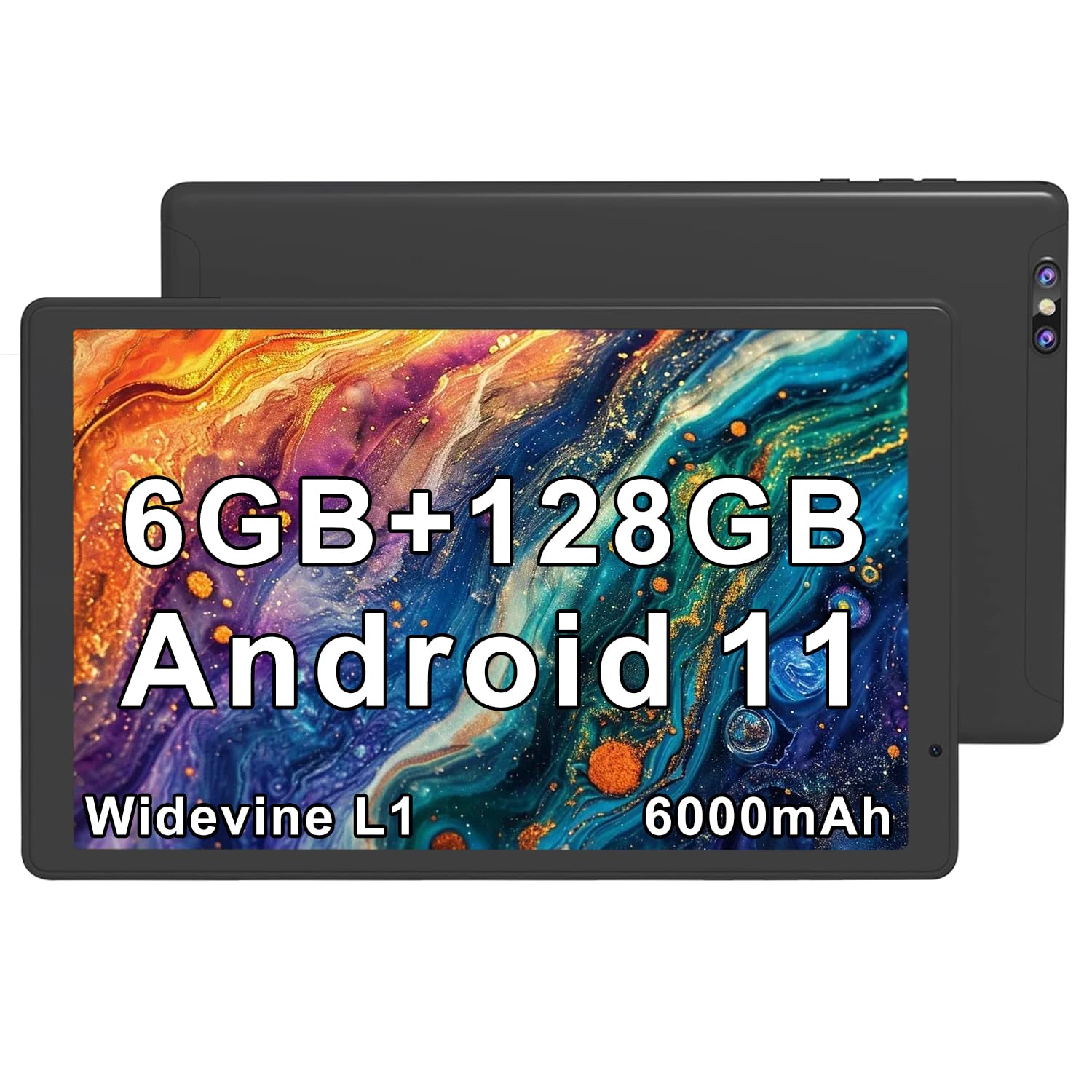
Image 1.1: Tibuta 10.1-inch Android 14 Tablet with included protective case.

Image 1.2: Key performance features of the Tibuta E100 tablet.
2. Contenuto della confezione
Please check the package contents upon unboxing. If any items are missing or damaged, contact Tibuta customer support.
- Tibuta 10.1-inch Android 14 Tablet (Model E100)
- Custodia protettiva
- Charger (USB-C cable and power adapter)
- Manuale dell'utente (questo documento)
3. Layout del tablet
Familiarize yourself with the physical features and ports of your Tibuta tablet.

Immagine 3.1: Passoview of tablet ports and buttons.
- 1. 2 MP Front-facing Camera: Per videochiamate e selfie.
- 2. USB-C (2.0) Port: Per la ricarica e il trasferimento dei dati.
- 3. 5 MP Rear Camera: Per scattare foto e registrare video.
- 4. 3.5mm Stereo Jack: Per collegare cuffie o altoparlanti esterni.
- 5. Volume Buttons: Regola il volume dell'audio.
- 6. Pulsante di accensione: Press and hold to power on/off or restart; press briefly to sleep/wake.
- 7. Built-in Microphone: Per l'input vocale durante le chiamate o le registrazioni.
- 8. Relatore: Per l'uscita audio.
- 9. Slot per scheda MicroSD: For expanding storage (card not included).
- 10. SIM Card Slot: For cellular data connectivity (if applicable to your model).
4. Impostazione
4.1 Caricamento della batteria
Prima del primo utilizzo, caricare completamente il tablet.
- Collegare il cavo USB-C alla porta USB-C del tablet.
- Collegare l'altra estremità del cavo all'adattatore di alimentazione.
- Collegare l'adattatore di corrente a una presa a muro.
- L'icona della batteria sullo schermo indicherà lo stato di carica.
Nota: Use only the provided charger or a certified compatible charger to avoid damage.
4.2 Accensione/Spegnimento
- Per accendere: Press and hold the Power Button until the Tibuta logo appears.
- Per spegnere: Tenere premuto il pulsante di accensione finché non viene visualizzato il menu delle opzioni di alimentazione, quindi selezionare "Spegni".
- Ricominciare: Tenere premuto il pulsante di accensione finché non viene visualizzato il menu delle opzioni di alimentazione, quindi selezionare "Riavvia".
- Sonno-veglia: Premere brevemente il pulsante di accensione per mettere il tablet in modalità sospensione o riattivarlo.
4.3 Configurazione iniziale
The first time you power on your tablet, you will be guided through the initial setup process.
- Seleziona la lingua preferita.
- Connettersi a una rete Wi-Fi.
- Sign in with your Google Account or create a new one. This is necessary to download apps from the Google Play Store.
- Follow the on-screen prompts to complete the setup, including setting up screen lock and Google services.
4.4 Inserimento di una scheda MicroSD
You can expand the tablet's storage up to 512GB using a microSD card (sold separately).
- Locate the microSD card slot on the side of the tablet (refer to Image 3.1).
- Inserire delicatamente la scheda microSD nello slot con i contatti dorati rivolti verso il basso finché non scatta in posizione.
- The tablet will detect the card and prompt you to format it for use. Follow the on-screen instructions.

Image 4.1: Tablet with visual representation of expandable storage.
4.5 Inserting a SIM Card (for Cellular Models)
If your Tibuta E100 model supports cellular connectivity (5G), you can insert a Nano-SIM card for mobile data.
- Power off the tablet before inserting or removing a SIM card.
- Locate the SIM card slot (refer to Image 3.1).
- Use the provided SIM ejector tool (if included) to open the SIM tray.
- Place the Nano-SIM card into the tray with the gold contacts facing down, ensuring it fits securely.
- Reinserire con cautela il vassoio nel tablet.
- Power on the tablet. You may need to configure APN settings in the tablet's network settings.
Nota: Not all models support cellular connectivity. Refer to your product packaging or specifications for confirmation.
5. Utilizzo del tablet
5.1 Navigazione di base
- Rubinetto: Seleziona un elemento o attiva un pulsante.
- Tocca e tieni premuto: Accedi ai menu contestuali o sposta le icone.
- Scorri: Scorrere schermate, elenchi o pagine.
- Pizzica per ingrandire: Ingrandisci o rimpicciolisci le immagini e web pagine.
5.2 Funzionalità di visualizzazione
The 10.1-inch HD IPS display provides crisp visuals and rich colors with a resolution of 1280x800 pixels.
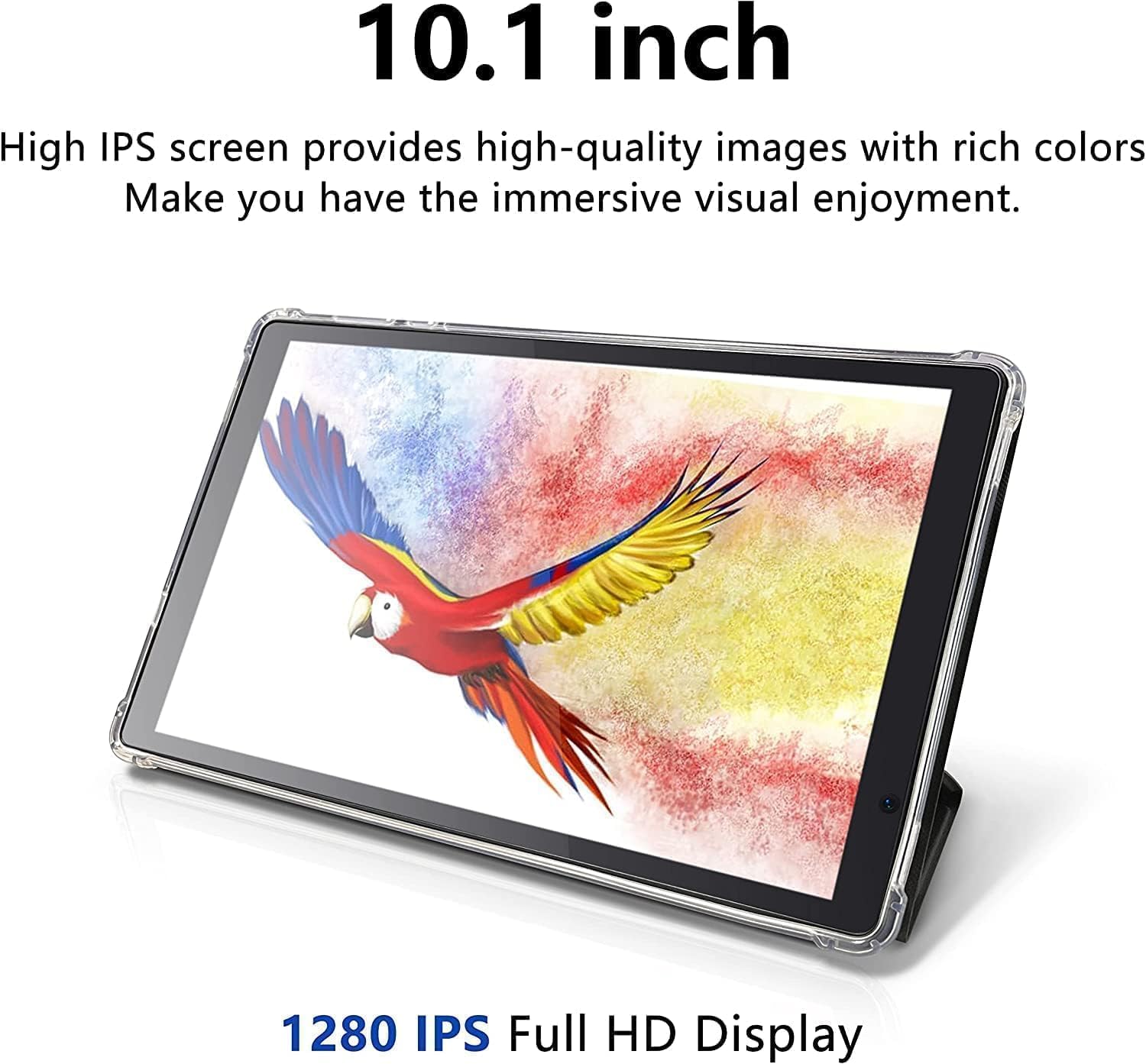
Image 5.1: The tablet's 10.1-inch HD IPS display offers high-quality visuals.
5.3 Connessione al Wi-Fi
- Vai a Impostazioni > Rete e Internet > Wifi.
- Attiva/disattiva Wi-Fi On.
- Seleziona la rete Wi-Fi desiderata dall'elenco.
- Inserisci la password se richiesta, quindi tocca Collegare.
5.4 Associazione Bluetooth
- Vai a Impostazioni > Dispositivi connessi > Bluetooth.
- Attiva Bluetooth On.
- Assicurati che il dispositivo che desideri associare sia in modalità di associazione.
- Selezionare il dispositivo dall'elenco dei dispositivi disponibili e seguire le istruzioni visualizzate sullo schermo per completare l'associazione.
5.5 Utilizzo delle telecamere
Your tablet is equipped with a 2MP front-facing camera and a 5MP rear camera.
- Aprire il Telecamera app dalla schermata iniziale o dal cassetto delle applicazioni.
- Tocca l'icona della fotocamera per passare dalla fotocamera anteriore a quella posteriore e viceversa.
- Tocca il pulsante di scatto per scattare una foto o avviare/interrompere la registrazione video.

Image 5.2: Tablet showcasing dual camera capabilities for capturing moments.
5.6 Gestione dell'archiviazione
The tablet has 128GB of internal storage. You can view and manage storage usage in Impostazioni > Magazzinaggio.
- Free up space: Elimina non necessario files, disinstallare le app non utilizzate o spostarle files to your microSD card.
- Scheda MicroSD: Ensure your microSD card is properly formatted and mounted for use.
5.7 Downloading Apps
Access millions of apps, games, movies, and books through the pre-installed Google Play Store.
- Ensure you are connected to Wi-Fi and signed into your Google Account.
- Aprire il Negozio di giochi applicazione.
- Cercare the desired app and tap Installare.
5.8 Gestione della batteria
La batteria da 6000 mAh garantisce un utilizzo prolungato. Per ottimizzare la durata della batteria:
- Ridurre la luminosità dello schermo.
- Turn off Wi-Fi, Bluetooth, or cellular data when not in use.
- Chiudere le applicazioni non utilizzate in esecuzione in background.
- Abilita la modalità Risparmio batteria in Impostazioni > Batteria.

Image 5.3: Visual representation of the tablet's extended battery life for various activities.
6. Manutenzione
6.1 Pulizia del tablet
- Per pulire lo schermo e il corpo, utilizzare un panno morbido e privo di lanugine.
- Non utilizzare detergenti liquidi, spray o materiali abrasivi.
- Evitare che l'umidità penetri nelle aperture.
6.2 Aggiornamenti software
Keep your tablet's software up to date for optimal performance and security.
- Vai a Impostazioni > Sistema > Aggiornamento del sistema.
- Controlla gli aggiornamenti disponibili e segui le istruzioni sullo schermo per installarli.
6.3 Gestione dell'archiviazione
Gestisci regolarmente la memoria del tuo tablet per mantenerne le prestazioni.
- Periodicamente riview and delete old photos, videos, and documents.
- Disinstalla le app che non usi più.
- Cancella i dati della cache per le app in Impostazioni > Applicazioni > [Nome dell'app] > Archiviazione e cache.
7. Risoluzione Dei Problemi
If you encounter issues with your tablet, try the following solutions before contacting support.
| Problema | Soluzione |
|---|---|
| Il tablet non si accende. | Assicurarsi che la batteria sia carica. Collegare il caricabatterie e attendere qualche minuto prima di riprovare ad accendere. |
| Tablet is unresponsive. | Perform a force restart by pressing and holding the Power Button for approximately 10-15 seconds until the tablet restarts. |
| Impossibile connettersi al Wi-Fi. | Check if Wi-Fi is enabled in Settings. Ensure the Wi-Fi password is correct. Restart your Wi-Fi router and the tablet. |
| Le app si bloccano o funzionano lentamente. | Close background apps. Clear app cache (Settings > Apps > [App Name] > Storage & cache). Ensure sufficient free storage space. Restart the tablet. |
| Scheda MicroSD non rilevata. | Ensure the card is inserted correctly. Try reinserting the card. Check if the card is damaged by testing it in another device. |
8. Specifiche
Detailed technical specifications for the Tibuta 10.1-inch Android 14 Tablet (Model E100).
| Caratteristica | Dettaglio |
|---|---|
| Marca | Tibuta |
| Nome del modello | E100 |
| Sistema operativo | Androide 14 |
| Marca del processore | Allwinner (Quad-core) |
| Memoria RAM installata | 6 GB |
| Capacità di archiviazione della memoria | 128 GB (Expandable up to 512 GB via microSD) |
| Dimensioni dello schermo | 10.1 pollici |
| Tipo di visualizzazione | LCD, HD IPS |
| Risoluzione massima dello schermo | 1280*800 pixel |
| Tipo di cella della batteria | Polimero di litio |
| Lithium-Battery Energy Content | 6000 milioneampprima ora (mAh) |
| Fotocamera frontale | 2 MP |
| Telecamera posteriore | 5 MP |
| Tecnologia senza fili | Wifi bluetooth |
| Tecnologia cellulare | 5G (Note: Requires compatible SIM card and service plan) |
| Item Dimensions L x W x Thickness | 20"L x 10"W x 3"S |
| Media integrati | Caricabatterie |
9. Informazioni sulla garanzia
The Tibuta 10.1-inch Android 14 Tablet (Model E100) comes with a Garanzia limitata di 1 anno dalla data di acquisto. La presente garanzia copre difetti di fabbricazione e di lavorazione in condizioni di normale utilizzo. Non copre danni causati da uso improprio, incidenti, modifiche non autorizzate o normale usura.
Please retain your proof of purchase for warranty claims. For full warranty terms and conditions, please refer to the official Tibuta websito o contattare l'assistenza clienti.
10. Assistenza clienti
For any questions, technical assistance, or warranty inquiries regarding your Tibuta tablet, please contact our dedicated customer support team.
- Supporto online: Visita il sito ufficiale di Tibuta websito per FAQ, guide alla risoluzione dei problemi e moduli di contatto.
- Supporto via e-mail: Refer to your product packaging or the Tibuta websito per l'indirizzo email dell'assistenza clienti.
- Negozio Amazon: Puoi anche visitare il Negozio Tibuta su Amazon per informazioni sui prodotti e opzioni di supporto.