
1. Introduzione
This manual provides detailed instructions for the installation, operation, and maintenance of your Surakey 9.7-inch Android Car Stereo Radio. Please read this manual thoroughly before installation and use to ensure proper functionality and to avoid damage.
2. Compatibilità
This car stereo radio is designed for compatibility with Jeep Compass models from 2009 to 2017. Before proceeding with your order and installation, it is crucial to verify your vehicle's specific model year. If you are uncertain about compatibility, please provide a complete image of the plugs on the back of your vehicle's center console and the original main unit to the manufacturer for confirmation regarding wiring harnesses or adapters.
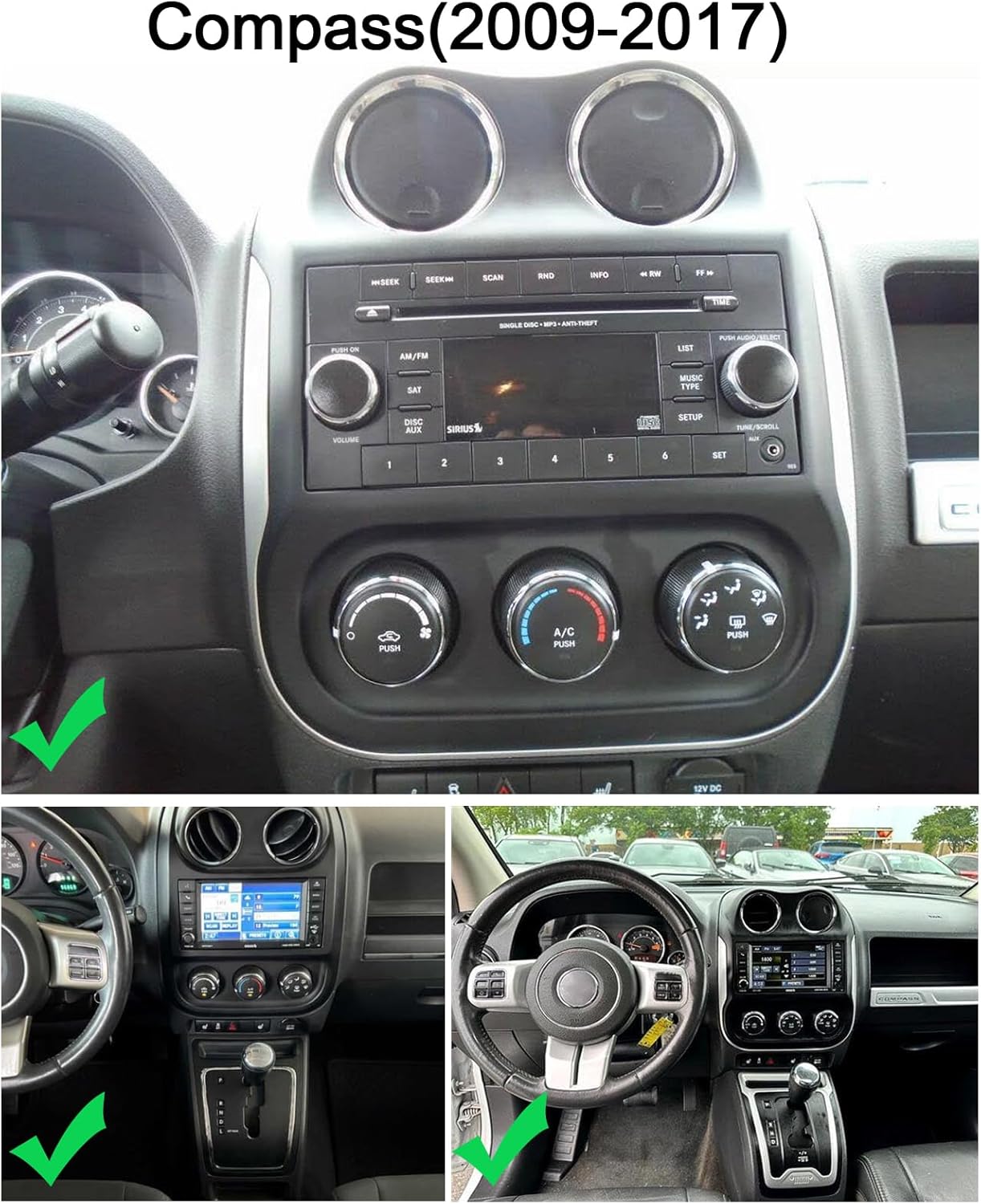
Figure 2.1: Dashboard compatibility for Jeep Compass (2009-2017).
3. Configurazione e installazione
3.1 Verifica pre-installazione
Always confirm the correct wiring diagram for your specific vehicle model. Depending on the vehicle, different power cords and protocols may be required. Ensure you have the appropriate components before beginning installation.
3.2 Cablaggio del prodotto
Refer to the wiring diagram provided to correctly connect the car stereo to your vehicle's electrical system. This includes connections for power, speakers, and other accessories.

Figure 3.1: Product Wiring Diagram.
3.3 Installazione della telecamera per la retromarcia
The unit supports OEM CVBS 720P backup cameras. 360-degree panoramic cameras are not supported. If your OEM camera is incompatible, use the included backup camera. The reversing input must be connected even if the camera is not used.
- Collegare il filo positivo della telecamera al polo positivo della luce di retromarcia dell'auto.
- Collegare il filo negativo della telecamera al polo negativo della luce di retromarcia dell'auto.
- Il grilletto di retromarcia è controllato dallo stereo e non richiede un collegamento separato.
Nota importante: The white plug must be connected to the main device for Bluetooth and Wi-Fi signals to function correctly.

Figura 3.2: Schema elettrico della telecamera per la retromarcia.
3.4 Backup Camera Format and Resolution Setup
To configure the backup camera settings:
- Tap the settings icon to open the settings menu.
- Select "Factory Settings" and enter the password "8888".
- Navigate to "Protocol Parameter Settings".
- Select "Reverse video resolution settings".
- Choose the correct setting based on your camera type: NTSC/PAL for OEM cameras, or AHD/25 for the included camera.


Figure 3.3: Backup Camera Resolution Setup Steps.
Video 3.1: Demonstration of accessing reversing settings for the car stereo. This video shows how to navigate through the system menus to find and adjust settings related to the backup camera, including options for reverse track, radar, image, color, and video resolution.
4. Istruzioni per l'uso
Apple CarPlay e Android Auto wireless 4.1
Connect your iOS or Android smartphone wirelessly via Bluetooth and Wi-Fi, or using a wired USB cable, to access CarPlay or Android Auto. This allows integration with your phone's address book, mail, notifications, map navigation, music, calls, and voice control features.

Figura 4.1: Interfaccia wireless CarPlay e Android Auto.
4.2 Collegamento specchio
The unit supports screen mirroring from both iOS and Android smartphones via Wi-Fi, allowing you to display your phone's content directly on the car stereo screen.

Figura 4.2: Funzionalità Mirror Link.
4.3 Visualizzazione a schermo diviso
Utilize the split-screen feature to display two applications simultaneously, such as navigation and music playback. This enhances multitasking and provides a safer driving experience.

Figura 4.3: Visualizzazione a schermo diviso.
4.4 Navigazione GPS
The car stereo offers both offline and online navigation options. You can use offline navigation by connecting the included GPS module or download online navigation apps via Wi-Fi/WLAN connection.

Figura 4.4: Interfaccia di navigazione GPS.
4.5 Controllo del volante (SWC)
The steering wheel control function allows you to manage calls, change music tracks, and adjust volume directly from your steering wheel buttons, promoting safer driving.

Figure 4.5: Steering Wheel Control Function.
4.6 DSP (processore di segnale digitale) integrato
The integrated DSP enhances audio quality by reducing noise, distortion, and interference, offering personalized audio settings and an optimized soundstage.

Figure 4.6: Built-in DSP Interface.
4.7 Funzione radio FM
Enjoy comprehensive FM and RDS channel support for easy access to news, music, and real-time traffic updates, enriching your driving experience.

Figura 4.7: Interfaccia radio FM.
4.8 Connettività Bluetooth
The unit features Bluetooth with A2DP for hands-free calls, phone book access, caller ID, voice calls, and Bluetooth music playback.

Figura 4.8: Interfaccia Bluetooth.
4.9 Connessione Wi-Fi
Connect to Wi-Fi for online maps, app downloads, streaming online content, and browsing the web. The built-in Bluetooth also allows for hands-free phone calls and music playback.

Figura 4.9: Connettività Wi-Fi e funzionalità online.
5. Manutenzione
Per garantire la longevità e le prestazioni ottimali dell'autoradio, seguire queste linee guida generali di manutenzione:
- Pulizia: Utilizzare un panno morbido e asciutto per pulire lo schermo e le superfici esterne. Evitare detergenti abrasivi o solventi che potrebbero danneggiare la finitura.
- Temperatura: Evitare di esporre l'unità a temperature estreme, sia calde che fredde, per periodi prolungati.
- Aggiornamenti software: Controllare periodicamente la presenza di eventuali aggiornamenti software disponibili e installarli per garantire che il sistema funzioni in modo efficiente e sicuro.
- Connessioni via cavo: Assicurarsi che tutti i cavi siano saldamente collegati e non danneggiati. Collegamenti allentati possono causare problemi intermittenti.
6. Risoluzione Dei Problemi
6.1 Backup Camera Issues
If your backup camera is not functioning correctly:
- Compatibilità: Ensure your camera is an OEM CVBS 720P type. 360-degree panoramic cameras are not supported.
- Included Camera: If your OEM camera is incompatible, use the backup camera provided with the unit.
- Cablaggio: Double-check all camera wiring connections as per the installation diagram (Section 3.3). Ensure the reversing input is connected.
- Impostazioni: Verify the backup camera format and resolution settings in the system menu (Section 3.4).
- White Plug: Confirm the white plug is securely connected to the main device, as this affects signal reception.
6.2 Problemi generali
- Nessun potere: Controllare tutti i collegamenti elettrici e i fusibili. Assicurarsi che l'accensione del veicolo sia inserita.
- Nessun suono: Verificare i collegamenti degli altoparlanti, i livelli del volume e la selezione della sorgente audio. Controllare le impostazioni DSP, se applicabili.
- Touchscreen non reattivo: Prova a riavviare l'unità. Se il problema persiste, potrebbe essere necessario un ripristino delle impostazioni di fabbrica (consulta l'assistenza).
- Perdita del segnale GPS: Assicurarsi che l'antenna GPS sia installata correttamente e abbia una visuale libera view del cielo.
- Bluetooth/Wi-Fi Connectivity: Check that the white plug is connected to the main device. Ensure Bluetooth and Wi-Fi are enabled in settings.
7. Specifiche
| Caratteristica | Dettaglio |
|---|---|
| Modello | 9.7-inch Android Car Stereo Radio (2+32G) |
| Sistema operativo | Androide 15 |
| Memoria RAM | 2 GB |
| ROM | 32 GB |
| Dimensioni dello schermo | 9.7 pollici |
| Tipo di visualizzazione | Schermo touch HD 2.5D |
| Connettività | Wireless Apple CarPlay, Wireless Android Auto, Bluetooth, Wi-Fi, USB |
| Navigazione | GPS (Offline/Online) |
| Caratteristiche audio | Built-in DSP, FM/RDS Radio |
| Caratteristiche aggiuntive | Mirror Link, Split Screen, Steering Wheel Control, Rearview Camera Support (OEM CVBS 720P), External MIC, APP Download, MP3/AUX/USB |
| Dimensioni del pacco | 1.97 x 1.18 x 1.18 pollici |
| Peso dell'articolo | 1.6 once |
| Produttore | Surakey |
| ASIN | B0GV5PMVYS |
8. Supporto e garanzia
For any questions regarding product installation, wiring diagrams, or specific vehicle compatibility, please contact Surakey customer support. Our team is available to assist you with technical inquiries and troubleshooting.
8.1 Assistenza clienti
E-mail: Fuyatongus@outlook.com
We offer 24-hour customer support to address your concerns.

Figure 8.1: Surakey Customer Support.
8.2 Informazioni sulla garanzia
Specific warranty details are typically provided with your purchase documentation. Please retain your proof of purchase for any warranty claims. For issues related to backup camera compatibility or other product malfunctions, please reach out to customer support for assistance.