1. Introduzione
Grazie per l'acquistoasing the NANAO FlexScan L767-R 19-inch Color LCD Display. This manual provides essential information for setting up, operating, and maintaining your monitor. Please read this manual thoroughly before use to ensure proper and safe operation.
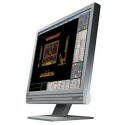
Figure 1: NANAO FlexScan L767-R LCD Monitor. This image shows the monitor from a slight angle, highlighting its slim bezel and adjustable stand.
2 Caratteristiche
The FlexScan L767-R is designed for optimal visual performance and user convenience. Key features include:
- Display a colori vivaci: Supports approximately 16.77 million full colors for impressive color vibrancy.
- FineContrast Function: Easily adjust brightness and gamma settings to match content (text, images) for optimal viewing.
- Dual Input Support: Equipped with both analog and digital input terminals for versatile connectivity.
- Audio integrato: Features built-in speakers for audio output.
- Supporto ergonomico: The stand allows for a 50mm vertical height adjustment, enhancing user comfort.
- Non-Glare Surface: The screen surface is non-glare, reducing reflections and eye strain.
3. Impostazione
Follow these steps to set up your FlexScan L767-R monitor:
- Disimballare il monitor: Estrarre con cautela il monitor e tutti gli accessori dalla confezione.
- Posizionare il monitor: Posizionare il monitor su una superficie stabile e piana. Assicurarsi che vi sia un'adeguata ventilazione attorno al monitor.
- Collegare il cavo video:
- Per Connessione analogica: Connect the D-Sub (VGA) cable from your computer's video output to the analog input port on the monitor.
- Per Connessione digitale: Connect the DVI cable from your computer's video output to the digital input port on the monitor.
- Collegamento del cavo audio (facoltativo): If you wish to use the built-in speakers, connect an audio cable from your computer's audio output to the audio input port on the monitor.
- Collegare il cavo di alimentazione: Plug the power cable into the monitor's power input, then plug the other end into a grounded electrical outlet.
- Accensione: Press the power button on the monitor. Power on your computer. The monitor should display your computer's screen.
4. Operativo
This section describes the basic operation of your FlexScan L767-R monitor.
4.1. FineContrast Function
The FineContrast function allows you to quickly switch between different display modes optimized for various content types. Use the dedicated buttons on the monitor's front panel to cycle through modes such as Text, Picture, Movie, and Custom. Each mode adjusts brightness, gamma, and color temperature for the best viewesperienza di acquisizione.
4.2. Regolazione del supporto
The monitor stand offers vertical height adjustment. Gently push or pull the monitor panel up or down to adjust its height within the 50mm range. Ensure the monitor is stable after adjustment.
4.3. Menu OSD (On-Screen Display).
Access the OSD menu using the control buttons on the front panel to fine-tune settings such as brightness, contrast, color balance, input selection, and more. Refer to the detailed OSD menu guide in the full manual for comprehensive options.
5. Manutenzione
Una corretta manutenzione garantisce la longevità e le prestazioni del monitor.
- Pulizia dello schermo: Utilizzare un panno morbido e privo di lanugine leggermente dampened with water or a non-abrasive, monitor-specific cleaning solution. Do not spray liquid directly onto the screen.
- Pulizia del Casing: Pulisci il monitor casincon un panno morbido e asciutto. Evitare l'uso di detergenti aggressivi o solventi.
- Ventilazione: Assicurarsi che le aperture di ventilazione sul monitor non siano ostruite per evitare il surriscaldamento.
- Spegni: Spegnere sempre il monitor e scollegarlo dalla presa di corrente prima di pulirlo o se non viene utilizzato per un periodo prolungato.
6. Risoluzione Dei Problemi
Se riscontri problemi con il monitor, fai riferimento ai seguenti problemi comuni e alle relative soluzioni:
- Nessuna immagine sullo schermo:
- Controlla se il monitor è acceso.
- Verify that the video cable is securely connected to both the monitor and the computer.
- Ensure the correct input source is selected on the monitor (Analog/Digital).
- L'immagine è distorta o sfocata:
- For analog connections, perform an auto-adjustment via the OSD menu.
- Check the display resolution settings on your computer. Ensure it matches the monitor's native resolution (1280x1024).
- Nessun suono dagli altoparlanti:
- Verify the audio cable is properly connected.
- Controllare le impostazioni del volume sia sul monitor che sul computer.
If the problem persists after trying these solutions, please contact EIZO customer support or refer to the comprehensive troubleshooting guide in the full product manual.
7. Specifiche
| Caratteristica | Specificazione |
|---|---|
| Marca | Eizo |
| Modello | L767-R |
| Dimensioni dello schermo | 19 pollici |
| Risoluzione | 1280x1024 |
| Descrizione della superficie dello schermo | Antiriflesso |
| Luminosità | 250 cd/m² |
| Frequenza di aggiornamento | Frequenza 60 Hz |
| Tecnologia di retroilluminazione | Luce CCFL |
| Porte di ingresso HDMI | 0 |
| USB Function | Nessuno |
| Altoparlante incorporato | SÌ |
| Funzione televisiva | NO |
| 3D Display Support | Non supportato |
| Pannello touch | Non supportato |
| Peso dell'articolo | 10 chilogrammi |
| Dimensioni del pacco | Dimensioni: 56 x 53.5 x 22.5 cm |
8. Garanzia e supporto
For detailed warranty information, please refer to the warranty card included with your product or visit the official EIZO websito. I termini e le condizioni della garanzia possono variare in base alla regione.
For technical support, product inquiries, or service requests, please contact EIZO customer support through their official channels. Keep your product model number (L767-R) and serial number ready when contacting support.
EIZO Ufficiale Websito: www.eizo.com


