1. Introduzione
This user manual provides comprehensive instructions for the setup, operation, and maintenance of your new Microsoft Wired Keyboard, Modello ANB-00021Per garantire prestazioni ottimali e longevità del prodotto, leggere attentamente il presente manuale prima di utilizzarlo.

Figure 1: Microsoft Wired Keyboard (Model ANB-00021)
This image displays the Microsoft Wired Keyboard from an angled perspective, showcasing its full layout, including the numeric keypad and special function keys. The keyboard is black with a standard QWERTY layout and a wired USB connection.
2. Caratteristiche del prodotto
The Microsoft Wired Keyboard is designed for efficiency and durability, offering a comfortable typing experience. Key features include:
- Black, English/International Layout: Standard QWERTY layout suitable for various regions.
- Connettività USB: Simple and reliable wired connection.
- Ultra-Flat Design: Professionista magrofile for a modern aesthetic and comfortable wrist position.
- Short Key Travel: Responsive keys with a short actuation distance for efficient typing.
- Resistente agli schizzi: Designed to withstand minor spills, protecting internal components.
- Tasti di scelta rapida dedicati: Includes 5 special keys for quick access to common functions.
- Chiave della calcolatrice: Instant access to the calculator application.
- Gently Inclined Key Block: Ergonomic design for reduced strain during extended use.
- Classic Keyboard Layout: Familiar and intuitive key arrangement.
- Collega e usa: No software installation required; simply connect and use.
3. Impostazione
Setting up your Microsoft Wired Keyboard is a straightforward process due to its Plug and Play functionality.
- Disimballare la tastiera: Estrarre con cautela la tastiera dalla confezione.
- Collegamento a una porta USB: Locate an available USB port on your computer (desktop PC, laptop, or compatible device). Insert the USB connector of the keyboard firmly into the USB port.
- Riconoscimento del sistema: Your operating system (Windows, macOS, Linux, etc.) will automatically detect and install the necessary drivers. This process usually takes a few seconds.
- Pronto per l'uso: Once the drivers are installed, the keyboard is ready for immediate use. No additional software or configuration is typically required.
For optimal performance, ensure the USB cable is not kinked or strained.
4. Istruzioni per l'uso
The Microsoft Wired Keyboard operates like any standard QWERTY keyboard, with additional convenience features.
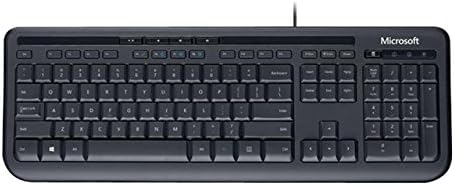
Figura 2: Dall'alto verso il basso view of the keyboard layout
Questa immagine fornisce una chiara visione dall'alto verso il basso view of the Microsoft Wired Keyboard, highlighting the full QWERTY key layout, function keys, numeric keypad, and the row of special hotkeys located above the function keys.
Funzioni dei tasti standard
- Tasti alfanumerici: Utilizzato per digitare lettere, numeri e simboli.
- Tasti funzione (F1-F12): Perform various tasks depending on the active application or operating system.
- Tastiera numerica: Located on the right, for efficient data entry.
- Tasti di navigazione: Arrow keys, Home, End, Page Up, Page Down for cursor movement and scrolling.
- Tasti modificatori: Shift, Ctrl, Alt, Windows key for combination shortcuts.
Special Keys (Hotkeys)
The keyboard features a row of dedicated hotkeys above the function keys for quick access to multimedia and system functions:
- Tasti di controllo multimediale: Riproduci/Pausa, Stop, Traccia precedente, Traccia successiva.
- Tasti di controllo del volume: Disattiva audio, Abbassa volume, Alza volume.
- Chiave della calcolatrice: Instantly launches the system's calculator application.
- Other Programmable Keys: Some models may include additional keys that can be customized through operating system settings or Microsoft keyboard software (if available).
Familiarize yourself with these keys to enhance your productivity.
5. Manutenzione
Proper care and maintenance will extend the life of your Microsoft Wired Keyboard.
- Pulizia:
- Scollegare la tastiera dal computer prima di pulirla.
- Utilizzare leggermente un panno morbido e privo di lanugine dampcon acqua o una soluzione detergente delicata e non abrasiva.
- Wipe the surface of the keys and the keyboard casing.
- Per rimuovere polvere e detriti tra i tasti, utilizzare aria compressa.
- Non fare immerse the keyboard in water or use harsh chemicals.
- Resistenza agli schizzi: While the keyboard is splash-resistant, it is not waterproof. Avoid exposing it to excessive liquids. In case of a spill, disconnect immediately, wipe dry, and allow to air dry completely before reconnecting.
- Magazzinaggio: Quando non viene utilizzata per lunghi periodi, conservare la tastiera in un ambiente pulito e asciutto, lontano da temperature estreme.
- Cura del cavo: Evitare piegature o attorcigliamenti bruschi nel cavo USB per evitare danni.
6. Risoluzione Dei Problemi
Se riscontri problemi con la tastiera, fai riferimento ai seguenti problemi comuni e alle relative soluzioni:
| Problema | Possibile causa | Soluzione |
|---|---|---|
| La tastiera non risponde | Connessione USB allentata, porta USB errata, problema con il driver. | Assicurati che il cavo USB sia collegato saldamente a una porta USB funzionante. Prova una porta USB diversa. Riavvia il computer. |
| Tasti specifici non funzionanti | Debris under the key, key mechanism damage. | Use compressed air to clear debris. If the key is physically damaged, contact support. |
| Hotkeys not functioning | Software conflict, operating system settings. | Ensure your operating system is up to date. Check keyboard settings in your OS control panel. |
| Unexpected behavior after liquid exposure | Internal components affected by liquid. | Immediately disconnect the keyboard. Allow it to dry completely for at least 24-48 hours in a well-ventilated area before attempting to reconnect. If issues persist, the keyboard may be damaged. |
Se il problema persiste dopo aver provato queste soluzioni, consultare la sezione Supporto.
7. Specifiche
Detailed technical specifications for the Microsoft Wired Keyboard (Model ANB-00021):
| Attributo | Dettaglio |
|---|---|
| Numero di modello | ANB-00021 |
| Marca | Microsoft |
| Tecnologia di connettività | USB (cablato) |
| Descrizione della tastiera | Standard QWERTY, USB |
| Caratteristica speciale | Resistente agli schizzi |
| Colore | Nero |
| Numero di chiavi | 600 (Note: This number is as per product specifications and may refer to total keypresses lifespan or a specific internal metric, not physical keys.) |
| Retroilluminazione della tastiera | None (Single Color support listed, but typically implies no backlighting for this model) |
| Stile | Moderno |
| Materiale | Plastica |
| Dimensioni del prodotto (L x P x A) | 8.66 x 3.15 x 1.18 pollici (22 x 8 x 3 cm circa) |
| Peso dell'articolo | 1.31 libbre (circa 0.59 kg) |
| Dispositivi compatibili | Laptop, PC, Tablet, Smartphone (via appropriate adapters if needed) |
| Produttore | Microsoft |
| Data prima disponibilità | 9 marzo 2011 |
8. Garanzia e supporto
For warranty information and technical support regarding your Microsoft Wired Keyboard, please refer to the official Microsoft support channels.
- Supporto online: Visita il supporto ufficiale Microsoft websito per FAQ, guide alla risoluzione dei problemi e download di driver.
- Contatta l'assistenza: For direct assistance, contact Microsoft customer service through their provided contact methods (phone, chat, email).
- Prova di acquisto: Conservare sempre la prova d'acquisto per eventuali reclami in garanzia.
Specific warranty terms and conditions may vary by region and purchase date. Please consult the documentation included with your product or the Microsoft websito per i dettagli sulla garanzia più accurati e aggiornati.


