Introduzione
The HP Procurve 1810G-24 Switch (J9450A) is a managed Gigabit Ethernet switch designed for small and medium-sized businesses. It provides reliable network connectivity with advanced features for enhanced performance and security. This manual provides essential information for the setup, operation, maintenance, and troubleshooting of your switch.

Figure 1: HP Procurve 1810G-24 Switch (J9450A) - Front Angled View
This image shows the overall design of the HP Procurve 1810G-24 Switch, highlighting its compact form factor and the arrangement of its ports and indicators.
Contenuto della confezione
Verificare che tutti gli articoli siano presenti nel pacco:
- HP Procurve 1810G-24 Switch (J9450A)
- Cavo di alimentazione
- Kit di montaggio su rack
- Cavo della console
Impostare
1. Installazione fisica
The HP Procurve 1810G-24 Switch can be placed on a desktop or mounted in a standard 19-inch equipment rack using the included rack-mount kit.
- Montaggio su rack: Attach the rack-mount brackets to the sides of the switch using the provided screws. Secure the switch into the rack.
- Posizionamento sul desktop: Ensure adequate ventilation around the switch. Do not block any ventilation openings.
2. Collegamento elettrico
Connect the provided power cable to the power inlet on the rear of the switch and then to a grounded AC power outlet. The switch will power on automatically.

Figure 2: Rear Panel of the Switch
This image displays the rear panel of the HP Procurve 1810G-24 Switch, showing the power input and product labels.
3. Connessioni di rete
Connect your network devices (computers, servers, other switches) to the RJ45 ports on the front panel of the switch using standard Ethernet cables. The switch supports 10/100/1000 Mbps connections.

Figure 3: Front Panel of the Switch
Questa immagine fornisce una chiara view of the front panel of the HP Procurve 1810G-24 Switch, detailing the 24 Gigabit Ethernet ports and indicator lights.
The switch also features dual-personality ports (ports 23 and 24) which can function as either 10/100/1000 RJ45 ports or mini-GBIC (SFP) slots for optional fiber connectivity (e.g., Gigabit-SX, -LX, -LH, or 100-FX).

Figure 4: Front Panel Indicators and Controls
This close-up image highlights the power indicator, fault locator, LED mode, and speed indicators on the front panel of the HP Procurve 1810G-24 Switch.
Azionamento dell'interruttore
Web Gestione dell'interfaccia
The HP Procurve 1810G-24 Switch features an intuitive web-based management interface for configuration, monitoring, and administration. To access the web interfaccia:
- Assicurati che il computer sia collegato allo switch.
- Aprire un web browser and enter the default IP address of the switch (refer to the product documentation or sticker for the default IP).
- Log in using the default credentials (if applicable).
- Dal web interface, you can configure various settings, including:
- VLAN Support and Taginvecchiamento: Configure up to 64 port-based VLANs and dynamic IEEE 802.1Q VLAN tagging for network segmentation and security.
- Configurazione della porta: Adjust port speed, duplex settings, and enable/disable ports.
- Aggregazione link: Combina più porte per aumentare la larghezza di banda e la ridondanza.
- Qualità del servizio (QoS): Dare priorità al traffico di rete per le applicazioni critiche.
Indicatori LED
I LED del pannello frontale forniscono informazioni visive sullo stato dello switch e delle sue porte:
- LED di potenza: Indica lo stato dell'alimentazione.
- Fault Locator LED: Indicates system faults.
- LED di collegamento/attività (per porta):
- Verde fisso: collegamento stabilito.
- Verde lampeggiante: attività sulla porta.
- LED di velocità (per porta):
- Off: 10 Mbps
- Flash: 100 Mbps
- On: 1000 Mbps (Gigabit)
Manutenzione
The HP Procurve 1810G-24 Switch is designed for low maintenance. It operates without internal fans, contributing to a quiet environment and reduced dust accumulation.
- Aggiornamenti del firmware: Periodically check the official HP website for firmware updates to ensure optimal performance and security. Follow the instructions provided with the firmware update package.
- Pulizia: Utilizzare un panno morbido e asciutto per pulire l'esterno dell'interruttore. Non utilizzare detergenti liquidi o spray.
- Ventilazione: Assicurarsi che le aperture di ventilazione non siano ostruite per evitare il surriscaldamento.
Risoluzione dei problemi
Nessun potere
- Verificare che il cavo di alimentazione sia collegato saldamente sia all'interruttore che alla presa di corrente.
- Assicurati che la presa di corrente sia funzionante testandola con un altro dispositivo.
Nessuna spia di collegamento sulla porta
- Controllare la connessione del cavo Ethernet su entrambe le estremità (switch e dispositivo collegato).
- Prova un cavo Ethernet diverso.
- Testare la porta con un dispositivo sicuramente funzionante.
- Assicurarsi che il dispositivo collegato sia acceso e funzioni correttamente.
Connectivity Issues After Power Failure
In some rare instances, the switch may not fully restore network connectivity to all ports immediately after a power outage. If this occurs:
- Ciclo di alimentazione: Disconnect the power cable from the switch, wait for approximately 30 seconds, and then reconnect it.
- Reseat Cables: Physically disconnect and reconnect the Ethernet cables for affected devices.
- Ripristino di fabbrica: If issues persist, a factory reset may be necessary. This will revert all settings to their default values. Consult the detailed product manual for the specific procedure, which often involves using a small pointed object (like a paperclip) to press a reset button.
Web Interfaccia inaccessibile
- Verifica che l'indirizzo IP del tuo computer si trovi nella stessa subnet dell'indirizzo IP predefinito dello switch.
- Cancella la cache e i cookie del browser.
- Prova un'altra web browser.
- Perform a factory reset if you have forgotten the login credentials or if the interface remains unresponsive.
Specifiche
| Caratteristica | Descrizione |
|---|---|
| Numero di modello | Modello J9450A |
| Tipo di interruttore | Switch Gigabit Ethernet gestito |
| Numero di porte | 24 (22 x 10/100/1000BASE-T, 2 x Dual-Personality 10/100/1000BASE-T or SFP) |
| Velocità di trasferimento dati | 1000 Megabit al secondo (Gigabit) |
| Tipo di interfaccia | RJ45, SFP |
| Materiale della cassa | Metallo |
| Dimensioni (L x P x A) | 17 x 7 x 2 pollici (circa) |
| Peso dell'articolo | 5 libbre |
| Potenza in ingresso | 100-127V ~ 0.75A (0.75A), 200-240V ~ 0.4A (0.4A) |
| Temperatura di esercizio | da 0°C a 40°C (da 32°F a 104°F) |
| Raffreddamento | Senza ventola |
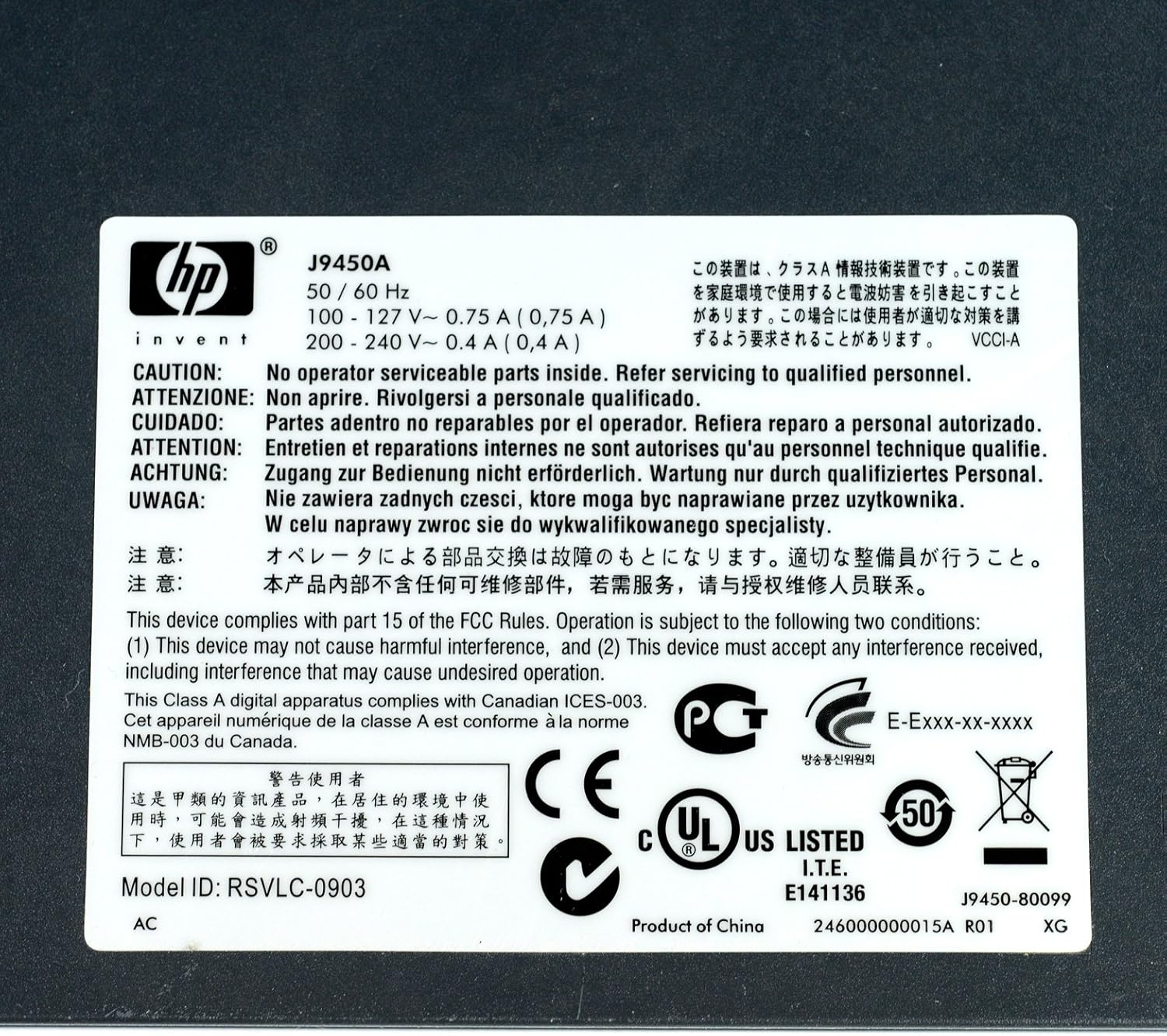
Figure 5: Product Label with Specifications
This image displays the product label, which includes the model number, electrical ratings, and various compliance marks.
Garanzia e supporto
Informazioni sulla garanzia
The HP Procurve 1810G-24 Switch typically comes with a Garanzia di sostituzione a vita for the original owner. Please refer to the official HP warranty documentation for complete terms and conditions, as warranty details may vary by region and purchase date.
Supporto tecnico
For technical assistance, product registration, or to download the latest drivers and firmware, please visit the official HP support website. Have your product model number (J9450A) and serial number ready when contacting support.
In genere puoi trovare risorse di supporto qui: www.hp.com/support


