1. Introduzione e oltreview
The Avision AV 320D2+ is a high-performance A3 document scanner designed for efficient and reliable document digitization. Featuring a 600 dpi optical resolution and USB connectivity, it is capable of handling a wide range of document sizes up to A3, making it suitable for various professional environments. This manual provides essential information for setting up, operating, maintaining, and troubleshooting your scanner.
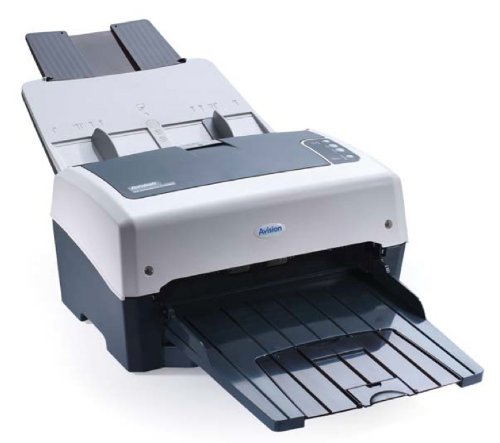
Figure 1: Avision AV 320D2+ A3 Document Scanner. This image displays the Avision AV 320D2+ A3 Document Scanner from a front-right perspective. The scanner is light grey and dark grey, featuring an automatic document feeder (ADF) at the top with paper guides visible, and an extended output tray at the front. The Avision logo is visible on the front panel.
2. Impostazione
2.1 Disimballaggio
- Estrarre con cautela lo scanner e tutti gli accessori dalla confezione.
- Verificare che tutti i componenti elencati nella lista di imballaggio siano presenti.
- Remove all protective tapes and packing materials from the scanner, including any inside the document feeder and output tray.
2.2 Collegamento dello scanner
- Place the scanner on a stable, flat surface near your computer.
- Connect the power adapter to the scanner's power input and then plug it into an electrical outlet.
- Collegare un'estremità del cavo USB in dotazione alla porta USB dello scanner e l'altra estremità a una porta USB disponibile sul computer.
- Power on the scanner using the power button, typically located on the side or rear panel.
2.3 Installazione del software
Before using the scanner, you must install the necessary drivers and scanning software. Refer to the included software CD or visit the official Avision website for the latest drivers and utilities.
- Insert the software installation CD into your computer's CD/DVD drive, or download the software package from the Avision support websito.
- Follow the on-screen instructions to install the scanner drivers and bundled scanning applications. It is recommended to install all provided software for full functionality.
- Riavviare il computer se richiesto al termine dell'installazione.
3. Funzionamento dello scanner
3.1 Caricamento dei documenti
- Alimentatore automatico di documenti (ADF): Open the ADF input tray. Adjust the paper guides to fit the width of your documents. Place the documents face-down with the top edge first into the ADF. The standard sheet capacity is 50 sheets.
- Ensure documents are free of staples, paper clips, or any foreign objects that could damage the scanner.
- For mixed-size documents, ensure they are aligned properly to prevent skewing.
3.2 Basic Scanning Procedures
- Caricare i documenti nell'ADF come descritto sopra.
- Open your preferred scanning application (e.g., Avision Button Manager, TWAIN/ISIS compatible software).
- Select the Avision AV 320D2+ as your scanner.
- Choose your desired scanning settings (e.g., color mode, resolution, destination folder).
- Avviare la scansione dall'interfaccia software. Lo scanner alimenterà e scannerizzerà automaticamente i documenti.
- Review le immagini scansionate e salvarle nella posizione desiderata.
3.3 Impostazioni di scansione
The scanner supports various settings to optimize scan quality and file misurare:
- Risoluzione: Adjustable up to 600 dpi. Higher resolution provides better image quality but results in larger file dimensioni.
- Modalità colore: Options typically include Color, Grayscale, and Black & White (Binary).
- Scansione fronte-retro: The AV 320D2+ supports duplex (two-sided) scanning, allowing you to capture both sides of a document in a single pass.
- Formato di output: Common output formats include PDF, JPEG, TIFF, and searchable PDF.
4. Manutenzione
4.1 Pulizia dello scanner
Una pulizia regolare garantisce prestazioni ottimali e prolunga la durata dello scanner.
- Esterno: Pulire le superfici esterne con un panno morbido, damppanno privo di lanugine. Non utilizzare detergenti abrasivi o solventi.
- Superfici in vetro: Utilizzare un panno morbido dampened with a non-abrasive glass cleaner to clean the scanner's glass surfaces (if applicable).
- Rulli: Periodically clean the feed rollers with a lint-free cloth lightly dampened with isopropyl alcohol to remove paper dust and residue.
- Prima di pulire lo scanner, spegnerlo e scollegarlo sempre.
5. Risoluzione Dei Problemi
This section addresses common issues you might encounter with your Avision AV 320D2+ scanner.
| Problema | Possibile causa | Soluzione |
|---|---|---|
| Scanner not detected by computer | Loose USB cable, power off, driver issue | Check USB connection, ensure scanner is powered on, reinstall drivers. |
| Inceppamenti della carta | Misaligned documents, worn rollers, foreign objects | Remove jammed paper carefully, align documents properly, clean rollers. |
| Scarsa qualità di scansione (strisce, immagini sfocate) | Dirty glass, incorrect settings, worn rollers | Clean scanner glass and rollers, adjust resolution/color settings. |
| Documents not feeding | Incorrectly loaded, worn feed rollers | Ensure documents are loaded correctly, clean or replace feed rollers if worn. |
6. Specifiche
Key technical specifications for the Avision AV 320D2+ scanner:
- Tipo di prodotto: Scanner per documenti
- Formato cartaceo: A3
- Risoluzione: 600 dpi (ottico)
- Connettività: USB
- Colore: Nero/Bianco
- Peso: Circa 26.46 libbre (12 kg)
- Consumo energetico: 38.4 Watt
- Capacità standard dei fogli (ADF): 50 fogli
- Tecnologia del sensore ottico: CMOS
- Nome modello: AV320D2+
- Numero modello articolo: FT-0807H
7. Garanzia e supporto
7.1 Garanzia del produttore
The Avision AV 320D2+ scanner typically comes with a Garanzia del produttore di 2 anni. This warranty covers defects in materials and workmanship under normal use. Please retain your proof of purchase for warranty claims. For specific terms and conditions, refer to the warranty card included with your product or visit the official Avision websito.
7.2 Supporto tecnico
For technical assistance, driver updates, or further troubleshooting not covered in this manual, please contact Avision customer support. Support contact information can usually be found on the Avision official websito o nella documentazione fornita con lo scanner.
Note: Availability of spare parts and software updates may vary. Please check the manufacturer's official channels for the most current information.


