1. Introduzione
This manual provides detailed instructions for the setup, operation, and maintenance of your Targus AKB32ES Wireless Keyboard. This device is designed to enhance your typing experience with compatible devices, such as iPads and smartphones, through Bluetooth connectivity. Please read this manual thoroughly before using the product.
2. Contenuto della confezione
- Targus AKB32ES Wireless Keyboard (Spanish QWERTY Layout)
- Manuale dell'utente (questo documento)
Nota: Batteries are not included and must be purchased separately. The iPad or other compatible device shown in product images is not included.
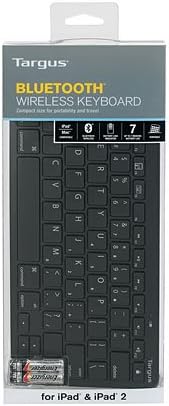
Image: The Targus AKB32ES Wireless Keyboard shown in its retail packaging. The packaging displays the Targus brand and indicates Bluetooth connectivity.
3. Impostazione
3.1 Installazione della batteria
The Targus AKB32ES keyboard requires Alkaline batteries for operation. Follow these steps to install them:
- Individuare il coperchio del vano batteria sul lato inferiore della tastiera.
- Per aprire il vano, far scorrere o sollevare delicatamente il coperchio.
- Insert the required Alkaline batteries, ensuring correct polarity (+/-) as indicated inside the compartment.
- Riposizionare il coperchio del vano batteria finché non scatta saldamente in posizione.
3.2 Associazione Bluetooth
To connect your keyboard to an iPad or other compatible device via Bluetooth:
- Ensure the keyboard has fresh batteries and is powered on. Look for a power switch or indicator light.
- Activate the Bluetooth pairing mode on the keyboard. This usually involves pressing a dedicated Bluetooth button or a combination of keys (refer to specific keyboard markings if available). An indicator light on the keyboard may flash to show it is in pairing mode.
- On your iPad or compatible device, navigate to Impostazioni > Bluetooth.
- Assicurati che il Bluetooth sia attivato On.
- Your device will scan for available Bluetooth devices. Locate "Targus AKB32ES" or a similar name in the list of devices.
- Tap on the keyboard's name to initiate the pairing process.
- If prompted, enter the displayed pairing code on your Targus keyboard and press Entrare.
- Once successfully paired, the keyboard's indicator light may change or turn off, and your device will show the keyboard as "Connected."

Image: The Targus AKB32ES Wireless Keyboard positioned next to an iPad, which is held upright in a separate stand. This illustrates a typical setup for use.
4. Utilizzo della tastiera
4.1 Digitazione di base
The Targus AKB32ES features a standard Spanish QWERTY layout. Simply open any text input application on your paired device and begin typing. The input will appear on your screen.
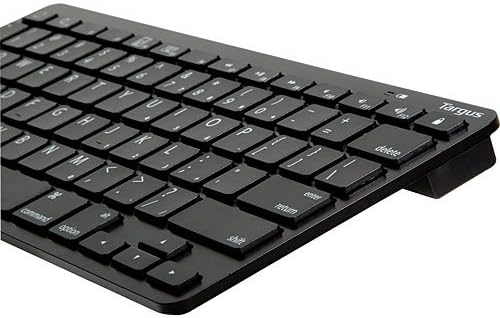
Immagine: un primo piano view of the Targus AKB32ES keyboard, highlighting the Spanish QWERTY key layout, including special characters and function keys.
4.2 Tasti funzione speciali
The keyboard includes dedicated function keys for enhanced control over your device. These keys may vary slightly in functionality depending on your operating system (e.g., iOS, Android). Common functions include:
- Home/Lock Screen: A key often depicted with a house icon or lock symbol, used to return to the home screen or lock/unlock the device.
- Controllo del volume: Keys for increasing, decreasing, or muting audio volume.
- Riproduzione multimediale: Keys for play/pause, skip track, or previous track.
- Controllo della luminosità: Keys to adjust screen brightness.
Refer to the keycap legends for specific icons and their corresponding functions.
5. Manutenzione
5.1 Pulizia
Per mantenere l'aspetto e la funzionalità della tastiera:
- Prima di procedere alla pulizia, assicurarsi che la tastiera sia spenta.
- Utilizzare un panno morbido e privo di lanugine leggermente dampcon acqua o una soluzione detergente delicata e non abrasiva.
- Pulisci delicatamente i tasti e la superficie. Evita l'eccessiva umidità.
- Non spruzzare detergenti direttamente sulla tastiera.
- Per rimuovere i detriti tra i tasti, utilizzare aria compressa.
5.2 Sostituzione della batteria
When the keyboard's performance degrades or the indicator light signals low battery, replace the batteries following the steps in Section 3.1. Always use new Alkaline batteries of the specified type.
6. Risoluzione Dei Problemi
If you encounter issues with your Targus AKB32ES keyboard, try the following solutions:
- La tastiera non si accende: Controllare che le batterie siano installate correttamente e abbiano una carica sufficiente. Sostituire le batterie se necessario.
- Impossibile effettuare l'associazione tramite Bluetooth:
- Assicurarsi che la tastiera sia in modalità di associazione (spia luminosa lampeggiante).
- Verifica che il Bluetooth sia abilitato sul tuo dispositivo.
- Avvicina la tastiera al tuo dispositivo.
- Elimina il dispositivo dalle impostazioni Bluetooth del tuo dispositivo e prova a riassociarlo.
- Restart both the keyboard (by turning off and on) and your device.
- I tasti non rispondono:
- Controllare il livello della batteria.
- Ensure the keyboard is still connected via Bluetooth.
- Prova ad associare nuovamente la tastiera.
- Pulisci eventuali detriti attorno ai tasti interessati.
- Unexpected characters or layout issues: Ensure your device's language and keyboard settings are configured for a Spanish QWERTY layout.
7. Specifiche
| Marca | Targa |
| Numero di modello | AKB32ES |
| Tecnologia di connettività | Bluetooth |
| Disposizione della tastiera | Spanish (QWERTY) |
| Colore | Nero |
| Dispositivi compatibili | iPad, Smartphone (Bluetooth-enabled devices) |
| Tipo di batteria | Alcalina (non inclusa) |
| Dimensioni del prodotto | Circa 34.2 x 13.2 x 3.4 cm |
| Peso del prodotto | Circa 381 g |
| Caratteristica speciale | Design ergonomico |

Immagine: Un angolo view of the Targus AKB32ES Wireless Keyboard, showcasingrazie al suo design compatto ed ergonomico.
8. Garanzia e supporto
Per informazioni sulla copertura della garanzia, sul supporto tecnico o per accedere a risorse aggiuntive, visitare il sito ufficiale Targus website. You can typically find contact information and support sections on their main page.
Targus Ufficiale Websito: www.targus.com


