1. Introduzione
This manual provides detailed instructions for the installation, configuration, and operation of your TP-Link N600 Wireless Dual Band Gigabit Router, model TL-WDR3600. This device offers simultaneous 2.4GHz and 5GHz wireless connections, Gigabit Ethernet ports, and USB ports for enhanced network functionality. Please read this manual thoroughly to ensure proper use and optimal performance of your router.
2. Prodotto finitoview
2.1 Caratteristiche principali
- Simultaneous 2.4GHz 300Mbps and 5GHz 300Mbps connections for 600Mbps total available bandwidth.
- Two USB ports for sharing printers, files, or media locally or over the Internet.
- Full Gigabit Ethernet ports for ultimate wired transfer speeds.
- Hardware NAT for WAN to LAN throughput exceeding 800Mbps.
- Built-in media server for sharing music, video, and photos with devices like Windows Media Player, PS3, or Xbox 360.
- Built-in print server for wireless printing from various computers by connecting a USB printer.
- Simple wireless security encryption via the WPS button.
- External detachable antennas for improved alignment and potential upgrades.
2.2 Contenuto della confezione
I seguenti elementi dovrebbero essere inclusi nella confezione del prodotto:
- TP-Link TL-WDR3600 Wireless N600 Dual Band Router
- Adattatore di alimentazione
- Cavo Ethernet
- Guida di installazione rapida
- CD delle risorse
2.3 Prodotto Views

Immagine 1: Davanti view of the TP-Link TL-WDR3600 N600 Wireless Dual Band Gigabit Router, showing the status indicator lights and the TP-Link logo.
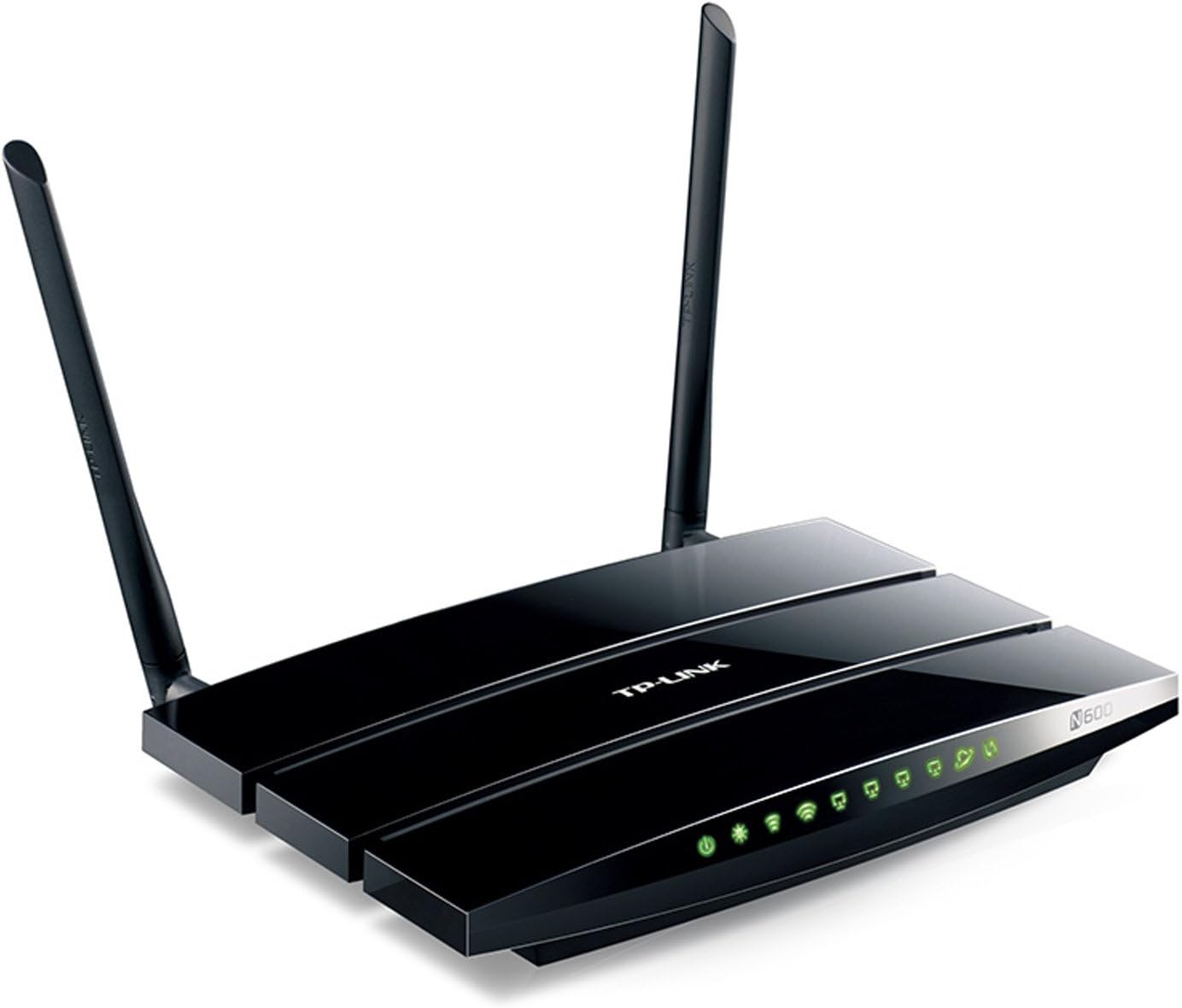
Immagine 2: Angolato view of the TP-Link TL-WDR3600 N600 Wireless Dual Band Gigabit Router, highlighting the two external detachable antennas and the rear ports.
3. Guida all'installazione
Follow these steps to set up your TP-Link TL-WDR3600 router:
- Spegni il modem: Scollegare l'alimentazione dal modem esistente.
- Collegare il router:
- Connect one end of the Ethernet cable to the WAN port (usually blue) on the router.
- Collegare l'altra estremità del cavo Ethernet alla porta Ethernet del modem.
- Connect your computer to one of the LAN ports (yellow) on the router using another Ethernet cable, or connect wirelessly using the default Wi-Fi name (SSID) and password found on the router's label.
- Accendi i dispositivi: First, power on your modem and wait for it to fully boot up (usually indicated by stable lights). Then, power on your TP-Link router.
- Access the Router's Web Interfaccia:
- Aprire un web browser (ad esempio, Chrome, Firefox, Edge).
- Type the default access address (e.g., tplinkwifi.net or 192.168.0.1) nella barra degli indirizzi e premere Invio.
- Inserisci il nome utente e la password predefiniti (di solito amministratore per entrambi, riportato sull'etichetta del router).
- Run the Quick Setup Wizard: Follow the on-screen instructions of the Quick Setup Wizard to configure your Internet connection, wireless network names (SSIDs), and passwords. It is highly recommended to change the default login password for security.
- Collega i tuoi dispositivi: Once configured, connect your wireless devices to the new Wi-Fi networks (2.4GHz or 5GHz) using the passwords you set.
4. Istruzioni per l'uso
4.1 Connettività wireless
The TL-WDR3600 supports dual-band Wi-Fi, allowing you to connect devices to either the 2.4GHz or 5GHz network.
- Banda da 2.4 GHz: Offers wider coverage and better penetration through walls, suitable for general internet use and older devices.
- Banda da 5 GHz: Provides faster speeds and less interference, ideal for bandwidth-intensive activities like online gaming and HD video streaming, especially for newer devices.
To connect a device, select the appropriate Wi-Fi network (SSID) from your device's Wi-Fi settings and enter the password.
4.2 Funzionalità della porta USB
The router features two USB 2.0 ports for versatile functionality:
- Condivisione dell'archiviazione: Collegare un dispositivo di archiviazione USB (ad esempio, un'unità flash, un disco rigido esterno) per condividere files across your network or remotely via FTP. Configure this feature in the router's web interface under "USB Settings" or "Storage Sharing."
- Condivisione stampante: Connect a USB printer to the router to enable wireless printing from any computer on your network. You will need to install the TP-Link USB Printer Controller Utility on each computer that will use the shared printer.
- Server multimediale: Utilize the built-in media server to stream media files (music, videos, photos) from a connected USB storage device to DLNA-compatible devices such as smart TVs, game consoles (PS3, Xbox 360), or media players.
4.3 Rete ospite
The Guest Network feature allows you to provide internet access to guests without giving them access to your main network resources. This enhances security. You can enable and configure separate SSIDs and passwords for guest networks via the router's web interfaccia.
5. Manutenzione
- Aggiornamenti del firmware: Controllare regolarmente il TP-Link website for firmware updates. Updating the firmware can improve performance, add new features, and fix security vulnerabilities. Download the correct firmware for your model and follow the instructions provided on the TP-Link support page for installation.
- Posizionamento del router: Place the router in a central location, away from obstructions (e.g., thick walls, metal objects) and sources of interference (e.g., microwaves, cordless phones) to maximize wireless coverage and signal strength.
- Pulizia: Mantenere il router pulito e privo di polvere. Assicurare una ventilazione adeguata per evitare il surriscaldamento.
- Riavvii regolari: Periodically rebooting your router (power cycling) can help resolve minor network issues and improve performance.
6. Risoluzione Dei Problemi
6.1 Nessun accesso a Internet
- Controlla tutti i collegamenti via cavo tra modem, router e computer. Assicurati che siano saldi.
- Verify that your modem is working correctly by connecting a computer directly to it.
- Reboot your modem and router in sequence: first the modem, then the router.
- Accedi al router web interface and check the WAN status. Ensure your Internet Service Provider (ISP) settings are correctly configured.
- If your ISP requires MAC Address Cloning, configure this in the router's WAN settings.
6.2 Velocità wireless lenta
- Ensure your devices are connected to the appropriate band (5GHz for faster speeds, if supported).
- Reduce interference by placing the router away from other electronic devices.
- Change the wireless channel in the router's settings to avoid congestion with neighboring networks. Use a Wi-Fi analyzer tool to find less crowded channels.
- Aggiorna i driver dell'adattatore wireless sui dispositivi client.
6.3 Impossibile accedere al router Web Interfaccia
- Assicurati che il tuo computer sia connesso al router tramite Ethernet o Wi-Fi.
- Verify that you are using the correct IP address or domain name (e.g., tplinkwifi.net, 192.168.0.1).
- Svuota la cache e i cookie del browser oppure prova un browser diverso.
- Disattiva temporaneamente qualsiasi firewall o software antivirus sul tuo computer.
- If you forgot the login password, you may need to perform a factory reset on the router. Locate the reset button (usually a small pinhole) on the router, press and hold it for about 10 seconds while the router is powered on, then release. This will restore the router to its default settings.
7. Specifiche
| Marca | TP-Link |
| Nome del modello | TL-WDR3600 |
| Tipo senza fili | 802.11n |
| Classe di banda di frequenza | Doppia banda (2.4 GHz e 5 GHz) |
| Velocità wireless | Up to 300Mbps (2.4GHz) + 300Mbps (5GHz) |
| Porte Ethernet | 4x Gigabit LAN, 1x Gigabit WAN |
| Porte USB | 2x USB 2.0 |
| Antenne | 2x Detachable External Antennas |
| Dimensioni (LxWxH) | 12.4 x 2.76 x 9.45 pollici |
| Compatibilità del sistema operativo | Finestre, Mac |
| Voltage | 12 Volt |
8. Garanzia e Supporto Tecnico
For warranty information, technical support, firmware updates, and additional resources, please visit the official TP-Link website. You can typically find support contact details, FAQs, and product documentation specific to the TL-WDR3600 model on their support pages.
TP-Link Ufficiale Websito: www.tp-link.com


