1. Introduzione
This manual provides instructions for the setup, operation, and maintenance of your Logitech MK750 Wireless Solar Keyboard and Marathon Mouse Combo. This combo offers a power-efficient solution for your computing needs, featuring a solar-powered keyboard and a mouse with extended battery life, both connected via Logitech Unifying technology.

Image 1.1: The Logitech MK750 Wireless Solar Keyboard and Marathon Mouse Combo, showcasing the full-size keyboard with solar panels and the ergonomic mouse.
2. Contenuto della confezione
Verifica che tutti gli articoli siano presenti nel tuo pacco:
- Logitech Wireless Solar Keyboard K750
- Logitech Marathon Mouse M705
- Ricevitore unificante Logitech
- Documentazione utente (questo manuale)
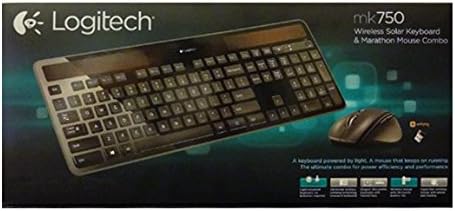
Image 2.1: Retail packaging for the Logitech MK750 Wireless Solar Keyboard and Marathon Mouse Combo.
3. Impostazione
3.1. Connecting the Unifying Receiver
- Locate the Logitech Unifying Receiver in your package.
- Collegare Unifying Receiver a una porta USB disponibile sul computer.
- Your computer should automatically detect the receiver and install necessary drivers.
3.2. Configurazione della tastiera
- Ensure the keyboard is exposed to light to begin charging. The keyboard is powered by ambient light, both indoors and outdoors.
- Turn the keyboard power switch to the ON position. The power switch is typically located on the top right edge of the keyboard.
- The keyboard should automatically connect to the Unifying Receiver. If not, use the Logitech Unifying Software (available for download from the Logitech website) to pair the devices.
3.3. Configurazione del mouse
- Open the battery compartment on the underside of the Marathon Mouse.
- Inserire la batteria AA inclusa, assicurandosi della corretta polarità.
- Chiudere il vano batterie.
- Turn the mouse power switch to the ON position. The power switch is typically located on the underside of the mouse.
- The mouse should automatically connect to the Unifying Receiver. If not, use the Logitech Unifying Software to pair the devices.
4. Istruzioni per l'uso
4.1. Caratteristiche della tastiera
- Ricarica solare: The keyboard features integrated solar panels that charge the internal battery using any light source.
- Indicatore della batteria: A dedicated battery indicator light or button (often F12) can be used to check the keyboard's charge level. Green indicates sufficient charge, red indicates low charge.
- Tasti funzione: The F1-F12 keys have secondary functions (e.g., media control, volume adjustment) accessible by pressing the 'Fn' key simultaneously.
- Logitech Solar App: Download the Logitech Solar App to monitor the keyboard's charge level and light intensity in real-time.
4.2. Caratteristiche del mouse
- Scorrimento iperveloce: The scroll wheel can switch between hyper-fast scrolling (for long documents) and click-to-click scrolling (for precision). This is typically toggled by a button behind the scroll wheel.
- Pulsanti programmabili: The mouse features multiple buttons that can be customized using Logitech Options software (available for download from the Logitech webposto).
- Gestione energetica: The mouse has an ON/OFF switch on its underside to conserve battery life when not in use.
5. Manutenzione
5.1. Pulizia
- Scollegare i dispositivi dal computer prima di pulirli.
- Utilizzare un panno morbido e privo di lanugine leggermente damplucidato con acqua o una soluzione detergente delicata.
- Avoid harsh chemicals, abrasive cleaners, or spraying liquids directly onto the devices.
- For the keyboard's solar panels, gently wipe them to ensure optimal light absorption.
5.2. Battery Replacement (Mouse)
The Marathon Mouse uses one AA battery. While designed for long battery life, replacement will eventually be necessary.
- Spegnere il mouse utilizzando l'interruttore di alimentazione posto nella parte inferiore.
- Aprire il vano batteria.
- Rimuovere la vecchia batteria AA.
- Insert a new AA battery, observing correct polarity.
- Chiudere il vano batterie e riaccendere il mouse.
6. Risoluzione Dei Problemi
6.1. I dispositivi non rispondono
- Controlla la potenza: Assicurarsi che sia la tastiera che il mouse siano accesi.
- Collegamento del ricevitore: Verify the Unifying Receiver is securely plugged into a working USB port. Try a different USB port.
- Livello della batteria: For the keyboard, ensure it has sufficient light exposure. For the mouse, check or replace the AA battery.
- Riassociazione: Use the Logitech Unifying Software to re-pair the keyboard and mouse with the receiver.
- Interferenza: Move the devices closer to the receiver. Avoid placing them near other wireless devices or large metal objects that might cause interference.
6.2. Keyboard Not Charging
- Ensure the solar panels are clean and unobstructed.
- Place the keyboard in a well-lit area. Both natural and artificial light sources can charge the keyboard.
- Use the Logitech Solar App to check the light intensity and charging status.
7. Specifiche
| Marca | Logitech |
| Numero di modello | 920-004861 |
| Tecnologia di connettività | Radio Frequency (Logitech Unifying) |
| Fonte di alimentazione della tastiera | Solar, Internal Rechargeable Battery |
| Fonte di alimentazione del mouse | 1 batteria AA |
| Compatibilità del sistema operativo | Windows XP e versioni successive |
| Dimensioni della tastiera (LxWxH) | Circa 19 x 7.9 x 1.4 pollici |
| Peso dell'articolo | Circa 3 libbre (combo) |
8. Garanzia e supporto
Logitech products are designed for reliability and performance. For specific warranty information regarding your MK750 Wireless Solar Keyboard and Marathon Mouse Combo, please refer to the warranty card included with your product or visit the official Logitech support websito.
For technical support, driver downloads, or additional product information, please visit support.logi.com. You can find FAQs, troubleshooting guides, and contact options for customer service.


