Introduzione
This manual provides essential information for setting up, operating, and maintaining your Microsoft Xbox 360 E 250GB Console. Please read this guide thoroughly before using your console to ensure proper function and longevity.
Contenuto della confezione
Verifica che il pacco contenga i seguenti articoli:
- Xbox 360 E 250GB Console
- Xbox 360 Wireless Controller (Black)
- Alimentazione e cavo di alimentazione
- Cavo HDMI
- AA Batteries for Wireless Controller
Console finitaview
Familiarize yourself with the various ports and buttons on your Xbox 360 E console.

Image: Microsoft Xbox 360 E 250GB Console. This image displays the front and side view of the Xbox 360 E console, showing its compact design and disc drive slot.
Pannello frontale
- Pulsante di accensione: Turns the console on or off.
- Unità disco: Insert game discs or DVDs.
- Porte USB: Connect accessories like USB drives or wired controllers.
- Controller Connect Button: Used to wirelessly sync controllers.
Pannello posteriore
- Porta di alimentazione: Collegare l'alimentazione.
- Porta HDMI: Connect to a TV or monitor for high-definition video and audio.
- Porta AV: For older composite or component cables (not included with all models).
- Porta Ethernet: Connettersi a una rete cablata.
- Porte USB: Additional ports for accessories.
Wireless Controller Overview
The Xbox 360 Wireless Controller allows for intuitive gameplay. Familiarize yourself with its buttons and functions.
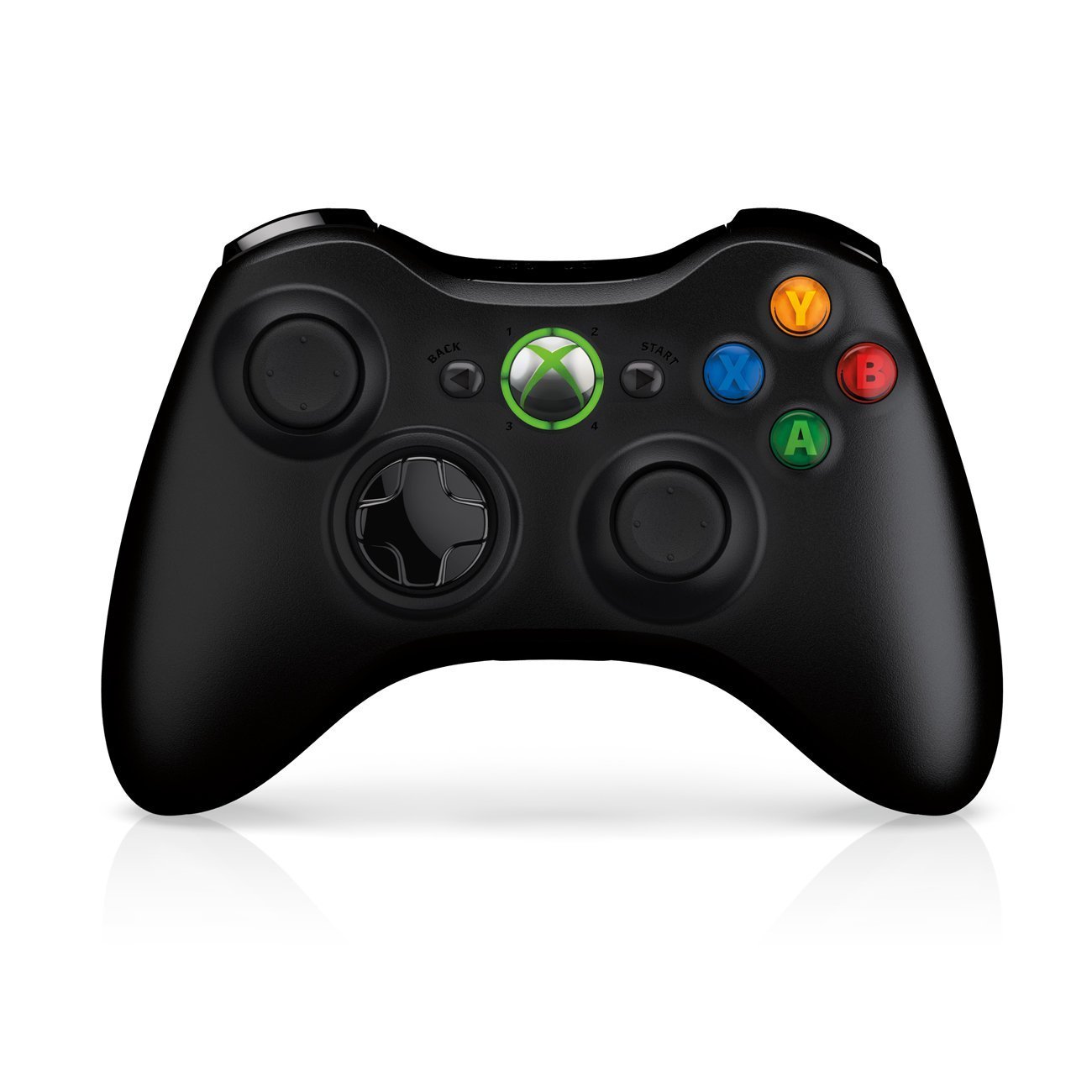
Image: Xbox 360 Wireless Controller. This image displays the front view of the black wireless controller, highlighting the D-pad, analog sticks, face buttons (A, B, X, Y), Guide button, Start button, and Back button.
Pulsanti e funzioni del controller
- Stick analogici sinistro/destro: Per il controllo del movimento e della telecamera.
- D-Pad (tastiera direzionale): For menu navigation and specific game controls.
- Pulsanti A, B, X, Y: Primary action buttons, color-coded (Green A, Red B, Blue X, Yellow Y).
- Pulsante di avvio: Pauses games or opens in-game menus.
- Pulsante Indietro: Returns to previous screens or opens specific game functions.
- Guide Button (Xbox Logo): Powers on the console, accesses the Xbox Guide, or turns off the controller.
- Left/Right Bumpers (LB, RB): Pulsanti dorsali per varie azioni di gioco.
- Left/Right Triggers (LT, RT): Analog triggers for precise control, often used for acceleration/braking or firing weapons.
Installazione della batteria
The wireless controller requires two AA batteries. To install:
- Press the tab on the top of the battery pack and pull down to remove it.
- Inserire due batterie AA, assicurandosi della corretta polarità (+/-).
- Slide the battery pack back into the controller until it clicks into place.
Guida all'installazione
1. Collegamento della console
- Collegamento elettrico: Connect the power cord to the power supply, then connect the power supply to the console's power port. Plug the power cord into a wall outlet.
- Video/Audio Connection: Connect one end of the HDMI cable to the HDMI port on the back of your Xbox 360 E console. Connect the other end to an available HDMI input on your TV or monitor.
- Connessione Internet (facoltativa): For wired internet, connect an Ethernet cable from your router/modem to the Ethernet port on the console. For wireless, the console has built-in Wi-Fi.
2. Connecting the Wireless Controller
- Ensure batteries are installed in the controller.
- Turn on the console by pressing the Power button on the console or the Guide button on the controller.
- Press and release the Connect button on the console (small button near the USB ports on the front).
- Within 20 seconds, press and release the Connect button on the controller (small button on the top edge, between the bumpers).
- The lights around the Guide button on the controller and the console will flash and then glow steadily, indicating a successful connection.
3. Initial Power On and System Settings
After connecting, turn on your console. Follow the on-screen prompts to:
- Seleziona la tua lingua e la tua regione.
- Adjust display settings (resolution, aspect ratio).
- Set up your internet connection (wired or wireless).
- Create or sign in to an Xbox Live profile.
Operating Your Console
Giocare a giochi e media
- Turn on your console and TV.
- Open the disc tray by pressing the eject button on the console.
- Place a game disc or DVD/Blu-ray disc into the tray, label side up.
- Close the disc tray. The console should automatically start the game or media. If not, select it from the dashboard.
- Digital games can be launched directly from the Xbox Dashboard.
Connecting to Xbox Live
Xbox Live allows you to play online, download games and content, and access streaming services. Ensure your console is connected to the internet.
- From the Xbox Dashboard, navigate to the "Social" or "Settings" tab.
- Select "Join Xbox Live" or "Network Settings" to configure your connection and create/manage your profile.
- A 1-month Xbox LIVE Gold trial may be included with your console.
Impostazioni di sistema
Access system settings to customize your console experience:
- Schermo e suono: Adjust resolution, audio output, and screen format.
- Magazzinaggio: Manage your 250GB hard drive, view free space, and delete content.
- Impostazioni di rete: Configure wired or wireless internet connections.
- Family Settings: Set parental controls for content and online access.
Manutenzione
Cleaning Your Console
- Always power off and unplug the console before cleaning.
- Use a soft, dry, lint-free cloth to wipe down the exterior of the console and controller.
- Non utilizzare detergenti liquidi, spray o materiali abrasivi.
- Keep ventilation openings clear of dust and obstructions to ensure proper airflow.
Conservazione e posizionamento
- Place the console on a stable, flat surface.
- Ensure adequate ventilation around the console. Do not place it in an enclosed cabinet or on soft surfaces that can block vents.
- Avoid exposing the console to direct sunlight, excessive heat, or extreme cold.
Risoluzione dei problemi
If you encounter issues with your Xbox 360 E console, refer to the following common solutions:
Nessuna alimentazione / La console non si accende
- Ensure the power cord is securely connected to the console, power supply, and wall outlet.
- Check the power supply unit (PSU) indicator light. If it's off or red, try a different outlet or contact support.
- Prova una presa di corrente diversa.
Nessuna uscita video o audio
- Verify the HDMI cable is securely connected to both the console and your TV/monitor.
- Assicurati che il televisore/monitor sia impostato sulla sorgente di ingresso HDMI corretta.
- Prova un cavo HDMI diverso o una porta HDMI diversa sul televisore.
- Controlla il volume e le impostazioni di disattivazione dell'audio del televisore.
Errori di lettura del disco
- Assicurarsi che il disco sia pulito e privo di graffi o macchie. Pulire delicatamente con un panno morbido, procedendo dal centro verso l'esterno.
- Try a different game or movie disc to determine if the issue is with the disc or the console.
- Ensure the console is placed on a stable, flat surface and not being moved during disc operation.
Wireless Controller Not Connecting
- Assicurarsi che il controller abbia batterie nuove.
- Resync the controller by pressing the Connect buttons on both the console and controller as described in the "Setup Guide".
- Assicurarsi che non vi siano forti interferenze wireless nelle vicinanze.
For further assistance, please refer to the official Microsoft Xbox support websito.
Specifiche
| Caratteristica | Dettaglio |
|---|---|
| Numero di modello | M9V-00001 |
| Magazzinaggio | Disco rigido 250 GB |
| Connettività wireless | Wi-Fi integrato |
| Controllore | 1 Black Wireless Controller |
| Codice regione | Formato NTSC |
| Dimensioni del prodotto | 12 x 6 x 24 pollici |
| Peso dell'articolo | 10.32 libbre |
| Batterie richieste | 2 AA batteries for controller |
| Data di rilascio | 1 giugno 2013 |
Informazioni sulla garanzia
For detailed warranty information regarding your Microsoft Xbox 360 E 250GB Console, please refer to the warranty card included with your product or visit the official Microsoft Xbox support websito. I termini e le condizioni della garanzia possono variare in base alla regione e alla data di acquisto.
Supporto
If you require technical assistance, have questions about your console, or need to report an issue, please contact Microsoft Xbox Support:
- Supporto online: Visita il sito ufficiale Supporto Xbox websito per domande frequenti, guide alla risoluzione dei problemi e opzioni di contatto.
- Supporto telefonico: Refer to your product packaging or the Xbox Support websito per i numeri di telefono regionali.