Introduzione
The Rii Mini i8 Wireless AZERTY Mini Keyboard is a compact and ergonomic wireless keyboard with an integrated touchpad, designed for versatile use with Smart TVs, mini PCs, HTPCs, gaming consoles (PlayStation 3, PlayStation 4, Xbox 360, Xbox One), and computers (Windows, Mac, Linux). This 92-key 2.4 GHz wireless keyboard offers convenient control with adjustable touchpad DPI functions and multimedia keys.
Key features include a multi-touch touchpad with adjustable sensitivity, a rechargeable lithium battery, and a 2.4 GHz USB wireless receiver for reliable connectivity up to 15 meters. The keyboard also features an automatic sleep and wake-up mode to conserve battery life.

Image: Rii Mini i8 Wireless AZERTY Mini Keyboard showing its compact design and dimensions (146.8mm length, 97.5mm width, 19mm height).
Istruzioni di installazione
Follow these steps to set up your Rii Mini i8 Wireless Keyboard:
- Carica la tastiera: Before first use, ensure the keyboard is fully charged using the provided USB charging cable. The charging indicator LED will turn off when charging is complete.
- Individuare il ricevitore USB: Open the battery compartment on the back of the keyboard. The USB wireless receiver is stored inside.
- Connetti il ricevitore: Insert the USB receiver into an available USB port on your device (Smart TV, mini PC, console, or computer).
- Accendere la tastiera: Slide the ON/OFF switch, located on the side of the keyboard, to the "ON" position.
- Conferma: A blue LED indicator will illuminate, confirming the keyboard is powered on and attempting to connect. No additional drivers are typically required for most compatible systems.

Immagine: Posteriore view of the Rii Mini i8 keyboard with the battery cover removed, showing the storage slot for the USB dongle.
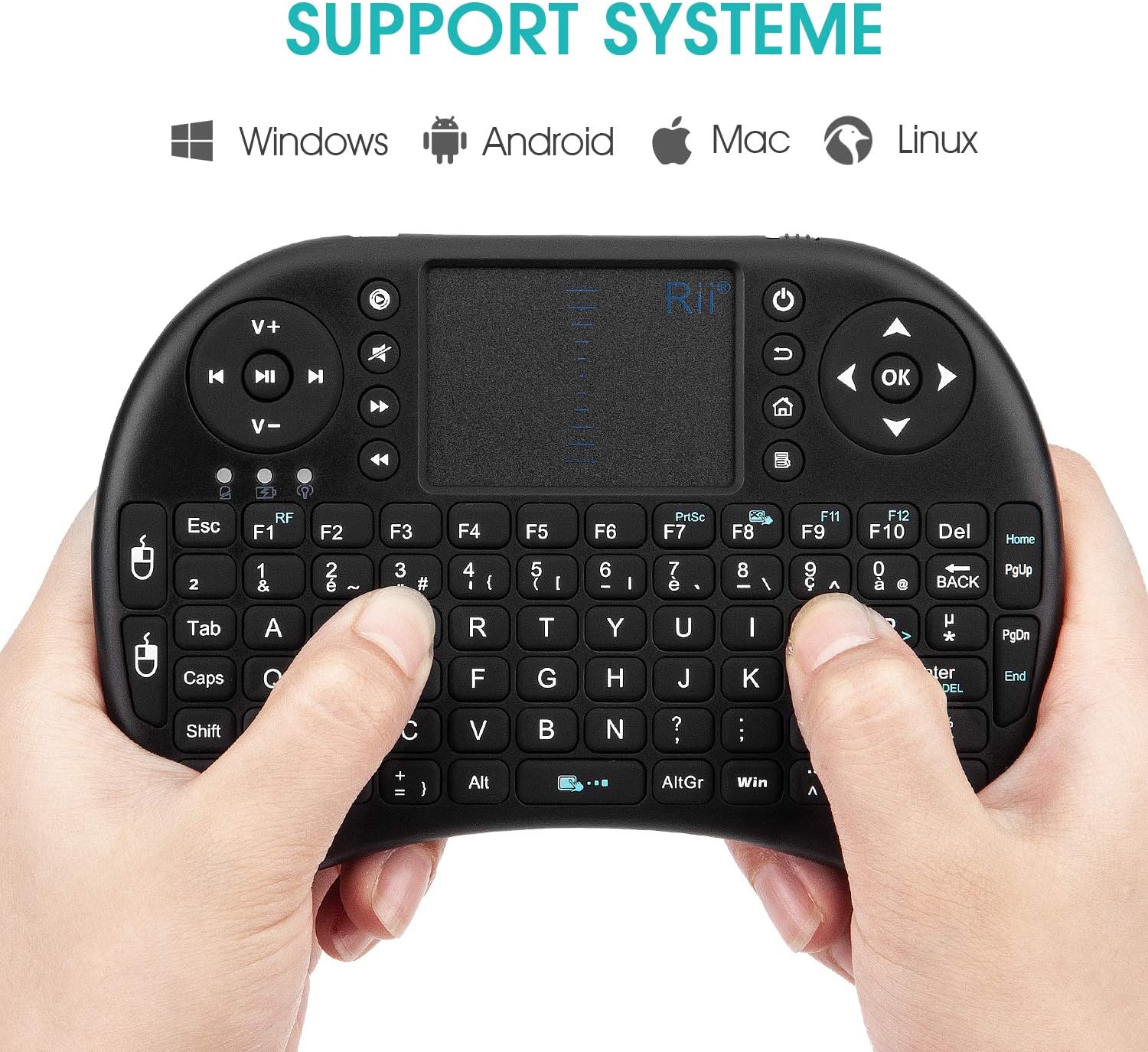
Image: Rii Mini i8 keyboard illustrating compatibility with Windows, Android, Mac, and Linux operating systems.
Istruzioni per l'uso
Funzioni del touchpad
- Tocco con un solo dito: Funziona come un clic con il pulsante sinistro del mouse.
- Tocco con due dita: Funziona come il clic destro del mouse.
- Scorrimento con due dita: Slide two fingers along the touchpad surface to scroll through pages or documents.
- Adjust Touchpad Sensitivity (DPI): Premere Fn + Barra spaziatrice to cycle through different DPI settings for the touchpad.
- Disable Touchpad Click: Premere Tasto F8 to disable the tap-to-click function on the touchpad.
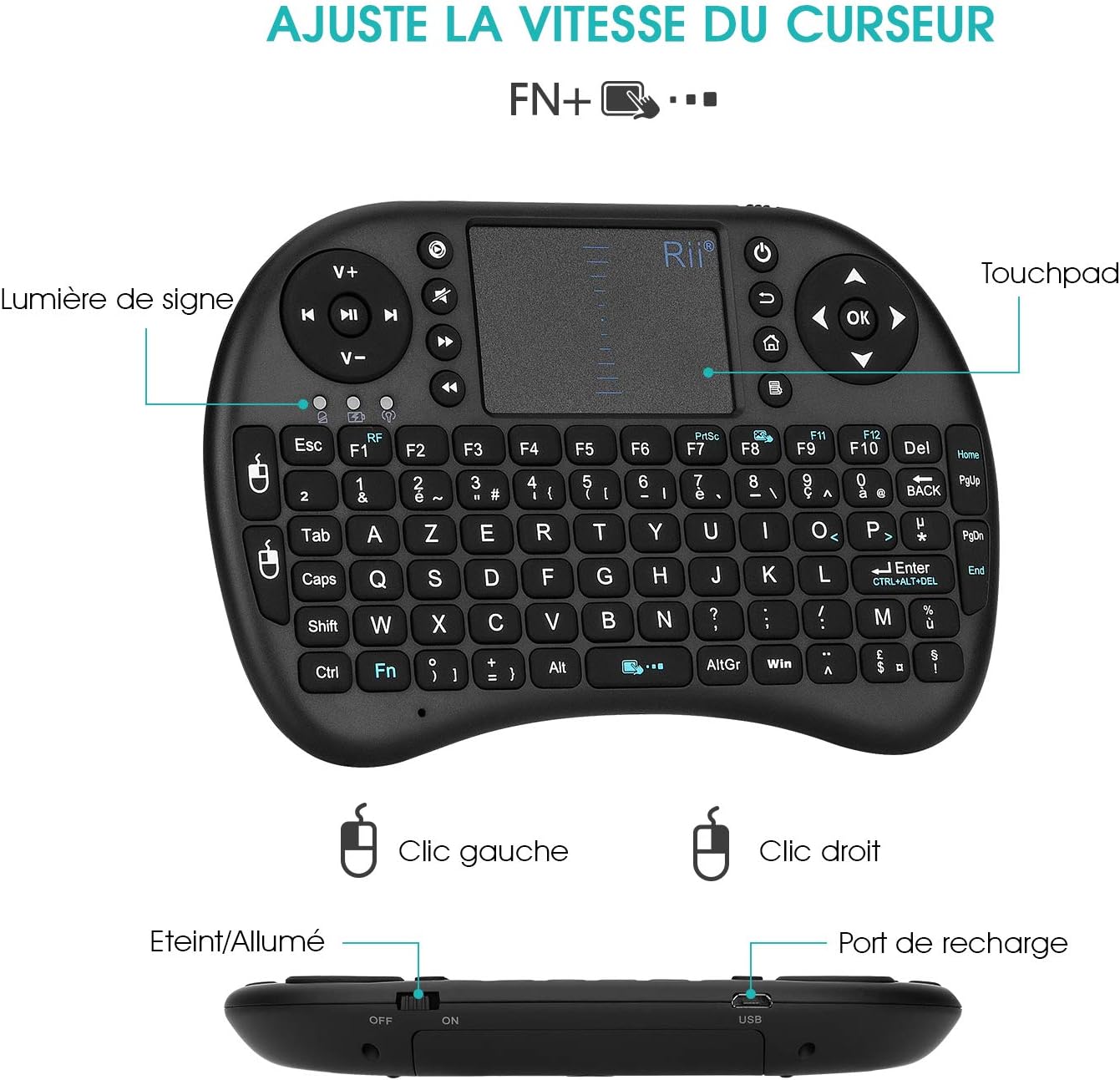
Image: Rii Mini i8 keyboard highlighting the touchpad, left/right click areas, and the indicator light. Text indicates "Adjust Cursor Speed FN+..."

Image: A user's hands demonstrating how to hold and operate the Rii Mini i8 keyboard, focusing on the keyboard and touchpad interaction.
Gestione dell'alimentazione
- Modalità di sospensione automatica: The keyboard enters sleep mode after approximately 3 minutes of inactivity to conserve battery power.
- Waking Up the Keyboard: To wake the keyboard from sleep mode, press any key and hold it for about 1 second.
- Spegnimento manuale: Use the ON/OFF switch on the side of the keyboard to manually power it off when not in use for extended periods.
Indicatori LED
- First LED (Battery Status):
- Blu fisso: Keyboard is on, and battery is sufficiently charged.
- Blu lampeggiante: La batteria è scarica e deve essere ricaricata.
- Second LED (Charging Indicator):
- Rosso pieno: La batteria è attualmente in carica.
- Spento: Battery is fully charged. You can disconnect the charging cable.
- Third LED (Connection Status): Illuminates when the keyboard is actively communicating with its USB receiver.
Manutenzione
Carica della batteria
The Rii Mini i8 keyboard is equipped with a rechargeable Lithium-ion battery. Use the provided USB charging cable to charge the device. Connect the micro-USB end to the keyboard's charging port and the standard USB end to a power source (e.g., computer USB port, USB wall adapter). The charging indicator LED will be red during charging and turn off when fully charged.
It is recommended to charge the battery for at least 15 minutes if you experience issues like repeated characters or inaccurate touchpad response, even if the low battery indicator is not flashing.
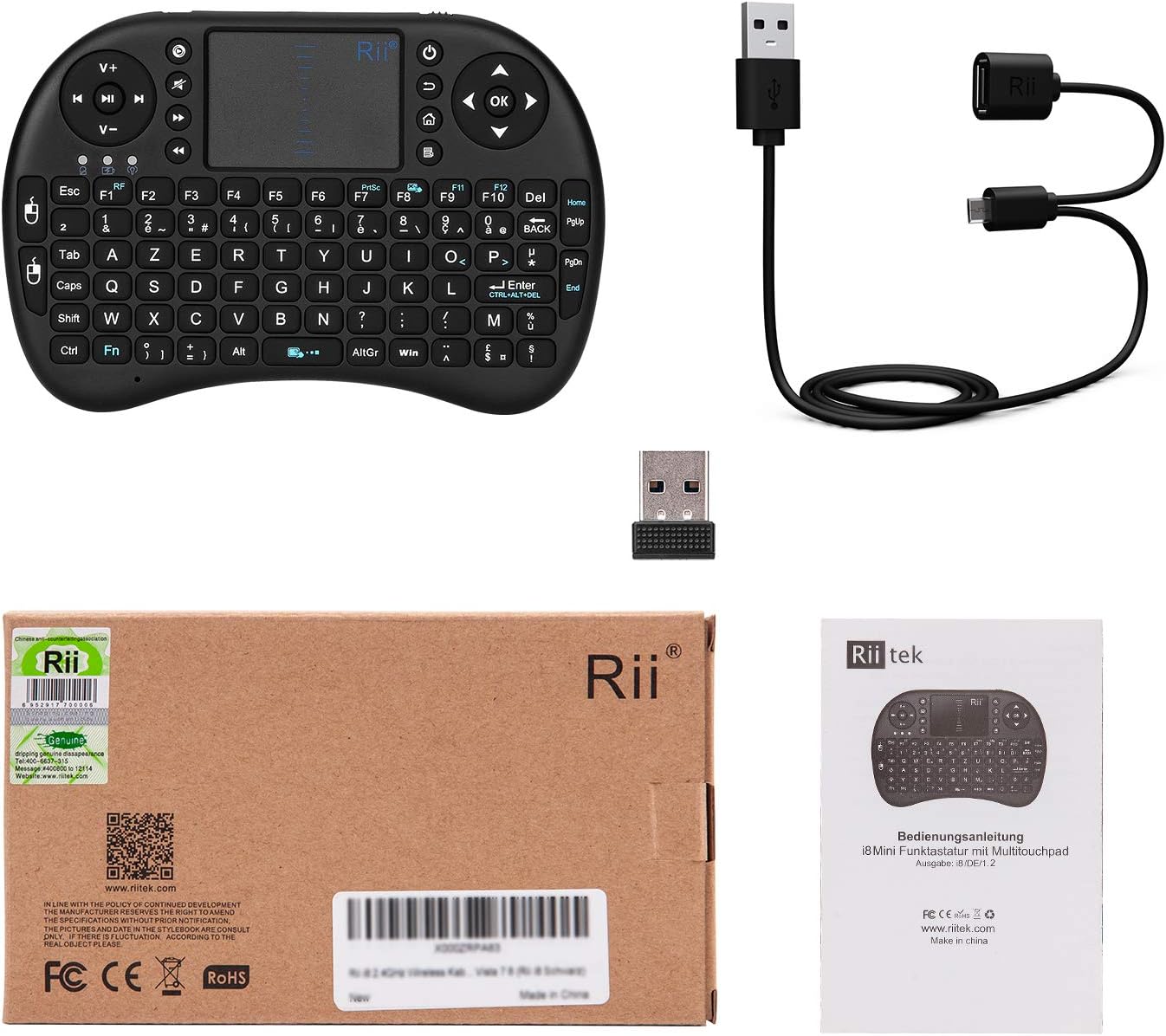
Image: Contents of the Rii Mini i8 package, showing the keyboard, USB receiver, and USB charging cable.
Pulizia
Per pulire la tastiera, utilizzare un panno morbido e asciutto. Per lo sporco ostinato, utilizzare un panno leggermenteamp cloth can be used, ensuring no liquid enters the device. Avoid using harsh chemicals or abrasive cleaners.
Risoluzione dei problemi
- La tastiera non risponde:
- Ensure the keyboard is powered on (switch to "ON").
- Verificare che il ricevitore USB sia collegato saldamente al dispositivo.
- Verify the keyboard battery is charged. Recharge if the blue LED is flashing or if the keyboard has been inactive for a long time.
- Prova a collegare il ricevitore USB a un'altra porta USB.
- If possible, use a USB extension cable between the USB port and the receiver to improve signal transmission and reception, especially if the receiver is far from the keyboard or obstructed.
- Incorrect Special Characters (AZERTY Layout Issues):
- If you are pressing special characters (e.g., ç, è, @) and incorrect symbols appear, you may need to configure the input language for the keyboard to French (AZERTY) on your operating system.
- Per dispositivi Android: Some Android versions may not allow direct configuration of external keyboards. You might need to install a third-party application like "External Keyboard Helper Pro" from the Google Play Store.
- Download and install "External Keyboard Helper Pro".
- Go to "Settings > Language & Input" and check the box next to "External Keyboard Helper Pro". Confirm any warning messages.
- Access the settings for "External Keyboard Helper Pro".
- Select "Choose keyboard layout" and set French as the default language.
- Select "External Keyboard Helper" as the default keyboard.
- Repeated Characters or Inaccurate Touchpad:
- This often indicates a low battery. Charge the keyboard for at least 15 minutes, even if the low battery indicator is not yet flashing.
- Ensure the USB receiver is positioned optimally, ideally in front of the keyboard, or use a USB extension cable to reduce interference.
- Re-pairing the USB Receiver with the Keyboard:
- If the keyboard loses connection or you are using a new receiver, follow these steps to re-pair:
- Inserire il ricevitore USB in una porta USB disponibile sul dispositivo.
- Turn on the keyboard while simultaneously pressing and holding the F1 chiave.
- The orange LED will flash rapidly, indicating the keyboard is searching for the receiver.
- Continua a tenere premuto il tasto F1 key for 3 seconds, then release. The blue LED will illuminate, confirming successful pairing.
- If the keyboard loses connection or you are using a new receiver, follow these steps to re-pair:
Specifiche del prodotto
| Marca | RII |
| Numero di modello | K08 (i8) |
| Colore | Nero |
| Tecnologia di connettività | Wireless a 2.4 GHz (ricevitore USB) |
| Descrizione della tastiera | AZERTY French Layout |
| Caratteristica speciale | Rechargeable, Integrated Touchpad |
| Dispositivi compatibili | Computer, Smart TV, Mini PC, HTPC, Console |
| Compatibilità del sistema operativo | Windows, Android, Mac, Linux |
| Tipo di batteria | Lithium-ion (1 Lithium-polymer battery required) |
| Dimensioni (L x P x A) | 147 x 98 x 19 mm (circa 5.79 x 3.86 x 0.75 pollici) |
| Peso | 95 grammi (circa 3.35 once) |
| Gamma di trasmissione | Up to 15 meters (max.) |
| Gamma di frequenza | Frequenza: da 2.403 a 2.480 GHz |
| Componenti inclusi | Wireless Keyboard, Wireless Receiver, Charging Cable |
Informazioni sulla garanzia
Specific warranty details for the Rii Mini i8 Wireless AZERTY Mini Keyboard are not provided in the available product information. Please refer to the retailer's return policy or contact the manufacturer directly for warranty terms and conditions.
Assistenza clienti
For further assistance, technical support, or inquiries regarding your Rii Mini i8 Wireless AZERTY Mini Keyboard, please contact your point of purchase or visit the official Rii website. Contact information for direct manufacturer support is not available in the provided product details.


