1. Prodotto finitoview
The BUFFALO DriveStation Ultra is a high-performance, high-capacity direct attached storage (DAS) solution designed for demanding data transfer needs, such as high-resolution video editing. This 10-drive desktop model offers a 40 TB storage capacity and features multi-interface support for both Mac and PC systems.
Le caratteristiche principali includono:
- Industry-leading throughput: Up to 972 MB/s Read and 737 MB/s Write speeds.
- Multi-interface support: Thunderbolt 2 for Mac, and eSATA/USB 3.0 for Windows.
- Advanced data protection: Supports RAID 6 configurations, allowing for up to two drive failures without data loss.
- Equipped with enterprise or NAS hard drives for continuous operation.
1.1 Cosa c'è nella scatola
- DriveStation™ Ultra unit
- Cavo Thunderbolt
- Cavo USB 3.0
- Cavo eSATA
- Guida di installazione rapida
- Dichiarazione di garanzia
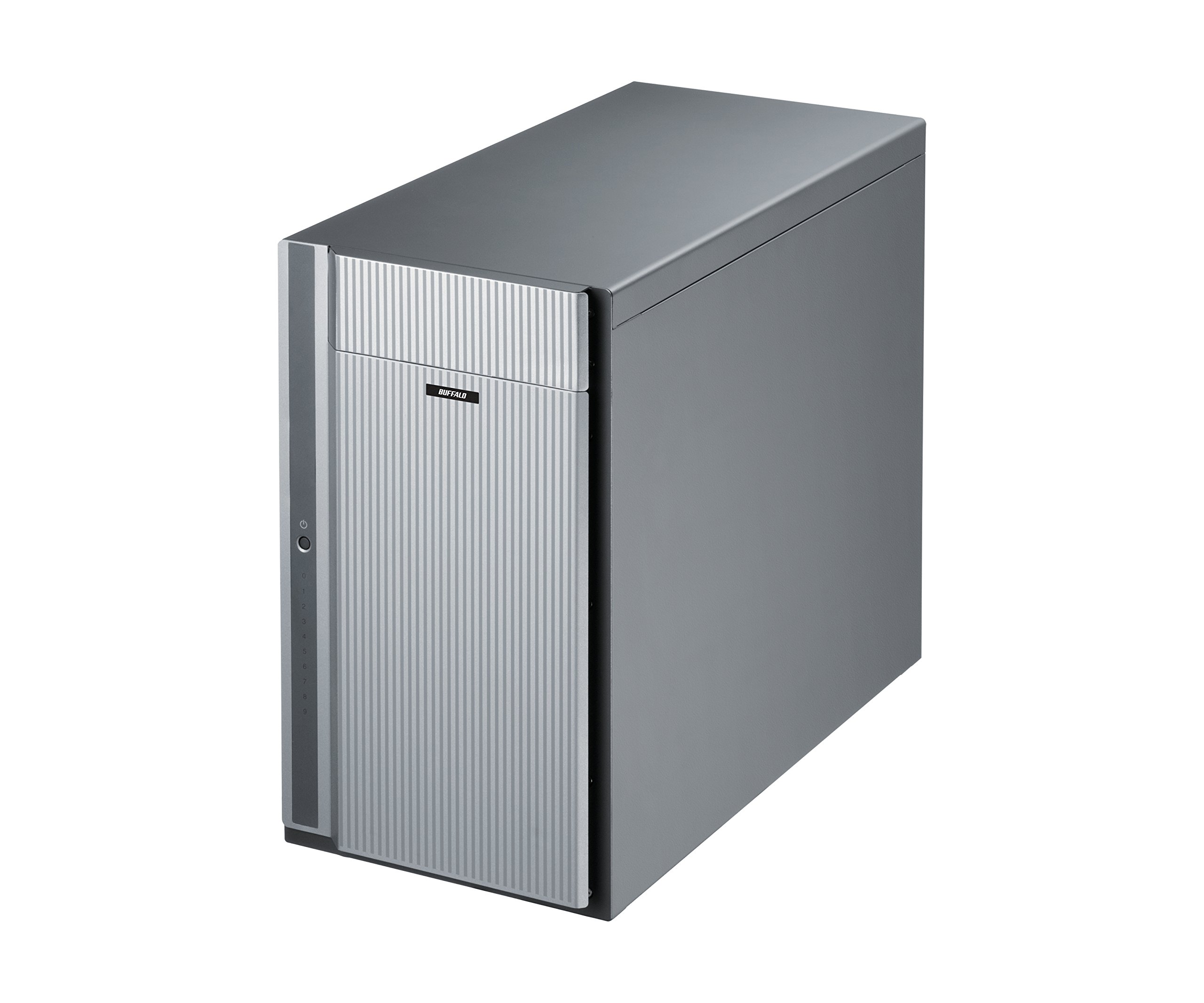
Figura 1: Fronte view of the BUFFALO DriveStation Ultra unit.
2. Istruzioni per l'installazione
Follow these steps to set up your DriveStation Ultra:
- Disimballare il dispositivo: Carefully remove the DriveStation Ultra and all accessories from its packaging.
- Posizionare il dispositivo: Place the unit on a stable, flat surface with adequate ventilation. Ensure no vents are obstructed.
- Connetti alimentazione: Connect the power cable to the unit and then to a power outlet. Do not power on the device yet.
- Connessione al computer: Scegli uno dei seguenti metodi di connessione:
- Thunderbolt 2 (Mac): Use the provided Thunderbolt cable to connect the DriveStation Ultra to your Mac's Thunderbolt port.
- USB 3.0 (PC/Mac): Use the provided USB 3.0 cable to connect the DriveStation Ultra to your computer's USB 3.0 port.
- eSATA (PC): Use the provided eSATA cable to connect the DriveStation Ultra to your computer's eSATA port.
- Accensione: Once connected, press the power button on the DriveStation Ultra. The device will initialize.
- Installazione del driver (se necessario): Your operating system should automatically detect the device. If prompted, install any necessary drivers from the included software or BUFFALO's support websito.
- Configurazione RAID: The DriveStation Ultra comes pre-configured. For advanced RAID configurations (e.g., changing from default RAID 6), refer to the detailed software manual available on the BUFFALO support websito.

Figura 2: Posteriore view of the DriveStation Ultra, highlighting Thunderbolt, USB 3.0, and eSATA ports.
3. Istruzioni per l'uso
Once the DriveStation Ultra is set up and recognized by your computer, it functions as an external storage device. You can access it like any other connected drive.
- Trasferimento dati: Trascina e rilascia files to and from the DriveStation Ultra. For optimal performance, use the Thunderbolt 2 connection on Mac systems or USB 3.0/eSATA on PC systems.
- Prestazione: Expect high-speed data transfers, particularly with large files, due to the optimized hardware and RAID configuration.
- Rimozione sicura: Always safely eject the DriveStation Ultra from your operating system before disconnecting the cables or powering down the unit to prevent data corruption.
- Gestione energetica: The device is designed for continuous operation. If you need to power it off, use the power button on the unit after safely ejecting it from your computer.
4. Manutenzione
Proper maintenance ensures the longevity and reliability of your DriveStation Ultra:
- Pulizia: Use a soft, dry cloth to clean the exterior of the unit. Do not use liquid cleaners or aerosols directly on the device.
- Ventilazione: Assicurarsi che le aperture di ventilazione siano libere da polvere e ostruzioni per evitare il surriscaldamento.
- Aggiornamenti del firmware: Periodically check the BUFFALO support website for firmware updates. Keeping the firmware updated can improve performance and stability.
- Backup dei dati: While the DriveStation Ultra offers RAID 6 for data protection, it is always recommended to maintain separate backups of critical data.
- Stato di salute dell'unità: Monitor the health of the drives using the included utility software or your operating system's disk management tools.
5. Risoluzione Dei Problemi
If you encounter issues with your DriveStation Ultra, try the following steps:
- Dispositivo non rilevato:
- Assicurarsi che il cavo di alimentazione sia collegato saldamente e che l'unità sia accesa.
- Verify that the data cable (Thunderbolt, USB, or eSATA) is firmly connected to both the DriveStation Ultra and your computer.
- Try connecting to a different port on your computer or using a different cable.
- Restart your computer and the DriveStation Ultra.
- Prestazioni lente:
- Ensure you are using the correct high-speed interface (Thunderbolt 2, USB 3.0, or eSATA) and compatible cables.
- Check for background processes on your computer that might be consuming resources.
- Verify that the DriveStation Ultra has adequate ventilation to prevent thermal throttling.
- Indicazione di guasto dell'unità:
- The DriveStation Ultra's RAID 6 configuration provides protection against up to two drive failures. Consult the detailed manual or BUFFALO support for drive replacement procedures.
- Do not attempt to replace drives without proper guidance to avoid data loss.
- Altri problemi: If the problem persists after trying these steps, refer to the comprehensive user manual on the BUFFALO support websito o contattare il supporto tecnico.
6. Specifiche
| Caratteristica | Dettaglio |
|---|---|
| Capacità del disco rigido | Disco rigido meccanico da 40 TB |
| Marca | BUFALO |
| Serie | DriveStation Ultra |
| Numero di modello | HD-DN040T/R6 |
| Piattaforma hardware | Mac, PC |
| Peso dell'articolo | 39.7 libbre |
| Dimensioni del prodotto (LxWxH) | 15.24 x 7.48 x 12.6 pollici |
| Colore | Argento |
| Interfaccia del disco rigido | eSATA |
| Velocità di rotazione del disco rigido | 7200 giri al minuto |
| Tecnologia di connettività | Thunderbolt, USB, eSATA |
| Tipo di installazione | Disco rigido esterno |
| Prima data disponibile | 22 luglio 2015 |
7. Informazioni sulla garanzia
The BUFFALO DriveStation Ultra 10-Drive Thunderbolt Desktop DAS 40 TB (Model HD-DN040T/R6) comes with a Garanzia limitata di 3 anni.
For detailed terms and conditions of the warranty, please refer to the warranty statement included in your product packaging or visit the official BUFFALO websito.
8. Supporto
For technical assistance, additional documentation, or to download the latest drivers and firmware, please visit the official BUFFALO support websito.
You can typically find support resources by searching for your product model (HD-DN040T/R6) on the BUFFALO support portal.
Contact information for customer service may also be available on the BUFFALO website or in your product's quick setup guide.


