Introduzione
This manual provides detailed instructions for the setup, operation, and maintenance of your SecuGen HU20-A Hamster Pro 20 USB Fingerprint Reader. Please read this manual thoroughly before using the device to ensure proper functionality and longevity.
The SecuGen Hamster Pro 20 is an ultra-compact, high-quality USB fingerprint reader designed for authentication, identification, and verification. It features a rugged optical sensor and is FBI Certified for FIPS 201 (PIV) and Mobile ID FAP 20 requirements.
Caratteristiche del prodotto
- Supports most major operating systems.
- Rugged, high-performance, maintenance-free optical sensor resistant to scratches, impact, vibration, and electrostatic shock.
- Automatic finger detection technology (when used with SecuGen applications).
- Self-adjusting scanning technology (when used with SecuGen applications).
- Latent print and false fingerprint rejection.
- Ultra-compact, lightweight, and portable design.
- Integrated finger guide for consistent placement.
- Standard USB 2.0 Hi-speed connection.
- IP54 Certified for dust and water resistance.
Contenuto della confezione
Verificare che tutti gli articoli siano presenti nel pacco:
- SecuGen HU20-A Hamster Pro 20 USB Fingerprint Reader
- Cavo USB (integrato)
- Guida rapida (se applicabile)
- Software/Driver CD or download instructions (if applicable)
Impostare
1. Requisiti di sistema
- Compatible Operating System (most major OS supported)
- Porta USB 2.0 disponibile
- Internet connection for driver download (if not provided on CD)
2. Installazione del driver
- Before connecting the device, visit the official SecuGen website (www.secugen.com) to download the latest drivers and any necessary SDKs or applications for your operating system.
- Run the downloaded installer and follow the on-screen prompts to complete the driver installation.
- Riavviare il computer se richiesto.
3. Collegamento del dispositivo
- Individua una porta USB disponibile sul tuo computer.
- Insert the USB connector of the Hamster Pro 20 into the USB port.
- The operating system should detect the device and complete the installation using the previously installed drivers.

Figura 1: Fronte view of the SecuGen Hamster Pro 20 USB Fingerprint Reader, showing the fingerprint platen and the SecuGen logo.
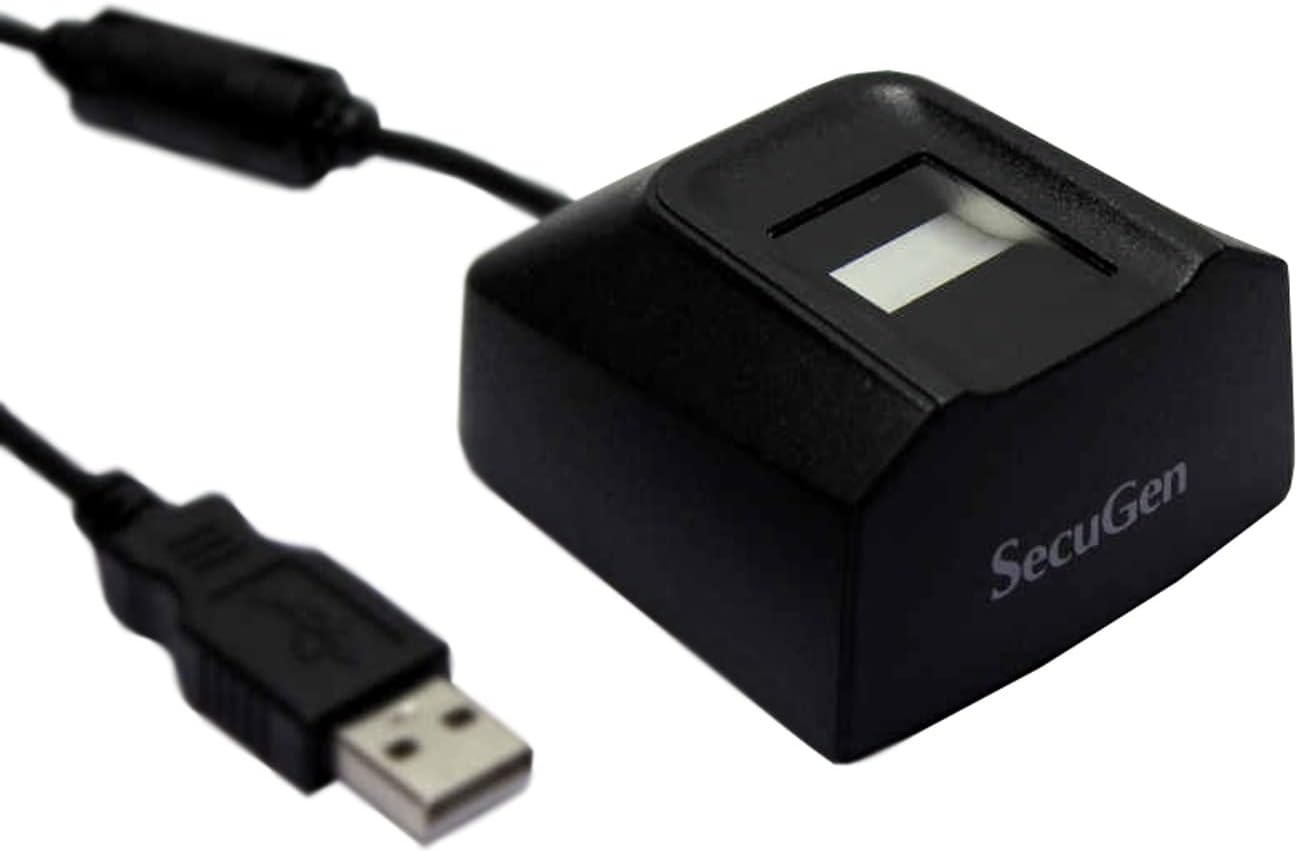
Figure 2: SecuGen Hamster Pro 20 USB Fingerprint Reader connected to its USB cable, illustrating its compact size and connectivity.
Istruzioni per l'uso
1. Posizionamento delle dita
For optimal performance, place your finger flat on the sensor platen, ensuring the entire pad of your finger covers the surface. Apply gentle, consistent pressure.
2. Enrollment Process
The enrollment process typically involves registering your fingerprints with a specific software application. Follow the instructions provided by your chosen application (e.g., Windows Hello, third-party biometric software) to enroll your fingerprints. This usually involves scanning the same finger multiple times from different angles.
3. Authentication/Verification
When prompted by an application for fingerprint authentication, place your enrolled finger on the sensor. The device will capture your fingerprint and the software will verify it against the stored template.
Nota importante:
The performance of automatic finger detection and self-adjusting scanning technologies is dependent on the application used. These features are fully realized when the device is used with applications built with SecuGen's algorithms.
Manutenzione
1. Pulizia del sensore
To maintain optimal performance, keep the sensor platen clean. Use a soft, lint-free cloth lightly dampened with water or a mild, non-abrasive cleaner. Do not use harsh chemicals or abrasive materials, as they can damage the sensor surface.
2. Conservazione
Store the device in a clean, dry environment away from direct sunlight and extreme temperatures. Avoid placing heavy objects on the device or its cable.
3. Gestione
While the device is rugged, avoid dropping it or subjecting it to excessive force. Do not attempt to disassemble the device, as this will void the warranty.
Risoluzione dei problemi
- Problema: il dispositivo non viene riconosciuto dal computer.
- Soluzione:
- Assicurarsi che il cavo USB sia collegato saldamente sia al dispositivo che al computer.
- Prova a collegare il dispositivo a una porta USB diversa.
- Verificare che siano installati i driver corretti. Reinstallare i driver se necessario.
- Riavvia il computer.
- Check Device Manager (Windows) or System Information (macOS) to see if the device is listed without errors.
- Problem: Fingerprint not recognized or enrollment fails.
- Soluzione:
- Assicurati che il dito sia pulito e asciutto.
- Pulire la superficie del sensore come descritto nella sezione Manutenzione.
- Ensure proper finger placement, covering the entire platen.
- Try enrolling or authenticating with a different finger.
- Ensure the application you are using is compatible with the SecuGen device and its drivers are up to date.
- Problem: Device LED is off or not responding.
- Soluzione:
- Controllare la connessione USB.
- Ensure your computer's USB ports are providing power.
- Se si utilizza un hub USB, provare a collegarlo direttamente al computer.
Specifiche
| Caratteristica | Specificazione |
|---|---|
| Dimensioni (L x P x A) | 2.3 x 2.12 x 1.24 pollici |
| Peso | 4.2 once |
| Risoluzione dell'immagine | 500 DPI |
| Dimensione dell'immagine | 300 x 400 pixel |
| Dimensione del piatto | 0.71 x 0.9 pollici |
| Area di rilevamento efficace | 0.6 x 0.8 pollici |
| Image Gray Scale | 256 livelli (8 bit) |
| Sorgente luminosa | LED verde |
| Smart Capture Speed | Da 0.2 a 0.5 secondi |
| Interfaccia USB | 2.0 Hi-speed |
| Volume di fornituratage | 5VDC (via USB) |
| Temperatura di esercizio | Da -20 a 65 gradi C |
| Resistenza alla polvere/acqua | Certificato IP54 |
| Dispositivi compatibili | Desktop, portatile |
Garanzia e supporto
Informazioni sulla garanzia
SecuGen products typically come with a limited manufacturer's warranty. Please refer to the warranty card included with your product or visit the official SecuGen websito per termini e condizioni di garanzia dettagliati. Conservare la prova d'acquisto per eventuali reclami in garanzia.
Supporto tecnico
For technical assistance, driver updates, or further inquiries, please visit the official SecuGen support website or contact their customer service. Contact information can usually be found on the SecuGen website (www.secugen.com).
When contacting support, please have your product model (HU20-A) and serial number ready.


