Introduzione
This manual provides essential information for the proper setup, operation, and maintenance of your RCA Cambio 10.1 W101 V2 Windows 10 2-in-1 Tablet PC. Please read these instructions thoroughly before using your device to ensure optimal performance and longevity.
The RCA Cambio 10.1 W101 V2 is a versatile 10-inch tablet powered by an Intel quad-core processor and preloaded with Windows 10. It features a detachable keyboard, allowing for flexible use as both a tablet and a laptop. Key features include Bluetooth connectivity, front and rear 2MP cameras, and 32GB of internal storage.
Impostare
1. Disimballaggio e ispezione iniziale
Rimuovere con cautela tutti i componenti dall'imballaggio. Assicurarsi che siano presenti i seguenti elementi:
- RCA Cambio 10.1 W101 V2 Tablet
- Tastiera rimovibile
- Adattatore di alimentazione
Ispezionare il dispositivo per verificare la presenza di eventuali danni visibili. Se qualche componente risulta mancante o danneggiato, contattare l'assistenza clienti.
2. Carica del dispositivo
Before first use, fully charge the tablet. Connect the power adapter to the charging port on the tablet and then to a power outlet. The charging indicator will illuminate. A full charge may take several hours.
3. Collegamento della tastiera staccabile
Align the tablet with the magnetic connector on the detachable keyboard. Gently push the tablet down until it securely clicks into place. The keyboard does not require separate power or pairing.

Immagine: Posteriore view of the RCA Cambio 10.1 W101 V2 tablet with the detachable keyboard attached, illustrating the connection point and available ports.
4. Accensione iniziale e configurazione di Windows 10
Press and hold the power button located on the side of the tablet until the screen illuminates. Follow the on-screen prompts to complete the initial Windows 10 setup, including language selection, network connection, and user account creation.
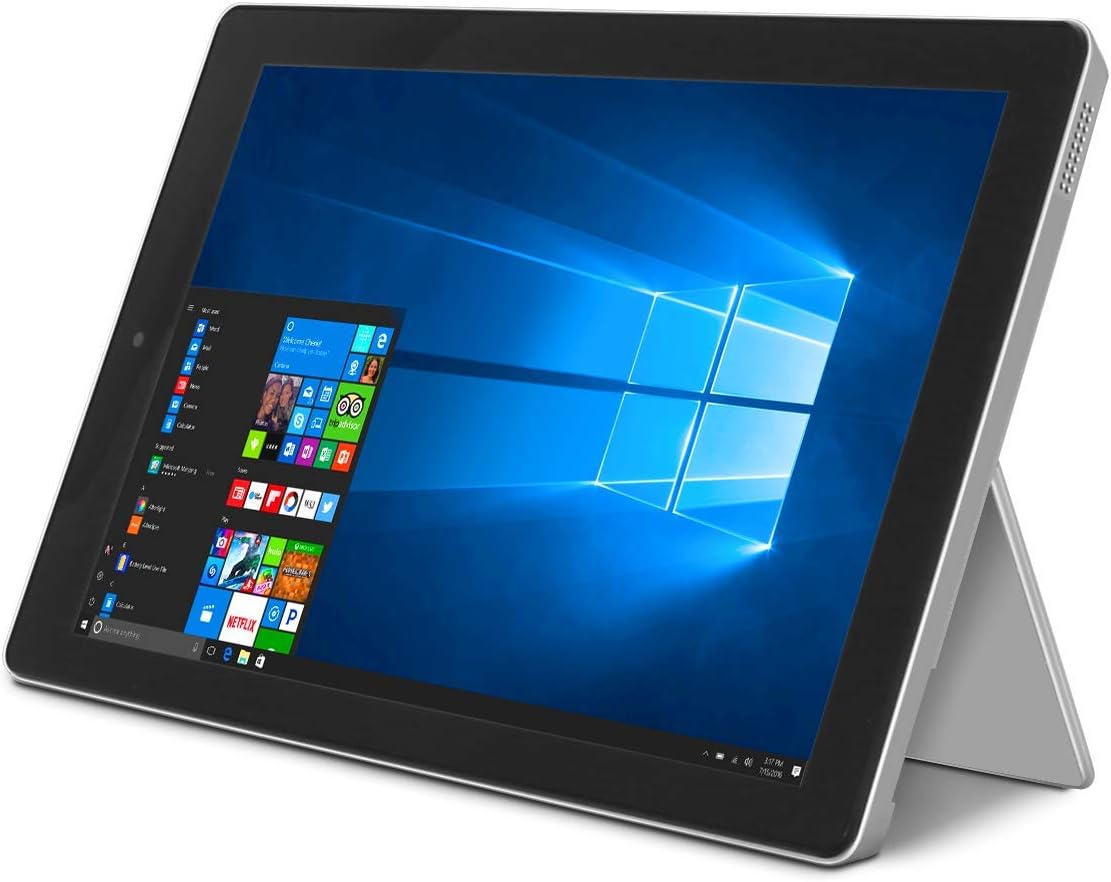
Image: The RCA Cambio 10.1 W101 V2 tablet in laptop mode, showcasing the Windows 10 operating system interface.
Istruzioni per l'uso
1. Navigazione di base
Schermo tattile:
The tablet features a multi-touch display. Use gestures such as tap, swipe, pinch-to-zoom, and press-and-hold to interact with the interface.
Tastiera e touchpad:
When the detachable keyboard is connected, you can use the physical keys for typing and the integrated touchpad for cursor control. The touchpad supports multi-touch gestures similar to a laptop touchpad.

Image: The RCA Cambio 10.1 W101 V2 tablet in portrait orientation, showing the Windows 10 Start screen with application tiles.
2. Connessione al Wi-Fi
- Aprire il Menu di avvio e clicca su Impostazioni.
- Selezionare Rete e Internet.
- Scegliere Wifi dal menu a sinistra.
- Attiva/disattiva Wi-Fi On se è spento.
- Select your desired network from the list and click Collegare.
- Immettere la password di rete se richiesta.
3. Accoppiamento Bluetooth
- Aprire il Menu di avvio e clicca su Impostazioni.
- Selezionare Dispositivi.
- Scegliere Bluetooth e altri dispositivi dal menu a sinistra.
- Attiva Bluetooth On.
- Clic Aggiungi Bluetooth o altro dispositivo and follow the instructions to pair with your desired device.
4. Utilizzo delle telecamere
The tablet is equipped with front and rear 2MP cameras. To access the camera, open the Telecamera application from the Start Menu or search bar. You can switch between front and rear cameras within the application interface.
5. Productivity with Microsoft Office 365
The device comes preloaded with Windows 10, which supports Microsoft Office 365 applications. You can create and edit documents, spreadsheets, and presentations. An active subscription to Microsoft Office 365 may be required for full functionality.

Image: The RCA Cambio 10.1 W101 V2 tablet running Microsoft Office applications, highlighting its use for productivity tasks.
6. Gestione dell'archiviazione
The tablet includes 32GB of internal storage. To manage your storage, go to Impostazioni > Sistema > Archiviazione. Puoi view storage usage, free up space, and change where new content is saved. Consider using cloud storage or an external microSD card (not included) for additional space.
Manutenzione
1. Pulizia del dispositivo
Utilizzare un panno morbido e privo di lanugine per pulire lo schermo e le superfici esterne. Per le macchie ostinate, strofinare leggermenteampImmergere il panno in acqua o in una soluzione detergente per schermi. Evitare l'uso di prodotti chimici aggressivi o materiali abrasivi.
2. Aggiornamenti software
Regularly check for and install Windows updates to ensure your system has the latest security patches and features. Go to Impostazioni > Aggiornamento e sicurezza > Windows Update per verificare la presenza di aggiornamenti.
3. Cura della batteria
Per prolungare la durata della batteria:
- Evitare di scaricare completamente la batteria frequentemente.
- Non esporre il dispositivo a temperature estreme.
- Unplug the charger once the battery is fully charged, especially during extended periods of non-use.
4. Backup dei dati
Regularly back up important data to an external drive or cloud storage to prevent data loss in case of device malfunction.
Risoluzione dei problemi
This section addresses common issues you might encounter with your RCA Cambio 10.1 W101 V2.
Il dispositivo non si accende:
- Ensure the device is fully charged. Connect the power adapter and wait a few minutes before attempting to power on again.
- Per eseguire un hard reset, tenere premuto il pulsante di accensione per almeno 10-15 secondi.
Prestazioni lente o blocchi:
- Chiudere le applicazioni non necessarie in esecuzione in background.
- Controlla e installa eventuali aggiornamenti di Windows in sospeso.
- Assicurare sufficiente spazio di archiviazione libero. Eliminare ciò che non è necessario fileoppure spostarli su un archivio esterno.
- Riavviare il dispositivo.
Problemi di connettività Wi-Fi:
- Assicurati che il Wi-Fi sia abilitato in Impostazioni > Rete e Internet > Wi-Fi.
- Riavvia il router Wi-Fi e il tablet.
- Dimentica la rete e riconnettiti inserendo nuovamente la password.
- Assicurati di trovarti nel raggio d'azione del segnale Wi-Fi.
Problemi di accoppiamento Bluetooth:
- Assicurati che il Bluetooth sia abilitato sia sul tablet che sul dispositivo che stai tentando di associare.
- Make sure both devices are in pairing mode and within close proximity.
- Remove previously paired devices from the tablet's Bluetooth settings if you are experiencing conflicts.
La tastiera non risponde:
- Assicurarsi che la tastiera sia saldamente fissata al connettore magnetico del tablet.
- Staccare e riattaccare la tastiera.
- Riavviare il tablet.
La batteria si scarica rapidamente:
- Regolare la luminosità dello schermo su un valore più basso.
- Close background applications and disable unnecessary features like Bluetooth or Wi-Fi when not in use.
- Controllare l'utilizzo della batteria in Settings > System > Battery to identify power-consuming applications.
Ripristino delle impostazioni di fabbrica (ultima risorsa):
If issues persist, you may consider performing a factory reset. This will erase all data and reinstall Windows 10. Eseguire il backup di tutti i dati importanti prima di procedere. Vai a Settings > Update & Security > Recovery > Reset this PC e seguire le istruzioni sullo schermo.
Specifiche
| Caratteristica | Specificazione |
|---|---|
| Numero di modello | La V101 è la V2. |
| Sistema operativo | Finestre 10 |
| Dimensioni dello schermo | 10.1 pollici |
| Risoluzione dello schermo | 1280x800 |
| Processore | Intel Quad-Core (1.83 GHz) |
| Memoria RAM | 2 GB di memoria DDR3 SDRAM |
| Memoria interna | Memoria flash da 32 GB |
| Connettività wireless | 802.11b Wi-Fi, Bluetooth |
| Telecamere | Front and Rear (2 MP) |
| Batteria | 1 batteria agli ioni di litio (inclusa) |
| Dimensioni (LxWxH) | 12.2 x 8.5 x 3.15 pollici |
| Peso dell'articolo | 2.75 libbre |
Garanzia e supporto
Per informazioni sulla garanzia e supporto tecnico, fare riferimento alla documentazione inclusa con il prodotto o visitare il sito ufficiale di supporto RCA websito. Conservare la prova d'acquisto per eventuali reclami in garanzia.
For further assistance, you may contact RCA customer service. Contact details are typically available on the manufacturer's websito.


