1. Introduzione
This manual provides detailed instructions for the setup, operation, maintenance, and troubleshooting of your EXCELVAN E300 Portable Thermal Printer. Please read this manual carefully before using the printer to ensure proper function and longevity of the device.
The EXCELVAN E300 is a compact and efficient thermal printer designed for printing receipts and tickets. It features high-speed printing, a durable print head, and versatile connectivity options including Bluetooth and USB, making it suitable for various point-of-sale (POS) environments.
2. Prodotto finitoview
2.1 Contenuto della confezione
Dopo aver disimballato, verificare che siano presenti tutti gli articoli elencati di seguito:
- 1 x 80mm Thermal Printer
- 1 x adattatore di alimentazione
- 1 batteria al litio
- 1 cavo USB (110 cm)
- 1 rotolo di carta termica
- 1 x Manuale utente (questo documento)
- 1 x CD (contenente driver e software)
2.2 Componenti della stampante
Familiarize yourself with the main components of your EXCELVAN E300 printer:

Figura 1: Davanti view of the EXCELVAN E300 printer with key components labeled.
- Paper Warehouse Cover: Protects the paper roll compartment.
- Pulsante di alimentazione: Fa avanzare il giornale.
- Indicatore di carica: Si accende quando la batteria è in carica.
- Indicatore della capacità della batteria: Mostra il livello attuale della batteria.
- Indicatore di errore: Lights up to indicate an error (e.g., paper out, cover open).
- Pulsante di accensione: Accende/spegne la stampante.
3. Impostazione
3.1 Installazione della batteria
- Open the battery compartment cover located on the bottom of the printer.
- Inserire la batteria al litio fornita, assicurandosi che i contatti siano allineati correttamente.
- Importante: Remove any insulating tape from the battery contacts before installation or charging.
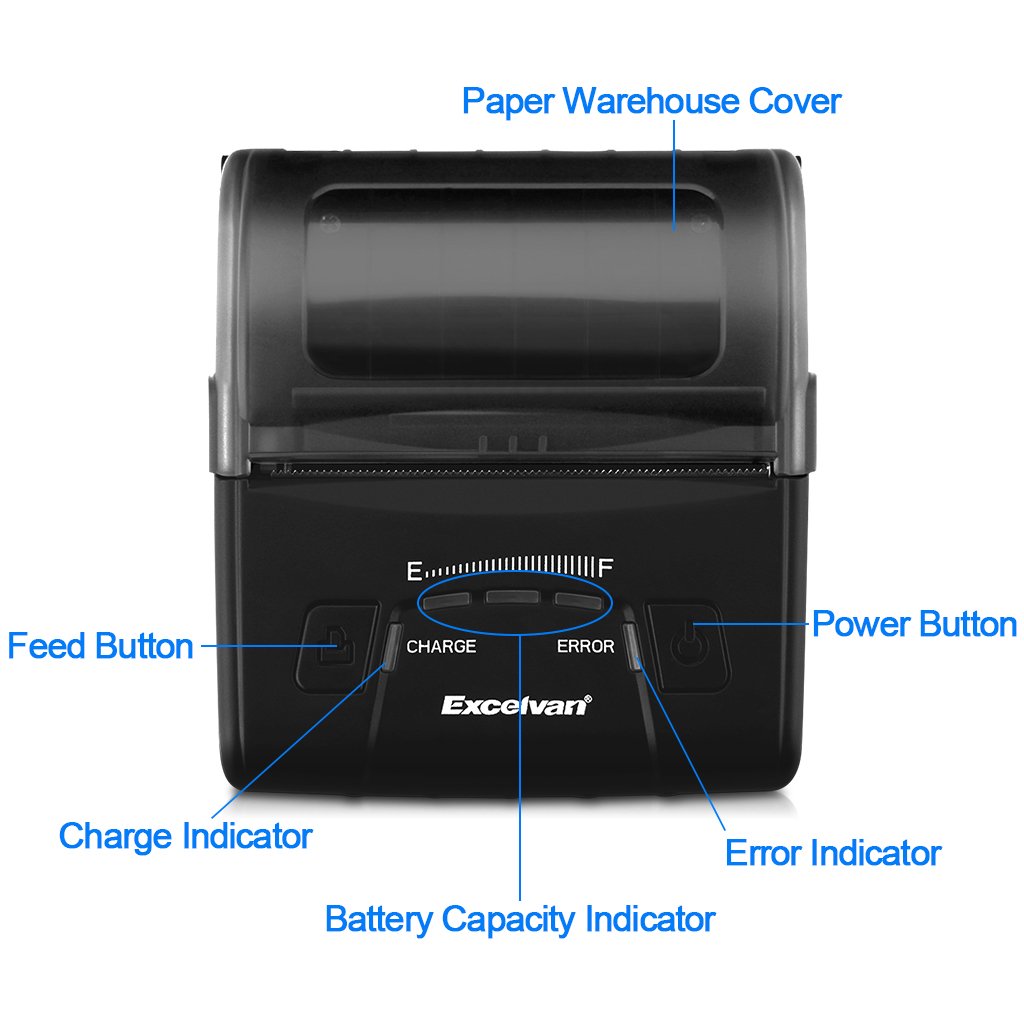
Figura 2: Battery installation and warning to remove insulating tape.
- Chiudere saldamente il coperchio del vano batterie.
3.2 Caricamento della batteria
Before first use, fully charge the printer battery.
- Connect the power adapter to the printer's DC IN 9V port.
- Collegare l'adattatore di corrente a una presa a muro.
- The Charge Indicator light will illuminate during charging. It will turn off or change color (depending on model) when fully charged.
- Nota: The USB cable is for data connection to a computer only and does not charge the device.
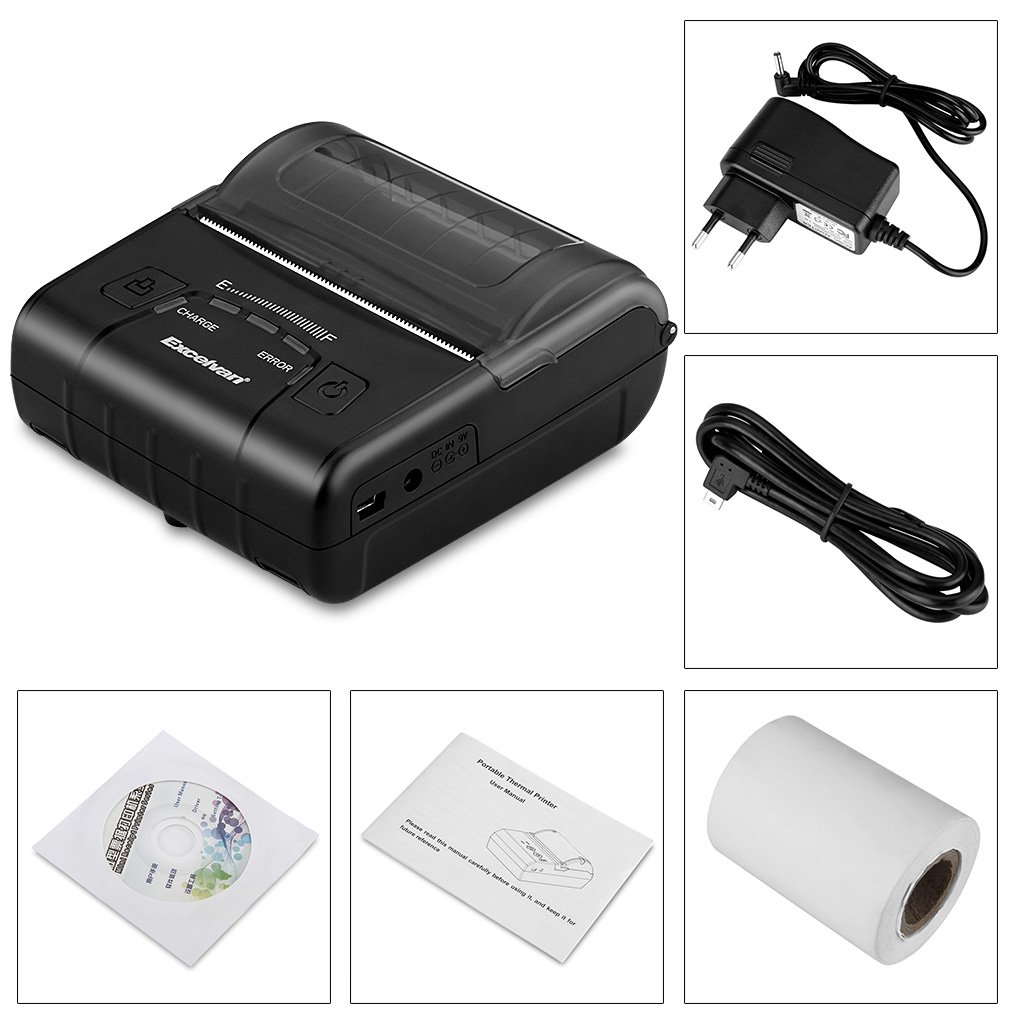
Figura 3: Charging port and USB port. Use the power adapter for charging.
3.3 Caricamento della carta termica
La stampante utilizza rotoli di carta termica larghi 80 mm.
- Open the Paper Warehouse Cover by gently lifting it.
- Insert the thermal paper roll into the compartment, ensuring the paper feeds from the bottom and the leading edge comes out towards the front of the printer.
- Tirare una piccola quantità di carta oltre il bordo tagliente.
- Close the Paper Warehouse Cover firmly until it clicks into place.
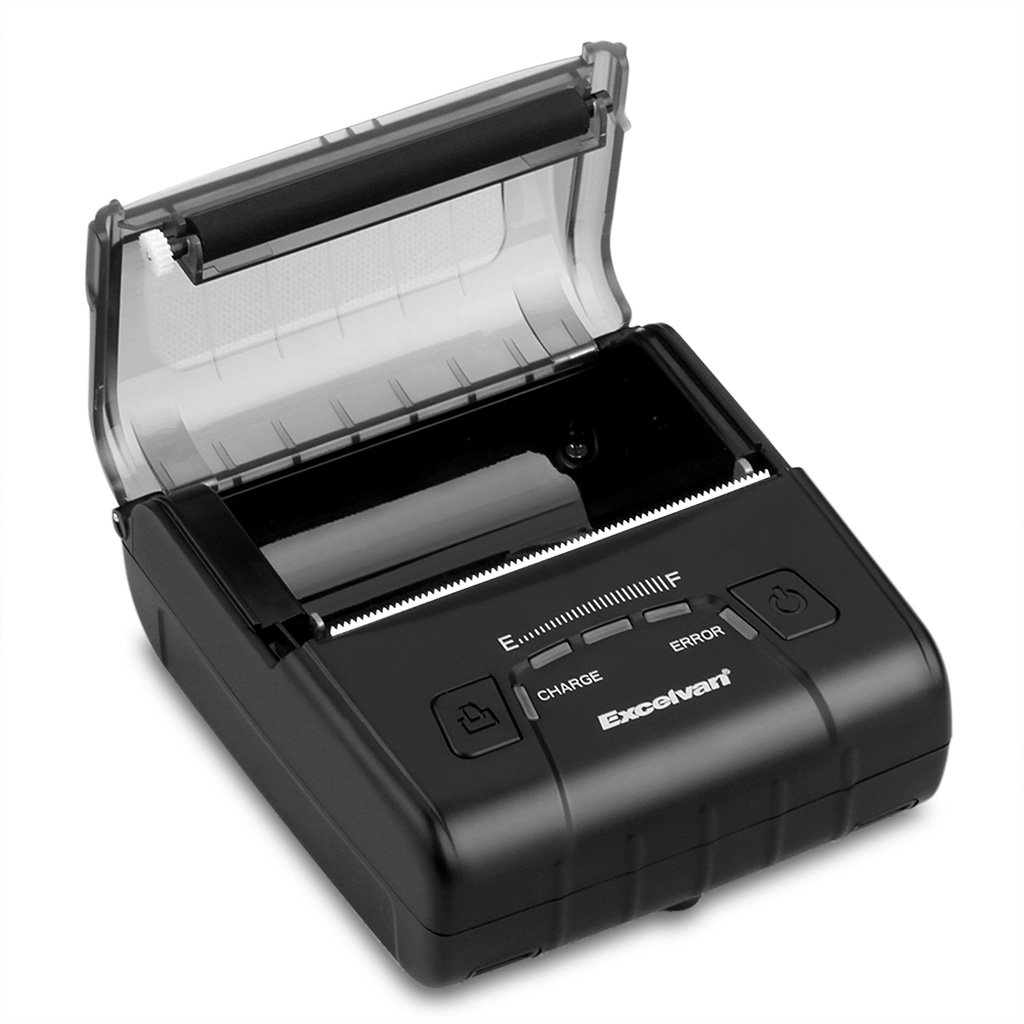
Figura 4: Caricamento della carta termica nella stampante.
4. Istruzioni per l'uso
4.1 Accensione/spegnimento
- Per accendere: Premere e tenere premuto il pulsante di accensione finché le spie non si accendono.
- Per spegnere: Premere e tenere premuto il pulsante di accensione finché le spie non si spengono.
4.2 Installazione del driver
Install the appropriate drivers for your operating system from the provided CD or download them from the official EXCELVAN websito (se disponibile).
- Supported Operating Systems: Android, iOS, Linux, Windows (2000, 2003, XP, 7, 8, 8.1, 10).
4.3 Collegamento della stampante
The EXCELVAN E300 supports both Bluetooth and USB connectivity.
4.3.1 Connessione Bluetooth
- Assicurarsi che la stampante sia accesa.
- Sul tuo dispositivo (smartphone, tablet, computer), attiva il Bluetooth e cerca i dispositivi disponibili.
- Select "EXCELVAN E300" or a similar name from the list.
- Enter the pairing PIN (usually "0000" or "1234") if prompted.
- Una volta effettuata l'associazione, puoi selezionare la stampante dalle impostazioni di stampa della tua applicazione.
4.3.2 Connessione USB
- Collegare un'estremità del cavo USB alla porta USB della stampante.
- Collega l'altra estremità a una porta USB disponibile sul tuo computer.
- Ensure the necessary drivers are installed. The printer should appear as an available printing device in your system settings.
4.4 Stampa
Once connected and drivers are installed, you can initiate printing from your application.

Figura 5: The printer in operation, producing a receipt.
- Use the Feed Button to advance paper manually if needed.
- The printer supports ESC/POS commands for advanced control.
- Graphic printing, including bitmaps and QR codes, is supported.
5. Manutenzione
5.1 Pulizia della testina di stampa
La pulizia regolare della testina di stampa garantisce una qualità di stampa ottimale e prolunga la durata della stampante.
- Spegnere la stampante e scollegare l'adattatore di alimentazione.
- Open the Paper Warehouse Cover.
- Utilizzare un batuffolo di cotone leggermenteampened with isopropyl alcohol to gently wipe the thermal print head (the dark strip inside the cover).
- Lasciare asciugare completamente la testina di stampa prima di chiudere il coperchio e accendere la stampante.
5.2 Cura della batteria
- Evitare di scaricare completamente la batteria frequentemente.
- Charge the battery regularly, even if the printer is not in use for extended periods.
- Conservare la stampante in un luogo fresco e asciutto quando non viene utilizzata.
6. Risoluzione Dei Problemi
This section addresses common issues you might encounter with your EXCELVAN E300 printer.
| Problema | Possibile causa | Soluzione |
|---|---|---|
| La stampante non si accende. | Batteria scarica o assenza di alimentazione. | Charge the battery using the power adapter. Ensure the power adapter is correctly connected. |
| No paper output. | Paper out, paper jam, or cover not closed. | Check if the paper roll is empty and replace if necessary. Clear any paper jams. Ensure the Paper Warehouse Cover is securely closed. |
| Error Indicator is lit. | Carta esaurita, coperchio aperto o testina di stampa surriscaldata. | Check paper status and cover. If the printer has been printing continuously, allow it to cool down. |
| Qualità di stampa scadente. | Dirty print head, low battery, or incorrect paper. | Clean the print head (see Section 5.1). Ensure the battery is sufficiently charged. Use high-quality thermal paper. |
| Impossibile connettersi tramite Bluetooth. | Bluetooth non abilitato, associazione errata o interferenza. | Ensure Bluetooth is enabled on both devices. Re-attempt pairing. Move closer to the printer and away from other wireless devices. |
7. Specifiche
Specifiche tecniche dettagliate per la stampante termica EXCELVAN E300:
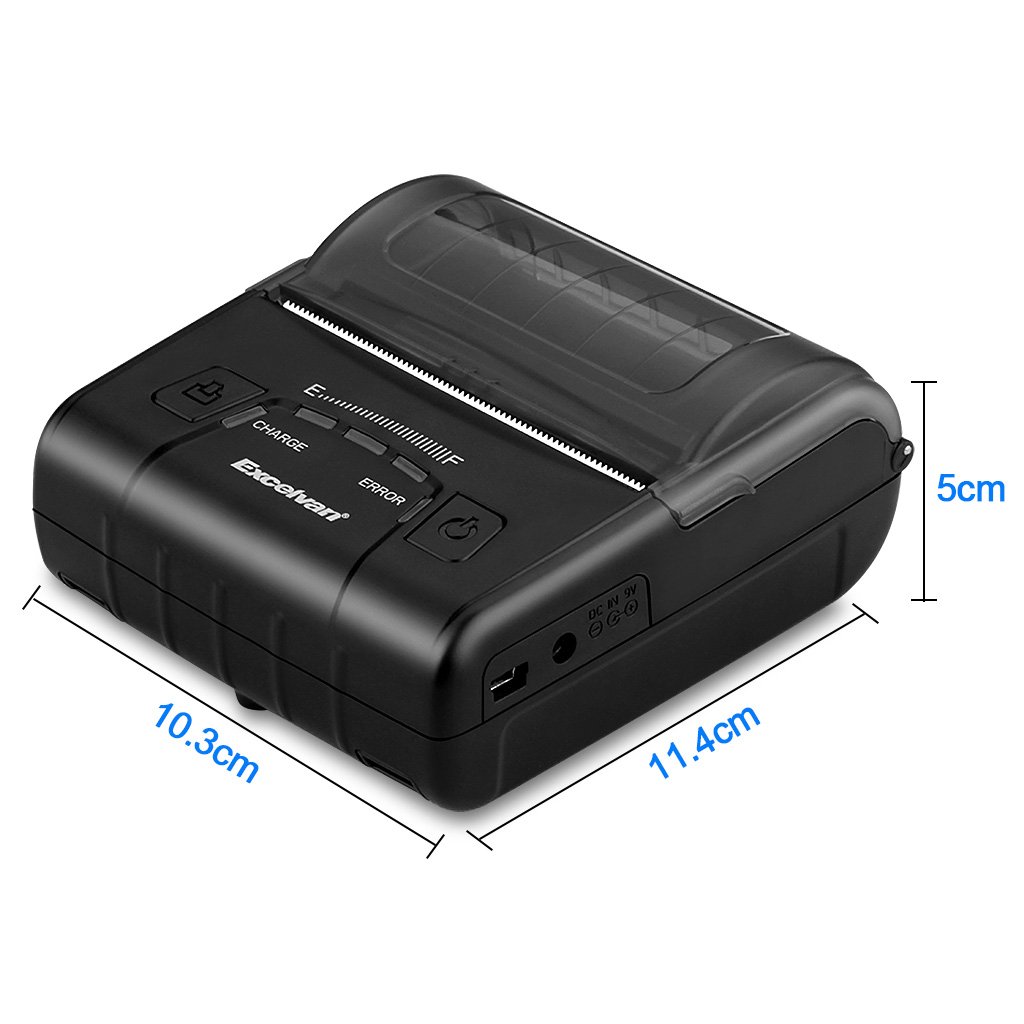
Figura 6: EXCELVAN E300 Printer Dimensions.
| Caratteristica | Specificazione |
|---|---|
| Metodo di stampa | Stampa termica |
| Larghezza di stampa effettiva | 72 millimetri |
| Risoluzione | 384 punti / linea |
| Velocità di stampa | 90 millimetri/secondo |
| Interfaccia | USB, Bluetooth |
| Tipo di carta | Carta termica |
| Larghezza della carta | 79.5 ± 0.5 mm |
| Diametro carta | ≤ 43 mm (40 mm recommended) |
| Comandi | Compatibile con ESC/POS |
| Alimentazione elettrica | Batteria ricaricabile ai polimeri di litio |
| Capacità della batteria | 2500 mAh / 7.4 V |
| Uscita adattatore di alimentazione | 9.0V / 2A |
| Software del conducente | Android, iOS, Linux, Win2000/2003/XP/7/8/8.1/10 |
| Vita della testina di stampa | 50 km (Print Density ≤ 12.5) |
| Temperatura di esercizio | Temperatura ambiente: da 5 °C a 45 °C |
| Umidità di esercizio | 10% ~ 80% |
| Dimensioni (L x P x A) | 11 x 5 x 10 cm (circa) |
| Peso | 285 grammi |
8. Garanzia e supporto
8.1 Informazioni sulla garanzia
The EXCELVAN E300 printer comes with a standard manufacturer's warranty. Please refer to the warranty card included in your package or contact your retailer for specific terms and conditions regarding warranty coverage and duration.
8.2 Assistenza clienti
For technical assistance, troubleshooting not covered in this manual, or inquiries about your product, please contact EXCELVAN customer support or your authorized dealer. Contact information can typically be found on the product packaging or the official EXCELVAN websito.