1. Introduzione
This manual provides comprehensive instructions for the installation, operation, and maintenance of the HP Aruba 2930F 24G 4SFP+ Switch (Model JL253A). Please read this manual thoroughly before using the device to ensure proper setup and optimal performance. Retain this manual for future reference.
2. Prodotto finitoview
The HP Aruba 2930F 24G 4SFP+ Switch is a high-performance network switch designed for enterprise edge deployments. It features 24 Gigabit Ethernet ports and 4 SFP+ ports for high-speed uplinks, providing reliable and secure connectivity.

Figura 2.1: Fronte view of the HP Aruba 2930F 24G 4SFP+ Switch, showing 24 RJ45 Gigabit Ethernet ports, 4 SFP+ uplink ports, and LED indicators.

Figura 2.2: Angolato view of the HP Aruba 2930F 24G 4SFP+ Switch, highlighting its compact design suitable for rack mounting.
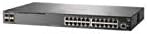
Figura 2.3: lato view of the HP Aruba 2930F 24G 4SFP+ Switch, showing ventilation slots for heat dissipation.
3. Impostazione
3.1 Disimballaggio e verifica del contenuto
Disimballare con cura lo switch e verificare che tutti i componenti siano presenti. La confezione dovrebbe includere:
- HP Aruba 2930F 24G 4SFP+ Switch (Model JL253A)
- Cavo di alimentazione
- Kit di montaggio su rack
- Cavo della console
Se qualche articolo risulta mancante o danneggiato, contattare immediatamente il fornitore.
3.2 Installazione fisica
- Montaggio su rack: Use the provided rack-mount kit to secure the switch in a standard 19-inch equipment rack. Ensure adequate ventilation around the switch.
- Collegamento elettrico: Connect the power cable to the switch's power input and then to a grounded AC power outlet.
- Connessione di rete iniziale: Connect a computer to the switch's console port using the console cable for initial configuration, or connect to any RJ45 port for network access if DHCP is available.
Ensure all cables are securely connected and routed to prevent accidental disconnections.
4. Istruzioni per l'uso
4.1 Accensione e avvio iniziale
Once the power cable is connected, the switch will automatically power on. Observe the LED indicators on the front panel. The Power LED should illuminate, indicating the device is receiving power. Other LEDs will indicate port status and activity.
4.2 Port Connectivity
- RJ45 Ports (10/100/1000BASE-T): Connect standard Ethernet cables (Cat5e or higher) to these ports for connecting network devices such as computers, servers, and other switches. These ports support auto-negotiation for speed and duplex settings.
- SFP+ Ports (10 Gigabit Ethernet): Use compatible SFP+ transceivers and fiber optic cables for high-speed uplinks to core switches or servers.
- PoE+ (Power over Ethernet Plus): If your model supports PoE+, these ports can provide power to compatible devices like IP phones, wireless access points, and security cameras, eliminating the need for separate power supplies.
4.3 Indicatori LED
I LED del pannello frontale forniscono informazioni visive sullo stato dello switch e delle sue porte:
- LED di potenza: Indica lo stato di alimentazione (acceso/spento).
- LED di guasto: Indicates system errors or malfunctions.
- LED di collegamento/attività della porta: Indicate link status (solid green for link) and network activity (flashing green). Different colors or patterns may indicate different speeds (e.g., amber for 100Mbps, green for 1Gbps). Refer to the device's specific LED guide for detailed interpretation.
5. Manutenzione
5.1 Pulizia
Pulire regolarmente l'esterno dell'interruttore con un panno morbido e asciutto. Non utilizzare detergenti liquidi o spray. Assicurarsi che le aperture di ventilazione siano libere da polvere e ostruzioni per garantire un flusso d'aria adeguato.
5.2 Aggiornamenti firmware
Periodically check the Hewlett Packard (Aruba) support webSito per gli aggiornamenti del firmware. Mantenere il firmware aggiornato garantisce prestazioni ottimali, sicurezza e accesso a nuove funzionalità. Seguire attentamente le istruzioni fornite con il pacchetto di aggiornamento del firmware.
6. Risoluzione Dei Problemi
This section addresses common issues you might encounter with your HP Aruba 2930F switch.
- Nessun potere:
- Verify the power cable is securely connected to both the switch and a working power outlet.
- Controllare la presa di corrente con un altro dispositivo per accertarsi che funzioni.
- Nessun collegamento su una porta:
- Assicurarsi che il cavo Ethernet sia collegato correttamente a entrambe le estremità.
- Prova un cavo Ethernet diverso.
- Test the connected device with another port or switch to isolate the issue.
- Verificare che il dispositivo collegato sia acceso e funzioni correttamente.
- Slow Network Connection:
- Check for excessive network traffic or bottlenecks.
- Ensure cables are Cat5e or higher for Gigabit speeds.
- Verify duplex settings on connected devices match the switch's auto-negotiated settings.
- Valutare l'aggiornamento del firmware dello switch.
For more advanced troubleshooting or persistent issues, consult the official Hewlett Packard (Aruba) support documentation or contact technical support.
7. Specifiche
| Caratteristica | Valore |
|---|---|
| Marca | Azienda |
| Numero di modello | Modello JL253A |
| Peso dell'articolo | 2.4 chilogrammi (5.28 libbre) |
| Dimensioni del prodotto (LxWxH) | 17.42 x 7.88 x 1.73 pollici |
| Voltage | 200 Volt |
| Tipo di interfaccia | RJ45, SFP+, PoE+ |
| Velocità di trasferimento dati | 100 Megabits Per Second (per port, supports Gigabit on RJ45 and 10 Gigabit on SFP+) |
| Memoria RAM | 1024 MB |
| Numero di porte | 24 Gigabit Ethernet, 4 SFP+ (Total 28 logical ports) |
| Componenti inclusi | Power cable, rack-mount kit, console cable |
| Colore | Nero |
| Dispositivi compatibili | Desktop (general network devices) |
Note: Data Transfer Rate of "100 Megabits Per Second" may refer to a baseline or specific port type; the switch supports Gigabit Ethernet on RJ45 ports and 10 Gigabit Ethernet on SFP+ ports.
8. Garanzia e supporto
This HP Aruba 2930F 24G 4SFP+ Switch is manufactured by HEWLETT PACKARD. For warranty information, please refer to the warranty card included with your product or visit the official Hewlett Packard Enterprise (Aruba) website. Technical support and additional resources can be found on their support portal.
Per assistenza, visitare: Aruba Networks Support