1. Introduzione
This manual provides essential information for setting up, operating, maintaining, and troubleshooting your new CYBERPOWERPC Luxe Gaming PC. Please read this guide thoroughly before using your system to ensure optimal performance and longevity.
The CYBERPOWERPC Luxe Gaming PC is a high-performance desktop computer designed for gaming and demanding applications. It features an Intel Core i7-12700KF processor, Nvidia GeForce RTX 4060 Ti graphics, 32GB DDR5 RAM, and a 1TB NVMe SSD, all housed in a CyberpowerPC Prism Mid Tower case with advanced cooling.
2. Configurazione del sistema
2.1 Disimballaggio
Carefully remove the PC from its packaging. Retain all packaging materials for future transport or warranty claims. Ensure all accessories, such as power cables, documentation, and any included peripherals, are present.
2.2 Collegamento delle periferiche
Prima di accendere, collega le periferiche essenziali:
- Monitorare: Connect your monitor to the graphics card's DisplayPort or HDMI output. Ensure the cable is securely fastened.
- Tastiera e mouse: Connect your keyboard and mouse to the available USB ports on the rear or top of the PC.
- Audio: Connect speakers or headphones to the audio output jacks on the rear or front panel.
- Rete: For a wired connection, connect an Ethernet cable to the RJ45 port. For wireless, ensure the Wi-Fi antenna (if included) is attached.

Immagine 2.2.1: anteriore view of the CYBERPOWERPC Luxe Gaming PC. This image displays the tempered glass side panel, internal components with RGB lighting, and the overall design of the PC tower.
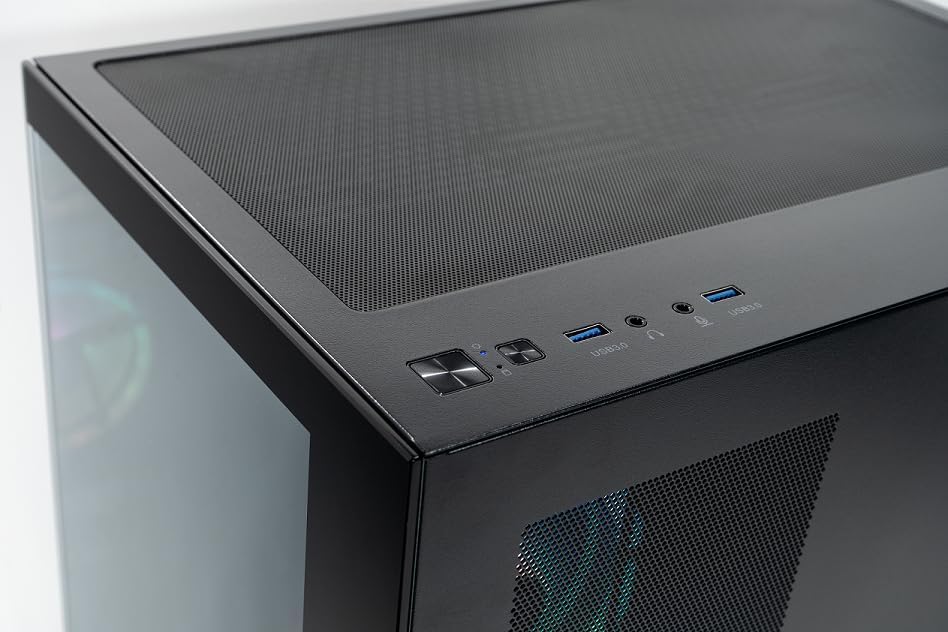
Image 2.2.2: Top panel of the CYBERPOWERPC Luxe Gaming PC. This image highlights the power button, reset button, two USB 3.0 ports, and audio input/output jacks located on the top of the PC case for easy access.
2.3 Collegamento di alimentazione
Connect the provided power cable to the power supply unit (PSU) input on the rear of the PC, then plug the other end into a grounded electrical outlet.
3. Istruzioni per l'uso
3.1 Accensione/Spegnimento
- Per accendere: Premere il pulsante di accensione situato sul pannello superiore del PC.
- Per spegnere: From the Windows 11 desktop, click the Start button, then select Power > Shut down. Avoid direct power-off unless necessary to prevent data loss.
3.2 Avvio iniziale e installazione di Windows 11
Upon first power-on, the system will guide you through the Windows 11 Home setup process. Follow the on-screen instructions to configure your region, language, network, and user account.
3.3 Connettività di rete
- Cablato (Ethernet): Once the Ethernet cable is connected, Windows 11 should automatically detect and connect to the network.
- Senza fili (Wi-Fi): After Windows 11 setup, click the Wi-Fi icon in the taskbar, select your network, and enter the password. The system supports 1200Mbps 802.11ac Wi-Fi.
4. Componenti e caratteristiche principali
Your CYBERPOWERPC Luxe Gaming PC is equipped with the following core components:
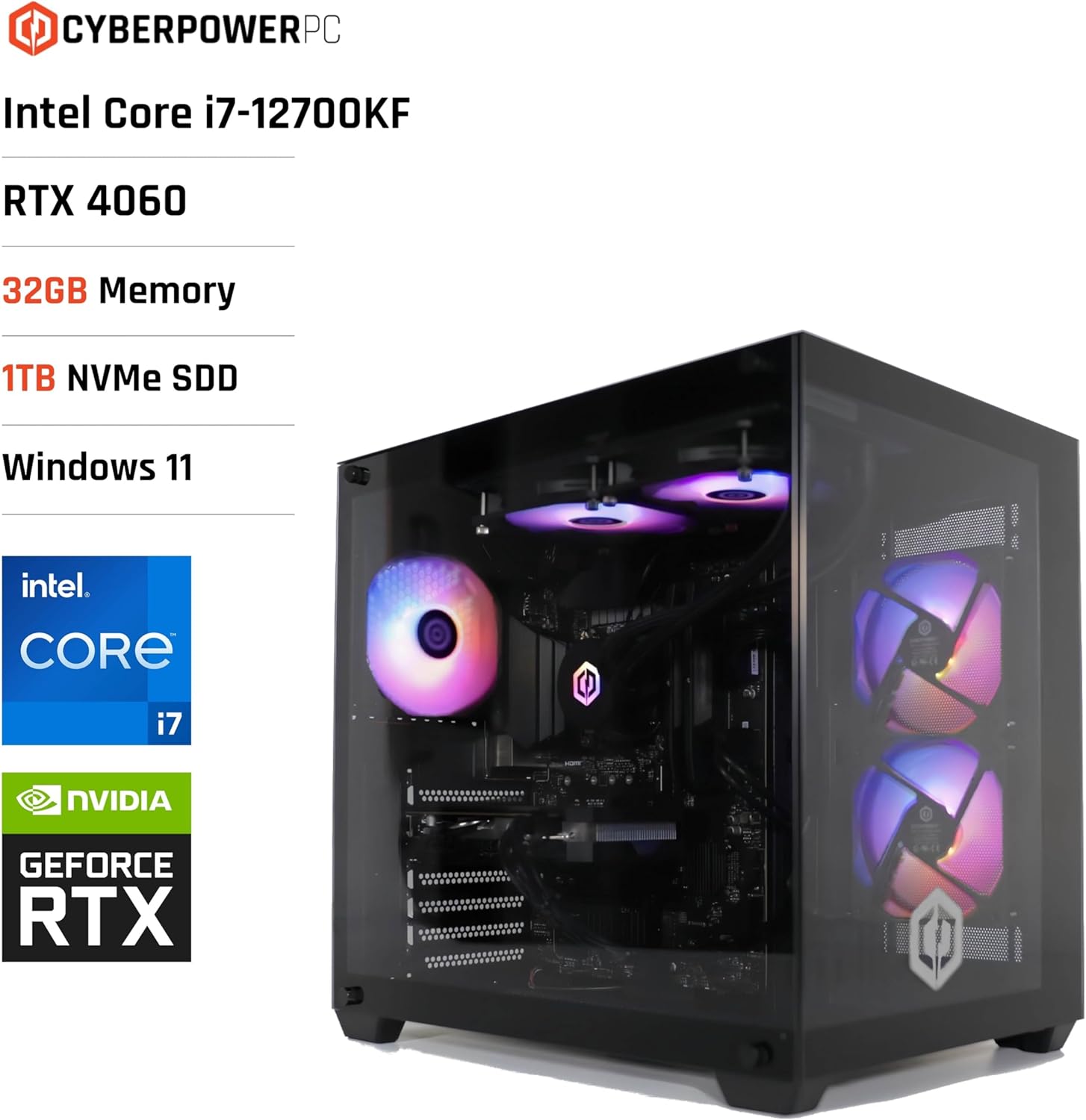
Image 4.1: CYBERPOWERPC Luxe Gaming PC with specifications. This image visually presents the PC alongside text overlays indicating its Intel Core i7-12700KF processor, RTX 4060 graphics, 32GB Memory, 1TB NVMe SSD, and Windows 11 operating system.
- Processore: Intel Core i7-12700KF (12 cores, 20 threads, up to 5.00GHz boost, 25MB cache).
- Scheda grafica: Nvidia GeForce RTX 4060 Ti with 8GB GDDR6X memory. Supports DisplayPort v1.4a and HDMI 2.1.
- Memoria RAM: 32GB 5200MHz DDR5 RAM.
- Magazzinaggio: 1TB M.2 NVMe Solid State Drive for fast boot times and application loading.
- Scheda madre: Intel Z790 chipset motherboard.
- Alimentazione elettrica: 650W 80+ certified gaming power supply.
- Raffreddamento: 240mm all-in-one CPU water cooler and 6x RGB LED fans for efficient thermal management.
- Sistema operativo: Windows 11 Home (64-bit) pre-installed.
- Connettività:
- 4 porte USB 3.1
- 2 porte USB 2.0
- 1x PS/2 KB or mouse port
- 1x RJ45 Ethernet LAN (10/100/1000)
- 1200Mbps 802.11ac Wi-Fi / WLAN
- Audio ad alta definizione a 7.1 canali

Immagine 4.2: posteriore view of the CYBERPOWERPC Luxe Gaming PC. This image details the various input/output ports available on the back panel, including USB ports, Ethernet, audio jacks, and video outputs from the graphics card.

Image 4.3: Nvidia GeForce RTX logo. This image represents the powerful graphics processing unit integrated into the system.
5. Manutenzione
Una manutenzione regolare contribuisce a garantire la longevità e le prestazioni del tuo PC.
- Pulizia della polvere: Periodically clean dust from the case fans, CPU cooler, and graphics card heatsink using compressed air. Ensure the PC is powered off and unplugged before cleaning.
- Aggiornamenti software: Keep your Windows operating system, drivers (especially graphics drivers), and applications updated to the latest versions for security and performance improvements.
- Ventilazione: Ensure the PC is placed in a well-ventilated area, free from obstructions that could block airflow to the intake and exhaust vents.
- Gestione dei cavi: Organizzare i cavi interni ed esterni per migliorare il flusso d'aria ed evitare disconnessioni accidentali.
6. Risoluzione Dei Problemi
Questa sezione affronta i problemi più comuni che potresti incontrare.
6.1 Nessun potere
- Verificare che il cavo di alimentazione sia collegato saldamente sia al PC sia alla presa a muro.
- Verify the power switch on the PSU (located at the rear of the PC) is in the 'ON' position.
- Provare la presa con un altro dispositivo per accertarsi che funzioni.
6.2 Nessuna visualizzazione sul monitor
- Ensure the monitor is powered on and the video cable (HDMI/DisplayPort) is securely connected to the graphics card outputs, not the motherboard's integrated video ports.
- Se disponibile, provare un cavo video o un monitor diverso.
- Confirm the correct input source is selected on your monitor.
6.3 Problemi di connettività di rete
- Per le connessioni cablate, controllare lo stato del cavo Ethernet e del router.
- For Wi-Fi, ensure the Wi-Fi adapter is enabled in Windows settings and you are connected to the correct network with the correct password.
- Riavvia il router/modem e il PC.
6.4 Problemi di prestazioni del sistema
- Assicurarsi che tutti i driver, in particolare quelli grafici, siano aggiornati.
- Controllare se le applicazioni in background consumano risorse eccessive utilizzando Task Manager (Ctrl+Maiusc+Esc).
- Verify that the system is not overheating. Monitor CPU and GPU temperatures using appropriate software.
7. Specifiche tecniche
| Componente | Specificazione |
|---|---|
| Marca | CyberpowerPC |
| Sistema operativo | Windows 11 Home (64 bit) |
| Modello CPU | Intel Core i7-12700KF |
| Velocità della CPU | 3.6 GHz (Base), fino a 5.0 GHz (Boost) |
| Core/thread della CPU | 12 Cores (8 Performance, 4 Efficient) / 20 Threads |
| Dimensione della cache | 25 MB |
| Scheda grafica | Nvidia GeForce RTX 4060 Ti 8GB GDDR6X |
| Memoria RAM | 32 GB 5200 MHz DDR5 |
| Magazzinaggio | SSD M.2 NVMe da 1 TB |
| Chipset della scheda madre | Intel Z790 |
| Alimentazione elettrica | 650W 80+ Gaming PSU |
| Raffreddamento | 240mm All-in-One CPU Water Cooler, 6x RGB LED Fans |
| Wifi | 1200Mbps 802.11ac WLAN |
| Etereo | 10/100/1000 Gigabit LAN |
| Audio | Audio ad alta definizione a 7.1 canali |
| Porte USB | 4x USB 3.1, 2x USB 2.0 |
| Tipo di caso | CyberpowerPC Prism Mid Tower |
| Usi specifici | Giochi |
8. Garanzia e supporto
Your CYBERPOWERPC Luxe Gaming PC comes with the following warranty and support:
- Garanzia sui componenti: 2 years for components.
- Manufacturing Warranty: 3 years for manufacturing defects.
- Supporto tecnico: Supporto tecnico a vita.
- Software: Includes 1 Year Norton 360 VPN & Security for Gamers.
For technical assistance or warranty claims, please contact CyberpowerPC customer support through their official websito o le informazioni di contatto fornite nella documentazione del prodotto.


