1. Introduzione
This manual provides essential information for the safe and efficient operation of your Ricoh Aficio MP C3004 Color Laser Multifunction Copier. Please read this manual thoroughly before using the machine and keep it in a safe place for future reference. The Ricoh Aficio MP C3004 is designed for high-performance copying, printing, scanning, and faxing, featuring a 10.1-inch Smart Operation Panel and network connectivity.
2. Informazioni sulla sicurezza
Observe the following safety precautions to prevent injury or damage to the machine.
- Alimentazione elettrica: Connect the machine to a grounded power outlet. Do not overload power strips.
- Posizionamento: Place the machine on a stable, level surface with adequate ventilation. Avoid direct sunlight, excessive heat, humidity, or dust.
- Gestione: Do not attempt to disassemble or modify the machine. Refer all servicing to qualified personnel.
- Spostamento della macchina: When moving the machine, ensure all paper trays are closed and the power cord is disconnected. Use appropriate lifting techniques or assistance due to its weight.
- Bambini: Tenere la macchina fuori dalla portata dei bambini.
3. Impostazione
3.1 Disimballaggio e posizionamento
Carefully remove the machine from its packaging. Ensure all packing materials are removed. Place the machine on a sturdy, level surface capable of supporting its weight. Allow sufficient space around the machine for ventilation and access to trays and covers.
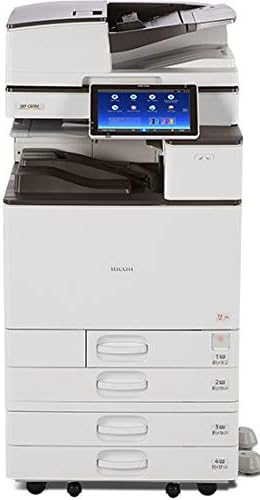
This image displays the complete Ricoh Aficio MP C3004 multifunction copier unit, featuring its main body, integrated stand, multiple paper input trays, and the Smart Operation Panel.
3.2 Collegamento di alimentazione
Connect the power cord securely to the machine and then to a grounded electrical outlet. Turn on the main power switch, usually located on the side of the machine.
3.3 Configurazione iniziale e configurazione di rete
Upon first power-on, the 10.1-inch Smart Operation Panel will guide you through initial setup, including language selection and basic network settings. For network connectivity, you can use either a wired Ethernet connection or the built-in Wi-Fi. Access network settings via the Smart Operation Panel to configure IP addresses or connect to your wireless network.
3.4 Installazione del driver
Install the necessary printer and scanner drivers on your computer. The machine comes with a pre-installed PostScript 3 Supplement, ensuring compatibility with various operating systems and applications. Drivers can typically be found on the Ricoh support websito.
3.5 Caricamento della carta
Open the desired paper tray and adjust the paper guides to fit the paper size. Load paper with the print side facing up (or as indicated by the tray diagram). Ensure the paper stack does not exceed the maximum fill line. The machine supports paper sizes up to 11" x 17" / A3 and various media types.
4. Istruzioni per l'uso
4.1 Using the Smart Operation Panel
The 10.1-inch Wide Super VGA Smart Operation Panel provides an intuitive interface for all machine functions. Tap, drag, swipe, and scroll to navigate through menus and applications. The home screen displays icons for common functions and allows for personalization with widgets.

Questa immagine mostra un dettaglio view of the 10.1-inch Smart Operation Panel, highlighting its touch interface with icons for functions like Quick Copy, Printer, Quick Scanner, Document Server, Web Browser, and User Guide.
4.2 Copia dei documenti
- Place your original document on the exposure glass or in the Automatic Document Feeder (ADF).
- On the Smart Operation Panel, select the 'Copy' application.
- Adjust settings such as quantity, color mode (color/black and white), duplex (auto duplex supported), paper tray, and zoom.
- Premere il pulsante "Avvia" per iniziare la copia.
4.3 Stampa dei documenti
To print from a computer, ensure the drivers are installed and the machine is connected to the network. Select the Ricoh Aficio MP C3004 as your printer from your application's print dialog. Adjust print settings as needed (e.g., color, duplex, paper size) and send the print job. Mobile printing is also supported via Wi-Fi connectivity.
4.4 Scansione di documenti
- Place your original document on the exposure glass or in the ADF.
- Select the 'Scanner' application on the Smart Operation Panel.
- Scegli la destinazione della scansione (ad esempio, Scansione su e-mail, Scansione su cartella, Scansione su USB).
- Configurare le impostazioni di scansione come risoluzione, modalità colore e file formato.
- Premere il pulsante "Avvia" per avviare la scansione.
4.5 Invio di documenti via fax
To send a fax, place your document in the ADF. Select the 'Fax' application on the Smart Operation Panel. Enter the recipient's fax number using the on-screen keypad or select from an address book. Adjust any necessary settings and press 'Start' to send the fax.
5. Manutenzione
5.1 Pulizia della macchina
Pulire regolarmente l'esterno della macchina con un panno morbido, damp cloth. For the scanner glass, use a lint-free cloth and a mild glass cleaner. Avoid abrasive cleaners or solvents.
5.2 Sostituzione delle cartucce del toner
The Smart Operation Panel will display a warning when a toner cartridge is low or empty. Follow the on-screen instructions or refer to the machine's internal guide for specific steps on replacing toner cartridges. Ensure you use genuine Ricoh toner for optimal performance.
5.3 Rimozione degli inceppamenti della carta
If a paper jam occurs, the Smart Operation Panel will indicate the location of the jam. Open the specified covers and carefully remove the jammed paper, pulling it gently in the direction of the paper path. Close all covers securely after clearing the jam.
6. Risoluzione Dei Problemi
This section addresses common issues you might encounter with your Ricoh Aficio MP C3004.
- La macchina non si accende: Check the power cord connection and ensure the main power switch is on. Verify the power outlet is functional.
- Scarsa qualità di stampa: Check toner levels. Perform a print head cleaning or calibration from the maintenance menu on the Smart Operation Panel. Ensure you are using appropriate paper for your print settings.
- Inceppamenti della carta: Refer to Section 5.3 for clearing paper jams. Ensure paper is loaded correctly and not creased or damaged.
- Problemi di connettività di rete: Verify network cable connections or Wi-Fi settings. Restart the machine and your network router. Check IP address settings on the Smart Operation Panel.
- Smart Operation Panel Unresponsive: Try restarting the machine. If the issue persists, contact support.
7. Specifiche
| Caratteristica | Specificazione |
|---|---|
| Funzioni | Copy, Print, Scan, Fax, Auto Duplex, Network, Wi-Fi |
| Velocità di stampa | Up to 30 pages per minute (color and black & white) |
| Formato della carta | Up to 11" x 17" / A3 |
| Display | 10.1-inch Wide Super VGA Smart Operation Panel |
| Risoluzione | 1200 x 1200 dpi (maximum) |
| Connettività | Ethernet, Wi-Fi |
| Numero di modello | 417483 |
8. Garanzia e supporto
Your Ricoh Aficio MP C3004 is covered by a manufacturer's warranty. For specific warranty terms and conditions, please refer to the documentation provided at the time of purchase or visit the official Ricoh website. For technical support, driver downloads, or service requests, please contact Ricoh customer support or your authorized dealer.


