1. Introduzione
This manual provides essential information for the proper use and maintenance of your WiMiUS Q4 4K Action Camera. Please read it thoroughly before operating the device to ensure optimal performance and longevity. Keep this manual for future reference.
Precauzioni di sicurezza
- Non esporre la fotocamera a temperature estreme o alla luce solare diretta per periodi prolungati.
- Evitare di far cadere la fotocamera o di sottoporla a forti urti.
- Tenere la fotocamera lontana da forti campi magnetici.
- Prima di immergere la fotocamera in acqua, assicurarsi che la custodia impermeabile sia ben sigillata.
- Utilizzare solo accessori e caricabatterie approvati.
2. Prodotto finitoview
Componenti della fotocamera
Familiarize yourself with the main components of your WiMiUS Q4 Action Camera:
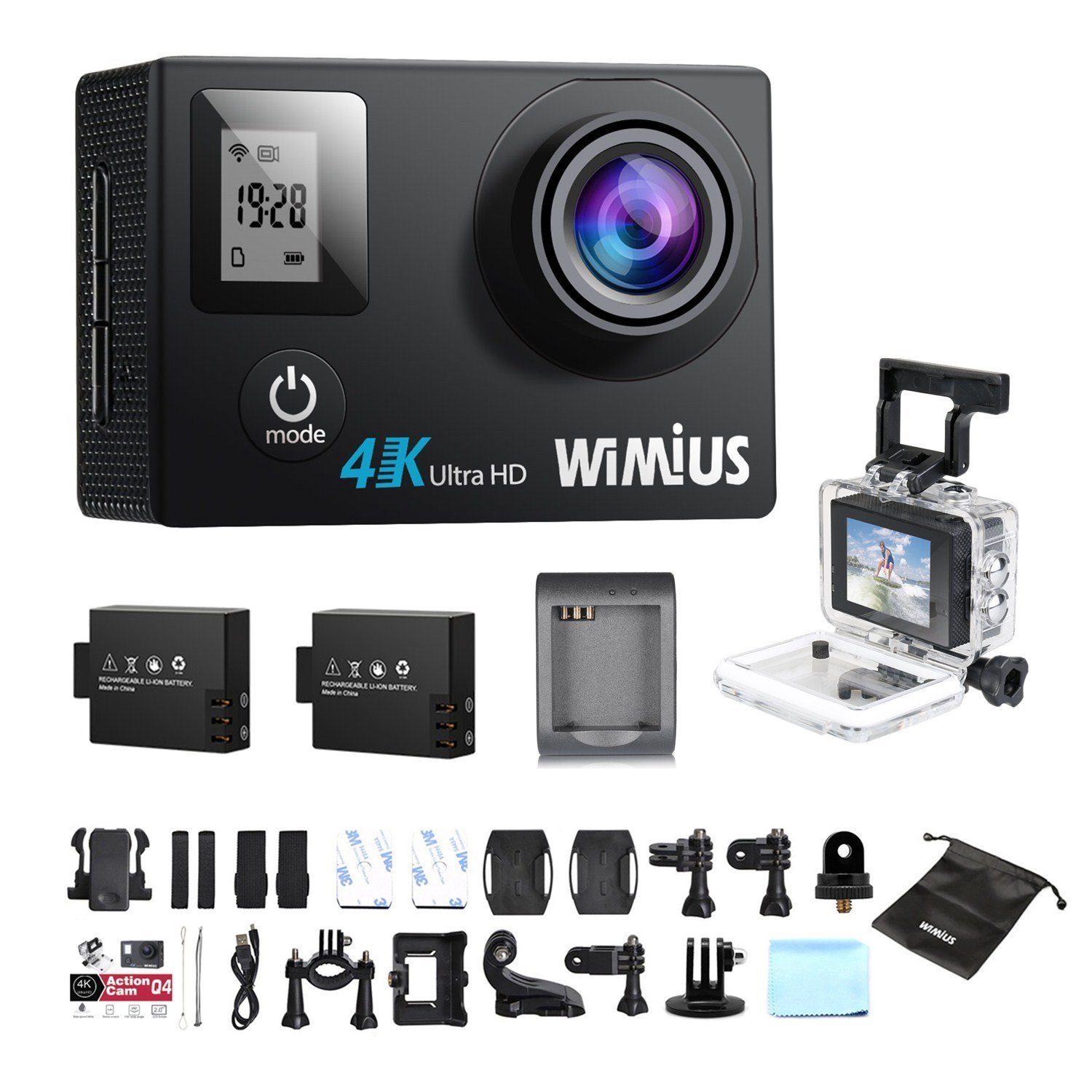
- Lente: Captures video and photo footage.
- Pulsante di accensione / modalità: Powers the camera on/off and switches between modes.
- Pulsante Otturatore/OK: Starts/stops recording, takes photos, or confirms selections.
- Pulsanti su/giù: Navigates menu options.
- Main LCD Screen (2.0 inches): Visualizza in diretta view, riproduzione e interfaccia del menu.
- Status Screen (0.66 inches): Shows current mode, battery status, and recording time.
- Porta micro USB: Per la ricarica e il trasferimento dei dati.
- Porta Micro HDMI: Per il collegamento a un display esterno.
- Slot per scheda MicroSD: Per l'inserimento della scheda di memoria.
Accessori inclusi
Your camera comes with a comprehensive kit of accessories:

- Waterproof Case (up to 40M)
- Rechargeable Li-ion Batteries (x2)
- Cavo USB
- Various Mounts and Adapters (e.g., helmet mount, bicycle mount)
- Tamponi adesivi
- Panno per la pulizia
- Bands and Straps
3. Impostazione
3.1 Installazione e ricarica della batteria
- Aprire il coperchio del vano batteria nella parte inferiore della fotocamera.
- Insert a fully charged Li-ion battery, ensuring the correct orientation.
- Chiudere saldamente il coperchio del vano batterie.
- To charge, connect the camera to a USB power source (e.g., computer, USB wall adapter) using the provided USB cable. The charging indicator light will illuminate.
- Charging typically takes 2-3 hours. The indicator light will turn off or change color when fully charged.

3.2 Installazione della scheda MicroSD
A MicroSD card (not included) is required for recording. The camera supports up to 64GB Class 10 or UHS-I MicroSD cards.
- Individuare lo slot per la scheda MicroSD sul lato della fotocamera.
- Inserire la scheda MicroSD con i contatti dorati rivolti verso il retro della fotocamera finché non scatta in posizione.
- Per rimuoverla, spingere delicatamente la scheda finché non scatta fuori.
- It is recommended to format the MicroSD card in the camera before first use and periodically thereafter to ensure stable recording.
3.3 Utilizzo della custodia impermeabile
The waterproof case allows the camera to be used up to 40 meters underwater.
- Assicurarsi che la fotocamera sia asciutta prima di riporla nella custodia impermeabile.
- Close the case firmly, ensuring the rubber seal is clean and free of debris.
- Perform a dry test by submerging the empty case in water for a few minutes to check for leaks before inserting the camera.
Accessori di montaggio 3.4
Utilize the various mounts and adapters to attach your camera to helmets, bicycles, or other surfaces. Refer to the accessory diagram for specific attachment methods.
4. Istruzioni per l'uso
4.1 Accensione/Spegnimento
- Accensione: Tenere premuto il pulsante Accensione/Modalità per 3-5 secondi.
- Spegni: Tenere premuto il pulsante Accensione/Modalità per 3-5 secondi.
4.2 Selezione della modalità
Press the Power/Mode button repeatedly to cycle through the main modes:
- Modalità di registrazione video: Indicato dall'icona di una videocamera.
- Modalità foto: Indicato dall'icona di una macchina fotografica.
- Modalità di riproduzione: Indicato da un'icona di riproduzione.
- Menu Impostazioni: Indicato dall'icona di un ingranaggio.
4.3 Registrazione video
- Passa alla modalità di registrazione video.
- Press the Shutter/OK button to start recording. A red indicator light will flash, and the recording time will appear on the screen.
- Premere nuovamente il pulsante Otturatore/OK per interrompere la registrazione.
Video Settings (via Settings Menu)
- Risoluzione: Select from 4K 30fps, 2.7K 30fps, 1080p 60/30fps, 720p 120/60/30fps.
- Registrazione in loop: Set to 2min, 3min, 5min, or Off. When enabled, the camera will continuously record, overwriting the oldest files quando la scheda di memoria è piena.
- Video time-lapse: Set intervals (0.5s, 1s, 5s, 10s, 30s, 60s) or Off. The camera will capture frames at set intervals and compile them into a video.
- Rallentatore: Available at 1080p/60fps and 720p/120fps.
4.4 Scattare foto
- Passa alla modalità Foto.
- Premere il pulsante Otturatore/OK per scattare una foto.
Photo Settings (via Settings Menu)
- Risoluzione: Fino a 16 Megapixel.
- Foto a raffica: Capture multiple photos in quick succession (e.g., 3P/1S, 5P/1S, 10P/1S).
4.5 Connessione WiFi e utilizzo delle app
The camera features Wi-Fi connectivity for remote control via a smartphone app.
- Enable Wi-Fi on the camera via the Settings Menu. The Wi-Fi name (SSID) and password will be displayed.
- Download the compatible WiMiUS app from your smartphone's app store (e.g., App Store for iOS, Google Play for Android).
- On your smartphone, connect to the camera's Wi-Fi network using the provided password.
- Open the WiMiUS app to control the camera, view cibo vivotage, e trasferimento files.
4.6 Menu Navigation and General Settings
Access the Settings Menu by cycling through modes. Use the Up/Down buttons to navigate and the Shutter/OK button to select.
- Lingua: Select your preferred language (French is available).
- Data/Ora: Imposta la data e l'ora corrette. Note: The date/time setting may reset to 2016/09/01 00:00:00 when batteries are changed. This is a known behavior; reset manually after each battery change.
- Modalità veicolo: (OUI/NON - Yes/No) This mode typically enables automatic recording when the camera detects power, useful for dashcam functionality.
- Formato scheda: Erases all data on the MicroSD card.
- Ripristino di fabbrica: Ripristina tutte le impostazioni ai valori predefiniti.
5. Manutenzione
5.1 Pulizia della fotocamera e dell'obiettivo
- Per pulire il corpo della fotocamera, utilizzare un panno morbido e privo di lanugine.
- For the lens, use a specialized lens cleaning cloth or pen to avoid scratches. Do not use abrasive materials.
- Ensure the camera is off and dry before cleaning.
5.2 Cura della custodia impermeabile
- Dopo ogni utilizzo in acqua, sciacquare la custodia impermeabile con acqua dolce e lasciarla asciugare all'aria.
- Inspect the rubber seal for any dirt, sand, or damage. Clean or replace if necessary to maintain waterproofing.
5.3 Cura della batteria
- Conservare le batterie in un luogo fresco e asciutto quando non vengono utilizzate.
- Do not expose batteries to high temperatures or direct flame.
- In caso di stoccaggio prolungato, caricare le batterie fino a circa il 50% della loro capacità.
5.4 Conservazione
When not in use, store the camera and accessories in a protective case to prevent damage from dust and impacts.
6. Risoluzione Dei Problemi
This section addresses common issues you might encounter with your WiMiUS Q4 camera.
| Problema | Possibile causa | Soluzione |
|---|---|---|
| La fotocamera non si accende. | Batteria scarica o scarica. | Caricare completamente la batteria. Assicurarsi che la batteria sia inserita correttamente. |
| Impossibile registrare video/scattare foto. | Nessuna scheda MicroSD, scheda piena o errore della scheda. | Inserisci una scheda MicroSD. Elimina la vecchia files or replace card. Format the card in the camera. |
| Date/Time resets after battery change. | Standard behavior for this model. | Manually reset the date and time in the settings menu after each battery change. |
| Scarsa qualità dell'immagine in condizioni di scarsa illuminazione. | Limitations of the camera sensor in low light conditions. | Ensure adequate lighting. Adjust exposure settings if available. |
| Sound is muffled in waterproof case. | Waterproof case seals the microphone. | This is normal. For better audio, use the camera without the waterproof case in dry conditions. |
| Problemi di connessione Wi-Fi. | Incorrect password, app issues, or signal interference. | Verify Wi-Fi password. Restart camera and smartphone. Ensure app is updated. Try resetting camera Wi-Fi settings. |
| Accessories breaking easily. | Material quality or improper use. | Handle accessories with care. Consider purchasing higher quality third-party mounts if needed for demanding activities. |
Passaggi generali per la risoluzione dei problemi
- Riavviare la fotocamera: Power off and then on again.
- Check MicroSD Card: Ensure it's correctly inserted and formatted. Try a different card if issues persist.
- Ripristino di fabbrica: If problems continue, perform a factory reset via the settings menu. Note that this will erase all custom settings.
7. Specifiche
Key technical specifications for the WiMiUS Q4 Action Camera:
- Marca: WiMiUS
- Modello: Q4
- Risoluzione fissa effettiva: 16 Megapixel
- Risoluzione video: 4K (30fps), 2.7K (30fps), 1080p (60/30fps), 720p (120/60/30fps)
- Dimensioni dello schermo: 2.0 inches (main LCD), 0.66 inches (status screen)
- Tecnologia di connettività: Wifi
- Profondità impermeabile: Fino a 40 metri (con custodia impermeabile)
- Stabilizzazione dell'immagine: NO
- Tecnologia dei sensori: CMOS
- Tipo di lente: Grandangolo
- Colore: Gold (Note: Product title indicates 'Noir' (Black), but specifications list 'or' (Gold). This manual refers to the Q4 model generally.)
- Magazzinaggio: Supports MicroSD cards up to 64GB (Class 10 or UHS-I recommended)
8. Garanzia e supporto
For warranty information and customer support, please refer to the documentation provided at the time of purchase or contact your retailer. Specific details regarding warranty duration and terms are typically included with your product packaging.
Software updates and spare parts availability information are not provided in the product specifications. Please check the manufacturer's official website or contact customer service for the most current information.