1. Introduzione
This manual provides essential information for the safe and efficient operation of your Atomos Sumo 19 HDR High Bright Monitor. Please read this manual thoroughly before using the device to ensure proper setup, operation, and maintenance. Retain this manual for future reference.
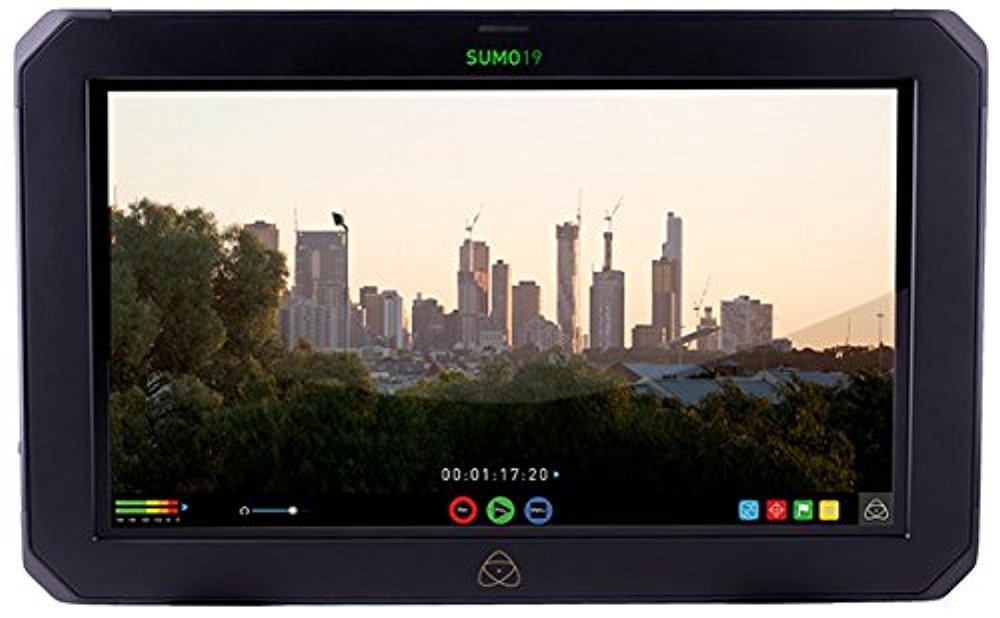
Figura 1.1: Davanti view of the Atomos Sumo 19 HDR High Bright Monitor, showcasing its large display and robust casing.
2. Informazioni sulla sicurezza
Per evitare danni al dispositivo e garantire la sicurezza dell'utente, osservare le seguenti precauzioni di sicurezza:
- Fonte di energia: Utilizzare solo l'adattatore di alimentazione specificato. Vol erratotagpuò danneggiare l'unità.
- Ventilazione: Do not block ventilation openings. Ensure adequate airflow to prevent overheating.
- Acqua e umidità: Tenere il dispositivo lontano da acqua, pioggia e umidità elevata. Non utilizzare con le mani bagnate.
- Impatto: Evitare di far cadere o sottoporre il dispositivo a forti impatti.
- Pulizia: Scollegare l'alimentazione prima della pulizia. Utilizzare un panno morbido e asciutto. Non utilizzare detergenti liquidi o spray.
- Manutenzione: Non tentare di riparare il dispositivo da soli. Rivolgersi a personale qualificato per tutta la manutenzione.
- Avvertenza sulla Proposta 65: Questo prodotto può contenere sostanze chimiche note allo Stato della California come causa di cancro e difetti alla nascita o altri danni riproduttivi.
3. Impostazione
3.1. Contenuto della confezione
Verificare che tutti gli articoli siano presenti nel pacco:
- Atomos Sumo 19 HDR High Bright Monitor
- Adattatore di alimentazione CA.
- Guida rapida
- SSD/HDD Caddy (for recording media)
3.2. Montaggio del monitor
The Sumo 19 can be mounted using standard VESA mounts or a dedicated C-stand mounting bracket (sold separately). Ensure the mounting solution is robust enough to support the monitor's weight (approximately 11.99 pounds).
- Attach the appropriate mounting plate to the rear of the monitor using the provided screws.
- Secure the monitor to your desired stand or rig.
Figura 3.1: Illustration of the rear panel with VESA mounting points. Ensure secure attachment to a compatible mount.
3.3. Collegamento dell'alimentazione
Connect the AC power adapter to the DC input port on the monitor and then to a suitable power outlet.
- Locate the DC input port on the side or rear of the monitor.
- Plug the power adapter into the monitor, then into a wall socket.
3.4. Connecting Video Inputs
The Sumo 19 accepts video signals via HDMI or SDI. It features dual 12/6/3G-SDI inputs and HDMI input.
- HDMI: Connect an HDMI cable from your source device to the HDMI input port on the monitor.
- ISD: Connect SDI cables from your source devices to the SDI input ports. The monitor supports up to 4Kp60 or HDp240 over SDI.
Figura 3.2: Diagram illustrating the location of HDMI and SDI input/output ports for video signal connection.
3.5. Inserimento del supporto di registrazione
To enable recording, insert a compatible SSD or HDD into the provided caddy, then slide the caddy into the monitor's media slot.
- Open the SSD/HDD caddy and securely place your recording media inside.
- Slide the loaded caddy into the designated slot on the monitor until it clicks into place.
4. Funzionamento del monitor
4.1. Accensione/Spegnimento
Press and hold the power button located on the monitor's frame until the screen illuminates or shuts down.
4.2. Navigazione nell'interfaccia utente
The Sumo 19 features a touchscreen interface for menu navigation and control.
- Rubinetto: Select an option or activate a function.
- Scorri: Navigate through menus or adjust parameters.
- Pizzica/Zoom: (If supported) Magnify parts of the image.
Figura 4.1: Example of the touchscreen user interface, showing main menu options and monitoring tools.
4.3. Selezione ingresso
To switch between connected video sources:
- Tap the 'Input' icon on the screen.
- Select the desired HDMI or SDI input from the list.
4.4. HDR and SDR Monitoring
The Sumo 19 supports both HDR (High Dynamic Range) and SDR (Standard Dynamic Range) monitoring. It provides real-time exposure tools for Log footage.
- Access the 'Display' settings from the main menu.
- Select 'HDR' or 'SDR' mode based on your workflow.
- Adjust HDR settings such as brightness and contrast as needed.
4.5. Loading Custom LUTs
You can load custom Look Up Tables (LUTs) onto the Sumo 19 via the HDD/SSD slot to preview different looks on set.
- Salva la tua LUT .cube files to the root directory of your recording media (SSD/HDD).
- Insert the media into the monitor.
- Navigate to the 'LUT' section in the monitor's menu.
- Select 'Load LUT' and choose your desired LUT from the list.
4.6. Funzioni di registrazione
The Sumo 19 is capable of recording video directly to SSD/HDD media.
- Ensure recording media is properly inserted and formatted.
- Select your desired recording codec and resolution in the 'Record' menu.
- Press the 'Record' button on the touchscreen to start and stop recording.
5. Manutenzione
5.1. Pulizia del monitor
Per mantenere prestazioni e aspetto ottimali:
- Always power off and disconnect the monitor from power before cleaning.
- Utilizzare un panno morbido e privo di lanugine per pulire delicatamente lo schermo e il corpo.
- Per segni ostinati, leggermente dampLavare il panno con acqua. Evitare prodotti chimici aggressivi o materiali abrasivi.
5.2. Aggiornamenti del firmware
Atomos periodically releases firmware updates to improve performance and add features. Check the official Atomos website for the latest firmware for your Sumo 19.
- Scarica il firmware file to a formatted SSD/HDD.
- Insert the media into the monitor.
- Navigate to the 'Settings' menu and select 'Firmware Update'.
- Follow the on-screen instructions to complete the update. Do not power off the monitor during this process.
5.3. Conservazione
When not in use, store the monitor in a cool, dry place, protected from dust and extreme temperatures. Use a protective case for transport.
6. Risoluzione Dei Problemi
If you encounter issues with your Atomos Sumo 19, refer to the following common problems and solutions:
| Problema | Possibile causa | Soluzione |
|---|---|---|
| Il monitor non si accende. | Nessuna alimentazione, adattatore di alimentazione difettoso, collegamento allentato. | Check power cable connections. Ensure power adapter is functional and plugged into a live outlet. |
| Nessun segnale video visualizzato. | Incorrect input selected, faulty cable, source device off/incorrect output. | Verify correct input is selected on the monitor. Check video cables for damage and ensure they are securely connected. Confirm source device is outputting a signal. |
| Lo schermo è troppo scuro o troppo luminoso. | Display settings are incorrect. | Adjust brightness, contrast, and HDR/SDR settings in the 'Display' menu. |
| Recording not starting. | No media, unformatted media, media full, incorrect recording settings. | Ensure SSD/HDD is inserted, formatted, and has sufficient space. Check recording codec and resolution settings. |
If the problem persists, please contact Atomos customer support.
7. Specifiche
| Caratteristica | Dettaglio |
|---|---|
| Numero di modello | ATOMSUMO19 |
| Dimensioni dello schermo | 19 pollici |
| Risoluzione | 1920x1200 |
| Proporzioni | 16:9 native |
| Luminosità | 1200 nit (High Bright) |
| Profondità del colore | 10-bit HDR |
| Ingressi video | HDMI, Dual 12/6/3G-SDI |
| Max Input Resolution/Framerate | 4Kp60 (HDMI/SDI), HDp240 (SDI) |
| Supporto di registrazione | SSD/HDD via caddy |
| Dimensioni del prodotto | 14.96 x 12.99 x 19.84 pollici |
| Peso dell'articolo | 11.99 libbre |
| Produttore | Atomos |
8. Informazioni sulla garanzia
The Atomos Sumo 19 HDR High Bright Monitor comes with a Garanzia limitata del produttore di 1 anno. This warranty covers defects in materials and workmanship under normal use. For full terms and conditions, please refer to the warranty card included with your product or visit the official Atomos websito.
Conserva la prova d'acquisto per le richieste di garanzia.
9. Assistenza clienti
For technical assistance, product inquiries, or warranty claims, please visit the official Atomos support websito:
You may also find FAQs, firmware downloads, and additional resources on their websito.


