1. Introduzione
This manual provides detailed instructions for the setup, operation, and maintenance of your OMBAR Gaming Keyboard, Model OM-K617. Please read this manual thoroughly before using the product to ensure proper functionality and longevity.
2. Contenuto della confezione
Verifica che tutti gli articoli elencati di seguito siano inclusi nel tuo pacchetto:
- OMBAR Gaming Keyboard (Model OM-K617)
- Cavo USB integrato
3. Impostazione
The OMBAR Gaming Keyboard is a plug-and-play device, requiring no additional driver installation for basic functionality.
- Connect the integrated USB cable from the keyboard to an available USB port on your computer.
- Il sistema operativo rileverà e installerà automaticamente i driver necessari.
- The keyboard's LED backlighting will illuminate upon successful connection.
4 Caratteristiche
4.1. Caratteristiche principali
- 104 tasti anti-ghosting: Garantisce la registrazione accurata di più pressioni simultanee dei tasti, fondamentale per il gaming.
- 8 Tasti di scelta rapida multimediali: Dedicated keys for quick access to common functions.
- Poggiapolsi ergonomico: Integrated design to provide comfort during extended use.
- Retroilluminazione a LED: Customizable backlighting with multiple colors and modes.
- Costruzione durevole: Made from ABS plastic for durability.
- Interruttori meccanici: Provides tactile feedback for precise key presses.
4.2. Disposizione dei tasti e funzioni
The keyboard features a standard 104-key layout with several enhancements for user convenience.
- Enlarged Enter Key: Designed for easier access.
- Extended Spacebar: Contributes to reduced hand fatigue during prolonged typing or gaming.
Dedicated Multimedia Hotkeys:
Located above the function keys, these hotkeys provide instant control over various applications and media playback.
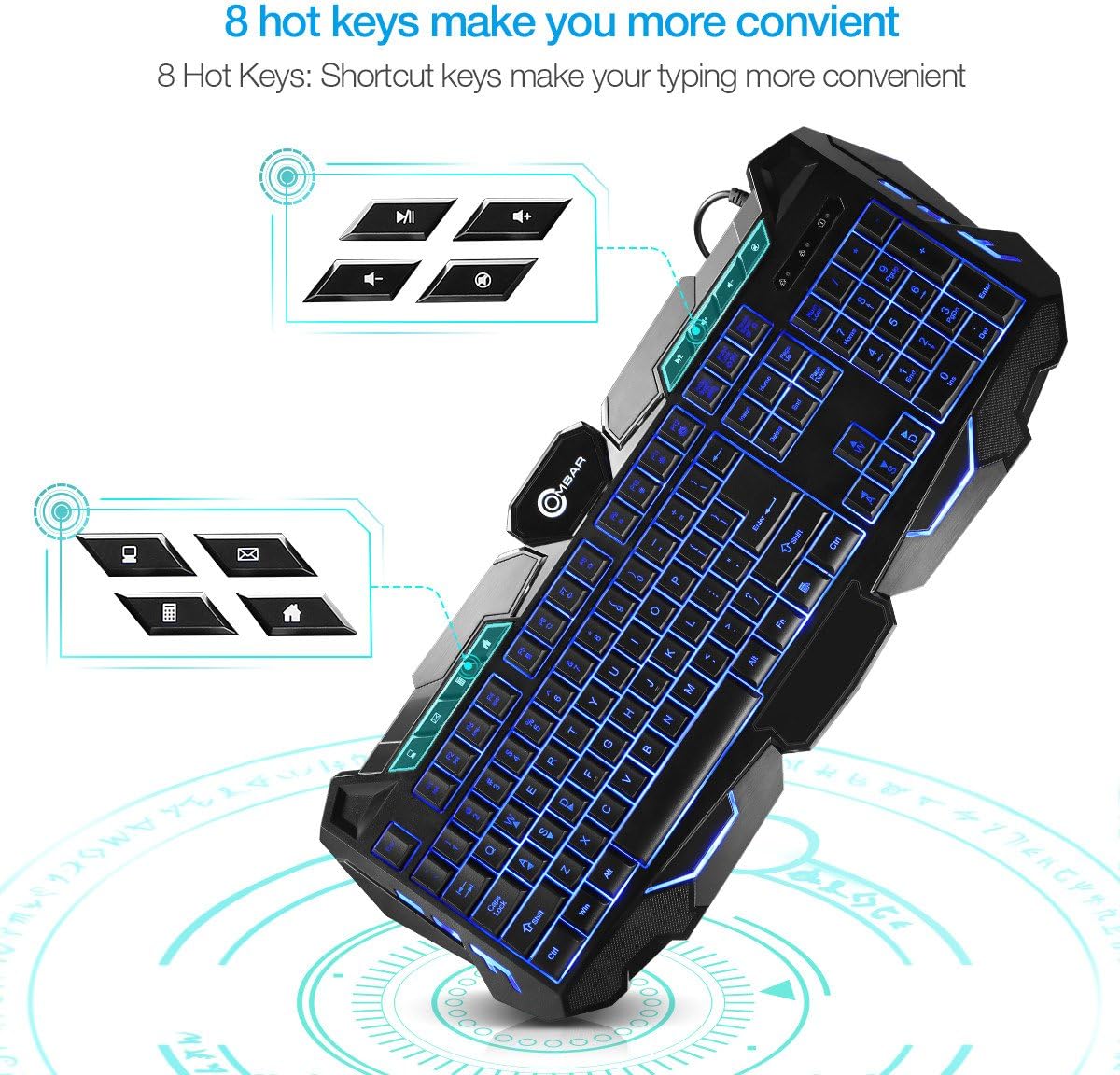
Image: Close-up of the OMBAR Gaming Keyboard highlighting the dedicated multimedia hotkeys. These keys allow quick access to functions like opening file explorer, email, calculator, web browser, controlling media playback (play/pause, volume up/down), and muting audio.
- File Esploratore: Opens your computer's file browser.
- E-mail: Launches your default email client.
- Calcolatrice: Apre la calcolatrice di sistema.
- Web Navigatore: Opens your default internet browser.
- Riproduci/Pausa: Controlla la riproduzione multimediale.
- Volume su/giù: Regola il volume del sistema.
- Disattiva audio: Disattiva l'audio.
Combinazioni di tasti funzione (Fn):
Tieni premuto il Fn key and press the corresponding Tasto F for additional functions:
- Fn+F1: Traccia precedente
- Fn+F2: Traccia successiva
- Fn+F3: Decrease Report Rate (RPS-)
- Fn+F4: Increase Report Rate (RPS+)
- Fn+F5: Apri Calcolatrice
- Fn+F6: Aggiorna pagina
- Fn+F7: Back Page (Web (navigatore)
- Fn+F8: Forward Page (Web (navigatore)
- Fn+F9: Set Backlight Brightness to 20%
- Fn+F10: Set Backlight Brightness to 60%
- Fn+F11: Set Backlight Brightness to 100%
- Fn+F12: Activate Gaming Mode (disables Windows key to prevent accidental interruptions during gameplay).

Image: The OMBAR Gaming Keyboard with blue backlighting, illustrating the Fn key and the Print Screen key, which when pressed together activate Gaming Mode.
5. Istruzioni per l'uso
5.1. Controllo della retroilluminazione a LED
The keyboard features three backlight colors (Red, Blue, Purple) and two lighting modes (Static and Breathing).

Image: A visual representation of the OMBAR Gaming Keyboard's three available LED backlight colors: red, blue, and purple.
- Cambiare i colori: Premere il tasto Lampadina key (usually located near the F12 key or Scroll Lock) to cycle through Red, Blue, and Purple backlight colors.
- Modifica delle modalità: Premere il tasto Fn + Lampadina key to switch between Static (constant light) and Breathing (pulsating light) modes.
- Regolazione della luminosità: Utilizzo Tasto F9 (20%), Tasto F10 (60%), and Tasto F11 (100%) to adjust backlight intensity.
- Turning Off Backlighting: Continue cycling through brightness levels or modes until the lights turn off, or use a specific Fn combination if available.
5.2. Uso generale
The keyboard is designed for both gaming and general office tasks. Its anti-ghosting feature ensures that all key presses are registered accurately, even during intense gaming sessions.
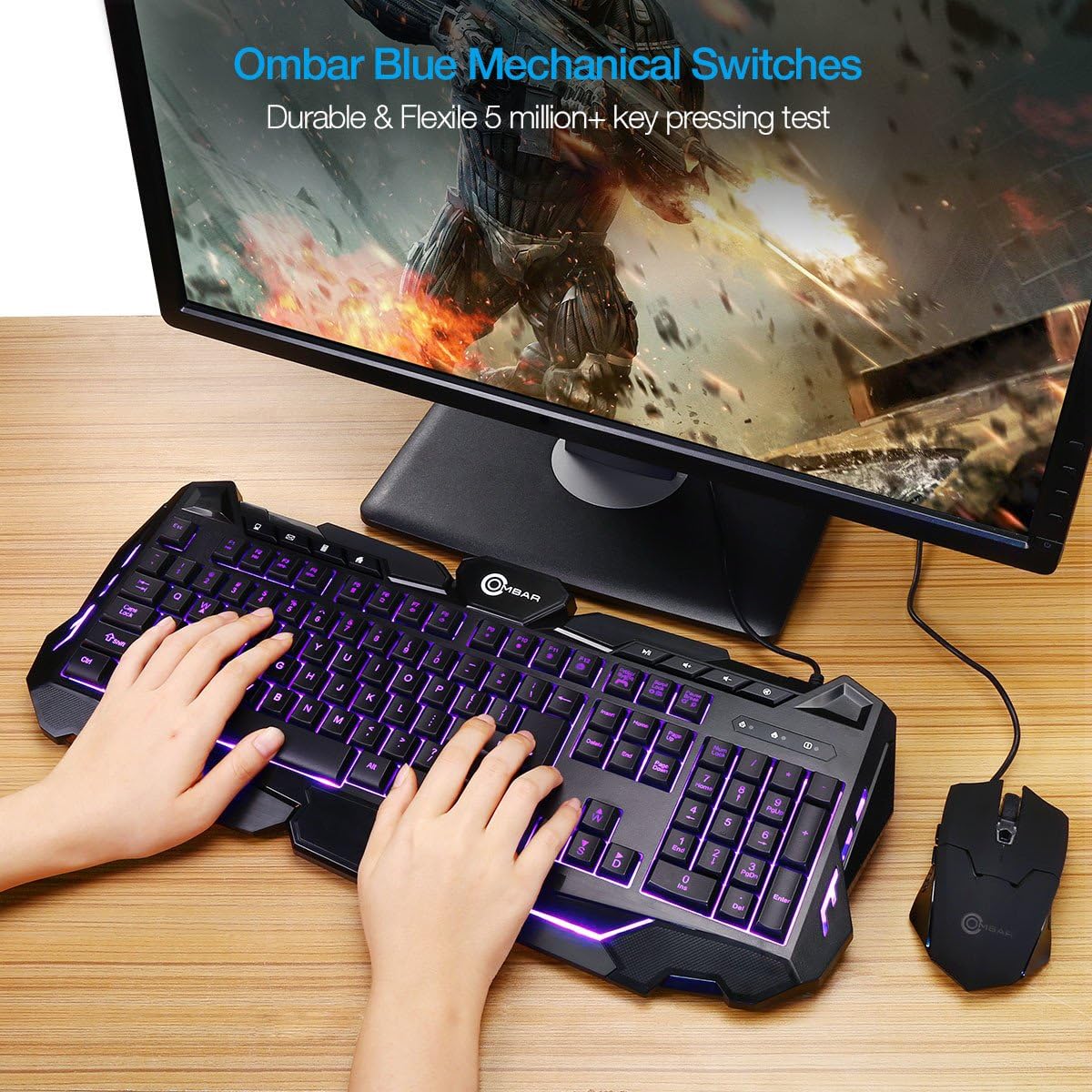
Image: A user actively typing on the OMBAR Gaming Keyboard, showcasing its purple LED backlighting in a typical desktop setup with a monitor and mouse.
For optimal performance, ensure the keyboard is connected directly to a USB port on your computer rather than through a USB hub, especially for gaming.
6. Manutenzione
- Pulizia: Use a soft, dry cloth to wipe the surface of the keyboard. For deeper cleaning, use compressed air to remove dust and debris from between the keys. Avoid using harsh chemicals or abrasive materials.
- Fuoriuscite: In caso di versamento di liquidi, scollegare immediatamente la tastiera dal computer. Capovolgerla per far scolare il liquido e lasciarla asciugare completamente prima di ricollegarla.
- Magazzinaggio: Quando non viene utilizzata per lunghi periodi, conservare la tastiera in un luogo fresco e asciutto, lontano dalla luce solare diretta e da temperature estreme.
7. Risoluzione Dei Problemi
If you encounter any issues with your OMBAR Gaming Keyboard, please refer to the following common solutions:
- La tastiera non risponde:
- Assicurarsi che il cavo USB sia collegato saldamente sia alla tastiera che al computer.
- Prova a collegare la tastiera a una porta USB diversa del computer.
- Riavvia il computer.
- Retroilluminazione non funzionante:
- Premere il tasto Lampadina key to cycle through colors and modes.
- Utilizzo Fn + F9/F10/F11 per regolare la luminosità.
- Tasti non registrati o ripetuti:
- Pulire i tasti interessati con aria compressa per rimuovere eventuali detriti.
- Assicurarsi che non siano presenti conflitti software.
- Compatibility with KVM Switches:
Note that this keyboard may not function correctly when connected through certain KVM (Keyboard, Video, Mouse) switches. For optimal performance, especially in gaming, direct connection to the PC is recommended.
8. Specifiche
| Marca | OMBAR |
| Numero di modello | OM-K617 |
| Tecnologia di connettività | USB |
| Descrizione della tastiera | Gioco d'azzardo |
| Caratteristiche speciali | Backlit, Ergonomic, Wrist Rest |
| Materiale | Plastica (ABS) |
| Peso dell'articolo | 2.2 libbre |
| Dimensioni del pacco | 19.8 x 9.25 x 1.5 pollici |
| Dispositivi compatibili | Console di gioco, PC |
| Tipo di interruttore | Meccanico |
9. Video ufficiale del prodotto
Video: An official product video demonstrating the OMBAR Gaming Keyboard's features, including its build quality, key layout, multimedia hotkeys, LED backlighting options (red, blue, purple, static, breathing), and performance during gameplay. The video also provides a sound test of the keys.
10. Garanzia e supporto
For warranty information or technical support, please refer to the documentation provided with your purchase or contact OMBAR customer service through their official webluogo. Conserva la ricevuta di acquisto per eventuali richieste di garanzia.


