Introduzione
This manual provides essential information for setting up, operating, maintaining, and troubleshooting your Intel NUC 7 Business Mini PC (model NUC7i5DNKPC). This compact and powerful PC is designed for business environments, featuring a 7th Generation Intel Core i5 processor, 256GB NVMe SSD, 8GB DDR4-2133 memory, and Windows 10 Pro. It includes Intel vPro Technology for remote manageability and enhanced security, and Intel HD Graphics 620 supporting dual 4K monitors.
Cosa c'è nella scatola
Verificare che tutti gli articoli siano presenti nel pacco:
- Intel NUC 7 Business Mini PC Unit
- Piastra di montaggio VESA
- Power Supply/Adapter (Note: An AC power cord is not included and must be supplied by the user. A 3-prong "laptop style" cord with 3 round pins in a triangle formation is required.)
- Manuale di istruzioni (questo documento)
Prodotto finitoview
Familiarize yourself with the ports and features of your Intel NUC.
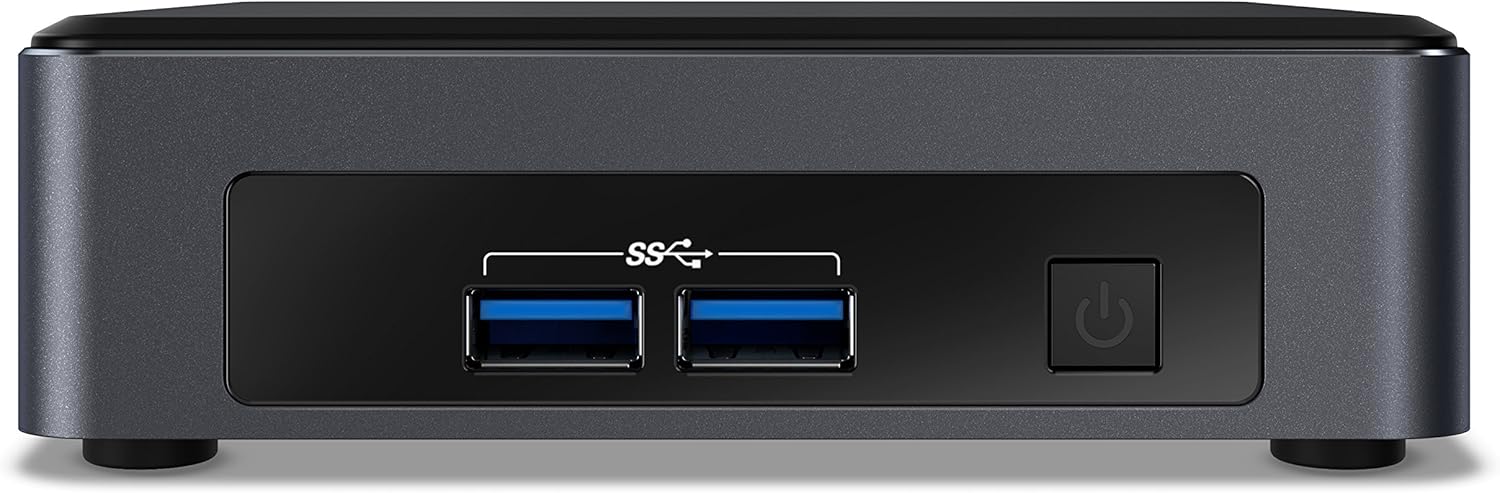
Figura 1: Pannello frontale. This image shows the front of the Intel NUC 7 Business Mini PC. It features two USB 3.0 ports (marked with "SS" for SuperSpeed) and a power button on the right side.

Figura 2: Pannello posteriore. This image displays the rear of the Intel NUC 7 Business Mini PC. From left to right, it includes a 19V DC power input, two HDMI ports (one labeled "Protected UHD"), an Ethernet port, and two additional USB 3.0 ports.

Figure 3: Internal Access. This image shows the Intel NUC 7 Business Mini PC with its top cover partially removed, illustrating access to internal components for potential upgrades or maintenance.
Impostare
- Connetti alimentazione: Connect the power adapter to the 19V DC input port on the rear of the NUC. Plug the AC power cord (not included) into the power adapter and then into a wall outlet.
- Connetti Display: Connect your monitor(s) to the HDMI ports on the rear of the NUC using HDMI cables. The NUC supports dual 4K displays.
- Connetti le periferiche: Connect your USB keyboard, mouse, and any other USB devices to the available USB 3.0 ports (two on the front, two on the rear).
- Connetti rete (facoltativo): For a wired internet connection, connect an Ethernet cable from your router or modem to the Ethernet port on the rear of the NUC. For wireless connectivity, the NUC includes built-in Wi-Fi and Bluetooth.
- Accensione: Press the power button located on the front panel of the NUC. The system will boot up.
- Configurazione iniziale di Windows 10 Pro: Follow the on-screen instructions to complete the initial setup of Windows 10 Pro, including language, region, network settings, and user account creation.
Istruzioni per l'uso
- Funzionamento di base: Once Windows 10 Pro is set up, you can use the NUC like any standard desktop computer. Launch applications, browse the web, and manage files.
- Supporto per doppio display: Utilize the two HDMI ports to connect multiple monitors for an extended desktop experience. Configure display settings within Windows.
- Tecnologia Intel vPro: This NUC includes Intel vPro Technology, enabling remote management and enhanced security features. Consult your IT administrator or Intel documentation for specific vPro setup and usage.
- Spegnimento/Riavvio: To properly shut down or restart the NUC, use the options available in the Windows Start Menu. Avoid simply unplugging the power cable to prevent data loss.
Manutenzione
- Pulizia: Keep the NUC clean by gently wiping the exterior with a soft, dry cloth. Do not use liquid cleaners directly on the device. Ensure ventilation openings are free from dust and obstructions.
- Aggiornamenti software: Regularly update Windows 10 Pro and Intel drivers to ensure optimal performance, security, and compatibility. Access Windows Update through the Settings menu.
- Backup dei dati: Eseguire periodicamente il backup dei dati importanti su un'unità esterna o su un archivio cloud per evitare la perdita di dati.
Risoluzione dei problemi
- Nessuna alimentazione / Il sistema non si accende:
- Ensure the power adapter is securely connected to the NUC and a working power outlet.
- Verify that you are using a compatible 3-prong AC power cord with the power adapter. This cord is not included with the NUC.
- Provare la presa di corrente con un altro dispositivo.
- Nessuna visualizzazione sul monitor:
- Check that the HDMI cables are securely connected to both the NUC and the monitor.
- Assicurarsi che il monitor sia acceso e impostato sulla sorgente di ingresso corretta (HDMI 1, HDMI 2, ecc.).
- Try connecting to a different HDMI port on the NUC or using a different monitor/cable if available.
- Nessuna connessione internet:
- Per le connessioni cablate, assicurati che il cavo Ethernet sia collegato correttamente e che il router/modem funzioni.
- For wireless connections, check Wi-Fi settings in Windows to ensure you are connected to the correct network and the signal is strong.
- Restart your router/modem and the NUC.
- System Performance Issues:
- Assicurarsi che Windows e i driver siano aggiornati.
- Check for background applications consuming excessive resources using Task Manager.
- Garantire una ventilazione adeguata per evitare il surriscaldamento.
Specifiche
| Caratteristica | Dettaglio |
|---|---|
| Nome del modello | Intel NUC 7 Business |
| Numero di modello | BLKNUC7I5DNKPC1 |
| Processore | 7th Generation Intel Core i5-7300U (2.6 GHz CPU Speed) |
| Sistema operativo | Windows 10 Pro |
| Memoria RAM | 8GB DDR4-2133 (Max 32GB, 1 slot available) |
| Magazzinaggio | SSD NVMe da 256 GB |
| Grafica | Grafica Intel HD 620 (integrata) |
| Uscita video | 2x HDMI (Supports dual 4K displays, Max Resolution: 3840 x 2160 pixels) |
| Porte USB | 4x USB 3.0 (Total) |
| Rete | Ethernet, Wi-Fi (802.11b/g/n), Bluetooth |
| Caratteristiche speciali | Intel vPro Technology, Hardware TPM 2.0, Microphone |
| Dimensioni (LxWxH) | 5.59 x 4.88 x 4.49 pollici |
| Peso | 2.2 libbre |
| Colore | Nero |
| Codice UPC | 735858382656 |
Informazioni sulla garanzia
The Intel NUC 7 Business Mini PC comes with a Garanzia limitata di 3 anni. For detailed terms and conditions, please refer to the official Intel warranty documentation or visit the Intel support websito. Conservare la prova d'acquisto per eventuali reclami in garanzia.
Supporto
For further assistance, technical support, driver downloads, or additional documentation, please visit the official Intel support website. You can typically find support resources by searching for "Intel NUC support" or by navigating to Pagina di supporto ufficiale di Intel.


