Introduzione
The HP Sprocket Portable 2x3 Instant Photo Printer allows you to transform your digital memories into instant, beautiful color prints. Designed for portability, this compact device fits easily into your pocket, backpack, or purse. It utilizes ZINK Zero Ink technology to produce 2x3 inch sticky-backed photos, eliminating the need for ink cartridges. The HP Sprocket app provides tools to customize photos with borders, stickers, and filters, and enables printing directly from your smartphone or social media. Additionally, the app supports augmented reality features to enhance your photo experience.
Caratteristiche principali
- Stampa fotografica istantanea: Prints 2x3 inch photos directly from your iOS (10+) or Android (5+) device via Bluetooth 5.0.
- ZINK Zero Ink Technology: Eliminates the need for ink cartridges. Photos are printed on glossy, sticky-backed paper with embedded colors, offering resistance to water, smudges, and tears.
- Opzioni di personalizzazione: Utilize the HP Sprocket app to add filters, frames, stickers, and emojis to your photos before printing.
- Realtà aumentata: The HP Sprocket app unlocks augmented reality content, allowing you to view shared print queues and hidden videos.
- Design portatile: Lightweight and pocket-sized, making it ideal for on-the-go printing. Features a rechargeable battery with approximately 35 prints per charge.
Cosa è incluso
Your HP Sprocket Portable 2x3 Instant Photo Printer package includes the following items:
- 1AS85A HP Sprocket 200 Photo Printer
- Cavo USB
- HP ZINK™ Sticky-Backed Photo Paper (10-sheets)
- Scheda di garanzia
- Regulatory sheet
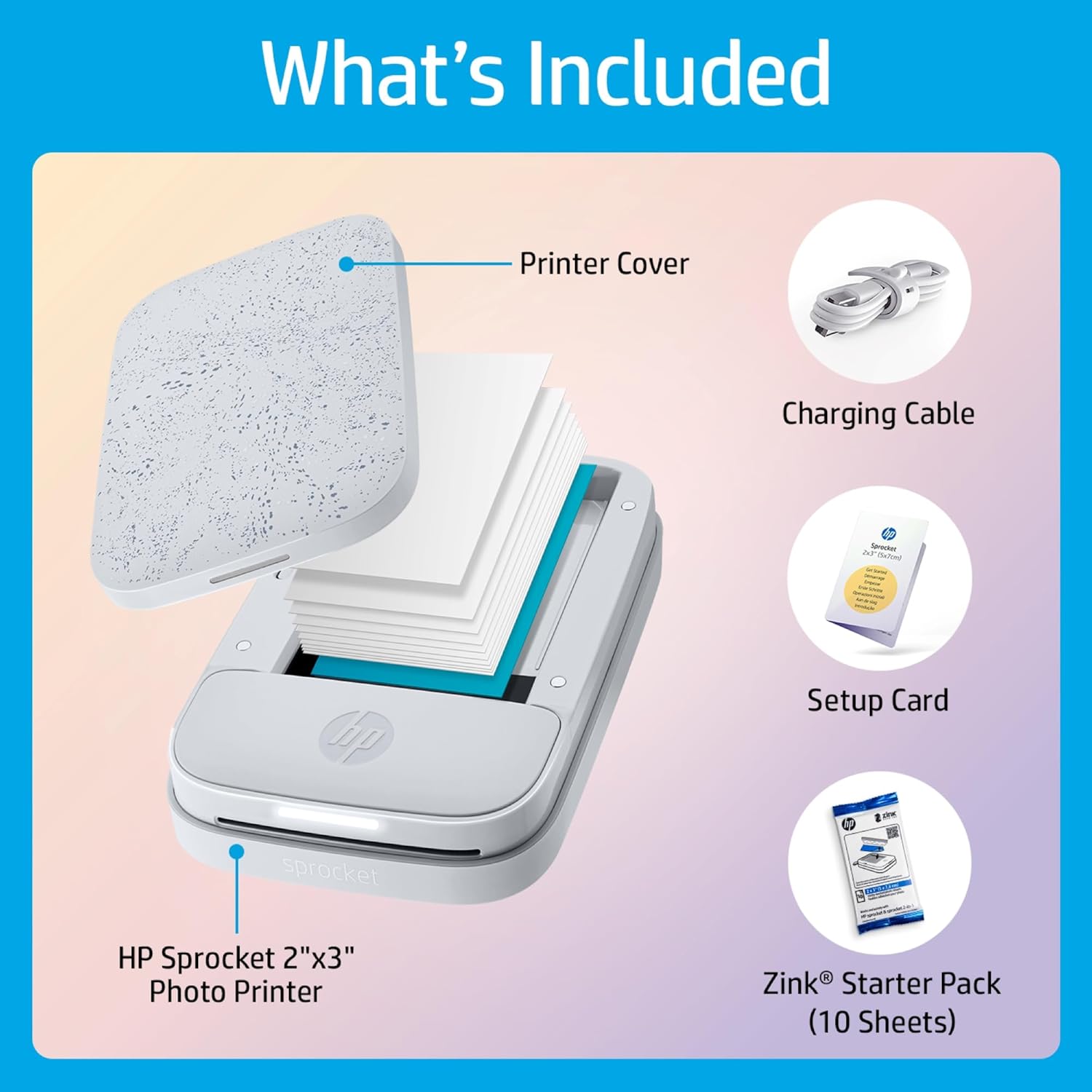
Image: The HP Sprocket printer, charging cable, setup card, and a 10-sheet pack of HP ZINK Sticky-Backed Photo Paper.
Impostare
Follow these steps to set up your HP Sprocket printer:
- Caricare la stampante: Connect the included USB cable to the printer and a power source. The LED indicator will show charging status.
- Caricare la carta fotografica: Open the printer cover and insert the HP ZINK Sticky-Backed Photo Paper with the HP logos facing down. Ensure the blue Smartsheet is at the bottom of the stack.
- Install the HP Sprocket App: Download the HP Sprocket app from the Apple App Store (for iOS devices) or Google Play Store (for Android devices).
- Accoppia tramite Bluetooth: Turn on your HP Sprocket printer. Open the HP Sprocket app on your smartphone or tablet and follow the on-screen instructions to pair your device via Bluetooth.

Image: The HP Sprocket printer ready for use with the companion mobile application.
Istruzioni per l'uso
Once your HP Sprocket is set up, you can begin printing your favorite photos:
- Select a Photo: Open the HP Sprocket app and choose a photo from your device's gallery or social media accounts.
- Edit and Customize: Use the app's editing tools to crop, rotate, add filters, frames, stickers, or text to your photo.
- Stampa: Tap the print icon in the app. The printer will automatically feed the paper and produce your 2x3 inch photo.
- Augmented Reality (Optional): Scan printed photos with the HP Sprocket app to unlock interactive content, such as hidden videos or shared print queues.
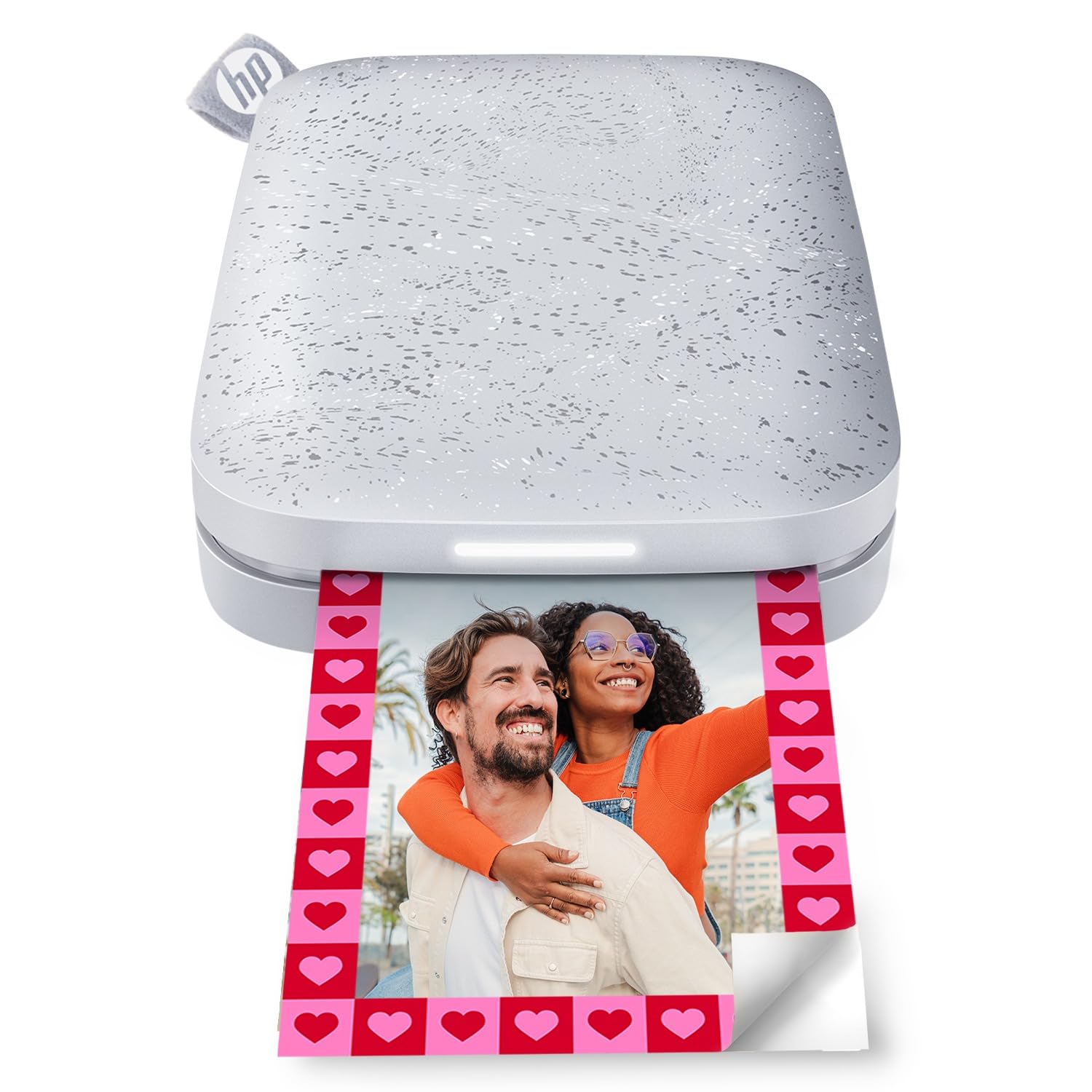
Image: The HP Sprocket printer in action, producing a vibrant instant photo.
Video: A demonstration of printing pictures using the HP Sprocket Printer, showcasing the quick and easy process.
Manutenzione
The HP Sprocket printer is designed for low maintenance due to its ZINK Zero Ink technology. However, proper care ensures optimal performance:
- Gestione della carta: Store HP ZINK Photo Paper in its original packaging until ready to use. Avoid touching the printable surface of the paper.
- Pulizia: If print quality degrades, use the blue Smartsheet (included in each paper pack) to clean the print head. Simply load it into the printer and print a blank page.
- Cura della batteria: Charge the printer regularly. A full charge provides approximately 35 prints. Avoid completely draining the battery for extended periods.
- Magazzinaggio: Conservare la stampante in un luogo fresco e asciutto, lontano dalla luce solare diretta e da temperature estreme.
Risoluzione dei problemi
Ecco le soluzioni ai problemi più comuni che potresti riscontrare:
- Poor Print Quality/Color Casts:
- Ensure you are using genuine HP ZINK Photo Paper.
- Run the blue Smartsheet through the printer to clean the print head.
- Use the HP Sprocket app's calibration feature. Some users find adjusting photo tint (e.g., pushing towards green for pink casts, or red/magenta for blue casts) in a photo editor before printing can improve results.
- Check the resolution of your original photo; higher resolution images generally yield better prints.
- La stampante non si connette:
- Assicurati che il Bluetooth sia abilitato sul tuo dispositivo mobile e che la stampante sia accesa.
- Riavviare sia il dispositivo mobile sia la stampante.
- Ensure the printer is within Bluetooth range of your device.
- Problemi di alimentazione della carta:
- Ensure paper is loaded correctly with the HP logos facing down and the blue Smartsheet at the bottom.
- Do not overload the paper tray (maximum 10 sheets).
- If a jam occurs, gently pull out any visible paper.
- Printer Not Turning On/Charging:
- Ensure the USB cable is securely connected to both the printer and the power source.
- Prova un cavo USB o un alimentatore diverso.
- Allow the printer to charge for at least 30 minutes before attempting to turn it on.
Specifiche tecniche
| Caratteristica | Specificazione |
|---|---|
| Dimensioni del prodotto | 3.15"P x 4.63"L x 0.98"A |
| Peso dell'articolo | 6.1 once |
| Tecnologia di connettività | Bluetooth |
| Tecnologia di stampa | Tecnologia Zink |
| Dimensione massima del supporto | 2 x 3 pollici |
| Risoluzione massima di stampa a colori | 313 x 400 DPI |
| Capacità massima del foglio di input | 10 fogli |
| Batteria | 1 batteria ai polimeri di litio (inclusa) |
| Dispositivi compatibili | Smartphone (iOS e Android) |
| Metodo di controllo | Applicazione |
Garanzia e supporto
The HP Sprocket Portable 2x3 Instant Photo Printer comes with a limited warranty. For specific details regarding your warranty coverage, please refer to the warranty sheet included in your product package.
For additional support, troubleshooting guides, and product information, please visit the official HP support website or contact HP customer service. Keep your product's model number (HPISPW) and UPC (192545379274) handy when seeking support.