Introduzione
This manual provides instructions for the installation, setup, operation, and maintenance of your Feit Electric OM60/SW/HK A19 Smart LED Light Bulb. This smart bulb is designed to work with Apple HomeKit and Siri Voice Control, offering convenient lighting management without requiring a separate smart home hub for direct control. For remote access and advanced automations, an Apple Home Hub (Apple TV, iPad, or HomePod) is required.
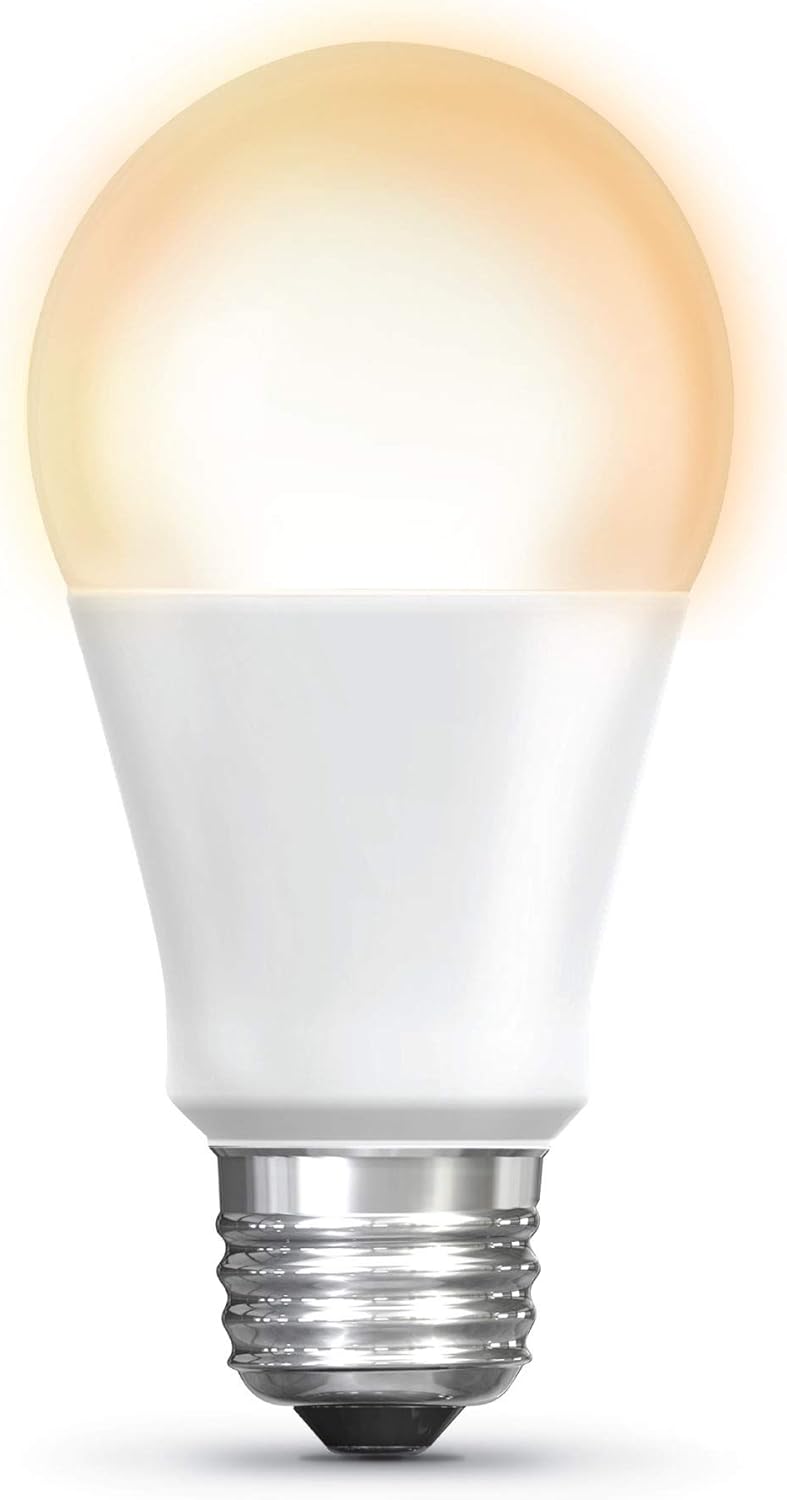
Image: The Feit Electric A19 Smart LED Light Bulb illuminated, showcasing its soft white light output.
Informazioni sulla sicurezza
- Rischio di scossa elettrica: Prima di installare o rimuovere la lampadina, spegnere sempre l'apparecchio.
- Uso interno/esterno: This bulb is rated for outdoor use. Ensure the fixture is suitable for the environment.
- Compatibilità dimmer: This smart bulb is dimmable via the Apple Home app or Siri. Do not use with standard incandescent dimmer switches, as this may damage the bulb.
- Temperatura di esercizio: Do not install in enclosed fixtures that restrict airflow, as this can shorten bulb life.
- Disposizione: Dispose of LED bulbs according to local regulations. Do not dispose of with general household waste.
Contenuto della confezione
Il tuo pacco dovrebbe contenere i seguenti articoli:
- 1 x Feit Electric OM60/SW/HK A19 Smart LED Light Bulb
Istruzioni di installazione
1. Installazione fisica
- Prima dell'installazione, assicurarsi che l'interruttore di alimentazione dell'apparecchio di illuminazione sia spento.
- Carefully screw the Feit Electric Smart LED Light Bulb into a standard E26 medium base socket.
- Accendere la lampada. La lampadina dovrebbe accendersi.
2. Apple HomeKit Pairing
The bulb connects directly to your Apple device via Bluetooth. No separate hub is required for basic control.
- Aprire il App Casa di Apple on your iPhone, iPad, or iPod touch (iOS 10.0.1 or later required).
- Tocca il "+" icon in the upper right corner and select "Add Accessory".
- Scansiona il Codice di configurazione HomeKit located on the bulb or its packaging. Follow the on-screen prompts to add the bulb to your Home app and assign it to a room.

Image: A smartphone screen showing the Apple Home app interface, used to control smart lighting in a living room setting.
3. Aggiornamento del firmware (importante)
To ensure optimal performance and compatibility with the latest iOS versions, it is recommended to update the bulb's firmware using the Feit OTA app.
- Scarica il "Feit OTA" app from the Apple App Store.
- Ensure the smart bulb is powered on.
- Open the Feit OTA app. Grant Bluetooth access permissions if prompted.
- Vai a "More" (bottom right corner) and select "EQUIPMENT UPGRADE GATT".
- Select the desired light bulb from the list.
- If a firmware update is available, select "UPDATE RIGHT NOW". Keep your phone screen active and do not leave the app during the update process to prevent interruption.
- After the update is complete, you may need to repeat steps 3-6 if multiple updates are required. The app will indicate when no further updates are needed.
- Once updated, return to the Apple Home app to confirm functionality. If issues persist, try resetting the bulb to factory settings (see Troubleshooting) and re-pairing.
4. Home Hub Setup for Remote Access
For control of your smart bulb when away from home, or for advanced automations and scheduling, an Apple Home Hub is required.
- Set up an Apple TV (4th generation or later), HomePod, or an iPad (running iOS 10 or later) as your Home Hub.
- Ensure your Home Hub device is connected to your home Wi-Fi network and signed in with the same Apple ID as your other HomeKit devices.
- Keep the Home Hub device powered on and connected to power to maintain remote access.
Istruzioni per l'uso
1. Control with Apple Home App
Once paired, you can control your smart bulb directly from the Apple Home app:
- Attiva/disattiva: Tap the bulb icon in the Home app.
- dimming: Press and hold the bulb icon to access controls for brightness adjustment.
- Schedules & Automations: Use the Home app to create custom schedules for turning lights on/off or to set up automations based on time, location, or other HomeKit accessories.
- Raggruppamento: Raggruppa più lampadine per controllarle simultaneamente.
2. Controllo vocale Siri
Use Siri on your iPhone, iPad, HomePod, or Apple Watch to control your smart bulb with voice commands:
- "Hey Siri, turn on the [Room Name] light."
- "Hey Siri, dim the [Light Name] to 50%."
- "Hey Siri, turn off all the lights."
Nota: Direct control via Bluetooth has a limited range (approximately 75 feet) and may experience slight delays compared to Wi-Fi based smart devices. For consistent remote control and faster response times, ensure a Home Hub is properly configured.
Manutenzione
- Pulizia: Ensure the bulb is cool and the power is off before cleaning. Wipe with a soft, dry cloth. Do not use liquid or abrasive cleaners.
- Magazzinaggio: Se si desidera conservare la lampadina, tenerla nella confezione originale in un luogo fresco e asciutto.
- No user-serviceable parts are inside. Do not attempt to disassemble the bulb.
Risoluzione dei problemi
Bulb Not Responding or Connecting
- Controlla la potenza: Ensure the light fixture switch is on and the bulb is receiving power.
- Gamma Bluetooth: If controlling directly, ensure your Apple device is within Bluetooth range of the bulb.
- Ciclo di alimentazione: Turn the light switch off for 10 seconds, then turn it back on. This can often resolve minor connectivity issues.
- Aggiornamento del firmware: Verify that the bulb's firmware is up to date using the Feit OTA app (refer to Setup Instructions). Outdated firmware can cause connectivity problems.
- Ripristina lampadina: To factory reset the bulb, turn it off for 1 second, then on for 1 second, repeating this cycle 5 times. The bulb will flash to indicate a successful reset. Then, attempt to re-pair with the Apple Home app.
- Home Hub Check: If using remote access, ensure your Apple Home Hub (Apple TV, iPad, or HomePod) is online, powered, and connected to the same network.
Delay in Response
- This bulb uses Bluetooth for direct control, which can sometimes introduce a slight delay compared to Wi-Fi devices. Ensure your controlling device is close to the bulb.
- A properly configured Apple Home Hub can improve response times, especially for automations and remote control.
Bulb Turns Soft White After Power Outage
- The bulb is designed to return to a default soft white state after a power interruption. This behavior cannot be changed.
Specifiche
| Caratteristica | Dettaglio |
|---|---|
| Numero di modello | OM60/SW/HK |
| Tipo di luce | GUIDATO |
| Forma della lampadina Dimensioni | A19 |
| Base della lampadina | E26 Medio |
| Cosatage | 10 Watt |
| Equivalente a incandescenza | 60 Watt |
| Luminosità | 800 lumen |
| Colore chiaro | 2700K bianco morbido |
| Indice di resa cromatica (CRI) | 90 |
| Voltage | 120 Volt |
| Vita media | 15,000 ore |
| Metodo di controllo | App (Apple Home), Voice (Siri) |
| Connettività | Bluetooth (for direct control) |
| Dimensioni del prodotto | 2.4" L x 4.4" A |
| Materiale | Glass, Metal, Plastic, Powdered Metal Steel, Rubber |
| Uso interno/esterno | All'aperto |

Image: Dimensional drawing of the A19 light bulb, indicating a height of 4.4 inches and a diameter of 2.4 inches.
Garanzia e supporto
Informazioni sulla garanzia
This Feit Electric smart LED light bulb comes with a garanzia di un anno dalla data di acquisto. Questa garanzia copre difetti di materiali e lavorazione in condizioni di normale utilizzo.
For warranty claims or further assistance, please contact Feit Electric customer service.
Assistenza clienti
If you encounter any issues or have questions regarding your Feit Electric Smart LED Light Bulb, please contact:
- E-mail: info@feit.com
- Numero verde: 1-866-326-BULB (1-866-326-2852)
Please have your model number (OM60/SW/HK) and proof of purchase ready when contacting support.


