1. Prodotto finitoview
The KuWFi LTE Router CPE812 is a 4G wireless WiFi internet router designed to provide network connectivity using a SIM card. It features a transmission speed of up to 300Mbps and supports up to 32 WiFi users. This device is suitable for home and office environments, offering a 2.4GHz WiFi hotspot with broad coverage.
Caratteristiche principali:
- 4G LTE FDD: B1/B3/B7/B8/B20
- 4G LTE TDD: B38/B39/B40/B41
- 3G WCMA: B1/B8
- Wireless transmission speed up to 300Mbps
- 2.4GHz WiFi hotspot with up to 3,000 square meter coverage
- Supports up to 32 WiFi users
- Internal dual-antenna design
- LED indicator display for status monitoring
- Security Protocol: WPA2-PSK
- Two RJ45 ports (one WAN, one LAN)

Immagine 1.1: anteriore view of the KuWFi LTE Router CPE812, showcasing its four non-detachable antennas and LED indicators.
2. Guida all'installazione
Follow these steps to set up your KuWFi LTE Router CPE812.
2.1. Inserimento della scheda SIM
- Individuare lo slot per la scheda SIM sul lato del router.
- Inserire una scheda SIM standard nell'apposito slot. Assicurarsi che la scheda SIM sia orientata correttamente.
- The router supports standard SIM cards. Micro and Nano SIM cards require an adapter (not included).

Immagine 2.1: Lato view of the router highlighting the SIM card slot, LAN/WAN ports, and power input.

Image 2.2: Illustration indicating that only standard SIM cards are directly compatible; Micro and Nano SIMs require adapters.
2.2. Accensione del router
- Collegare l'adattatore di alimentazione alla porta DC IN del router.
- Collegare l'adattatore di corrente a una presa a muro.
- Press the ON/OFF button to power on the device. The LED indicators on the front will light up.

Image 2.3: The router packaged with its power adapter, Ethernet cable, and user manual.
2.3. Connessione Wi-Fi iniziale
- Once powered on, the router will broadcast a Wi-Fi signal.
- Sul tuo computer o dispositivo mobile, cerca le reti Wi-Fi disponibili.
- Connect to the network with the SSID (Wi-Fi name) printed on the label at the bottom of the router (e.g., WIFI-XXXXX).
- Enter the default Wi-Fi password (e.g., 12345678) also found on the router's label.
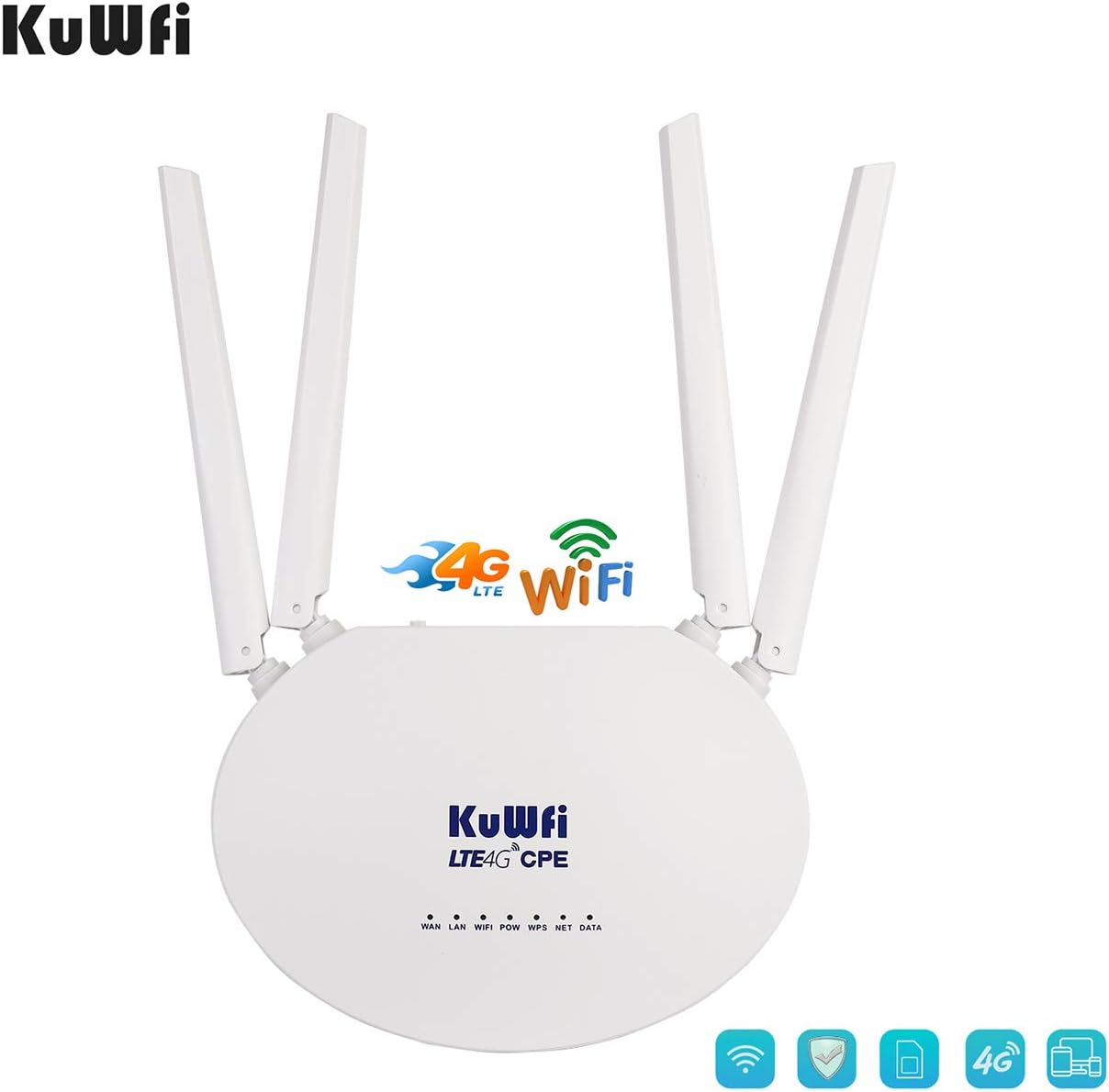
Image 2.4: The bottom label of the router displaying important information such as the default SSID and password.
2.4. Accedendo al Web Interface and APN Setup
- Aprire un web browser on a device connected to the router's Wi-Fi.
- Immettere l'indirizzo IP predefinito 192.168.10.1 nella barra degli indirizzi e premere Invio.
- Accedi al web interface. The default username and password are typically "admin" (refer to the router's label if different).
- Navigate to the "3G/4G setup" section.
- Importante: Uncheck the "auto select 3G / 4G ISP" option.
- Choose "User Defined" for the APN settings.
- Enter the correct APN (Access Point Name) provided by your SIM card provider. If you are unsure, you can insert your SIM card into a mobile phone and check its APN settings, or contact your SIM card provider.
- Click "APPLY" to save the settings.

Immagine 2.5: Es.ample of how to find APN settings on a mobile phone.

Immagine 2.6: Web interface screenshot demonstrating where to enter APN details.
3. Funzionamento
3.1. Understanding Work Modes
The router supports various work modes to suit different network environments. These can typically be configured in the web interface under the "Mode" section.
- Modalità router wireless 3G/4G: Connects to the internet via SIM card and broadcasts Wi-Fi.
- Modalità router wireless standard: Connects to a local network via Ethernet and broadcasts Wi-Fi.
- Modalità AP wireless standard e bridge APClient: Works as an access point or client bridge.
- Modalità client AP wireless: Connects to another wireless AP or router via Ethernet.
3.2. Modifying Wi-Fi Settings
To change your Wi-Fi network name (SSID) or password:
- Accedi al web interfaccia (192.168.10.1).
- Go to the "Wireless" section, then "Basic" to modify the SSID. Enter your desired network name and click "Apply".
- Go to the "Wireless" section, then "Security" to modify the Wi-Fi password (WPA-PSK Key). Enter your new password and click "Apply".
3.3. Video Guide: Setup and Configuration
Video 3.1: An operational video demonstrating the setup process, SIM card insertion, power connection, and web interface configuration for the KuWFi LTE Router CPE812. This video also shows how to set the APN and change Wi-Fi settings.
4. Manutenzione
To ensure optimal performance and longevity of your KuWFi LTE Router CPE812:
- Conservare il dispositivo in un luogo fresco e asciutto, lontano dalla luce solare diretta e dall'umidità.
- Evitare di posizionare il router vicino a forti campi elettromagnetici.
- Pulisci l'esterno del router con un panno morbido e asciutto. Non utilizzare detergenti liquidi.
- Garantire un'adeguata ventilazione attorno al dispositivo per evitare il surriscaldamento.
- Controllare periodicamente la presenza di aggiornamenti del firmware sul sito del produttore websito per migliorare le prestazioni e la sicurezza.
5. Risoluzione Dei Problemi
Se riscontri problemi con il router, fai riferimento alle seguenti soluzioni comuni:
5.1. No Network Data Connection Despite Wi-Fi Connection
If your device connects to the router's Wi-Fi but has no internet access:
- Controlla le impostazioni APN: Verificare che le impostazioni APN nel router web interface are correct. You can verify the correct APN by inserting your SIM card into a mobile phone and checking its network settings, then manually entering it into the router.
- Contact Provider: If the frequency bands are correct but automatic connection fails, manually set the APN. Consult your SIM card provider for the correct APN information.

Image 5.1: Detailed steps for checking and setting APN on a mobile device.
5.2. Poor 4G Signal
If you experience weak or unstable 4G signal:
- Modalità di rete: Ensure that you have selected "4G only" in the router's settings if your area has strong 4G coverage.
- Posizionamento del router: Position the router in an open area, away from obstructions like thick walls or large metal objects, and near a window if possible, to improve signal reception.
- Lock Network Type: Nel web interface, you can manage the settings page to lock the router to a 4G or 3G network, which can improve network stability if the signal is fluctuating.
5.3. Router Not Recognizing SIM Card
If the router does not detect the SIM card:
- Inserimento corretto: Ensure the SIM card is inserted correctly and fully into the slot.
- Tipo di carta SIM: Verify you are using a standard SIM card or the correct adapter for Micro/Nano SIMs.
- IMEI Activation: Note that if your SIM card requires IMEI activation, this router may not function.
6. Specifiche
| Caratteristica | Dettaglio |
|---|---|
| Numero di modello | CPE812 |
| Network Frequency (4G LTE FDD) | B1/B3/B7/B8/B20 (2100/1800/2600/900/800MHz) |
| Network Frequency (4G LTE TDD) | B38/B39/B40/B41 |
| Network Frequency (3G WCDMA) | Livello B1/B8 |
| CPU principale | RT7628 Basic Frequency 580MHz |
| ROM | 64Mbits SPI Flash |
| Memoria RAM | DDR1024 da 2 Mb |
| Gamma di trasmissione | 50-100M |
| Temperatura di lavoro | -10℃ ~ 40℃ |
| Porte LAN | 2 x RJ45 (1 WAN, 1 LAN) |
| Velocità WiFi | Fino a 300 Mbps (2.4 GHz) |
| Max WiFi Users | 32 |
| Tipo di antenna | Interno |
| Protocollo di sicurezza | Protezione WPA2-PSK |
| Metodo di controllo | Applicazione (Web Interfaccia) |
| Componenti inclusi | Router |
| Peso dell'articolo | 12.8 once |
| Dimensioni del pacco | 10.9 x 8.2 x 1.5 pollici |
7. Garanzia e supporto
KuWFi provides comprehensive support for its products.
- Garanzia: Questo prodotto viene fornito con una garanzia di 3 anni.
- Supporto tecnico: VIP Technical Support is available for assistance with setup, configuration, and troubleshooting.
- Contatto: If you encounter any problems, especially regarding SIM card connectivity or APN settings, please contact the seller or KuWFi customer support for assistance.


