Introduzione
This manual provides essential information for setting up, operating, maintaining, and troubleshooting your Acer Swift 3 SF314-55G-78U1 laptop. Please read this guide thoroughly to ensure proper use and to maximize the performance and lifespan of your device.

Image: The Acer Swift 3 SF314-55G-78U1 laptop, shown open with the screen displaying the Windows 10 operating system interface. The keyboard and touchpad are visible.
1. Impostazione
1.1 Disimballaggio e ispezione iniziale
Rimuovere con cautela tutti i componenti dall'imballaggio. Assicurarsi che siano presenti i seguenti elementi:
- Acer Swift 3 SF314-55G-78U1 Laptop
- Adattatore CA
- Cavo di alimentazione
Inspect the laptop for any physical damage. If any components are missing or damaged, contact your retailer or Acer support immediately.
1.2 Collegamento all'alimentazione
Before first use, it is recommended to fully charge the laptop battery. Connect the AC adapter to the laptop's power input port and then plug the power cord into a wall outlet.
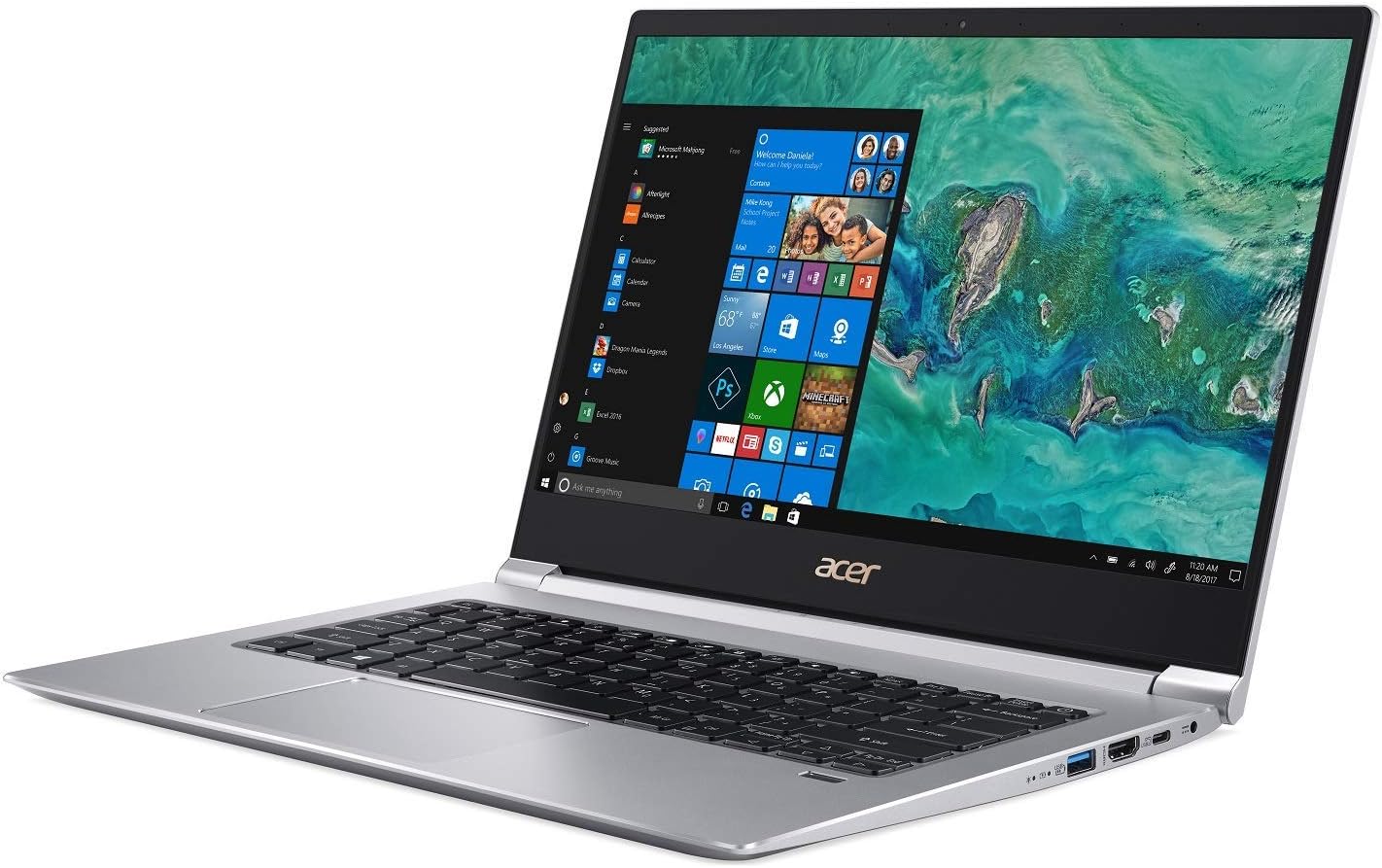
Immagine: Lato view of the Acer Swift 3 laptop, highlighting the various input/output ports including USB, HDMI, and the power input.
The battery indicator light will illuminate, typically orange, to show that the laptop is charging. It will change color (e.g., blue or green) or turn off when fully charged.
1.3 Accensione iniziale e configurazione di Windows
Press the power button to turn on the laptop. The first boot will guide you through the Windows 10 Home setup process. Follow the on-screen instructions to:
- Seleziona la tua regione e lingua.
- Accetta i termini della licenza.
- Crea un account utente o accedi con un account Microsoft.
- Configura le impostazioni sulla privacy.
1.4 Connessione a una rete wireless (Wi-Fi)
During the Windows setup, you will be prompted to connect to a Wi-Fi network. Select your network from the list and enter the password if required. If you skip this step, you can connect later via the Windows settings:
- Fare clic sull'icona Wi-Fi nella barra delle applicazioni (angolo in basso a destra dello schermo).
- Seleziona la rete desiderata e clicca su "Connetti".
- Enter the security key (password) if prompted.
1.5 Setting Up Fingerprint Recognition (Windows Hello)
Your laptop features an Acer Bio-Protection Fingerprint Solution for secure login. To set it up:
- Vai a Impostazioni > Conti > Opzioni di accesso.
- In "Impronta digitale di Windows Hello", fare clic su Impostare.
- Segui le istruzioni sullo schermo per scansionare il tuo dito.
2. Utilizzo del laptop
2.1 Tastiera e touchpad
The laptop features a full-size, backlit keyboard for comfortable typing. The touchpad supports multi-touch gestures for navigation and interaction with Windows 10.
- Tastiera retroilluminata: Use the function keys (Fn + F key combination, typically F8 or F9) to adjust the backlight brightness or turn it on/off.
- Gesti sul touchpad: Refer to Windows 10 settings for a list of supported gestures (e.g., two-finger scroll, pinch-to-zoom).
2.2 Collegamento di dispositivi esterni
Your Acer Swift 3 is equipped with various ports for connecting peripherals:
- USB tipo C (USB 3.1 generazione 2): One port for data transfer up to 10 Gbps, DisplayPort over USB Type-C, and USB charging.
- Porta USB 3.0: Two ports, one supporting power-off charging for devices.
- HDMI: Una porta per il collegamento a display o proiettori esterni.
- Slot per scheda SD: For reading and writing data from Secure Digital cards.
- Jack audio: Per collegare cuffie o altoparlanti esterni.
2.3 Display e audio
The 14-inch Full HD (1920 x 1080) widescreen LED-backlit IPS display provides clear visuals. The laptop also features Acer True Harmony Technology and Acer Purified.Voice technology with two built-in microphones for enhanced audio and communication.
- Regolazione della luminosità: Use the function keys (Fn + F key combination, typically F5/F6) to adjust screen brightness.
- Uscita audio: Ensure audio drivers are up-to-date for optimal sound quality. Connect headphones to the audio jack for private listening.
3. Manutenzione
3.1 Pulizia del computer portatile
Per mantenere l'aspetto e la funzionalità del tuo laptop:
- Utilizzare un panno morbido e privo di lanugine per pulire lo schermo e il telaio.
- Per segni ostinati, dampInumidire leggermente il panno con acqua o un detergente per schermi.
- Evitare prodotti chimici aggressivi, abrasivi o solventi.
- Pulisci regolarmente la tastiera e il touchpad per rimuovere polvere e detriti.
3.2 Cura della batteria
The laptop is equipped with a 4-cell Li-Ion battery. To prolong battery life:
- Evitare temperature estreme.
- Do not leave the laptop fully charged or fully discharged for extended periods.
- Per una conservazione a lungo termine, caricare la batteria a circa il 50-60%.
- Calibrate the battery periodically by fully discharging and recharging it.
3.3 Aggiornamenti software e driver
Regularly update your operating system and device drivers to ensure optimal performance and security. Outdated drivers can lead to various issues, including audio problems or keyboard malfunctions.
- Aggiornamenti di Windows: Vai a Impostazioni > Aggiornamento e sicurezza > Aggiornamento di Windows.
- Aggiornamenti driver: Visita il supporto ufficiale Acer website for your specific model (SF314-55G-78U1) to download the latest drivers, especially for audio, graphics (NVIDIA GeForce MX150), and chipset.
4. Risoluzione Dei Problemi
This section addresses common issues you might encounter with your Acer Swift 3 laptop.
4.1 Nessuna alimentazione o il laptop non si accende
- Assicurarsi che l'adattatore CA sia collegato saldamente sia al laptop sia a una presa di corrente funzionante.
- Verificare che la presa di corrente funzioni collegandovi un altro dispositivo.
- Se la batteria è completamente scarica, potrebbero essere necessari alcuni minuti di ricarica prima che il laptop possa accendersi.
4.2 Audio Issues (Crackling, No Sound)
- Update Audio Drivers: This is a common solution. Visit the Acer support website for the latest audio drivers for your model.
- Check volume settings in Windows and for individual applications.
- Ensure headphones or external speakers are properly connected if used.
- Riavviare il portatile.
4.3 La tastiera o il touchpad non rispondono
- Riavviare il portatile.
- Ensure no external devices are interfering (e.g., external keyboard/mouse).
- Check for driver updates for the keyboard and touchpad on the Acer support websito.
- If the keyboard freezes after sleep mode, try disabling fast startup in Windows power options.
4.4 Battery Drains Quickly or Incorrectly Reports Charge
- Ensure all background applications are closed when not in use.
- Regolare la luminosità dello schermo su un valore più basso.
- Check power settings in Windows to optimize battery usage.
- Perform a battery calibration (full discharge then full recharge).
- Update chipset and power management drivers from the Acer support websito.
4.5 Fingerprint Reader Not Working Consistently
- Ensure your finger is clean and dry when scanning.
- Try re-registering your fingerprint in Windows Hello settings.
- Check for updated fingerprint sensor drivers on the Acer support websito.
5. Specifiche
Below are the key technical specifications for the Acer Swift 3 SF314-55G-78U1 laptop:
| Caratteristica | Specificazione |
|---|---|
| Nome del modello | SF314-55G-78U1 |
| Processore | Intel Core i7-8565U di 8a generazione (fino a 4.6 GHz) |
| Grafica | NVIDIA GeForce MX150 with 2 GB GDDR5 VRAM |
| Display | 14" Full HD (1920 x 1080) IPS LED-backlit |
| Memoria RAM | 8GB DDR4 Dual Channel Memory |
| Magazzinaggio | SSD PCIe da 256 GB |
| Sistema operativo | Windows 10 Casa |
| Connettività wireless | Intel Wireless-AC 9560 802.11ac Gigabit Wi-Fi, Bluetooth 5.0 |
| Porti | 1x USB Type-C (USB 3.1 Gen 2, DisplayPort, Charging), 2x USB 3.0 (1x power-off charging), 1x HDMI, SD Card Reader, Audio Jack |
| Batteria | 4-cell Li-Ion (3220 mAh), Up to 12 hours battery life |
| Peso | Circa 2.98 libbre (1.35 kg) |
| Dimensioni (LxWxH) | 12.72 x 8.98 x 0.59 pollici |
| Caratteristiche speciali | Backlit Keyboard, Acer Bio-Protection Fingerprint Solution, HD Webcam, Acer True Harmony Technology, Acer Purified.Voice |
6. Garanzia e supporto
6.1 Informazioni sulla garanzia
Your Acer Swift 3 SF314-55G-78U1 laptop comes with a standard manufacturer's warranty. The specific terms and duration of the warranty may vary by region and retailer. Please refer to the warranty card included with your product or visit the official Acer websito per informazioni dettagliate sulla garanzia.
Conservare la prova d'acquisto (scontrino o fattura) poiché sarà necessaria per eventuali richieste di garanzia.
6.2 Supporto tecnico
For technical assistance, driver downloads, or service inquiries, please contact Acer support:
- Supporto Acer Websito: Visita www.acer.com/support per domande frequenti, download di driver e opzioni di contatto.
- Informazioni sui contatti: Specific phone numbers and email support options are available on the Acer support websito per la tua regione.
When contacting support, have your laptop's model name (SF314-55G-78U1) and serial number ready. The serial number is typically located on a sticker on the bottom of the laptop.


