1. Introduzione
This manual provides essential information for the installation, operation, and maintenance of your GIGABYTE GeForce GTX 1660 Ti Windforce OC 6G graphics card. Please read this manual thoroughly before installation and retain it for future reference.
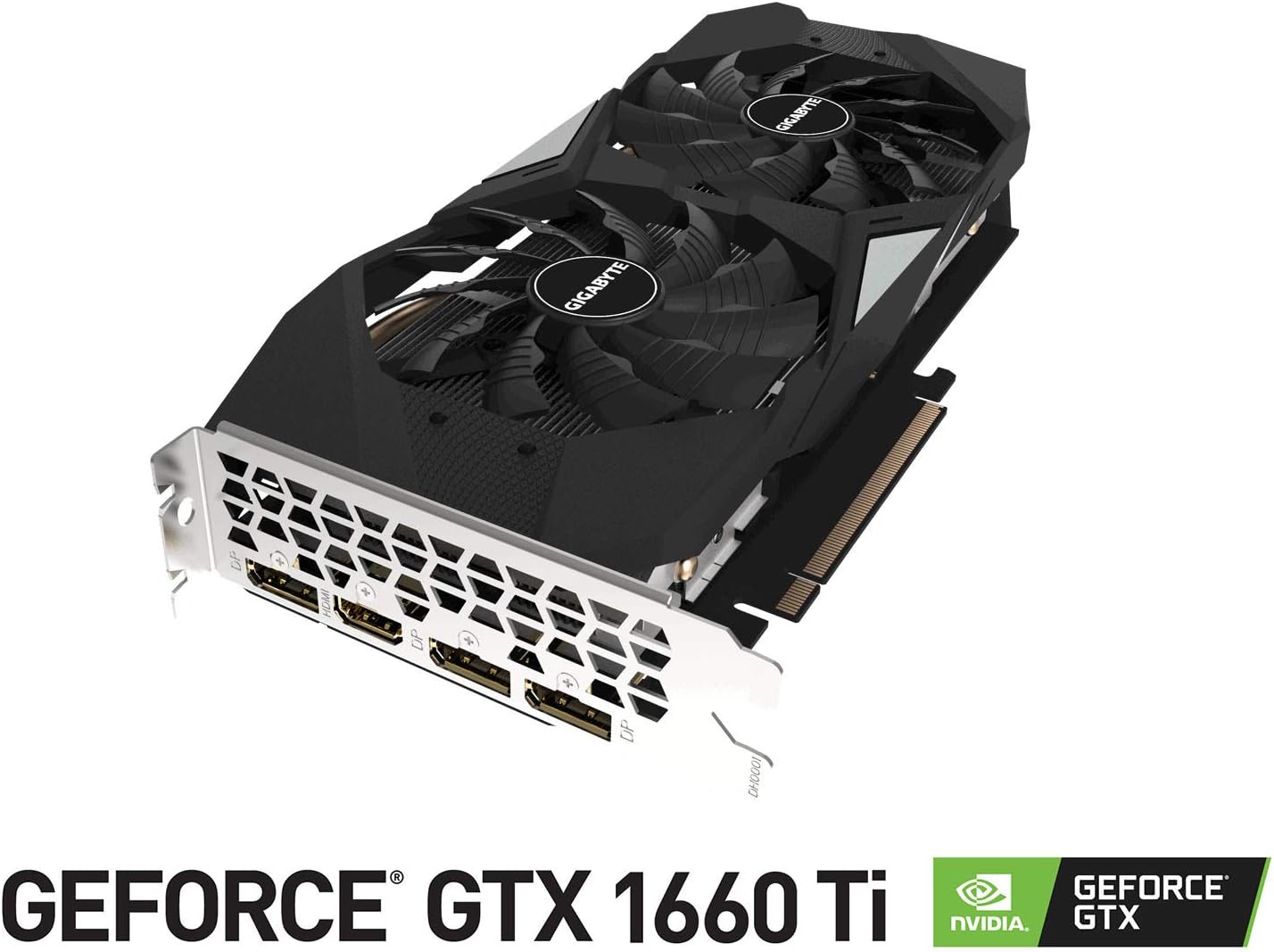
The GIGABYTE GeForce GTX 1660 Ti Windforce OC 6G is designed for enhanced graphics performance, featuring:
- Powered by GeForce GTX 1660 Ti integrated with 6GB GDDR6
- Windforce 2x cooling system with alternate spinning fans
- Intuitive controls with AORUS engine
- 6GB 192-bit GDDR6 memory interface
- Multiple display outputs: 1 x HDMI, 3 x DisplayPort
- PCI Express 3.0 x16 interface
2. Cosa c'è nella scatola
Verificare che tutti gli articoli siano presenti nel pacco:
- GIGABYTE GeForce GTX 1660 Ti Windforce OC 6G Graphics Card
- Manuale d'uso
3. Specifiche
| Caratteristica | Specificazione |
|---|---|
| Unità di elaborazione grafica | Scheda grafica NVIDIA GeForce GTX 1660 Ti |
| Memoria video | 6 GB GDDR6 |
| Velocità di memoria | 12000 MHz |
| Interfaccia di memoria | 192 bit |
| Risoluzione massima dello schermo | 7680x4320 |
| Porte di uscita | 1 x HDMI 2.0B, 3 x DisplayPort 1.4 |
| Bus Standard | PCI Express 3.0 x16 |
| Sistema di raffreddamento | WINDFORCE 2X con ventole rotanti alternate |
| Dimensioni (LxWxH) | 10.43 x 4.76 x 1.57 pollici |
| Peso dell'articolo | 15.9 once |
4. Configurazione e installazione
Before proceeding with the installation, ensure your system meets the minimum requirements and that your power supply unit (PSU) has sufficient wattage and the necessary PCIe power connectors.
4.1 Controlli pre-installazione
- Spegni: Spegnere il computer e scollegare il cavo di alimentazione dalla presa a muro.
- Caso aperto: Rimuovere il pannello laterale del case del computer.
- Scarica statica: Ground yourself by touching a metal part of your computer chassis to discharge any static electricity.
- Liquidazione: Ensure there is enough physical space in your case for the graphics card.
4.2 Installazione fisica
- Individua uno slot PCI Express 3.0 x16 disponibile sulla scheda madre.
- Remove any expansion slot covers that correspond to the graphics card's size (typically two slots).
- Allineare con cura la scheda grafica allo slot PCIe e premere con decisione fino a quando non è saldamente inserita. Si potrebbe udire un clic.
- Fissare la scheda grafica al case con le viti.
- Connect the appropriate PCIe power cable(s) from your power supply to the graphics card. This model typically requires an 8-pin connector.
- Sostituire il pannello laterale del case del computer.
4.3 Installazione del driver
- Connect your monitor to one of the graphics card's output ports (HDMI or DisplayPort).
- Accendi il computer.
- Once the operating system loads, download the latest drivers from the official GIGABYTE or NVIDIA websito.
- Seguire le istruzioni visualizzate sullo schermo per completare l'installazione del driver.
- Riavviare il computer per applicare le modifiche.
5. Funzionamento della scheda grafica
Once installed and drivers are updated, your GIGABYTE GeForce GTX 1660 Ti is ready for use. It will automatically handle graphics processing for applications and games. For optimal performance, ensure your operating system and game titles are up-to-date.
You can use NVIDIA's control panel or GIGABYTE's AORUS Engine software to monitor performance, adjust fan curves, and customize settings for specific applications or games.
6. Manutenzione
Una corretta manutenzione garantisce la longevità e le prestazioni ottimali della scheda grafica.
- Pulizia della polvere: Pulire regolarmente le ventole e il dissipatore di calore dalla polvere utilizzando aria compressa. Assicurarsi che il computer sia spento e scollegato prima di pulirlo.
- Aggiornamenti driver: Mantieni aggiornati i driver grafici per beneficiare di miglioramenti delle prestazioni e correzioni di bug.
- Monitoraggio della temperatura: Utilizza un software di monitoraggio per tenere d'occhio la temperatura della GPU, soprattutto durante carichi di lavoro intensi. Assicurati che il flusso d'aria all'interno del case del PC sia adeguato.
- Ispezione fisica: Periodically check for any loose cables or connections.
7. Risoluzione Dei Problemi
Se riscontri problemi con la scheda grafica, prova a seguire i seguenti passaggi per la risoluzione dei problemi:
- Nessuna visualizzazione: Ensure the monitor cable is securely connected to the graphics card and the monitor is powered on. Verify the graphics card is fully seated in the PCIe slot and power cables are connected.
- Problemi con i driver: Reinstall the latest drivers from the official GIGABYTE or NVIDIA website. Try using Display Driver Uninstaller (DDU) to completely remove old drivers before installing new ones.
- Surriscaldamento: Check for proper airflow in your PC case. Clean dust from the graphics card fans and heatsink. Ensure fan speeds are adequate using monitoring software.
- Problemi di prestazioni: Ensure your game or application settings are not excessively high for the card's capabilities. Check for background applications consuming resources.
- Instabilità del sistema: If your system crashes or freezes, ensure your power supply unit (PSU) is sufficient for the graphics card and other components. Check for any conflicts with other hardware.
8. Immagini del prodotto



9. Video di prodotto
10. Garanzia e supporto
GIGABYTE products are covered by a limited warranty. For detailed warranty terms and conditions, please refer to the official GIGABYTE websito o la scheda di garanzia inclusa con il prodotto. Conservare la prova d'acquisto per eventuali reclami in garanzia.
For technical support, driver downloads, and further assistance, visit the official GIGABYTE support page. You can also find FAQs and community forums for common issues and solutions.


