1. Introduzione
This manual provides comprehensive instructions for the installation, operation, and maintenance of your Audiovox VOXX AVXSB10UHD Rear Seat Entertainment System. This system features two 10.1-inch touchscreen monitors designed to provide an immersive entertainment experience for rear-seat passengers.
Caratteristiche principali:
- Two 10.1-inch capacitive touchscreens
- Built-in DVD player in one monitor
- Multiple A/V inputs: HDMI, USB, and microSD
- Wireless headphone support (two pairs included)
- Universal mounting brackets and hard-wire kit for installation
2. Contenuto della confezione
Prima di iniziare l'installazione, verificare che tutti i componenti siano presenti nella confezione:
- 2 x 10.1" Touchscreen Monitors (one with integrated DVD player)
- 2 x Wireless Over-the-Ear Dual-channel IR Headphones
- Universal Mounting Brackets
- Kit filo rigido
- 1 x USB port (integrated)
- 1 x Micro SD port (integrated)
- 1 x HDMI port (integrated)
- Manuale di istruzioni per l'utente (questo documento)
3. Configurazione e installazione
Professional installation is recommended for this product. Ensure the vehicle's power is disconnected before beginning any wiring.
3.1 Mounting the Monitors
The system includes universal mounting brackets designed for secure attachment to the vehicle's headrest posts. Follow these steps:
- Identify suitable headrest posts for mounting.
- Attach the universal mounting brackets to the headrest posts, ensuring a secure and stable fit.
- Carefully slide the monitors onto the installed brackets until they click into place.
- Regolare il viewing angle of each monitor for optimal passenger comfort.
3.2 Collegamenti di cablaggio
The hard-wire kit provides the necessary connections for power and audio/video signals. Refer to the wiring diagram included with the kit for specific connections.
- Collegamento elettrico: Connect the power wires to the vehicle's electrical system (12V DC). Ensure proper grounding.
- Ingressi audio/video: Connect external devices (e.g., gaming consoles, smartphones) to the HDMI, USB, or microSD ports as needed.
- Uscita audio: The system supports wireless IR headphones. Ensure headphones are charged and paired according to their individual instructions.
Importante: Incorrect wiring can damage the system or vehicle. If unsure, consult a qualified automotive electronics technician.
4. Istruzioni per l'uso
The VOXX AVXSB10UHD system features intuitive touchscreen controls and a user-friendly interface.
4.1 Accensione/Spegnimento
Press and hold the power button located on the monitor's bezel to turn the unit on or off. The system will typically power on automatically when the vehicle's ignition is turned on.
4.2 Navigazione nell'interfaccia
The main screen displays various input options and applications. Tap on an icon to select it.
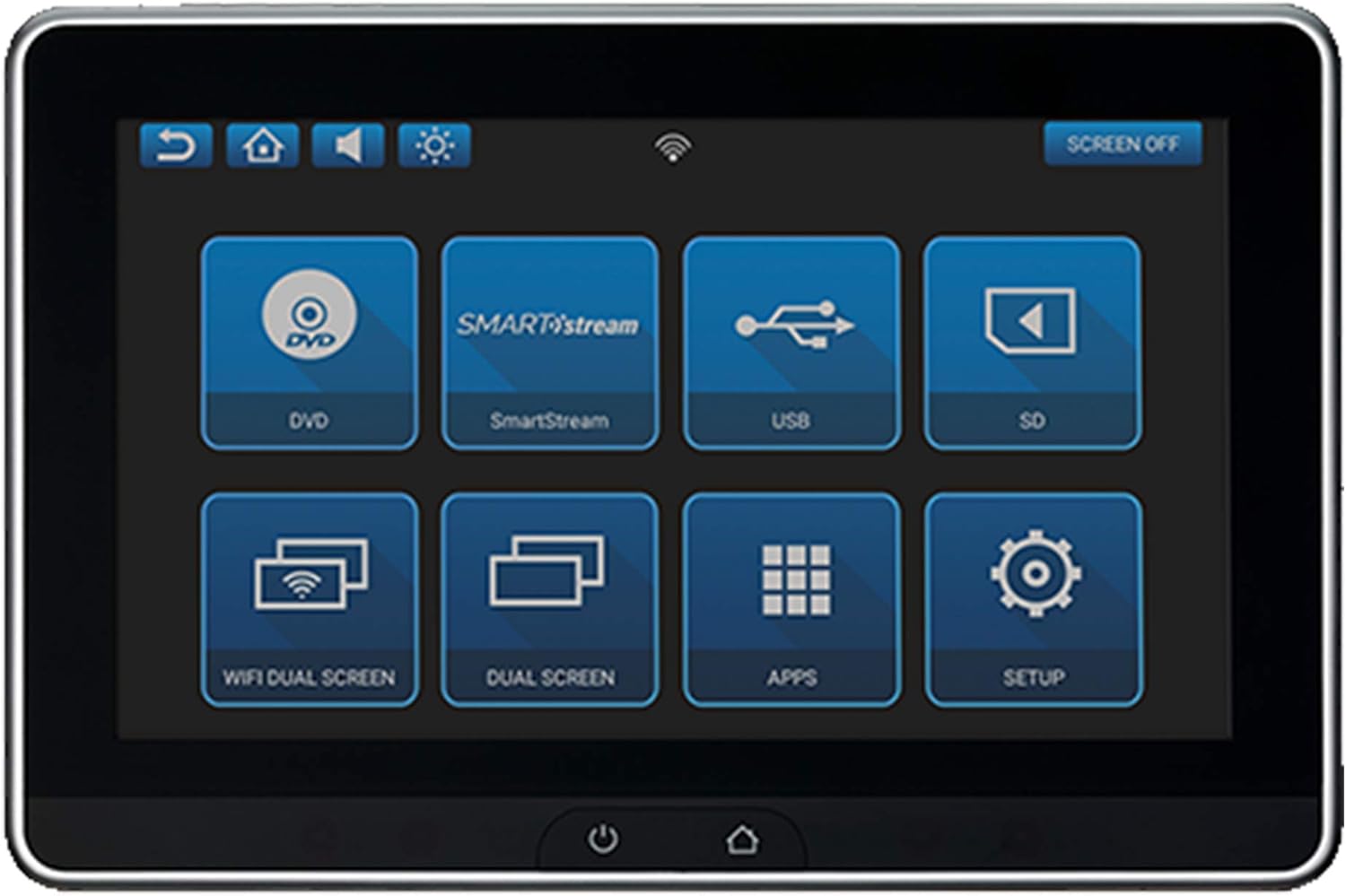
Figure 1: Main interface screen with various input and application options. Icons include HDMI, SmartStream, USB, SD, WiFi Dual Screen, Dual Screen, Apps, and Setup.

Figure 2: Main interface screen of the monitor with the built-in DVD player, showing the DVD icon alongside other options like SmartStream, USB, SD, WiFi Dual Screen, Dual Screen, Apps, and Setup.
4.3 Sorgenti di input
- Lettore DVD: Insert a DVD into the slot on the monitor equipped with the DVD player. Select the "DVD" icon on the screen to begin playback.
- HDMI: Connect an HDMI-compatible device (e.g., smartphone, tablet, game console) to the HDMI input. Select the "HDMI" icon.
- USB: Inserisci un'unità USB contenente un supporto files into the USB port. Select the "USB" icon to browse and play content.
- MicroSD: Inserire una scheda microSD contenente contenuti multimediali files into the microSD slot. Select the "SD" icon to browse and play content.
- SmartStream: Utilize the SmartStream feature for wireless content sharing. Refer to the SmartStream specific instructions for pairing devices.
- WiFi Dual Screen: Connect to a Wi-Fi network to enable internet browsing and app usage. This feature also allows for screen mirroring between the two monitors or from a compatible external device.
- Doppio schermo: This option allows for synchronized playback across both monitors or independent content viewing.
4.4 Using Applications (Apps)
The system supports various applications. Select the "Apps" icon to access installed applications. You can download additional applications via the Google Play Store when connected to Wi-Fi.

Figure 3: The dual monitor system installed in a vehicle, demonstrating the ability to control the system from the front seat using a smartphone app (for Android and Apple devices). Various entertainment app icons are shown, indicating the system's multimedia capabilities.
4.5 Cuffie senza fili
The included wireless IR headphones provide private listening. Ensure the headphones are powered on and set to the correct channel (A or B) to match the monitor's audio output. Refer to the headphone's separate manual for detailed pairing and usage instructions.
5. Manutenzione
To ensure the longevity and optimal performance of your entertainment system, follow these maintenance guidelines:
- Pulizia: Use a soft, lint-free cloth to clean the touchscreen monitors. For stubborn smudges, slightly dampPulisci il panno con acqua o un detergente per schermi. Evita materiali abrasivi o sostanze chimiche aggressive.
- Rimozione della polvere: Regularly wipe down the exterior of the units to prevent dust buildup, especially around vents and ports.
- Aggiornamenti software: Periodically check for software updates through the system's settings menu when connected to Wi-Fi. Keeping the software updated can improve performance and add new features.
- Magazzinaggio: If the vehicle will be stored for an extended period, ensure the system is powered off.
6. Risoluzione Dei Problemi
This section addresses common issues you might encounter with your VOXX AVXSB10UHD system.
| Problema | Possibile causa | Soluzione |
|---|---|---|
| No power to monitors. | Collegamento elettrico allentato, fusibile bruciato, accensione del veicolo spenta. | Check all power connections. Inspect vehicle's fuse box for a blown fuse and replace if necessary. Ensure vehicle ignition is on. |
| Nessuna immagine sullo schermo. | Incorrect input selected, source device not connected or powered on, damaged cable. | Verify the correct input source is selected. Ensure the external device is properly connected and powered on. Check cables for damage. |
| Nessun suono dalle cuffie. | Headphones not powered on, incorrect channel selected, low headphone battery. | Turn on headphones. Ensure headphones are set to the correct IR channel (A or B). Replace or recharge headphone batteries. |
| DVD not playing. | Disc inserted incorrectly, disc damaged/dirty, region code incompatibility. | Ensure disc is inserted correctly. Clean the disc. Verify the disc's region code is compatible with the player. |
| Problemi di connessione Wi-Fi. | Out of range, incorrect password, network interference. | Move closer to the Wi-Fi source. Re-enter Wi-Fi password. Try connecting to a different network if available. |
Se il problema persiste dopo aver provato queste soluzioni, contattare l'assistenza clienti.
7. Specifiche
| Caratteristica | Dettaglio |
|---|---|
| Numero di modello | AVXSB10UHD |
| Dimensioni dello schermo | 10.1 pollici (diagonale visibile 26 cm) |
| Tipo di visualizzazione | LED, LCD |
| Colore | NERO |
| Tipo di supporto supportato | DVD, USB, MicroSD, HDMI |
| Dimensioni del prodotto | 14 x 16 x 12 pollici |
| Peso dell'articolo | 20 libbre |
| Produttore | Audiovox |
| Primo disponibile | 15 marzo 2019 |
8. Garanzia e supporto
8.1 Informazioni sulla garanzia
This Audiovox product is covered by a manufacturer's warranty. Please refer to the warranty card included in your product packaging for specific terms, conditions, and duration. Retain your proof of purchase for warranty claims.
8.2 Assistenza clienti
For technical assistance, troubleshooting beyond this manual, or warranty inquiries, please contact Audiovox customer support. Contact information can typically be found on the manufacturer's official websito o sulla confezione del prodotto.
Risorse online: Visit the official Audiovox websito per FAQ, manuali aggiornati e recapiti di supporto.


