1. Introduzione
The iKiKin M11 Car HUD Display is a versatile head-up display system designed to project essential driving information onto your windshield. It features a dual system, supporting both OBD2 and GPS modes, allowing compatibility with a wide range of vehicles. This manual provides detailed instructions for installation, operation, maintenance, and troubleshooting to ensure optimal performance and safe use of your device.
Important Safety Note: While the iKiKin M11 offers dual OBD2 and GPS modes, some vehicles may experience compatibility issues with OBD2 devices. If your vehicle's dashboard warning lights illuminate or the vehicle experiences operational issues immediately after connecting the HUD in OBD2 mode, disconnect the device immediately. Consult your vehicle's manufacturer or a qualified mechanic for advice. iKiKin is not responsible for vehicle damage caused by incompatible OBD2 usage.
2. Caratteristiche del prodotto
- Dual System (OBD2 & GPS): Offers two independent operating modes with two USB ports for flexible connectivity and data transmission. Users can switch between modes with a single click.
- Professional & Innovative Design: Features an integrated raised key for easy operation and a high-performance processing chip for smooth, high-speed data handling.
- Clear & Legible Display: Utilizes nano-technology to eliminate double reflection and includes an integrated sun shade to ensure clear visibility day or night, reducing glare.
- Automatic & Energy-Saving: Equipped with an auto power on/off function, the device activates when the car starts and shuts down when the car turns off, conserving energy and simplifying use.
- Modalità di visualizzazione multiple: Provides 24 distinct display modes, including common standard and high-speed safety modes, offering various visual options for a richer and more convenient reading experience.
- Costruzione durevole: Made from PC and ABS materials, ensuring high temperature resistance (up to 176°F) and cold resistance (down to -40°F).
3. Contenuto della confezione
Si prega di verificare che tutti i seguenti articoli siano inclusi nel pacchetto:
- iKiKin M11 Head-up Display Host
- Cavo USB
- Cavo OBD
- Riflettente Film
- Manuale dell'utente (questo documento)
- Tappetino antiscivolo

Image: Contents of the iKiKin M11 Car HUD Display package, including the main unit, cables, film, and mat.
4. Configurazione e installazione
Follow these steps to install your iKiKin M11 Car HUD Display:
- Choose Installation Mode:
- Modalità OBD: Locate your vehicle's OBD2 port (usually under the dashboard on the driver's side). Insert the provided OBD cable connector firmly into the OBD2 port.
- Modalità GPS: Connect the provided USB cable to the HUD display and then plug the other end into a car charger (not included) or a suitable USB power source in your vehicle.
- Posizionare l'HUD: Place the non-slip mat on your dashboard in a position that allows for clear projection onto the windshield without obstructing your view della strada.
- Instradare il cavo: Carefully route the connecting cable (OBD or USB) along the dashboard and tuck it into the A-pillar seal or other trim to keep it tidy and secure, preventing interference with driving controls.
- Applicare la pellicola riflettente (facoltativo): If the projection on your windshield appears blurry or has a double image, apply the reflective film to the windshield directly above the HUD unit. Clean the windshield thoroughly before application.
- Accensione: The HUD will automatically power on when your vehicle starts.

Image: Visual guide for installing the HUD in OBD mode (connecting to OBD port), GPS mode (connecting via USB to car charger), and routing the wire into the A-pillar seal.

Immagine: Varie views of the iKiKin M11 HUD, showing its front, oblique side, rear oblique side, and back, along with dimensions.
5. Istruzioni per l'uso
The iKiKin M11 HUD offers intuitive controls and multiple display options.
5.1. Commutazione del sistema
The device supports both OBD2 and GPS modes. To switch between these modes, use the designated button on the unit. A single click typically toggles between the two systems.
5.2. Main Functions Displayed

Image: Diagram illustrating the main functions available in OBD mode (Speed, Engine RPM, Voltage, Water Temperature, Single Mileage, °C/°F Switch, Buzzer Switch, KM/MPH Switch, Automatic Brightness Adjustment) and GPS mode (Speed, Voltage, Buzzer Switch, Single Mileage, Number of Satellites, Compass, KM/MPH Switch, Speed Alarm, Automatic Brightness Adjustment).
- OBD Main Functions: Speed, Engine RPM, Voltage, Water Temperature, Single Mileage Measurement, °C/°F Switch, Buzzer Switch, KM/MPH Switch, Automatic Brightness Adjustment.
- GPS Main Functions: Speed, Voltage, Buzzer Switch, Single Mileage Measurement, Number of Satellites, Compass, KM/MPH Switch, Speed Alarm, Automatic Brightness Adjustment.
5.3. Modalità di visualizzazione
The M11 offers 24 display modes to suit various preferences and driving conditions. These include:
- Decorative Light Mode: Provides visual flair.
- RPM (OBD mode) Mode: Focuses on engine RPM display.
- Modalità semplice: Presents essential information concisely.
- Other modes for specific data like speed, water temperature, and battery voltage.

Immagine: Examples of multiple display modes, showing how Speed, Water Temperature, and Battery Voltage are presented in Decorative Light, RPM (OBD mode), and Simple modes.
5.4. Button Settings
The device features an integrated raised key design with multiple buttons for easy control:

Image: Close-up of the iKiKin M11 HUD's side, showing the control buttons labeled "Menu", "Parameter-", "Parameter+", and "Power".
- Pulsante Menu: Used to access settings and navigate through options.
- Parameter - Button: Decreases values or moves backward through options.
- Parameter + Button: Increases values or moves forward through options.
- Pulsante di accensione: Turns the device on/off manually (though auto on/off is standard).
Refer to the detailed user manual (physical copy) for specific instructions on navigating menus and adjusting parameters.
5.5. Display Components Overview
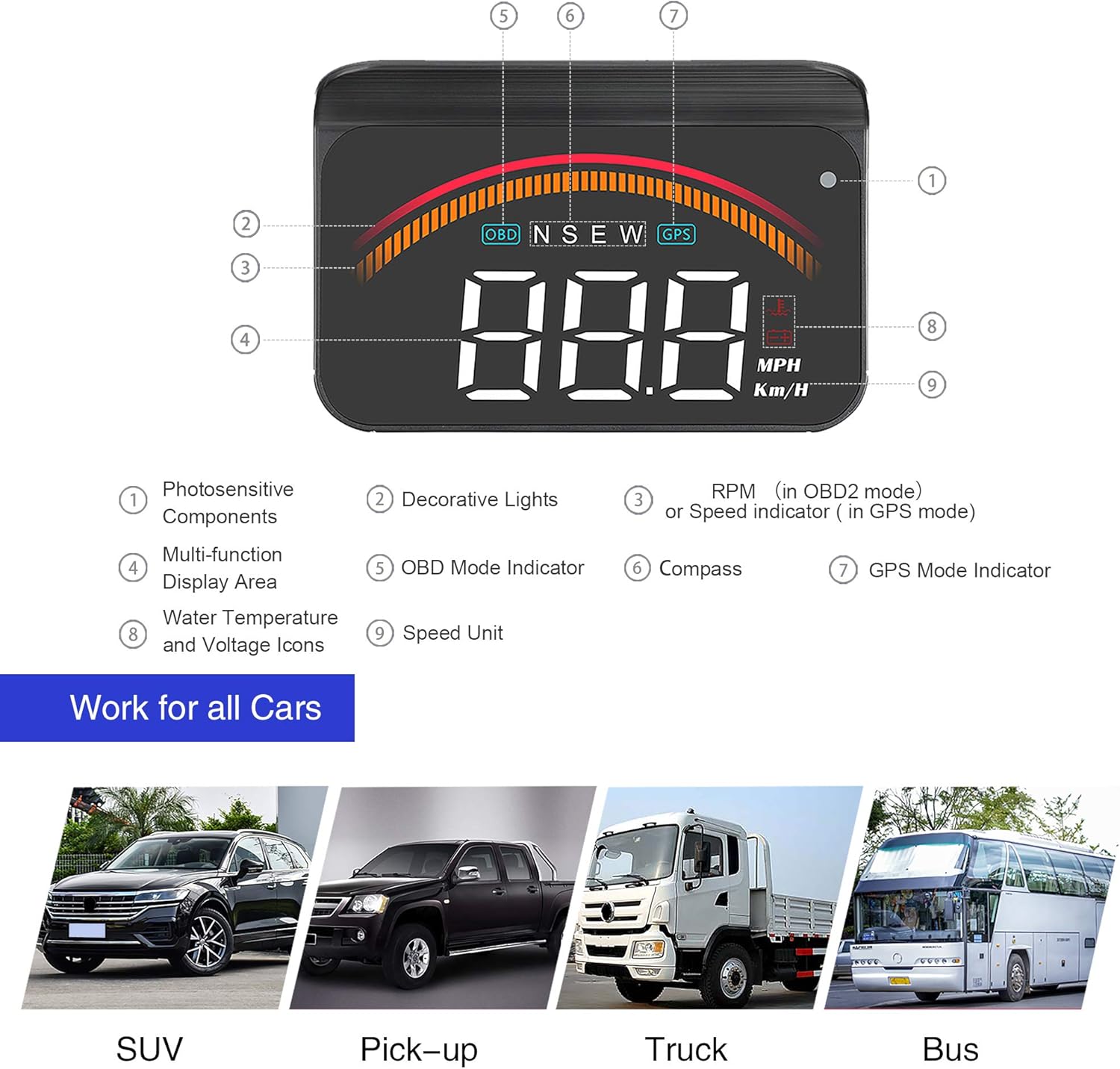
Image: Labeled diagram of the iKiKin M11 HUD display, pointing out Photosensitive Components, Decorative Lights, RPM (in OBD2 mode) or Speed indicator (in GPS mode), Multi-function Display Area, OBD Mode Indicator, Compass, GPS Mode Indicator, Water Temperature and Voltage Icons, and Speed Unit.
- Componenti fotosensibili
- Luci decorative
- RPM (in OBD2 mode) or Speed indicator (in GPS mode)
- Area di visualizzazione multifunzione
- OBD Mode Indicator
- Bussola
- Indicatore di modalità GPS
- Water Temperature and Voltage Icone
- Speed Unit (MPH/Km/H)
6. Manutenzione
- Pulizia: Use a soft, dry, lint-free cloth to clean the display screen and the device body. Avoid using abrasive cleaners, solvents, or spray cleaners directly on the unit.
- Magazzinaggio: Quando non viene utilizzato per lunghi periodi, conservare il dispositivo in un luogo fresco e asciutto, lontano dalla luce solare diretta e da temperature estreme.
- Durata: The iKiKin M11 is constructed from durable PC and ABS materials, designed to withstand temperatures from -40°F to 176°F. However, avoid exposing the device to excessive moisture or physical impact.
7. Risoluzione Dei Problemi
If you encounter issues with your iKiKin M11 HUD, please refer to the following common solutions:
- Il dispositivo non si accende:
- Ensure the OBD or USB cable is securely connected to both the HUD and the vehicle's port/charger.
- Check your vehicle's ignition status; the device powers on automatically with the car.
- If using OBD mode, verify your vehicle's OBD2 port is functional.
- Inaccurate Speed/Data Readings:
- In GPS mode, ensure the device has a clear view of the sky to acquire satellite signals. Allow a few minutes for initial satellite lock.
- In OBD mode, ensure the connection is stable. Some vehicle models may have slight variations in data reporting.
- Check the KM/MPH switch setting to ensure the correct unit is selected.
- Display Blurry or Double Image:
- Adjust the position of the HUD on the dashboard.
- Apply the provided reflective film to the windshield directly above the HUD for clearer projection.
- Display Stops Intermittently (GPS Mode):
- Ensure a stable power supply from the USB car charger.
- Verify that the device has a continuous, unobstructed view del cielo per la ricezione del segnale GPS.
- Vehicle Warning Lights On (OBD Mode):
- Immediately disconnect the OBD cable from your vehicle. This indicates a potential incompatibility or issue with your vehicle's system. Do not continue using the HUD in OBD mode. Consult a professional mechanic.
For more detailed troubleshooting or issues not listed here, please refer to the comprehensive user manual included in your package or contact iKiKin customer support.
8. Specifiche
| Marca | iKiKin |
| Produttore | iKiKin |
| Modello | Numero di modello: M11 |
| Numero di parte | Numero di modello: M1111 |
| Dispositivi compatibili | Vehicles with OBD2 port, or any vehicle via GPS mode |
| Dimensioni di visualizzazione dello schermo in piedi | 3.5 pollici |
| Tipo di visualizzazione | GUIDATO |
| Porte USB totali | 2 |
| Tipo di connettore | USB, OBD2 |
| Tipo di materiale | Acrilonitrile-butadiene-stirene (ABS), Policarbonato (PC) |
| Dimensioni del prodotto (L x P x A) | 10 x 6 x 3 cm (3.94 x 2.36 x 1.18 pollici) |
| Peso dell'articolo | 0.28 chilogrammi |
| Codice UPC | 724873492167 |
9. Garanzia e supporto
For information regarding the product warranty, please refer to the warranty card included in your product packaging or visit the official iKiKin website. For technical support, troubleshooting assistance beyond what is provided in this manual, or to inquire about replacement parts, please contact iKiKin customer service through the contact information provided on the product packaging or their official websito.
Risorse online: For the most up-to-date information and support, please visit the iKiKin official websito.


