1. Introduzione
This manual provides detailed instructions for the setup, operation, maintenance, and troubleshooting of your Sharkoon Light² 200 Gaming Mouse. Please read this manual thoroughly before using the device to ensure optimal performance and longevity.
2. Contenuto della confezione
Verificare che tutti gli articoli siano presenti nel pacco:
- Sharkoon Light² 200 Gaming Mouse
- Interchangeable Solid Top Cover (7g)
- Set of Replacement PTFE Glide Feet
- Manuale di istruzioni
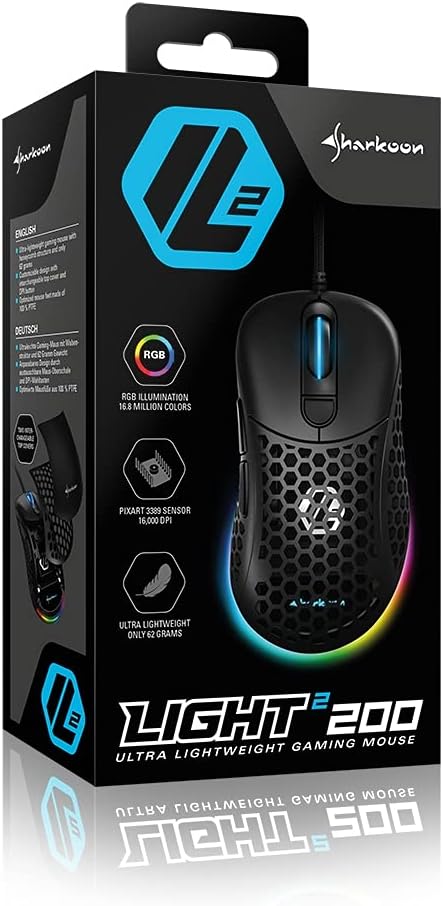
Image: The retail packaging for the Sharkoon Light² 200 Gaming Mouse, showing the mouse and its key features.
3. Impostazione
3.1 Collegamento del mouse
- Unpack the Sharkoon Light² 200 Gaming Mouse from its packaging.
- Collegare il connettore USB del cavo del mouse a una porta USB disponibile sul computer.
- Il sistema operativo rileverà e installerà automaticamente i driver necessari.

Image: The Sharkoon Light² 200 Gaming Mouse with its USB cable, ready for connection to a computer.
3.2 Installazione del software
For full customization and access to all features, download and install the Sharkoon gaming software from the official Sharkoon website. The software allows for DPI adjustments, button programming, and RGB lighting control.
- Visit the official Sharkoon websito.
- Navigate to the support or downloads section for the Light² 200 Gaming Mouse.
- Download the latest version of the gaming software.
- Seguire le istruzioni sullo schermo per completare l'installazione.
4. Utilizzo del mouse
4.1 Funzioni di base
The Light² 200 features standard mouse buttons and a scroll wheel:
- Clic sinistro: Pulsante di azione principale.
- Clic destro: Pulsante di azione secondario, in genere per i menu contestuali.
- Rotella di scorrimento: For vertical scrolling. Can also be pressed for a middle-click function.
- Pulsanti laterali: Two buttons located on the left side, typically for 'forward' and 'back' navigation.
- Pulsante DPI: Situato dietro la rotellina di scorrimento, consente di scorrere le impostazioni DPI.

Immagine: Lato view of the Sharkoon Light² 200 Gaming Mouse, highlighting the two programmable side buttons and the honeycomb structure.
4.2 Regolazione DPI
The optical PixArt sensor supports up to 16,000 DPI. You can adjust the DPI sensitivity using the dedicated DPI button behind the scroll wheel or through the Sharkoon gaming software. The RGB lighting on the scroll wheel and rear of the mouse indicates the current DPI profile.
4.3 pulsanti programmabili
The Light² 200 features six programmable buttons. Use the Sharkoon gaming software to assign custom functions, macros, or key bindings to these buttons for an optimized gaming experience.
4.4 Personalizzazione dell'illuminazione RGB
The mouse features adjustable RGB illumination on the scroll wheel and the back end. The gaming software allows you to customize colors, effects, and brightness to match your preferences or gaming setup.
4.5 Modular Design: Changing the Top Cover
The Light² 200 has a modular design, allowing you to change the top surface. The default honeycomb top cover can be replaced with a closed 7-gram alternative for a different feel or aesthetic.
- Gently lift the rear edge of the honeycomb top cover to detach it. It is held by magnets.
- Align the replacement solid top cover with the mouse body and gently press it down until the magnets secure it in place.

Image: The Sharkoon Light² 200 Gaming Mouse with its honeycomb top cover removed, revealing the internal structure and magnetic attachment points.
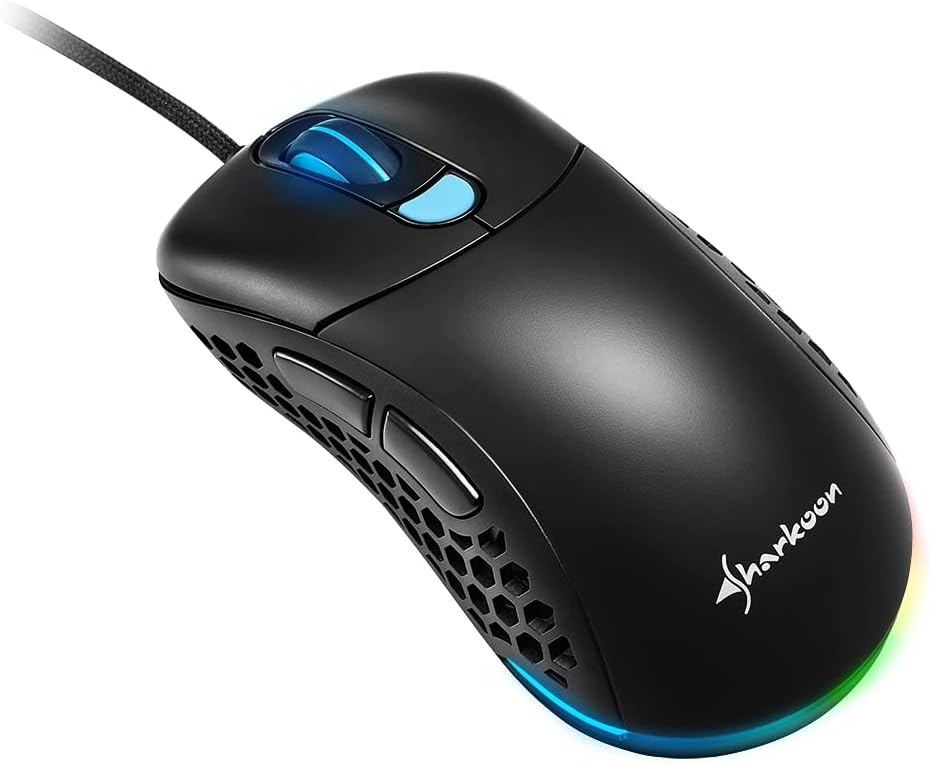
Image: The Sharkoon Light² 200 Gaming Mouse with the alternative solid top cover installed, providing a different aesthetic and feel.
5. Manutenzione
5.1 Pulizia del mouse
Per mantenere prestazioni ottimali, pulisci regolarmente il mouse:
- Scollegare il mouse dal computer.
- Utilizzare un panno morbido e asciutto per pulire la superficie del mouse.
- Per sporco ostinato, leggermente dampPulisci il panno con acqua o una soluzione detergente delicata. Evita prodotti chimici aggressivi.
- Use compressed air to clear dust from the honeycomb structure and around buttons.
- Clean the optical sensor area with a cotton swab lightly damparricchito con alcol isopropilico.
5.2 Replacing PTFE Glide Feet
The PTFE glide feet ensure smooth movement. If they become worn, replace them using the included spare set:
- Staccare con cautela i vecchi piedini in PTFE utilizzando uno strumento sottile e non abrasivo.
- Clean the surface where the feet were attached to ensure no residue remains.
- Peel the new PTFE feet from their backing and carefully apply them to the corresponding areas on the mouse's underside.
- Premere con decisione per garantire una corretta adesione.

Image: The underside of the Sharkoon Light² 200 Gaming Mouse, showing the optical sensor, the DPI switch, and the four white PTFE glide feet.
6. Risoluzione Dei Problemi
- Il mouse non risponde:
- Ensure the USB cable is securely connected to a working USB port.
- Try connecting the mouse to a different USB port or another computer to rule out port or system issues.
- Riavvia il tuo computer. - Le impostazioni DPI non cambiano:
- Ensure the Sharkoon gaming software is installed and running.
- Check if the DPI button is functioning correctly. - Illuminazione RGB non funzionante o non corretta:
- Verify that the Sharkoon gaming software is installed and that lighting settings are configured correctly.
- Ensure the mouse is properly connected. - Il movimento del mouse è irregolare o impreciso:
- Pulisci il sensore ottico sul lato inferiore del mouse.
- Ensure you are using the mouse on a suitable surface (e.g., a mouse pad).
- Check for any physical obstructions around the sensor. - I pulsanti non rispondono:
- Check button assignments in the Sharkoon gaming software.
- Ensure no physical debris is obstructing the button mechanism.
7. Specifiche
| Caratteristica | Dettaglio |
|---|---|
| Nome del modello | Luce² 200 |
| Numero modello articolo | 4044951029013 |
| Dimensioni del prodotto | 4.72 x 2.6 x 1.65 pollici (120 x 66 x 42 mm) |
| Peso dell'articolo | 2.19 once (62 grammi) |
| Tecnologia di rilevamento del movimento | Ottico (sensore PixArt) |
| DPI massimo | 16,000 DPI |
| Pulsanti programmabili | 6 |
| Tecnologia di connettività | USB |
| Caratteristica speciale | RGB LED Lights, Modular Design |
| Produttore | Tecnologie Sharkoon |
8. Garanzia e supporto
8.1 Informazioni sulla garanzia
Sharkoon products are covered by a manufacturer's warranty against defects in materials and workmanship. The specific warranty period and terms may vary by region. Please retain your proof of purchase for warranty claims.
8.2 Supporto tecnico
For technical assistance, driver downloads, or further information, please visit the official Sharkoon websito:
- Websito: www.sharkoon.com
You may also find FAQs and troubleshooting guides on their support pages.