1. Introduzione
This manual provides detailed instructions for the installation, operation, and maintenance of your Refoss Smart WiFi Outlet (Model MSS110). These smart plugs are designed to integrate seamlessly with your smart home ecosystem, offering remote control, voice command capabilities, and scheduling features through Apple HomeKit, Amazon Alexa, and Google Assistant. Please read this manual thoroughly before use to ensure proper functionality and safety.
2. Contenuto della confezione
- 4 x Refoss Smart Wi-Fi Plug Mini
- 1 x Manuale utente
3. Informazioni sulla sicurezza
Per evitare lesioni o danni, osservare le seguenti precauzioni di sicurezza:
- Non smontare o modificare il dispositivo.
- Avoid exposure to water, moisture, or high humidity.
- Non utilizzare il dispositivo in ambienti con temperature elevate o in prossimità di materiali infiammabili.
- Ensure the connected appliance's power consumption does not exceed the smart plug's maximum rating (15A).
- Tenere fuori dalla portata dei bambini.
- Solo per uso interno.
4. Prodotto finitoview
The Refoss Smart WiFi Outlet features a compact design to avoid blocking adjacent outlets. Each plug includes a physical power button and an LED indicator light for status feedback.

Image: Refoss Smart WiFi Outlets, 4-pack, illustrating the compact design of the plugs.
- Pulsante di accensione: Located on the side of the plug. Press once to manually turn the connected device on or off. Press and hold for approximately 5 seconds to reset the plug (the LED will flash amber and green).
- Indicatore LED: Displays the current status of the smart plug (e.g., solid green for on, solid red for off, flashing for pairing mode).
5. Istruzioni per l'installazione
5.1. Scarica l'app
To begin, download the Refoss or eHomeLife app from the Apple App Store or Google Play Store. This app is essential for initial setup and advanced features.
5.2. Connettiti al Wi-Fi
- Plug the Refoss Smart WiFi Outlet into a wall socket.
- Open the Refoss/eHomeLife app and follow the on-screen instructions to add a new device.
- Assicurati che il tuo smartphone sia connesso a un Rete Wi-Fi a 2.4 GHz. The smart plug only supports 2.4 GHz networks.
- During the setup process, the app will guide you to connect the smart plug to your home Wi-Fi network.
5.3. Pairing with Apple HomeKit
For Apple HomeKit integration, you will need an Apple Home hub (HomePod, HomePod mini, Apple TV, or iPad) to enable remote control and advanced automations.

Image: Apple HomeKit setup instructions, including a QR code for easy pairing.
- Apri l'app Apple Home sul tuo dispositivo iOS.
- Tap the "+" icon and select "Add Accessory".
- Scan the HomeKit QR code located on the smart plug or its packaging.
- Follow the prompts in the Home app to complete the setup.
- For remote control, ensure your Apple Home hub remains powered on and connected to your home Wi-Fi network. For more information, refer to Apple's HomeKit FAQ: Apple HomeKit FAQ.
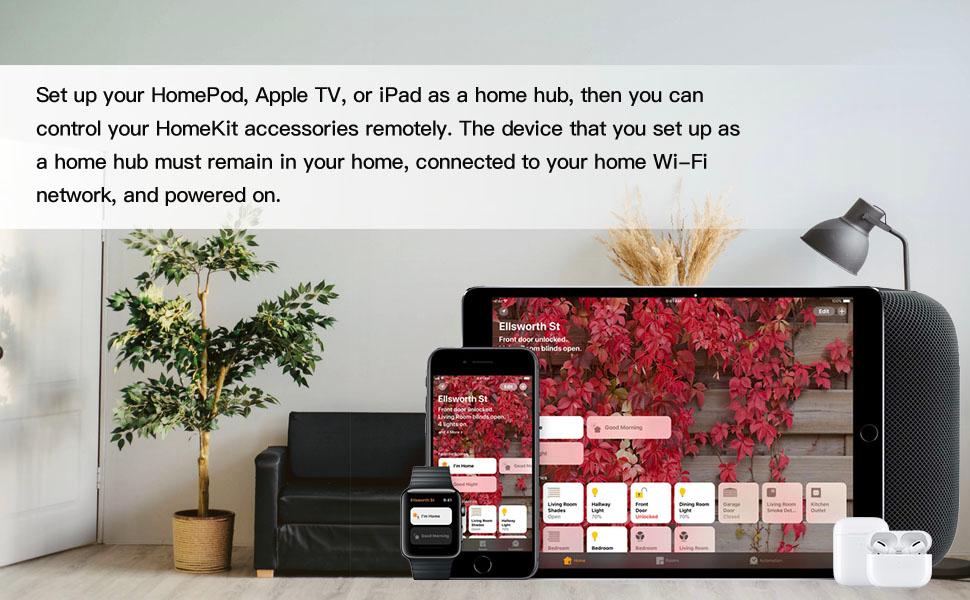
Image: Apple devices showcasing the HomeKit ecosystem, emphasizing the role of a home hub.
5.4. Pairing with Amazon Alexa / Google Assistant
After setting up the smart plug with the Refoss/eHomeLife app, you can link it to Amazon Alexa or Google Assistant for voice control.
- Apri l'app Amazon Alexa o l'app Google Home.
- Vai alla sezione "Abilità e giochi" (Alexa) o alla sezione "Funziona con Google" (Google Home).
- Cercare the "Refoss" skill/service and enable it.
- Log in with your Refoss/eHomeLife app account credentials.
- Discover devices, and your smart plugs will appear, ready for voice control.
6. Istruzioni per l'uso
6.1. Controllo remoto tramite app
Control your connected appliances from anywhere using the Refoss/eHomeLife app on your smartphone, provided you have internet access.

Image: Remote control functionality demonstrated through the eHomeLife app interface.
6.2. Controllo vocale
Use simple voice commands with your preferred smart assistant:
- "Hey Siri, turn off the lamp."
- "Alexa, turn on the washing machine."
- "Hey Google, turn on the coffee maker."

Image: Voice control in action with various smart assistants.
6.3. Pianificazione e timer
Set custom schedules and countdown timers for your appliances through the app. These schedules will operate automatically, even if your internet connection is temporarily unavailable.

Image: App interface showing options for automatic scheduling and countdown timers.
6.4. Controllo manuale
Each smart plug has a physical button on its side. Press this button to manually toggle the power of the connected device.
6.5. Controllo offline
If your internet connection is down, you can still control your devices locally via your home Wi-Fi network using the eHomeLife app, provided your smartphone is connected to the same local network.

Image: Demonstrating local control of smart plugs even when the internet is unavailable.
7. Manutenzione
To ensure optimal performance and longevity of your Refoss Smart WiFi Outlets:
- Clean the plugs with a dry, soft cloth. Do not use liquid cleaners.
- Avoid placing heavy objects on the plugs or connected cables.
- Periodically check for firmware updates through the Refoss/eHomeLife app to ensure you have the latest features and security enhancements.
8. Risoluzione Dei Problemi
If you encounter issues with your Refoss Smart WiFi Outlet, refer to the following common solutions:
- Device shows "No Response" in Apple HomeKit: Ensure your Apple Home hub (HomePod, Apple TV, or iPad) is powered on, connected to the same 2.4 GHz Wi-Fi network as the smart plug, and within range. Sometimes, restarting your iOS device or the Home app can resolve temporary display issues.
- Impossibile connettersi al Wi-Fi: Verify that your Wi-Fi network is 2.4 GHz. The smart plug does not support 5 GHz networks. Ensure the smart plug is within range of your Wi-Fi router. Try resetting the smart plug by holding the power button for 5 seconds until the LED flashes amber and green, then attempt pairing again.
- I comandi vocali non funzionano: Confirm that your Refoss/eHomeLife account is correctly linked to your Amazon Alexa or Google Assistant app. Check your internet connection and the status of your smart speaker/device.
- Gli orari non si attivano: Ensure the schedules are correctly configured in the Refoss/eHomeLife app or your smart home platform (HomeKit, Alexa, Google Home). Verify the smart plug is connected to power and Wi-Fi.
- Automation limits in HomeKit: Note that some HomeKit automations may have specific time limits (e.g., 4 hours). For longer durations, you may need to create multiple automations (e.g., one for 'on' and another for 'off').
9. Specifiche
| Numero di modello | MSS110 |
| Dimensioni del prodotto | 3 x 2 x 2 pollici |
| Peso dell'articolo | 10.86 once (per confezione da 4) |
| Materiale | Acrilonitrile Butadiene Stirene (ABS) |
| Tipo di connettore | Collegare |
| Valutazione attuale | 15A |
| Connettività wireless | Solo Wi-Fi a 2.4 GHz |
| Compatibilità | Apple HomeKit, Amazon Alexa, Google Assistant, Siri |
10. Garanzia e supporto
Refoss products typically come with a manufacturer's warranty. For specific warranty details, technical support, or customer service inquiries, please visit the official Refoss website or contact their customer support directly. Contact information can usually be found on the product packaging or the Refoss websito.


