1. Prodotto finitoview
The TP-Link Archer TX50E is a high-performance AX3000 Wi-Fi 6 Bluetooth 5.3 PCIe Adapter designed for desktop PCs. It leverages the latest Wi-Fi 6 standard to deliver extreme speeds, ultra-low latency, and uninterrupted connectivity, making it suitable for demanding applications like immersive gaming and VR. The adapter features a customized heat sink and gold-plated contactors for enhanced stability and longevity.
Caratteristiche principali:
- Prestazioni Wi-Fi 6: Delivers speeds up to 2.4 Gbps (2402 Mbps on 5 GHz + 574 Mbps on 2.4 GHz) with 1024-QAM and 160 MHz bandwidth.
- Latenza ultra bassa: Revolutionary OFDMA and MU-MIMO technologies reduce lag for responsive gaming and VR experiences.
- Bluetooth 5.3: Achieves 2× faster speeds and 4× broader coverage than Bluetooth 4.2, enabling seamless connection with various peripherals.
- Ampia copertura: Equipped with two high-gain antennas to extend Wi-Fi range.
- Versione premium: Features a customized heat sink for efficient thermal dissipation and gold-plated contactors for improved stability and oxidation resistance.
- Sicurezza avanzata: Supporta WPA3, l'ultimo standard di sicurezza di rete, per una maggiore protezione della rete.
2. Contenuto della confezione
Verifica che tutti gli articoli siano presenti nel tuo pacco:

Image: TP-Link Archer TX50E retail box showing the adapter and included accessories.
- TP-Link Archer TX50E Wi-Fi 6 Bluetooth 5.3 PCIe Adapter
- Due antenne ad alto guadagno
- Cavo USB Bluetooth
- CD delle risorse
- Guida di installazione rapida
- Basso-Profile Staffa
3. Installazione hardware
Prima di iniziare:
- Assicurati che il computer sia spento e scollegato dalla fonte di alimentazione.
- Ground yourself to discharge any static electricity before handling components.
- Refer to your computer's manual for specific instructions on opening the case.
Installazione passo dopo passo:
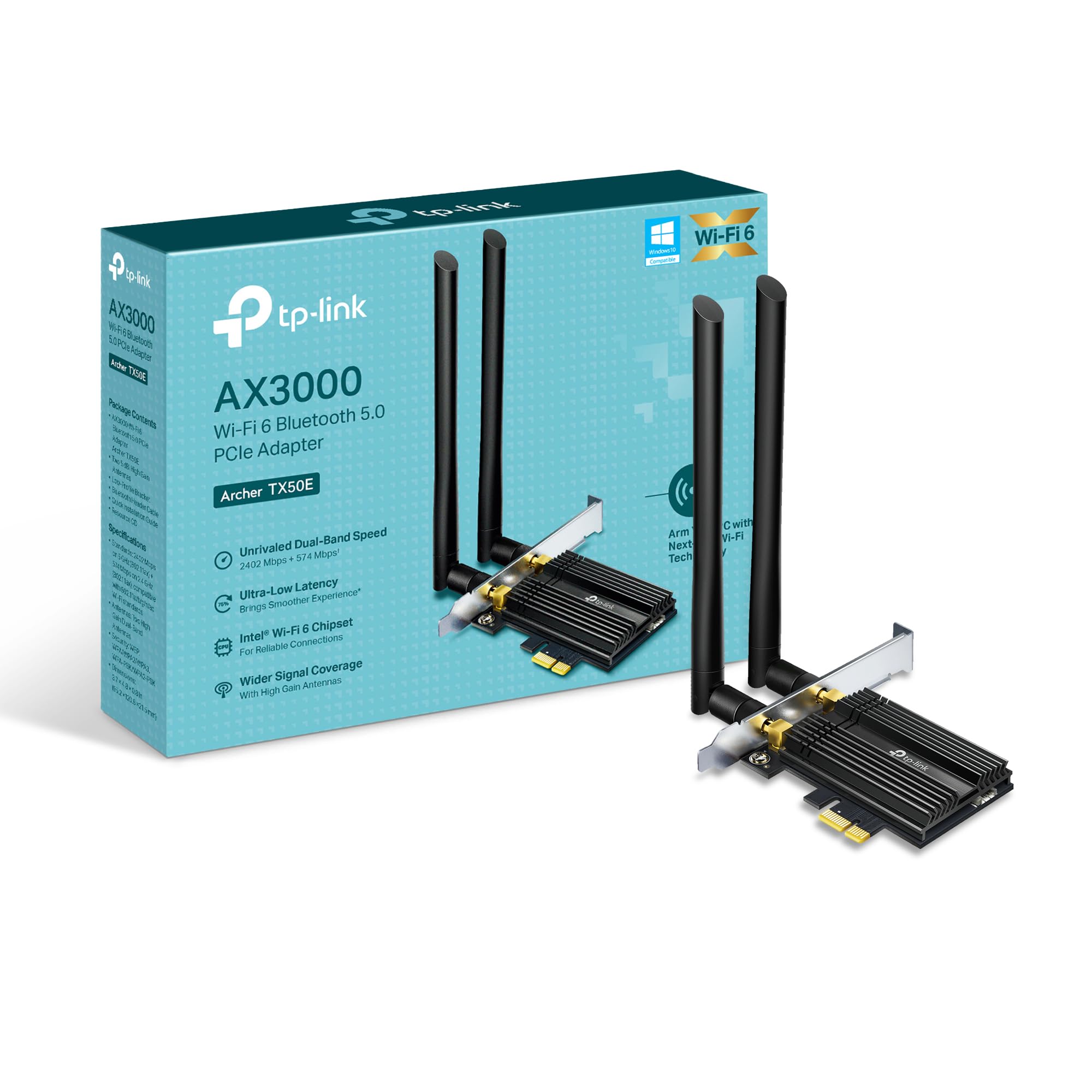
Immagine: Frontale view of the TP-Link Archer TX50E adapter with antennas.
- Spegnere e scollegare: Spegnere il computer e scollegare il cavo di alimentazione dalla presa a muro.
- Case PC aperto: Rimuovere il pannello laterale del case del computer per accedere alla scheda madre.
- Collegare il cavo USB Bluetooth: Connect the provided Bluetooth USB cable to the adapter's Bluetooth header.
- Individuare gli slot: Identify an available PCI Express X1 slot on your motherboard and an F_USB connector (usually labeled USB910 or similar).
- Inserisci adattatore: Carefully insert the Archer TX50E adapter into the chosen PCIe X1 slot. Ensure it is seated firmly.
- Collegare il cavo USB: Connect the other end of the Bluetooth USB cable to the F_USB connector on your motherboard. This connection is essential for Bluetooth functionality.
- Secure Adapter and Antennas: Secure the adapter with a screw to the computer case. Then, connect the two high-gain antennas to the adapter's connectors. Adjust their position for optimal signal reception.
- Chiudi Case PC: Sostituisci il pannello laterale del case del tuo computer.
- Accensione: Ricollega il cavo di alimentazione alla presa a muro e accendi il computer.
Guida visiva all'installazione:
Video: A step-by-step guide demonstrating the physical installation of the TP-Link Archer TX50E PCIe adapter into a desktop computer.
4. Installazione del driver
After hardware installation, you need to install the Wi-Fi and Bluetooth drivers for the adapter to function correctly. Nota: NON eseguire contemporaneamente i programmi di installazione dei driver Bluetooth e Wi-Fi.
Step-by-Step Driver Installation:
- Insert CD or Download Drivers: Insert the provided resource CD into your computer's CD/DVD drive. If your computer does not have a CD/DVD drive, download the latest drivers from the official TP-Link website (search for Archer TX50E).
- Run Autorun: Once the CD is inserted, an Autorun window should appear. Click to run `Autorun.exe`. If it doesn't appear, navigate to 'This PC' or 'My Computer', open your CD/DVD drive, and manually run `Autorun.exe`.
- Installa i driver Wi-Fi: In the TP-Link driver installation utility, select the option to install the Wi-Fi drivers. Follow the on-screen instructions to complete the installation. You may need to restart your computer after this step.
- Installa i driver Bluetooth: After the Wi-Fi drivers are installed and your computer has restarted (if prompted), run the `Autorun.exe` again or manually launch the Bluetooth driver installer. Follow the on-screen instructions to complete the Bluetooth driver installation. Another restart may be required.
For a visual guide on driver installation, please refer to the setup video provided in the Hardware Installation section.
5. Istruzioni per l'uso
Connessione al Wi-Fi:
- After successful driver installation, click the Wi-Fi icon in your system tray (usually in the bottom-right corner of your screen).
- Apparirà un elenco delle reti wireless disponibili. Seleziona la rete desiderata.
- Fare clic su "Connetti" e immettere la chiave di sicurezza di rete (password) se richiesta.
- Ora il computer dovrebbe essere connesso alla rete Wi-Fi.
Associazione di dispositivi Bluetooth:
- Ensure your Bluetooth device is in pairing mode (refer to your device's manual).
- On your computer, go to 'Settings' > 'Devices' > 'Bluetooth & other devices'.
- Attivare il Bluetooth se non è già abilitato.
- Fare clic su "Aggiungi dispositivo Bluetooth o altro" e selezionare "Bluetooth".
- Seleziona il tuo dispositivo dall'elenco e segui le istruzioni visualizzate sullo schermo per completare il processo di associazione.
6. Risoluzione Dei Problemi
If you encounter issues with your Archer TX50E adapter, try the following common troubleshooting steps:
- Nessuna connessione Wi-Fi:
- Assicurarsi che l'adattatore sia inserito correttamente nello slot PCIe.
- Verificare che le antenne siano collegate saldamente.
- Check Device Manager to ensure Wi-Fi drivers are installed and the device is recognized without errors.
- Try updating or reinstalling the Wi-Fi drivers.
- Riavvia il computer e il router wireless.
- Bluetooth non funzionante:
- Confirm the Bluetooth USB cable is properly connected to both the adapter and the motherboard's F_USB header.
- Check Device Manager to ensure Bluetooth drivers are installed and the device is recognized without errors.
- Verify that Bluetooth is enabled in your computer's settings.
- Try updating or reinstalling the Bluetooth drivers.
- Velocità lente o connessione intermittente:
- Per prestazioni ottimali, assicurati che il tuo router supporti il Wi-Fi 6 (802.11ax).
- Adjust the position of the antennas for better signal reception.
- Move your computer closer to the router or reduce obstacles between them.
- Verificare la presenza di interferenze da altri dispositivi elettronici.
- Aggiorna il firmware del router.
If these steps do not resolve your issue, please contact TP-Link Technical Support.
7. Specifiche tecniche
| Caratteristica | Specificazione |
|---|---|
| Modello | Arciere TX50E |
| standard wireless | Wi-Fi 6 (802.11ax/ac/b/g/n) |
| Versione Bluetooth | Bluetooth 5.3 |
| Interfaccia | PCI-Espresso |
| Velocità di trasferimento dati | Fino a 2402 Mbps (5 GHz), 574 Mbps (2.4 GHz) |
| Supporto del sistema operativo | Windows 11, 10 (64-bit) |
| Sicurezza | WPA3 |
| Dimensioni (L x P x A) | Dimensioni: 9.53 x 12.09 x 2.16 cm |
| Peso dell'articolo | 90.72 g (0.2 libbre) |
| Interfaccia Hardware | Bluetooth |
| Dispositivi compatibili | Desktop, portatile |
8. Garanzia e Supporto Tecnico
TP-Link offre un Garanzia di 2 anno for this product. Additionally, free Supporto tecnico 24 ore su 7, XNUMX giorni su XNUMX è disponibile per assisterti in caso di domande o problemi che potresti incontrare.
Per ulteriore assistenza, visita il supporto ufficiale TP-Link websito o contattare direttamente il servizio clienti.