1. Prodotto finitoview
The Epson PXMB9 Maintenance Box is an essential component for select Epson inkjet printers, including models PX-M6712FT, PX-M6711FT, and PX-M791FT. Its primary function is to collect waste ink generated during print head cleaning cycles and borderless printing. Regular replacement of the maintenance box ensures optimal printer performance and prevents ink overflow.
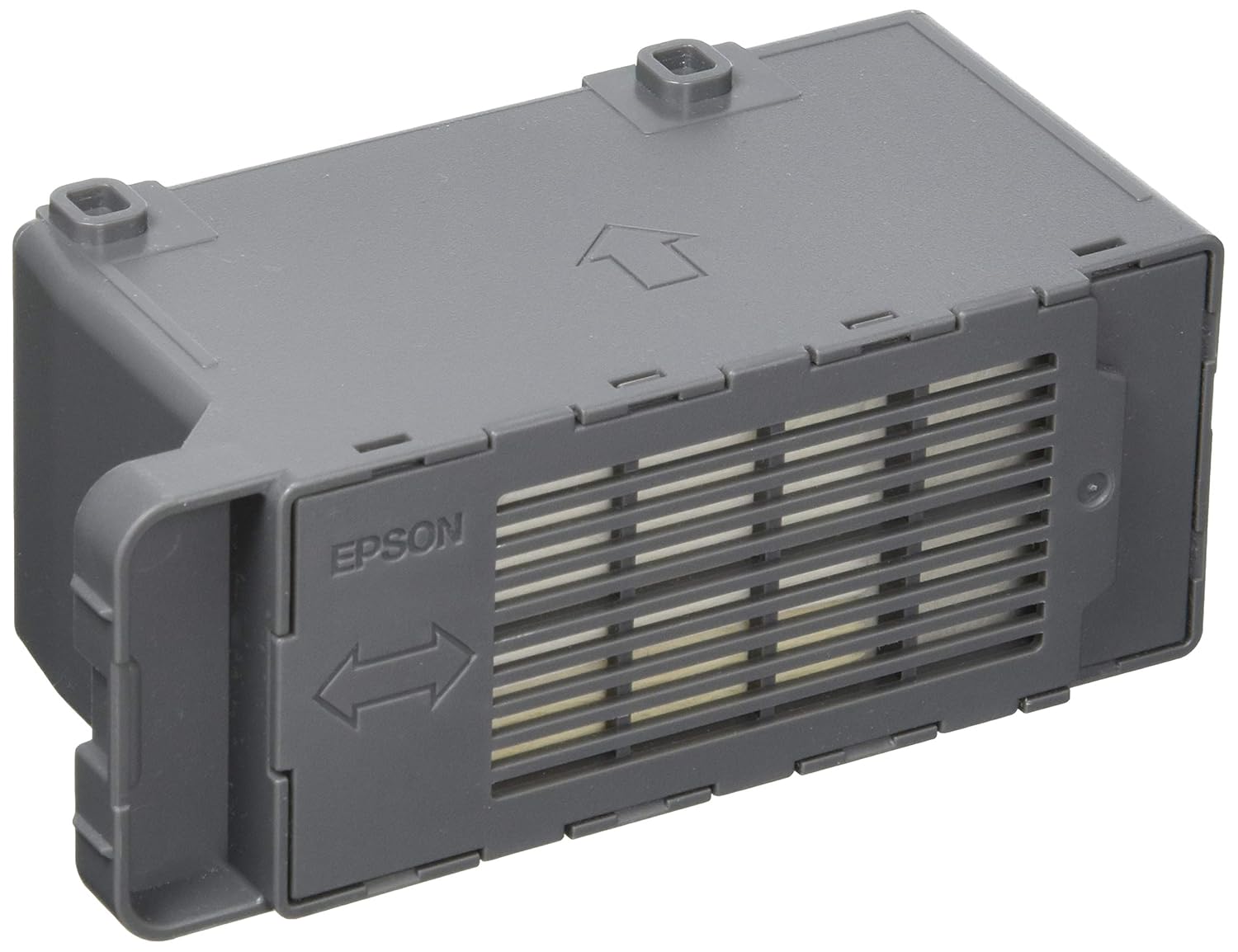
Immagine 1: anteriore view of the Epson PXMB9 Maintenance Box. This component collects waste ink from the printer.
2. Installazione e sostituzione
It is recommended to replace the maintenance box when your printer displays a notification indicating that the box is full or nearing capacity. Always ensure the printer is powered off before beginning the replacement process.
Steps for Replacement:
- Power Off the Printer: Turn off your Epson printer and disconnect the power cable.
- Locate the Maintenance Box Compartment: Refer to your printer's specific user manual to find the exact location of the maintenance box compartment. This is typically on the side or rear of the printer.
- Open the Compartment Cover: Carefully open the cover that secures the maintenance box.
- Remove the Old Maintenance Box: Gently pull out the used PXMB9 maintenance box. Handle it carefully to avoid spilling any collected waste ink.
- Insert the New Maintenance Box: Unpack the new Epson PXMB9 maintenance box. Insert it into the compartment, ensuring it clicks securely into place.
- Close the Compartment Cover: Close the cover until it is firmly shut.
- Accendere la stampante: Reconnect the power cable and turn on your printer. The printer should automatically detect the new maintenance box.

Immagine 2: posteriore view of the Epson PXMB9 Maintenance Box, showing identification labels and manufacturing details.
3. Funzionamento
The Epson PXMB9 Maintenance Box operates passively. It collects waste ink during routine printer operations such as print head cleaning, which is performed to maintain print quality, and during borderless printing, where excess ink is sprayed beyond the paper edges. The printer's internal system monitors the ink level within the maintenance box and will notify the user when replacement is required.
4. Manutenzione e smaltimento
The only maintenance required for the PXMB9 is its replacement when full. Once removed, the used maintenance box contains waste ink and should be disposed of according to local environmental regulations. Do not attempt to clean or reuse a full maintenance box, as this can lead to ink spills and potential damage to your printer.
5. Risoluzione Dei Problemi
Printer Displays "Maintenance Box Full" Error:
- This message indicates that the waste ink pads inside the maintenance box have reached their capacity.
- The only solution is to replace the maintenance box with a new Epson PXMB9 unit.
- Follow the installation and replacement steps outlined in Section 2.
Printer Does Not Recognize New Maintenance Box:
- Ensure the new maintenance box is correctly seated in its compartment. Remove and reinsert it firmly.
- Verify that the printer was powered off before installing the new box. If not, power off, remove, reinsert, and power on again.
- Confirm that you are using a genuine Epson PXMB9 maintenance box.
6. Specifiche
| Numero di modello | PXMB9 |
| Stampanti compatibili | Epson PX-M6712FT, PX-M6711FT, PX-M791FT |
| Dimensioni (circa) | 7.01 x 2.76 x 2.44 pollici (17.8 x 7 x 6.2 cm) |
| Peso (circa) | 3.88 once (110 g) |
| Funzione | Waste ink collection |
7. Garanzia e supporto
For information regarding the warranty of your Epson PXMB9 Maintenance Box or for further technical support, please refer to the documentation included with your printer or visit the official Epson support website. You can find more information and contact support directly through the Negozio Epson.


