Introduzione
The Microsoft Designer Compact Keyboard is engineered for exceptional comfort and a streamlined workspace. Its sleek, low-profile design complements any setup, offering optimized key travel for fast, fluid typing. This wireless Bluetooth keyboard is compatible with Bluetooth-enabled PCs and Macs, providing a versatile and efficient input solution.
Key features include a built-in expressive input (emoji) key and a dedicated Screen snipping key for quick capture, copy, paste, and sharing. It is designed to connect with up to three devices, allowing seamless switching between them.
Cosa c'è nella scatola
- Microsoft Designer Compact Keyboard
- 4 x DL2032 Lithium Metal Batteries (pre-installed)
- Guida rapida e informazioni sulla garanzia
Impostare
1. Installazione della batteria
Your Microsoft Designer Compact Keyboard comes with four DL2032 Lithium Metal Batteries pre-installed. Before first use, you may need to remove a protective pull tab from the battery compartment to activate the batteries. If the keyboard does not power on, ensure the batteries are correctly oriented according to the polarity indicators (+/-) inside the compartment.
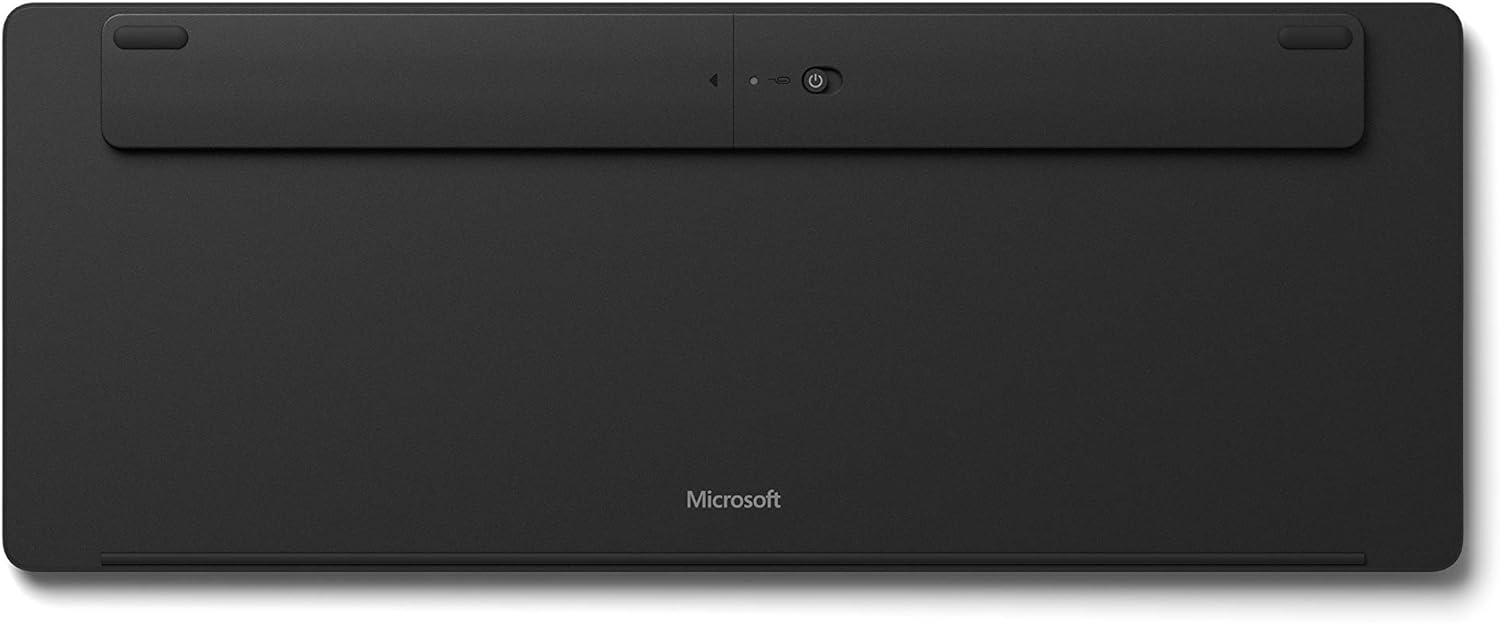
Figura 1: In basso view of the keyboard, highlighting the battery compartment and power switch.
To access the battery compartment, locate the small hole near the power switch on the underside of the keyboard. Insert a paperclip into this hole and gently press to release the battery tray. Replace batteries as needed, ensuring correct polarity, then slide the tray back into place until it clicks securely.
2. Accensione
Locate the power switch on the underside of the keyboard. Slide the switch to the 'On' position. A small LED indicator on the Caps Lock key may briefly illuminate to confirm power.
3. Accoppiamento Bluetooth
The Microsoft Designer Compact Keyboard can be paired with up to three different Bluetooth-enabled devices. Follow these steps to pair your keyboard:
- Assicurati che il Bluetooth sia abilitato sul tuo computer o dispositivo.
- On the keyboard, press and hold one of the Bluetooth keys (F1, F2, or F3) for approximately 3-5 seconds until the LED above the key begins to flash. This indicates the keyboard is in pairing mode.
- On your device, navigate to Bluetooth settings and select "Microsoft Designer Compact Keyboard" from the list of available devices.
- Segui le istruzioni sullo schermo per completare il processo di associazione. Potrebbe esserti richiesto di inserire un codice visualizzato sullo schermo tramite la tastiera.
- Once successfully paired, the LED will stop flashing and remain solid for a few seconds before turning off.
To switch between paired devices, simply press the corresponding Bluetooth key (F1, F2, or F3) for the desired device. The keyboard will automatically connect to that device.
Utilizzo della tastiera
The Microsoft Designer Compact Keyboard offers a range of features designed to enhance your productivity and comfort.
Caratteristiche principali:
- Design compatto: Saves desktop space and allows for a comfortable mouse position.
- Optimized Key Travel: Provides a responsive and comfortable typing experience.
- Expressive Input Key: Quickly access emojis, symbols, and more (located near the right Alt key).
- Screen Snipping Key: Instantly capture, copy, paste, and share screenshots.
- Connettività multi-dispositivo: Connect and seamlessly switch between up to 3 devices using dedicated Bluetooth keys (F1, F2, F3).
- Media Playback Keys: Dedicated keys for controlling media (play/pause, volume up/down, mute).
- Chiave di ricerca: Quick access to search functions on your operating system.
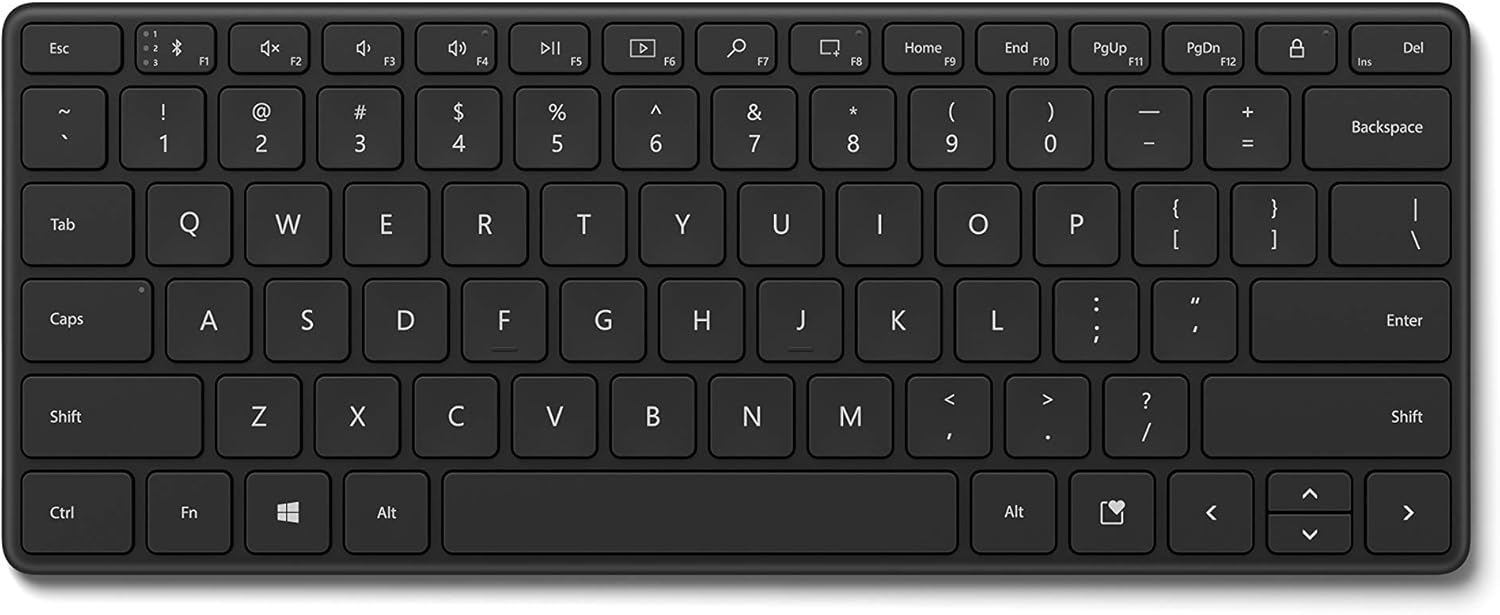
Figura 2: Dall'alto verso il basso view of the keyboard, illustrating the key layout and special function keys.

Figura 3: Angolato view della tastiera, showcasing its compact size and low profile.
Manutenzione
To ensure the longevity and optimal performance of your Microsoft Designer Compact Keyboard, follow these maintenance guidelines:
- Pulizia: Utilizzare un panno morbido e privo di lanugine leggermente dampened with water or a mild cleaning solution to wipe down the keys and surface. Avoid abrasive cleaners or solvents.
- Rimozione della polvere: Utilizzare aria compressa per rimuovere polvere e detriti dagli spazi tra i tasti.
- Evitare fuoriuscite: Tenere i liquidi lontano dalla tastiera per evitare danni ai componenti interni. In caso di versamento di liquidi, spegnere immediatamente la tastiera e lasciarla asciugare completamente prima di riutilizzarla.
- Magazzinaggio: When not in use for extended periods, turn off the keyboard to conserve battery life. Store it in a cool, dry place away from direct sunlight.
Risoluzione dei problemi
If you encounter issues with your Microsoft Designer Compact Keyboard, refer to the following common solutions:
- La tastiera non si connette o si disconnette frequentemente:
- Ensure the keyboard is powered on and within range of your device (typically up to 33 feet or 10 meters).
- Check the battery level. Replace batteries if they are low.
- Try re-pairing the keyboard with your device. Go to your device's Bluetooth settings, remove the keyboard, and then re-add it.
- Assicurati che i driver Bluetooth del tuo dispositivo siano aggiornati.
- If the keyboard enters standby and takes a moment to wake up, this is normal behavior designed to conserve battery life.
- I tasti non rispondono o digitano in modo errato:
- Pulisci la tastiera per rimuovere eventuali detriti che potrebbero ostruire i tasti.
- Verify that the batteries are installed correctly and have sufficient charge.
- Test the keyboard with another device to determine if the issue is with the keyboard or the original device.
- Accidental F1 key presses (Bluetooth pairing button):
- Be mindful of the F1 key's function as a Bluetooth pairing button. Avoid resting fingers or objects on it during normal use.
- If accidentally pressed, the keyboard may enter pairing mode. Wait for the pairing function to time out, or re-select your desired paired device using F1, F2, or F3.
- No backlight:
- The Microsoft Designer Compact Keyboard does not feature a backlight. This is by design to maximize battery life.
Specifiche
| Caratteristica | Dettaglio |
|---|---|
| Marca | Microsoft |
| Numero di modello | 21Y-00001 |
| Tecnologia di connettività | Wireless (Bluetooth) |
| Dispositivi compatibili | PC (Windows 10 with latest updates), Mac (Bluetooth Enabled) |
| Colore | Nero opaco |
| Peso dell'articolo | 15.2 once |
| Dimensioni del prodotto (LxWxH) | 11.18 x 4.36 x 0.38 pollici |
| Fonte di alimentazione | Alimentato a batteria |
| Batterie richieste | 4 Lithium Metal (DL2032) |
| Durata della batteria | Up to 36 months (approximate, varies with usage) |
| Numero di chiavi | 78 |
| Caratteristica speciale | Portable, Multi-device support |
Garanzia e supporto
This product is covered by Microsoft's standard limited warranty. For detailed warranty information, please refer to the warranty card included in your product packaging or visit the official Microsoft support websito.
For technical support, troubleshooting assistance, or to register your product, please visit the official Microsoft Support page:
You can also find additional resources and FAQs on the Microsoft websito.


