1. Introduzione
The MOES WiFi RF IR Smart Home Universal Remote Controller is designed to centralize control of various infrared (IR) and radio frequency (RF) home appliances. This device integrates with the Smart Life/Tuya app, allowing for remote control and voice command capabilities through platforms like Amazon Alexa and Google Home. It supports a wide range of devices, including TVs, air conditioners, fans, DVD players, set-top boxes, and RF-controlled lights, switches, and roller blinds.
1 video: Un oltreview of MOES smart home products and their functionalities, demonstrating various smart home integrations including lighting, security, and appliance control. This video provides context for the universal remote's role within a smart home ecosystem.
2. Prodotto finitoview
This universal remote controller combines IR and RF functionalities into a single compact device. It is designed to simplify your home automation by replacing multiple traditional remote controls.
Caratteristiche principali:
- Controllo tutto in uno: Manages IR devices (TVs, ACs, fans, DVD players, STBs) and RF appliances (lights, switches, roller blinds).
- Ampia compatibilità: Stores thousands of IR codes (38 KHz) and supports RF 433/315 MHz.
- Accesso remoto: Control appliances from anywhere via the Smart Life/Tuya app using WiFi or 4G.
- Controllo vocale: Compatibile con Amazon Alexa e Google Home per il funzionamento a mani libere.
- Funzione di apprendimento fai da te: Customize control by copying functions from original IR remotes for unsupported devices.

Immagine 1: This diagram illustrates the comprehensive control capabilities of the MOES Universal Remote, showing its ability to manage a wide array of IR and RF devices, and its integration with voice assistants.
3. Istruzioni per l'installazione
3.1 Installazione dell'app
- Scarica il Vita intelligente or Tuya intelligente app dall'app store del tuo dispositivo mobile (iOS o Android).
- Registrati o accedi al tuo account.
3.2 Associazione del dispositivo (connessione WiFi)
- Plug in the MOES Universal Remote Controller. Ensure it is within range of your 2.4GHz WiFi network.
- Open the Smart Life/Tuya app and tap the "+" icon to add a new device.
- Select the appropriate device type (e.g., "Universal Remote Control" or "IR Remote Control").
- Follow the in-app instructions to connect the device to your WiFi network. This typically involves putting the device into pairing mode (often indicated by a blinking LED) and entering your WiFi credentials.
3.3 Adding IR/RF Appliances
Once the remote controller is connected to the app, you can add your home appliances.
- In the app, select your newly added universal remote controller.
- Choose to add an "IR Remote" or "RF Remote" based on the appliance type.
- For IR devices (e.g., TV, AC): The app will guide you through selecting the brand and model, or using a DIY learning function. Point your original remote at the universal controller to teach it commands.
- For RF devices (e.g., RF lights, roller blinds): The app will prompt you to press buttons on your original RF remote to learn the signals. Ensure the universal remote is close to the RF appliance during this process.

Immagine 2: This image displays the Smart Life app interface, demonstrating how to add and configure both IR and RF remote-controlled devices, with various appliance categories available for selection.
4. Istruzioni per l'uso
4.1 Controllo dell'app
After successfully adding your appliances, you can control them directly from the Smart Life/Tuya app on your smartphone.
- Open the app and select the universal remote controller.
- Choose the specific appliance you wish to control (e.g., TV, AC).
- Use the virtual remote interface in the app to send commands (e.g., power on/off, change channel, adjust temperature).

Immagine 3: This image illustrates the convenience of controlling multiple home appliances remotely using the Smart Life app on a smartphone, highlighting the universal remote's central role.

Immagine 4: This image demonstrates the remote control feature, showing a user adjusting their home's air conditioner via their mobile phone while away, emphasizing convenience and connectivity.

Immagine 5: This image highlights the preset air conditioner mode feature within the app, allowing users to schedule temperature adjustments and operational modes for convenience and energy saving.
4.2 Controllo vocale
Integrate your MOES Universal Remote Controller with Amazon Alexa or Google Home for hands-free control.
- Assicurati che il tuo dispositivo Alexa o Google Home sia configurato e collegato al tuo account Smart Life/Tuya.
- Utilizzare comandi vocali come:
- "Alexa, accendi la TV."
- "Google, set A/C to 77 degrees."
- "Alexa, spegni la luce."

Immagine 6: This image illustrates how voice commands via Amazon Alexa and Google Home can control both IR devices like a TV and RF devices like lights, providing hands-free operation.
4.3 Funzionalità finitaview
The following table summarizes the main functions supported by the MOES Universal Remote Controller when used with a smartphone, Amazon Echo, and Google Home.
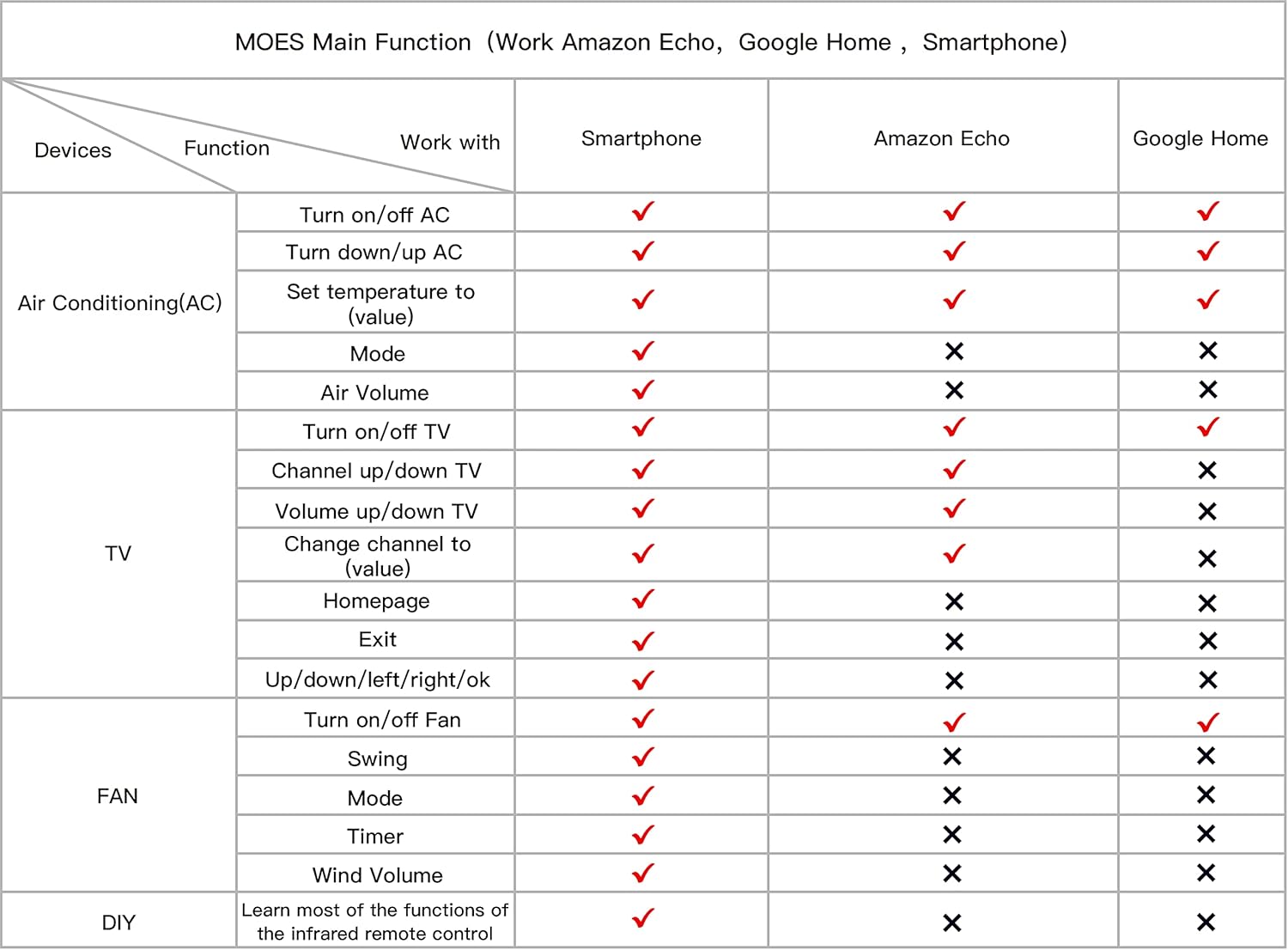
Immagine 7: This table provides a clear overview of the MOES Universal Remote's main functions, detailing which actions are supported by smartphones, Amazon Echo, and Google Home for various appliances like AC, TV, and fans.
5. Manutenzione
To ensure optimal performance and longevity of your MOES Universal Remote Controller, follow these maintenance guidelines:
- Pulizia: Utilizzare un panno morbido e asciutto per pulire il dispositivo. Evitare detergenti abrasivi o solventi.
- Posizionamento: Place the device in a central location within your home, ensuring a clear line of sight to IR-controlled devices and good signal strength for RF devices. Avoid placing it near heat sources or in direct sunlight.
- Energia: Use the provided power adapter or a compatible 5V DC 1A Micro USB power source.
- Aggiornamenti del firmware: Regularly check the Smart Life/Tuya app for any available firmware updates to ensure the device has the latest features and bug fixes.
6. Risoluzione Dei Problemi
If you encounter issues with your MOES Universal Remote Controller, refer to the following common troubleshooting steps:
- Dispositivo non connesso al Wi-Fi:
- Assicurati che la tua rete Wi-Fi sia a 2.4 GHz. Il dispositivo non supporta la rete Wi-Fi a 5 GHz.
- Controlla la correttezza della tua password Wi-Fi.
- Avvicina il dispositivo al router Wi-Fi.
- Restart your router and the universal remote controller.
- IR Device Not Responding:
- Ensure there is a clear line of sight between the universal remote and the IR appliance. Obstructions can block the IR signal.
- Verify that the correct IR code or DIY learned function is assigned to the appliance in the app.
- Try the DIY learning function again, ensuring the original remote is close to the universal remote during the learning process.
- RF Device Not Responding:
- Confirm the RF frequency (433MHz or 315MHz) of your appliance is supported.
- Ensure the universal remote is close to the RF appliance during the learning process.
- Some RF devices may require specific pairing procedures (e.g., pressing a button on the device itself) in addition to learning the remote signal. Consult your RF appliance's manual.
- Controllo vocale non funzionante:
- Check if your Alexa/Google Home account is correctly linked to your Smart Life/Tuya account.
- Ensure the device names in the Smart Life/Tuya app are recognized by your voice assistant. Try simple, clear names.
- Verify your voice commands are phrased correctly.
7. Specifiche
| Parametro | Valore |
|---|---|
| Nome del prodotto | Telecomando WiFi IR+RF |
| Modello del prodotto | d9212d76-c108-47c0-98f5-950b2652419d |
| Potenza in ingresso | 5 V CC 1 A (Micro USB) |
| Tipo di connessione | 2.4 GHz 802.11b/g/n |
| Distanza IR | < 8 metri |
| Frequenza RF | 433 / 315 MHz |
| Temperatura di lavoro | 0-50°C |
| Umidità di lavoro | < 85% UR |
| Dimensioni del pacco | 2.83 x 2.8 x 1.97 pollici |
| Peso dell'articolo | 3.52 once |

Immagine 8: This image provides a visual representation of the device's dimensions and a detailed table of its technical specifications, including power requirements, connectivity, and operational ranges.
8. Garanzia e supporto
MOES products are designed for reliability and performance. For warranty information, technical support, or service inquiries, please refer to the official MOES webo contattare direttamente l'assistenza clienti. Conservare la ricevuta d'acquisto per eventuali reclami in garanzia.