1. Prodotto finitoview
The HIKVISION Elite 7 Touch Portable SSD is a secure and high-performance external solid-state drive designed for reliable data storage and protection. It features a fingerprint encryption function, robust construction, and high-speed data transfer capabilities.

Figura 1.1: Fronte view of the HIKVISION Elite 7 Touch Portable SSD, showcasing its sleek black design and illuminated HIKVISION logo.
Caratteristiche principali:
- Prestazioni ad alta velocità: Utilizes USB 3.2 Gen2 with NVMe solution for transfer speeds up to 1060MB/s.
- Fingerprint Security: Integrated fingerprint sensor for secure data access and encryption.
- Design durevole: All-aluminum alloy body with IPX7 waterproof rating.
- Pacchetto software: Includes Hi Backup for data backup and Hi Security for enhanced data protection.
- Ampia compatibilità: Supports TV, PS4, Xbox, Windows, Mac, Linux, and Android devices.
2. Contenuto della confezione
Prima di procedere con la configurazione, verificare che tutti gli elementi siano presenti nella confezione:
- 1 x HIKVISION Elite 7 Touch Portable SSD
- 1 x cavo da tipo C a tipo C
- 1 cavo da tipo C a tipo A
- 1 x Manuale utente (questo documento)

Figure 2.1: Contents of the HIKVISION Elite 7 Touch Portable SSD package, including the SSD unit, two types of USB cables, and the user manual.
3. Guida all'installazione
3.1 Collegamento dell'SSD
- Select the appropriate cable: Use the Type-C to Type-C cable for devices with a USB-C port, or the Type-C to Type-A cable for devices with a standard USB-A port.
- Connect the Type-C end of the cable to the HIKVISION Elite 7 Touch Portable SSD.
- Connect the other end of the cable to an available USB port on your computer, gaming console, or compatible device.

Figura 3.1: primo piano view of the Type-C interface on the HIKVISION Elite 7 Touch Portable SSD, indicating its high-speed data transfer capability.
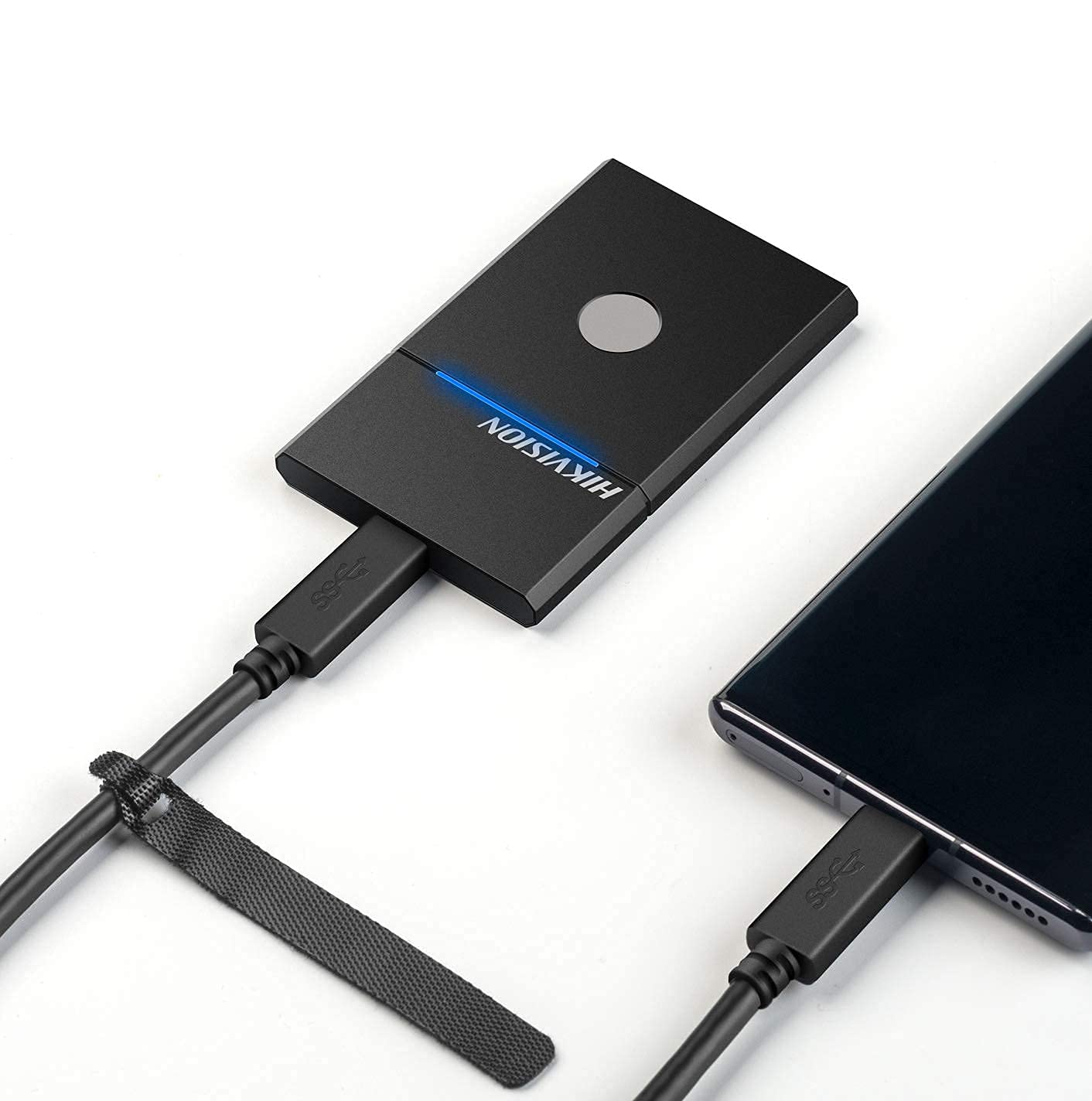
Figure 3.2: The HIKVISION Elite 7 Touch Portable SSD connected to a laptop via a USB-C cable, ready for data transfer.

Figure 3.3: The HIKVISION Elite 7 Touch Portable SSD connected to a smartphone, demonstrating its compatibility with mobile devices.
3.2 Formattazione iniziale (se richiesta)
For optimal compatibility with your specific device (TV, PS4, Xbox, Windows, Mac, Linux, Android), it may be necessary to format the SSD to the required file system. Refer to your device's operating system instructions for formatting external storage devices. Nota: Formatting will erase all data on the drive. Back up any important data before proceeding.
3.3 Software Installation (Hi Backup & Hi Security)
The HIKVISION Elite 7 Touch comes with pre-loaded software for enhanced data management and security. Connect the SSD to a computer and locate the installer files for 'Hi Backup' and 'Hi Security'. Follow the on-screen instructions to install these applications.
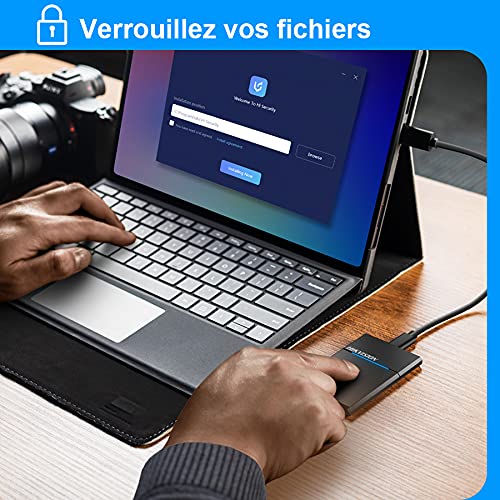
Figure 3.4: Screenshot of the 'Hi Security' software interface on a laptop, illustrating the setup process for data protection.
4. Istruzioni per l'uso
4.1 Trasferimento dati
Once connected and recognized by your device, the SSD will appear as an external storage drive. You can drag and drop files, copy and paste, or use your operating system's file management tools to transfer data to and from the SSD.
4.2 Fingerprint Unlocking and Security
The Elite 7 Touch features a fingerprint sensor for secure access to your data. After installing the 'Hi Security' software, you can register your fingerprints. The SSD can be configured to require fingerprint authentication for unlocking, creating separate private storage areas.
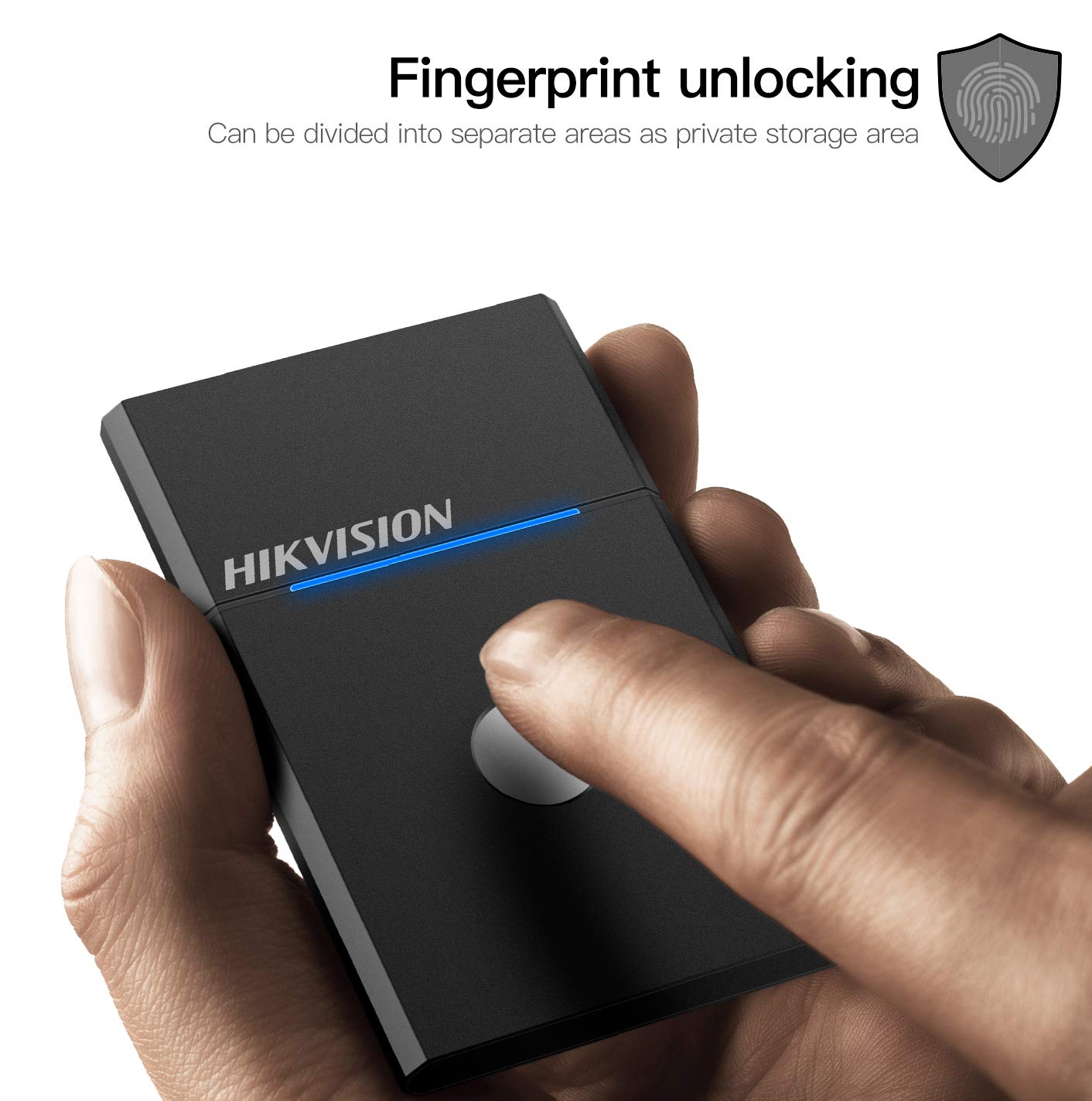
Figure 4.1: The HIKVISION Elite 7 Touch Portable SSD highlighting its fingerprint unlocking capability, allowing for secure access to data.

Figure 4.2: A user's hand interacting with the fingerprint sensor on the HIKVISION Elite 7 Touch Portable SSD to unlock the device.
4.3 Using Hi Backup Software
The 'Hi Backup' software allows you to create backups of your important files. Follow the software's interface to configure backup schedules, select files for backup, and manage your backup history. This software can also be integrated with cloud storage services for additional data redundancy.
5. Manutenzione
5.1 Cura generale
- Mantenere pulito l'SSD pulendolo con un panno morbido e asciutto.
- Avoid exposing the SSD to extreme temperatures or direct sunlight for prolonged periods.
- Ensure the USB port is free from dust and debris before connecting the cable.
5.2 Funzione impermeabile (IPX7)
The Elite 7 Touch Portable SSD is designed with an IPX7 waterproof rating, meaning it can withstand immersion in water up to 1 meter for 30 minutes. While this provides protection against accidental spills or submersion, it is not recommended for continuous underwater use. Always ensure the USB port is dry before connecting to a device.
6. Risoluzione Dei Problemi
- SSD non rilevato:
- Assicurati che il cavo USB sia collegato saldamente sia all'SSD che al dispositivo.
- Prova una porta USB diversa sul tuo dispositivo.
- Prova un cavo USB diverso.
- Riavvia il computer o il dispositivo.
- Check your device's disk management utility to see if the drive is recognized but unformatted.
- Velocità di trasferimento lente:
- Ensure you are using a USB 3.2 Gen2 compatible port on your device for optimal performance.
- Verifica che i driver del tuo dispositivo siano aggiornati.
- Chiudere tutte le applicazioni non necessarie in esecuzione in background.
- Il sensore delle impronte digitali non risponde:
- Assicurati che il dito sia pulito e asciutto.
- Re-register your fingerprints through the 'Hi Security' software.
- Ensure the 'Hi Security' software is running and properly configured.
- Problemi di accesso ai dati:
- If using fingerprint security, ensure the correct fingerprint is used.
- Check if the drive requires formatting for your specific operating system (refer to Section 3.2).
7. Specifiche

Figure 7.1: Diagram illustrating the compact dimensions of the HIKVISION Elite 7 Touch Portable SSD: 84mm length, 53mm width, and 8mm thickness.
| Caratteristica | Specificazione |
|---|---|
| Marca | Hikvision |
| Modello | Elite 7 Touch (HS-ESSD-Elite 7 Touch) |
| Capacità | 1TB (1024 GB) |
| Interfaccia | USB 3.2 Gen2 Tipo-C |
| Velocità massima di trasferimento | Fino a 1060 MB/s |
| Dimensioni (LxWxH) | 8.35 x 5.35 x 0.79 cm (3.29 x 2.10 x 0.31 pollici) |
| Peso | 280 g (0.62 libbre) |
| Grado di impermeabilità | Grado di protezione IPX7 |
| Piattaforma hardware | Mac, Windows, Linux, Android, Gaming Consoles |
| Colore | Nero |
8. Garanzia e supporto
8.1 Garanzia del produttore
The HIKVISION Elite 7 Touch Portable SSD comes with a Garanzia del produttore di 3 anno dalla data di acquisto. La presente garanzia copre i difetti di materiali e fabbricazione in condizioni di normale utilizzo. Si prega di conservare la prova d'acquisto per eventuali reclami in garanzia.
8.2 Supporto tecnico
For technical assistance, troubleshooting beyond this manual, or warranty inquiries, please contact HIKVISION customer support through their official websito o le informazioni di contatto fornite con la documentazione del prodotto.


