1. Introduzione
The IOGEAR GCS1932H is a 4-Port 4K KVMP Switch designed to provide seamless control of two computers from a single console. This device integrates a keyboard, mouse, and 4K HDMI monitor, along with a 2-Port USB 3.1 Gen1 Hub and audio support, enhancing productivity and workspace efficiency. It supports superior video quality up to Cinema 4K (4096 x 2160 @60Hz) and is HDCP 2.2 compliant with HDR support.
This manual provides detailed instructions for setting up, operating, and maintaining your IOGEAR GCS1932H KVMP Switch, along with troubleshooting tips and product specifications.

Figura 1: Angolato view of the IOGEAR GCS1932H KVMP Switch.
2. Contenuto della confezione
Si prega di verificare che tutti gli articoli siano presenti e in buone condizioni all'apertura del pacco:
- 1 x IOGEAR GCS1932H 4-Port 4K KVMP Switch
- 2 x cavi HDMI
- 2 cavi USB 3.0
- 2 x Audio Cables
- 1 x adattatore di alimentazione
- 1 x cavo di alimentazione

Figure 2: Package contents of the IOGEAR GCS1932H.
3. Configurazione e installazione
Follow these steps to connect your IOGEAR GCS1932H KVMP Switch to your computers and peripherals.
3.1 Pannello posteriore sopraview

Figura 3: Collegamenti del pannello posteriore.
3.2 Fasi di connessione
- Power Off Computers: Ensure both computers you intend to connect are powered off before beginning the installation.
- Connetti i dispositivi della console:
- Connect your HDMI monitor to the HDMI Console Out port on the rear of the KVMP switch.
- Connect your USB keyboard and mouse to the dedicated Console USB ports (marked with keyboard and mouse icons) on the rear of the KVMP switch.
- Se si utilizzano altoparlanti esterni o cuffie, collegarli al Uscita audio port on the rear of the KVMP switch.
- Connect Computers to KVMP Switch: For each computer (CPU 1 and CPU 2):
- Connect one end of an HDMI cable to the computer's HDMI output and the other end to the corresponding Ingresso HDMI port (CPU 1 or CPU 2) on the KVMP switch.
- Connect one end of a USB 3.0 cable to a USB port on the computer and the other end to the corresponding Ingresso USB port (CPU 1 or CPU 2) on the KVMP switch.
- If using audio, connect one end of an audio cable to the computer's audio output and the other end to the corresponding Ingresso audio port (CPU 1 or CPU 2) on the KVMP switch.
- Connetti alimentazione: Collegare l'adattatore di alimentazione fornito al DC5V port on the rear of the KVMP switch, then plug the power adapter into a power outlet.
- Accensione: Power on the KVMP switch, then power on your connected computers.
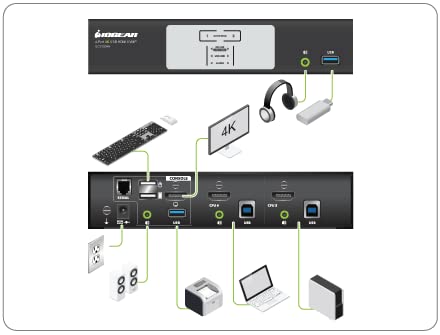
Figure 4: Typical connection diagram.
4. Istruzioni per l'uso
IOGEAR GCS1932H offre diversi metodi per passare da un computer connesso all'altro.
4.1 Pannello frontale sopraview

Figure 5: Front panel controls and indicators.
4.2 Passaggio da un computer all'altro
- Pulsanti del pannello frontale: Press the corresponding numbered button (1 or 2) on the front panel to switch to the desired computer. The "Selected" LED will illuminate for the active port.
- Tasti di scelta rapida: Use specific keyboard hotkey combinations to switch between computers. Refer to the full product manual (usually available on the manufacturer's website) for a complete list of hotkey commands. A common hotkey sequence involves pressing the Scroll Lock key twice, followed by the port number.
- Cambio mouse: Some configurations allow switching by double-clicking the middle mouse button. This feature may need to be enabled or configured.
- Comando RS-232: For advanced users, the switch can be controlled via RS-232 commands. Consult the detailed technical manual for programming instructions.
4.3 USB 3.1 Gen1 Hub
The KVMP switch includes a 2-Port USB 3.1 Gen1 Hub with SuperSpeed 5Gbps transfer rate. These ports are located on the rear panel (next to the console USB ports) and one on the front panel. You can connect USB peripherals such as printers, external hard drives, or webcams to these ports, and they will be shared between the connected computers.
4.4 Audio Functionality
The switch supports audio pass-through, allowing you to share speakers or headphones between the connected computers. Ensure audio cables are properly connected from your computers to the switch, and your speakers/headphones are connected to the audio output on the switch.
5. Manutenzione
Proper maintenance ensures the longevity and optimal performance of your IOGEAR GCS1932H KVMP Switch.
- Pulizia: Use a soft, dry cloth to clean the exterior of the device. Do not use liquid or aerosol cleaners, as they may damage the unit.
- Ventilazione: Assicurarsi che l'interruttore sia posizionato in un'area ben ventilata per evitare il surriscaldamento. Non ostruire le aperture di ventilazione.
- Condizioni ambientali: Evitare di esporre il dispositivo a temperature estreme, umidità o luce solare diretta.
- Gestione dei cavi: Keep cables organized and free from kinks or excessive bending to prevent damage and ensure reliable connections.
6. Risoluzione Dei Problemi
Se riscontri problemi con il tuo IOGEAR GCS1932H, fai riferimento ai seguenti problemi comuni e alle relative soluzioni:
| Problema | Possibile causa/soluzione |
|---|---|
| No video display or flickering after switching. |
|
| Keyboard/Mouse not responding after switching. |
|
| Audio is too quiet or not working. |
|
| Monitor does not go to sleep or wakes up immediately. |
|
| Switching takes too long (e.g., 5-6 seconds). |
|
If the problem persists, consult the full product manual or contact IOGEAR technical support.
7. Specifiche
| Caratteristica | Dettaglio |
|---|---|
| Numero di modello | GCS1932H |
| Marca | IO-OGGETTO |
| Protocollo di connettività | USB |
| Qualità video | Cinema 4K (4096 x 2160 @60Hz) |
| Conformità HDCP | HDCP 2.2 compliant; HDR Support |
| Hub USB | 2-Port USB 3.1 Gen1 Hub (SuperSpeed 5Gbps) |
| Computer Selection | Front panel pushbuttons, hotkeys, mouse, RS-232 command |
| Dimensioni (L x P x A) | 19.99 x 7.47 x 4.29 cm (7.87 x 2.94 x 1.69 pollici) |
| Peso | 1.63 kg (3.59 libbre) |
| Colore | Nero |
| Consumo energetico | 1.78 Watt |
8. Garanzia e supporto
For detailed warranty information, please refer to the warranty card included with your product or visit the official IOGEAR websito. I termini e le condizioni della garanzia possono variare in base alla regione e al prodotto.
For technical support, product registration, or to download the latest drivers and full user manuals, please visit the IOGEAR support page:
When contacting support, please have your product model number (GCS1932H) and serial number ready.


