Introduzione
The Sharkoon Skiller SGK30 is a mechanical gaming keyboard designed for performance and durability. It features customizable RGB lighting, N-Key rollover, and a 1000Hz polling rate for responsive gameplay and typing. This manual provides essential information for setting up, operating, and maintaining your keyboard.

Image: Sharkoon Skiller SGK30 Mechanical Gaming Keyboard banner displaying the product name and type.
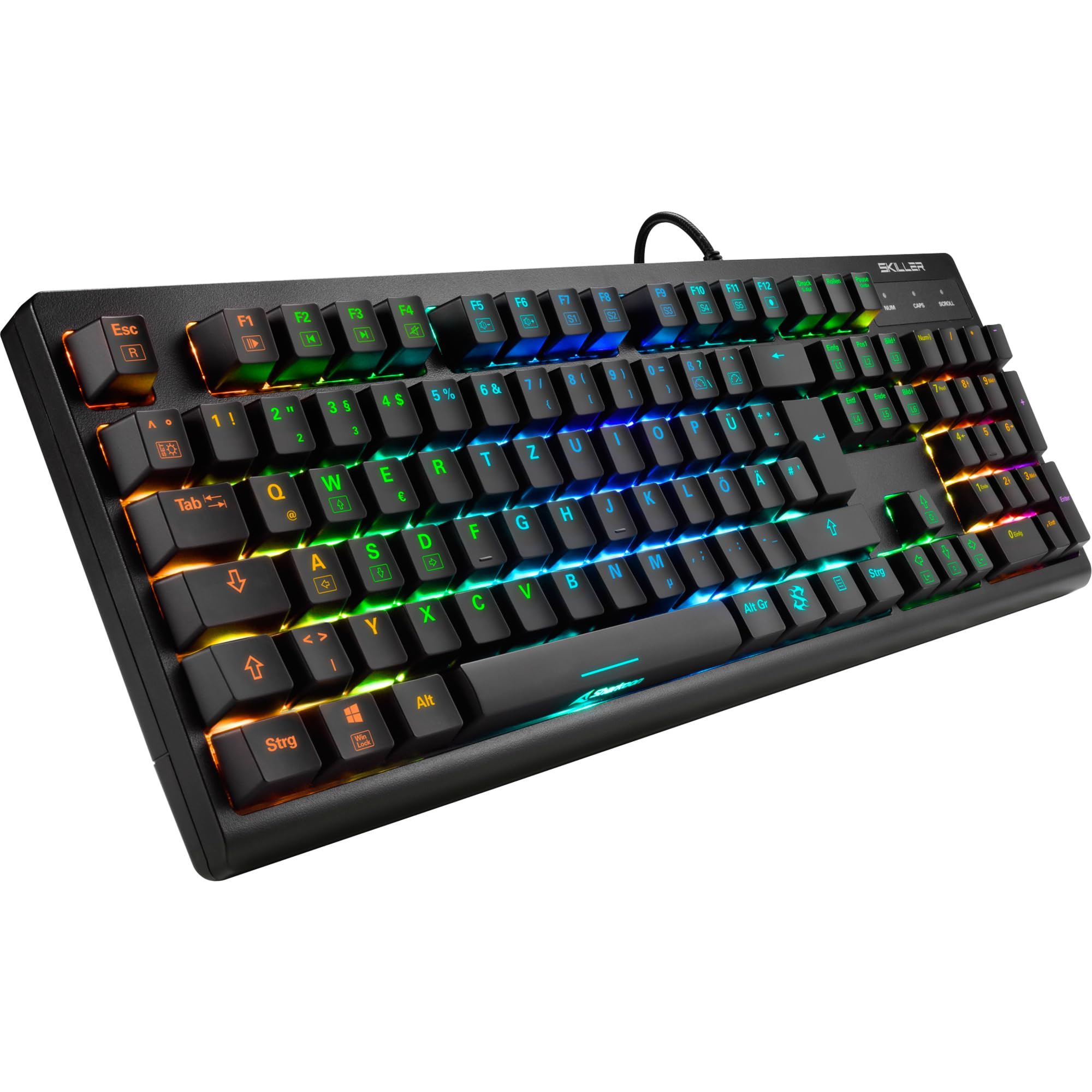
Immagine: dall'alto verso il basso view of the Sharkoon Skiller SGK30 mechanical gaming keyboard, showcasinil suo layout completo e la vivace retroilluminazione RGB.
Prodotto finitoview Video
Video: Un prodotto ufficialeview of the Sharkoon Skiller SGK30 Mechanical Gaming Keyboard, demonstrating its features, RGB lighting effects, and mechanical switches.
Impostare
Follow these steps to set up your Sharkoon Skiller SGK30 keyboard:
- Disimballare la tastiera: Carefully remove the keyboard and the included USB cable from its packaging.
- Connessione al computer: Plug the Micro USB end of the cable into the keyboard's port and the standard USB-A end into an available USB port on your computer.
- Installazione del driver: The keyboard is plug-and-play. Your operating system (Windows 10 or later recommended) should automatically detect and install the necessary drivers.
- Installazione del software (opzionale): For advanced customization of RGB lighting and key assignments, download the official Sharkoon software from the manufacturer's websito.

Image: The Sharkoon Skiller SGK30 keyboard positioned on a desk, ready for connection.
Istruzioni per l'uso
Funzioni chiave di base
The Sharkoon Skiller SGK30 features a standard layout with additional function keys accessible via the FN chiave.
- FN + F1-F12: Access multimedia controls (e.g., play/pause, volume up/down, mute).
- FN + tasto Windows: Blocca/sblocca il tasto Windows per evitare pressioni accidentali durante il gioco.
- Rollover N-Key: All keys are registered simultaneously, ensuring every keystroke is detected, even during rapid input.
Controllo dell'illuminazione RGB
The keyboard offers extensive RGB lighting customization. Use the following combinations to adjust lighting effects:
- FN + Insert/Home/Page Up/Delete/End/Page Down: Scorri tra i vari effetti di luce pre-programmati.
- FN + Arrow Keys (Up/Down): Adjust brightness levels of the lighting.
- FN + Arrow Keys (Left/Right): Regola la velocità degli effetti di illuminazione dinamici.
- Custom Illumination: Use the dedicated software for advanced per-key lighting customization.

Immagine: un primo piano view of the keyboard keys highlighting the adjustable RGB illumination capabilities.
Personalizzazione del software
For advanced settings, macro programming, and detailed RGB customization, download and install the Sharkoon Skiller SGK30 software from the official Sharkoon websito. Il software consente di:
- Create and save custom lighting profiles.
- Program macros for specific keys.
- Riassegnare le funzioni dei tasti.

Image: A screenshot showing the graphical user interface of the Sharkoon Skiller SGK30 customization software, illustrating various options for lighting and key remapping.
Manutenzione
Una corretta manutenzione garantisce la longevità e le prestazioni della tastiera:
- Pulizia: Utilizzare un panno morbido e asciutto per pulire la superficie della tastiera. Per una pulizia più approfondita, utilizzare aria compressa per rimuovere polvere e detriti dagli spazi tra i tasti.
- Rimozione dei tasti: If necessary, keycaps can be carefully removed using a keycap puller (not included) for thorough cleaning of the switches. Reinstall keycaps by pressing them firmly onto the switch stems.
- Evitare i liquidi: Non esporre la tastiera a liquidi. In caso di versamento di liquidi, scollegare immediatamente la tastiera e lasciarla asciugare completamente prima di ricollegarla.
- Magazzinaggio: Conservare la tastiera in un luogo fresco e asciutto, lontano dalla luce solare diretta e da temperature estreme.

Immagine: un primo piano view of the mechanical switches on the Sharkoon Skiller SGK30 keyboard, illustrating their design for durability and ease of maintenance. Note: This model is available with Red switches, while the image shows Blue switches.
Risoluzione dei problemi
If you encounter issues with your Sharkoon Skiller SGK30 keyboard, refer to the following common solutions:
| Problema | Possibile causa | Soluzione |
|---|---|---|
| La tastiera non risponde | Connessione USB allentata, porta USB difettosa, problema con il driver. |
|
| Illuminazione RGB non funzionante o errata | Lighting settings incorrect, software conflict. |
|
| Le chiavi non si registrano | Polvere/detriti sotto il tasto, interruttore difettoso. |
|
Specifiche
| Caratteristica | Dettaglio |
|---|---|
| Marca | Squalo |
| Numero di modello | 4044951030026 |
| Tipo di tastiera | Tastiera da gioco meccanica |
| Tipo di interruttore | Red Switch (Blue switches are also available for this model series) |
| Connettività | Micro USB |
| Tasso di sondaggio | 1000 Hz |
| Rollover N-chiave | Supportato |
| Illuminazione RGB | Customizable RGB |
| Sistema operativo | Windows 10 (e compatibile con altre versioni di Windows) |
| Dimensioni (LxWxH) | Dimensioni: 44 x 14.4 x 3.5 cm |
| Peso | 867 grammi |
Cosa c'è nella scatola
The Sharkoon Skiller SGK30 package includes:
- Sharkoon Skiller SGK30 Mechanical Gaming Keyboard
- Cavo USB
Garanzia e supporto
Per informazioni sulla garanzia e supporto tecnico, fare riferimento al sito ufficiale Sharkoon webo contattare il rivenditore locale. Conservare la prova d'acquisto per eventuali reclami in garanzia.
Nota: le specifiche e le caratteristiche del prodotto sono soggette a modifiche senza preavviso.


