Grazie per l'acquistoasing the Trust Wireless Mouse. This manual provides detailed instructions for setting up, operating, maintaining, and troubleshooting your new wireless mouse. Please read this manual thoroughly before using the product to ensure optimal performance and longevity.
Immagine 1.1: In alto view of the Trust Wireless Mouse, showcasinil suo design ergonomico e la disposizione dei pulsanti.
2. Informazioni sulla sicurezza
Per evitare danni al dispositivo o lesioni personali, attenersi alle seguenti norme di sicurezza:
Non esporre il mouse all'acqua o a umidità eccessiva.
Evitare di far cadere il mouse o di sottoporlo a forti urti.
Non tentare di smontare o riparare il mouse da soli. Rivolgersi a personale qualificato.
Smaltire le batterie secondo le normative locali.
3. Contenuto della confezione
Verificare che tutti gli articoli siano presenti nel pacco:
1x Trust Wireless Comfort Mouse
1x microricevitore USB
1x batteria AA
1x Manuale utente (questo documento)
Image 3.1: The retail packaging of the Trust Wireless Mouse, showing the mouse and included accessories.
4. Impostazione
4.1. Installazione della batteria
Individuare il vano batteria sul lato inferiore del mouse.
Aprire il coperchio del vano batterie.
Inserire la batteria AA fornita, assicurandosi che i terminali positivo (+) e negativo (-) siano allineati correttamente con le marcature all'interno del vano.
Chiudere saldamente il coperchio del vano batterie.
Image 4.1: Underside of the mouse with the battery compartment open, showing the insertion of an AA battery.
Immagine 4.2: In basso view of the Trust Wireless Mouse, illustrating the battery compartment and the storage slot for the USB micro receiver.
4.2. Collegamento del micro-ricevitore USB
Locate the USB micro receiver, which is typically stored inside the mouse's battery compartment for transport.
Remove the USB micro receiver from its storage slot.
Plug the USB micro receiver into an available USB port on your computer (laptop or PC).
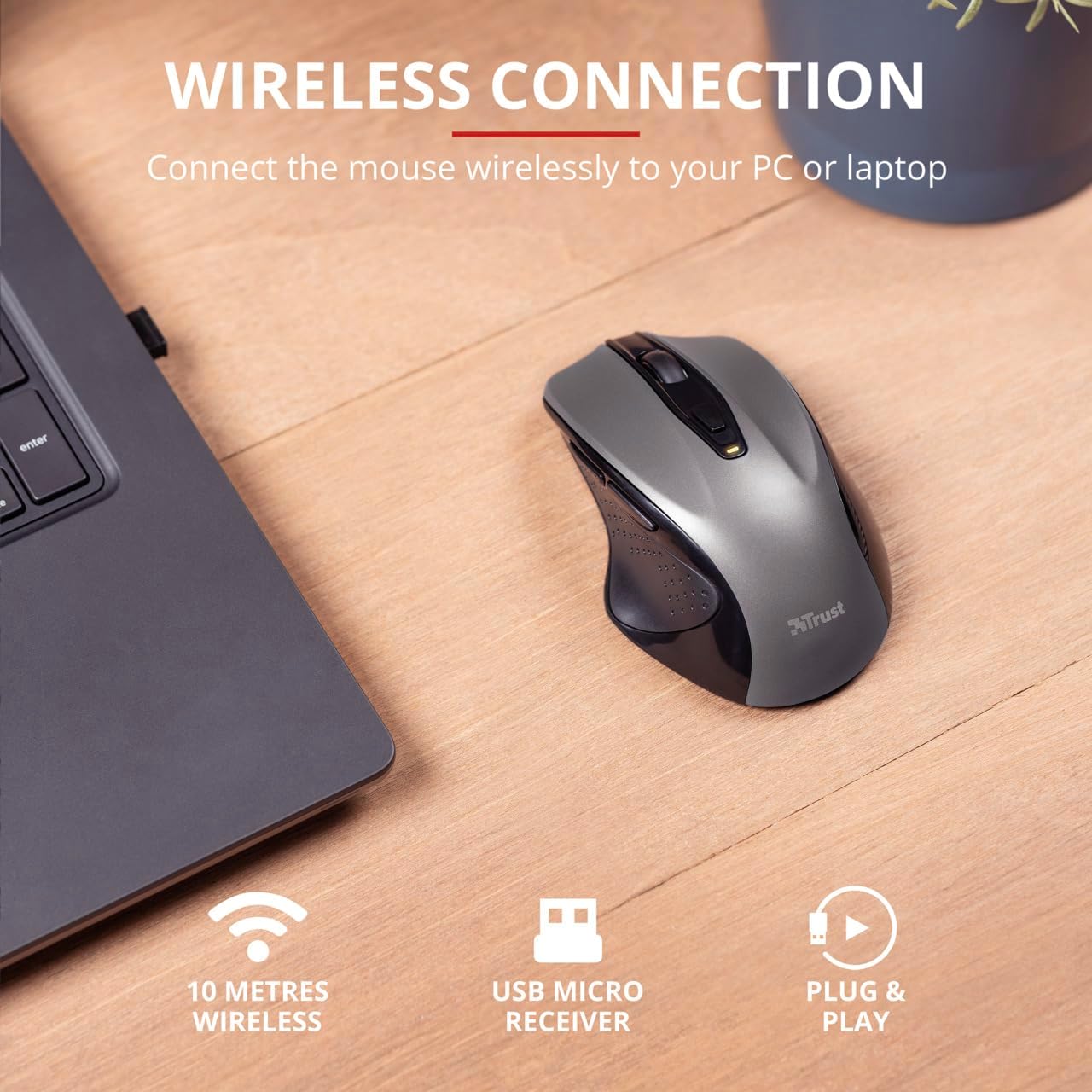
The mouse should automatically connect to your computer. No additional drivers are typically required for Windows 10, 8, 7, or Mac OS X 10.15 (Catalina) or higher.
Image 4.3: The Trust Wireless Mouse positioned next to a laptop, demonstrating the wireless connection via the USB micro receiver plugged into the laptop's USB port.
5. Utilizzo del mouse
5.1. Funzioni di base
Clic sinistro: Pulsante principale per selezionare gli elementi e interagire con il software.
Clic destro: Pulsante secondario per menu contestuali e opzioni aggiuntive.
Rotella di scorrimento: Roll up or down to scroll through documents and web pages. Press the scroll wheel for middle-click functionality.
5.2. Regolazione DPI
The Trust Wireless Mouse features an adjustable DPI (Dots Per Inch) setting, allowing you to control the cursor speed. There are 5 different speeds available: 800, 1200, 1600, 1800, and 2200 DPI.
Individua il pulsante DPI, solitamente posizionato dietro la rotellina di scorrimento.
Premere il pulsante DPI per scorrere le impostazioni DPI disponibili.
An LED indicator on the mouse will briefly show the current DPI setting.
Immagine 5.1: Lato view of the Trust Wireless Mouse highlighting its comfortable shape, thumb rest with extra grip, and the adjustable speed (DPI) feature.
5.3. Thumb Buttons
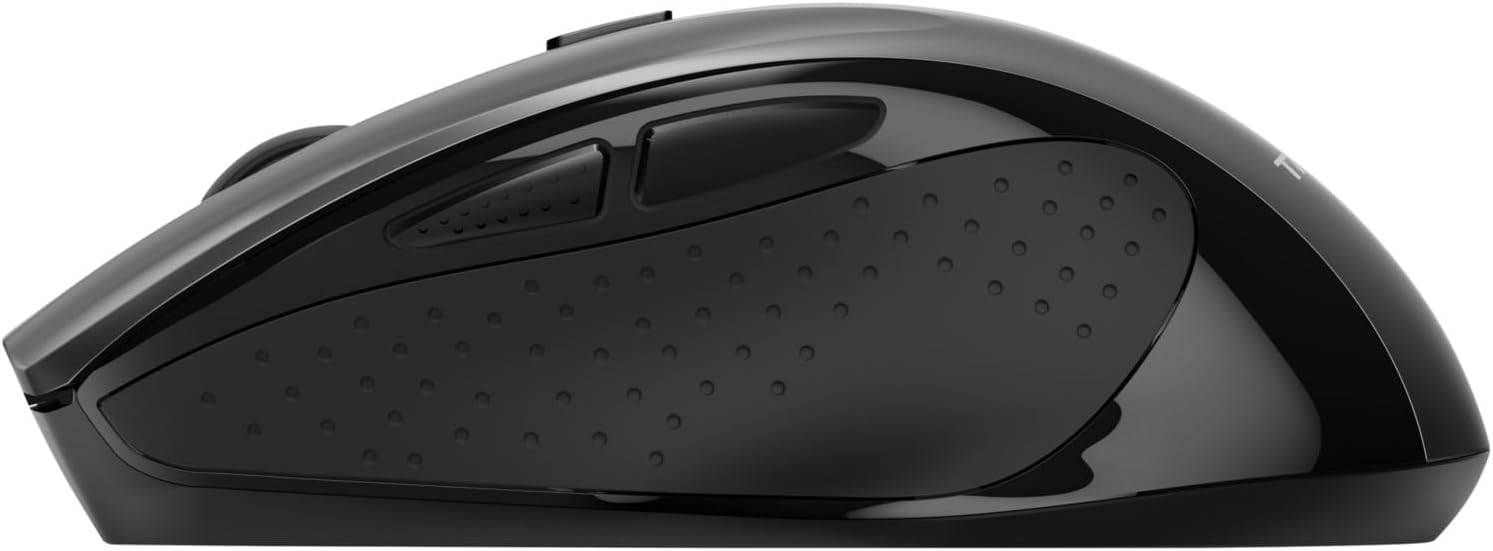
The mouse is equipped with two conveniently placed thumb buttons (forward and backward) on the left side. These buttons facilitate easy navigation, such as browsing through fileo o web pagine.
Premere il tasto Inoltrare button to move to the next page or item.
Premere il tasto Indietro button to return to the previous page or item.
Immagine 5.2: Lato view of the Trust Wireless Mouse, clearly showing the placement of the two thumb buttons for forward and backward navigation.
Note: Functionality of side buttons may vary between operating systems.
5.4. Funzioni di risparmio energetico
To conserve battery life, the mouse includes a power-saving mode and an on/off switch.
Interruttore On/Off: Located on the underside of the mouse. Turn the mouse off when not in use for extended periods to maximize battery life.
Indicatore LED della batteria: An LED indicator will light up when the battery level is low, signaling that it's time to replace the AA battery.
6. Manutenzione
6.1. Pulizia
To maintain optimal performance, clean your mouse regularly:
Utilizzare un panno morbido e asciutto per pulire la superficie del mouse.
Per sporco ostinato, leggermente dampPulisci il panno con acqua o una soluzione detergente delicata. Evita prodotti chimici aggressivi.
Evitare che liquidi penetrino nei componenti interni del mouse.
6.2. Sostituzione della batteria
When the battery indicator lights up, replace the AA battery promptly to ensure uninterrupted use. Refer to section 4.1 for battery installation instructions.
7. Risoluzione Dei Problemi
Problema
Possibile causa
Soluzione
Il mouse non risponde.
Batteria scarica o scarica.
Sostituisci la batteria AA.
Il mouse non risponde.
Ricevitore USB non collegato correttamente.
Assicurati che il ricevitore USB sia saldamente collegato a una porta USB funzionante. Prova una porta USB diversa.
Il mouse non risponde.
Il mouse è spento.
Turn on the mouse using the on/off switch on the underside.
Il movimento del cursore è irregolare o lento.
Impostazione DPI bassa.
Press the DPI button to increase cursor speed.
Il movimento del cursore è irregolare o lento.
Dirty sensor or unsuitable surface.
Clean the optical sensor on the underside of the mouse. Use the mouse on a clean, non-reflective surface.
Problemi di connessione wireless.
Interferenza o distanza dal ricevitore.
Ensure the mouse is within 10 meters of the receiver. Remove any large metal objects between the mouse and receiver.
8. Specifiche
Caratteristica
Dettaglio
Numero di modello
24115
Connettività
Wireless (RF 2.4GHz)
wireless Range
10 metri
Impostazioni DPI
800, 1200, 1600, 1800, 2200 DPI (adjustable)
Numero di pulsanti
6 (Left, Right, Mid, Forward, Backward, DPI loop)
Tipo di sensore
Ottico
Ergonomia
Ergonomic design with thumb rest and rubber inlay
Fonte di alimentazione
1 batteria AA (inclusa)
Dimensioni (L x P x A)
113 mm x 74 mm x 41 mm (4.45 x 2.91 x 0.04 pollici)
Peso
100 g (2.65 once)
Sistemi operativi compatibili
Windows 10, 8, 7; Mac OS X 10.15 (Catalina) or higher
9. Garanzia e supporto
The Trust Wireless Mouse comes with a Garanzia di 1 anno dalla data di acquisto. Questa garanzia copre difetti di materiali e lavorazione in condizioni di normale utilizzo.
La garanzia non copre:
Danni causati da incidenti, abusi, usi impropri, inondazioni, incendi, terremoti o altre cause esterne.
Damage caused by operating the product outside the permitted or intended uses described by Trust.
Damage caused by service (including upgrades and expansions) performed by anyone who is not a representative of Trust or a Trust Authorized Service Provider.
For technical support or warranty claims, please visit the official Trust website or contact their customer service department. Refer to the product packaging or Trust's official websito per le informazioni di contatto più aggiornate.
Guida utente del mouse ergonomico wireless multidispositivo Trust BAYO+ Manuale utente completo per il mouse wireless ergonomico multidispositivo Trust BAYO+, che illustra la configurazione, la connettività USB-A e Bluetooth, la ricarica e le regolazioni della sensibilità DPI per prestazioni ottimali.
Guida utente del mouse cablato Trust Fyda Comfort Manuale d'uso del comodo mouse cablato Trust Fyda, che illustra dettagliatamente la configurazione, la connessione e il funzionamento di base per un utilizzo ottimale.
Guida utente del mouse wireless silenzioso Trust Mydo Manuale utente completo per il mouse wireless Trust Mydo Silent Click, che illustra configurazione, funzionalità e supporto. Scopri come collegare e utilizzare il tuo mouse silenzioso per un'esperienza di elaborazione efficiente.
Guida utente del mouse wireless Trust PUCK Manuale utente completo per il mouse wireless Trust PUCK, che descrive in dettaglio la configurazione, la connettività tramite ricevitore USB e Bluetooth e lo stato dell'indicatore LED.