1. Introduzione
This manual provides instructions for the Monoprice Dark Matter 27-inch 165Hz Gaming Monitor. This monitor features an IPS panel, a 165Hz refresh rate, and a 1920x1080p Full HD resolution. It includes Adaptive Sync technology for smooth visuals and offers multiple connectivity options, including HDMI and DisplayPort inputs.
2. Informazioni sulla sicurezza
- Read all instructions before operating the monitor.
- Keep the monitor away from water or damp ambienti.
- Non ostruire le aperture di ventilazione.
- Utilizzare solo l'adattatore di alimentazione fornito dal produttore.
- Evitare di posizionare il monitor su superfici instabili.
- Scollegare il cavo di alimentazione durante i temporali o quando non viene utilizzato per lunghi periodi.
- Affidare qualsiasi intervento di manutenzione a personale qualificato.
3. Contenuto della confezione
Verifica che il pacco contenga i seguenti articoli:
- Monoprice Dark Matter 27-inch Gaming Monitor
- Supporto per monitor (base e collo)
- Adattatore di alimentazione e cavo di alimentazione
- Cavo HDMI
- Manuale dell'utente (questo documento)
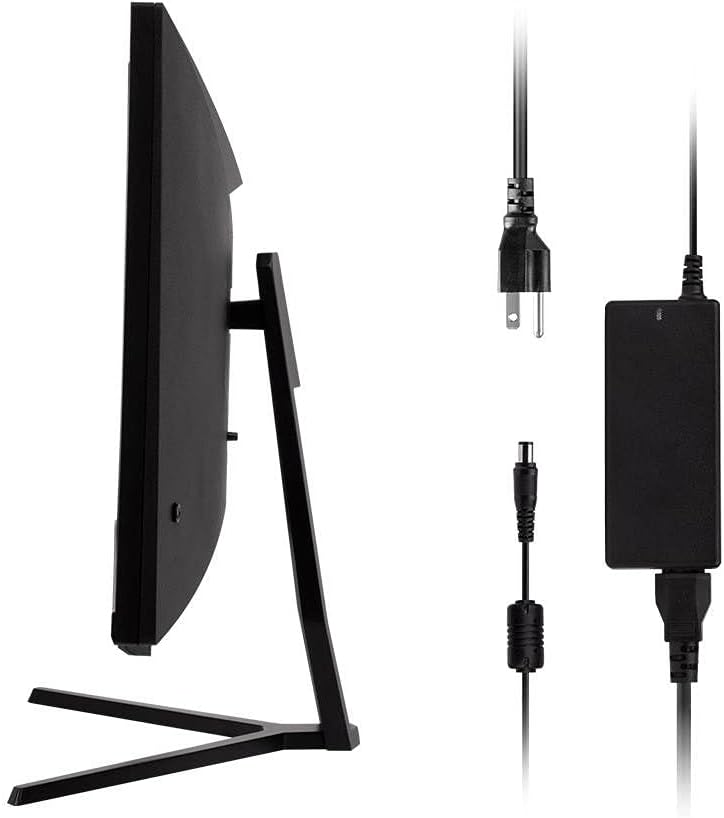
Image: Monitor side view with included power adapter and cable.
4. Monitorare oltreview
Davanti View
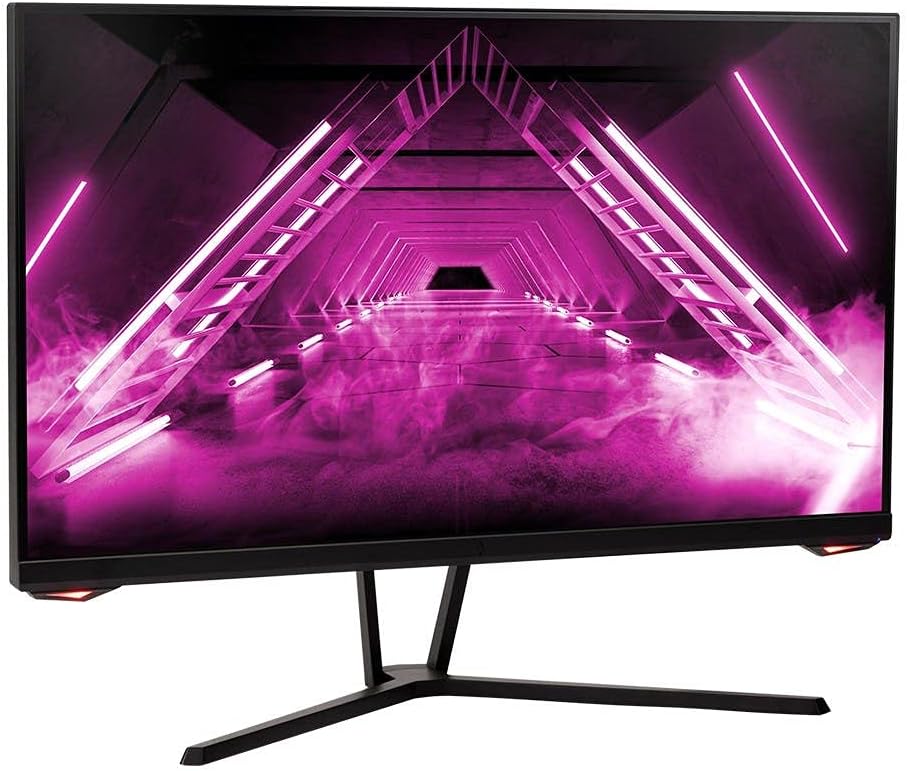
Immagine: Frontale view del monitor.
Posteriore View e porti
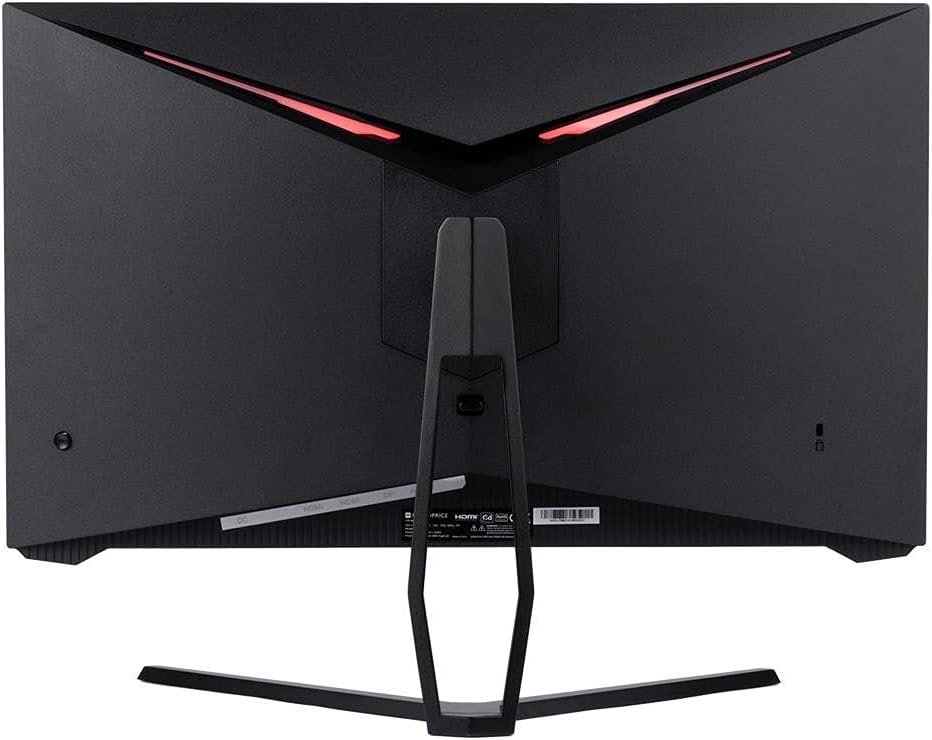
Immagine: Posteriore view of the monitor, highlighting the VESA mount and stand attachment.

Image: Close-up of the monitor's input ports.
5. Impostazione
5.1 Montaggio del supporto
- Estrarre con cautela il monitor dalla confezione, proteggendolo su una superficie morbida.
- Attach the stand neck to the monitor's rear panel by aligning the tabs and securing any screws if present.
- Fissare la base del supporto al collo del supporto, assicurandosi che sia saldamente fissato.
- Posizionare il monitor assemblato su una superficie stabile e piana.
5.2 Montaggio VESA
The monitor supports a 75x75mm VESA mount pattern. To use a wall or desk mount:
- Remove the pre-attached stand by unscrewing it from the monitor's rear panel.
- Attach your VESA-compatible mount to the monitor using the appropriate screws (not included).
- Assicurarsi che il supporto sia fissato saldamente prima di riposizionarloasing il monitor.
5.3 Collegamento a un computer
Collegare il monitor al computer utilizzando uno dei seguenti metodi:
- Porta Display: Connect one end of a DisplayPort cable to the DisplayPort output on your computer's graphics card and the other end to the DisplayPort input on the monitor.
- HDMI: Connect one end of an HDMI cable to an HDMI output on your computer's graphics card and the other end to one of the HDMI inputs on the monitor.
After connecting the video cable, connect the power adapter to the monitor's DC input and then plug the power cable into a wall outlet.
6. Funzionamento del monitor
6.1 Accensione/spegnimento
Press the power button, typically located on the rear or bottom of the monitor, to turn the monitor on or off. The power indicator light will illuminate when the monitor is on.
6.2 Menu di visualizzazione su schermo (OSD)
The OSD menu allows you to adjust various monitor settings. Access the OSD menu by pressing the menu button (often a joystick or a series of buttons) on the monitor. Navigate through the options using the directional controls and confirm selections.
Le impostazioni OSD più comuni includono:
- Impostazioni immagine: Luminosità, contrasto, nitidezza, temperatura colore.
- Selezione input: Scegli tra ingressi DisplayPort e HDMI.
- Audio: Controllo del volume per l'uscita audio.
- Caratteristiche di gioco: Overdrive, FreeSync/Adaptive Sync settings.
6.3 Caratteristiche principali
- Frequenza di aggiornamento 165Hz: This monitor supports a 165Hz refresh rate, providing smoother motion and reduced input lag compared to standard 60Hz monitors. Ensure your graphics card and system settings are configured to utilize this refresh rate.
- Sincronizzazione adattiva: This technology synchronizes the monitor's refresh rate with your graphics card's frame rate, eliminating screen tearing and stuttering for a smoother gaming experience. Enable Adaptive Sync in your graphics card's control panel and the monitor's OSD menu.
- Risoluzione Full HD (1920x1080p): The monitor displays content at 1920x1080 pixels, offering clear and detailed visuals.
7. Manutenzione
To maintain your monitor and ensure its longevity:
- Pulizia dello schermo: Pulisci delicatamente lo schermo con un panno morbido e privo di lanugine. Per le macchie ostinate, utilizza una soluzione detergente specifica per monitor, applicata sul panno e non direttamente sullo schermo.
- Pulizia del Casing: Utilizzare un panno morbido e asciutto per pulire il monitor casing. Evitare detergenti abrasivi.
- Ventilazione: Assicurarsi che le aperture di ventilazione del monitor siano libere da polvere e ostruzioni per evitare il surriscaldamento.
- Spegni: Spegnere il monitor quando non lo si utilizza per lunghi periodi.
8. Risoluzione Dei Problemi
Se riscontri problemi con il monitor, consulta la seguente guida alla risoluzione dei problemi:
| Problema | Possibile causa | Soluzione |
|---|---|---|
| No image on screen / Power LED off | Monitor not powered on; Power cable loose; Power outlet faulty. | Press the power button; Check power cable connections; Try a different power outlet. |
| Nessuna immagine / messaggio "Nessun segnale" | Video cable loose; Incorrect input selected; Computer not outputting signal. | Check video cable connections; Select the correct input via OSD; Ensure computer is on and outputting video. |
| Screen flickers or goes black intermittently | Loose video cable; Graphics driver issue; Monitor overheating; Faulty cable. | Ensure video cable is secure; Update graphics drivers; Ensure adequate ventilation around the monitor; Try a different video cable. |
| Surriscaldamento / Fumo | Blocked ventilation; Internal component issue. | Immediately unplug the monitor. Ensure ventilation is clear. Do not use the monitor if smoke is present. Contact support. |
| Red line or other display artifacts | Faulty panel; Graphics card issue. | Test with a different video cable and computer. If the issue persists, contact support. |
| Backlight turns off, requires power cycle | Power management settings; Internal fault. | Check computer's power saving settings. If issue persists, contact support. |
9. Specifiche
| Caratteristica | Specificazione |
|---|---|
| Numero di modello | 142771 |
| Dimensioni dello schermo | 27 pollici |
| Tipo di pannello | Informazione pubblica |
| Risoluzione | 1920 x 1080 (FHD 1080p) |
| Frequenza di aggiornamento | 165 Hz |
| Proporzioni | 16:9 |
| Ingressi video | 2x HDMI 1.4, 1x DisplayPort 1.2a |
| Supporto VESA | 75x75mm |
| Dimensioni (LxWxH) | 28.8 x 7.1 x 19.3 pollici |
| Peso dell'articolo | 15.77 libbre |
10. Garanzia e supporto
10.1 Informazioni sulla garanzia
This Monoprice monitor is backed by a 1 Year PixelPerfect Guarantee. This warranty covers defects in materials and workmanship under normal use for one year from the date of purchase. Please refer to Monoprice's official websito per i termini e le condizioni completi della garanzia.
10.2 Assistenza clienti
For technical assistance, warranty claims, or further information, please contact Monoprice Customer Support. Contact details can typically be found on the official Monoprice websito o la documentazione di acquisto.
11. Risorse video
Non sono stati trovati video ufficiali del venditore per questo modello.