Introduzione
This manual provides detailed instructions for the setup, operation, and maintenance of your Targus Midsize Multi-Device Bluetooth Keyboard (AKB863US). This keyboard is designed for versatility, allowing connection to multiple devices across various operating systems. Please read this manual thoroughly to ensure proper use and to maximize your product experience.
Cosa c'è nella scatola
- Targus Midsize Multi-Device Bluetooth Keyboard
- 2 batterie AAA
Prodotto finitoview
The Targus AKB863US keyboard features a slimline design with a full numeric keypad, multi-device Bluetooth connectivity, and integrated DefenseGuard antimicrobial protection. Key components include the power button, battery life indicator, and dedicated Bluetooth channel keys.

Immagine: dall'alto verso il basso view of the Targus Midsize Multi-Device Bluetooth Keyboard, showcasing its full layout and slim profile.

Image: Close-up of the keyboard's right side, highlighting the On/Off power button, battery life indicator, numeric keypad, and slim design with descriptive labels.
Impostare
1. Installazione della batteria
- Individuare il vano batteria sul lato inferiore della tastiera.
- Aprire il coperchio del vano batterie.
- Inserire le due batterie AAA incluse, assicurandosi della corretta polarità (+/-).
- Chiudere saldamente il coperchio del vano batterie.
2. Accensione/spegnimento
- To turn on the keyboard, slide the power switch (located on the top right edge) to the 'ON' position. The battery life indicator will briefly illuminate.
- Per spegnere la tastiera, spostare l'interruttore di alimentazione in posizione "OFF".
3. Accoppiamento Bluetooth
The keyboard can connect to up to three devices simultaneously using Bluetooth 5.1 technology.
- Assicurati che la tastiera sia accesa.
- Press and hold one of the Bluetooth channel keys (BT1, BT2, or BT3, located above the numeric keypad) for 3-5 seconds until its corresponding indicator light begins to flash. This indicates the keyboard is in pairing mode.
- On your device (phone, tablet, laptop), navigate to its Bluetooth settings.
- Cercare available devices and select "Targus AKB863US" (or similar) from the list.
- Seguire le istruzioni visualizzate sullo schermo per completare il processo di associazione. La spia luminosa sulla tastiera smetterà di lampeggiare e rimarrà fissa per alcuni secondi, per poi spegnersi, indicando l'avvenuta associazione.
- Ripetere questi passaggi per altri due dispositivi utilizzando gli altri tasti del canale Bluetooth.

Image: Diagram illustrating the keyboard's ability to connect to three different devices (laptop, desktop, tablet) via Bluetooth, with arrows pointing to the BT1, BT2, BT3 keys.
Istruzioni per l'uso
1. Passaggio da un dispositivo all'altro
Once paired with multiple devices, you can switch between them by simply pressing the corresponding Bluetooth channel key (BT1, BT2, or BT3). The keyboard will automatically connect to the selected device.
2. Compatibilità del sistema operativo
The Targus AKB863US keyboard is compatible with a wide range of operating systems:
- Sistema operativo Chrome
- Windows (Windows 7, 10, and newer)
- sistema operativo macOS
- iOS
- Android
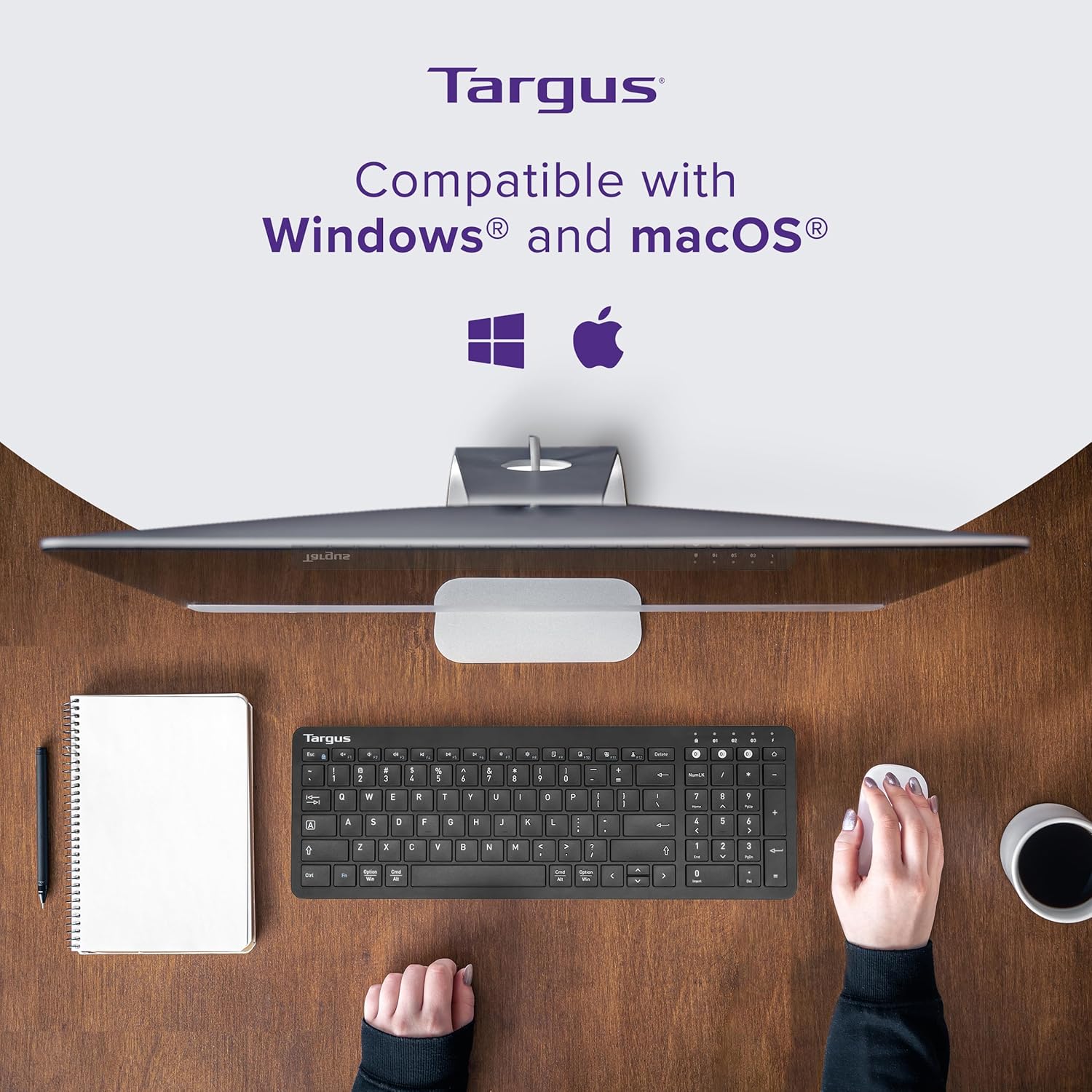
Immagine: dall'alto view of the keyboard positioned in front of a computer monitor, with Windows and macOS logos indicating compatibility.
3. Caratteristiche speciali
- DefenseGuard™ Antimicrobial Protection: The keyboard features a protective coating that inhibits the growth of microorganisms on the surface, contributing to a cleaner touchpoint. This protection is designed to last for the life of the product.
- 128-bit AES-CCM Encryption: Provides robust security for your wireless connection, protecting your data during transmission.
- Indicatore della durata della batteria: A dedicated indicator light provides a visual cue for the keyboard's battery status.
Manutenzione
To maintain your Targus keyboard, regularly wipe the surface with a soft, dry cloth. For deeper cleaning, a slightly damp cloth can be used. Avoid harsh chemicals or abrasive cleaners, as these may damage the surface or the DefenseGuard coating. The DefenseGuard antimicrobial protection is integrated into the material and does not require special reapplication.

Image: The keyboard with two icons and text explaining DefenseGuard: 'Creates a cleaner surface' and 'Prevents the growth of microorganisms'.
Risoluzione dei problemi
- La tastiera non si connette:
- Assicurarsi che la tastiera sia accesa e che le batterie siano nuove.
- Verifica che il Bluetooth sia abilitato sul tuo dispositivo.
- Make sure the keyboard is in pairing mode (flashing indicator light) when attempting to connect for the first time or re-pair.
- Prova a disaccoppiare e riassociare la tastiera dalle impostazioni Bluetooth del tuo dispositivo.
- Ensure the keyboard is within the effective range of your device's Bluetooth signal.
- I tasti non rispondono:
- Controllare il livello della batteria. Sostituire le batterie se sono scariche.
- Ensure the keyboard is connected to the correct device (check the BT channel indicator).
- Riavvia la tastiera e il dispositivo collegato.
- Num Lock key not toggling on iOS/macOS:
- On some iOS and macOS versions, the Num Lock key may not function as a toggle for the numeric keypad's cursor functions. The numeric keypad typically defaults to number input. Standard cursor keys are available on the main keyboard layout.
Specifiche
| Caratteristica | Dettaglio |
|---|---|
| Marca | Targa |
| Numero di modello | AKB863US |
| Tecnologia di connettività | Bluetooth 5.1 |
| Dispositivi compatibili | Chrome OS, Windows, macOS, iOS, Android |
| Sicurezza | 128-bit AES-CCM Encryption |
| Caratteristica speciale | DefenseGuard™ Antimicrobial Protection, Lightweight |
| Fonte di alimentazione | Alimentato a batteria (2 x AAA inclusa) |
| Peso dell'articolo | 1.15 libbre |
| Dimensioni del prodotto (LxWxH) | 15.8 x 5.4 x 1.1 pollici |
| Materiale | Acrilonitrile-butadiene-stirene |
Garanzia e supporto
For warranty information and technical support, please refer to the documentation included with your product or visit the official Targus websito. Conservare la prova d'acquisto per eventuali reclami in garanzia.


