
Introduzione
This manual provides comprehensive instructions for the setup, operation, maintenance, and troubleshooting of your Avision AD340G Compact High Speed Duplex Document Scanner. Please read this manual thoroughly before using the scanner to ensure proper and safe operation.
Informazioni sulla sicurezza
Osservare le seguenti precauzioni di sicurezza per evitare lesioni e danni allo scanner:
- Utilizzare solo l'adattatore di alimentazione fornito con lo scanner.
- Non esporre lo scanner all'acqua o a umidità eccessiva.
- Place the scanner on a stable, level surface.
- Tenere lo scanner lontano dalla luce solare diretta e da fonti di calore.
- Unplug the scanner before cleaning or if it will not be used for an extended period.
Contenuto della confezione
Verificare che tutti gli articoli siano presenti nel pacco:
- Avision AD340G Document Scanner
- Adattatore di alimentazione
- Cavo USB
- Guida rapida
- CD del software (o istruzioni per il download)
Prodotto finitoview
Familiarize yourself with the main components of the Avision AD340G scanner.
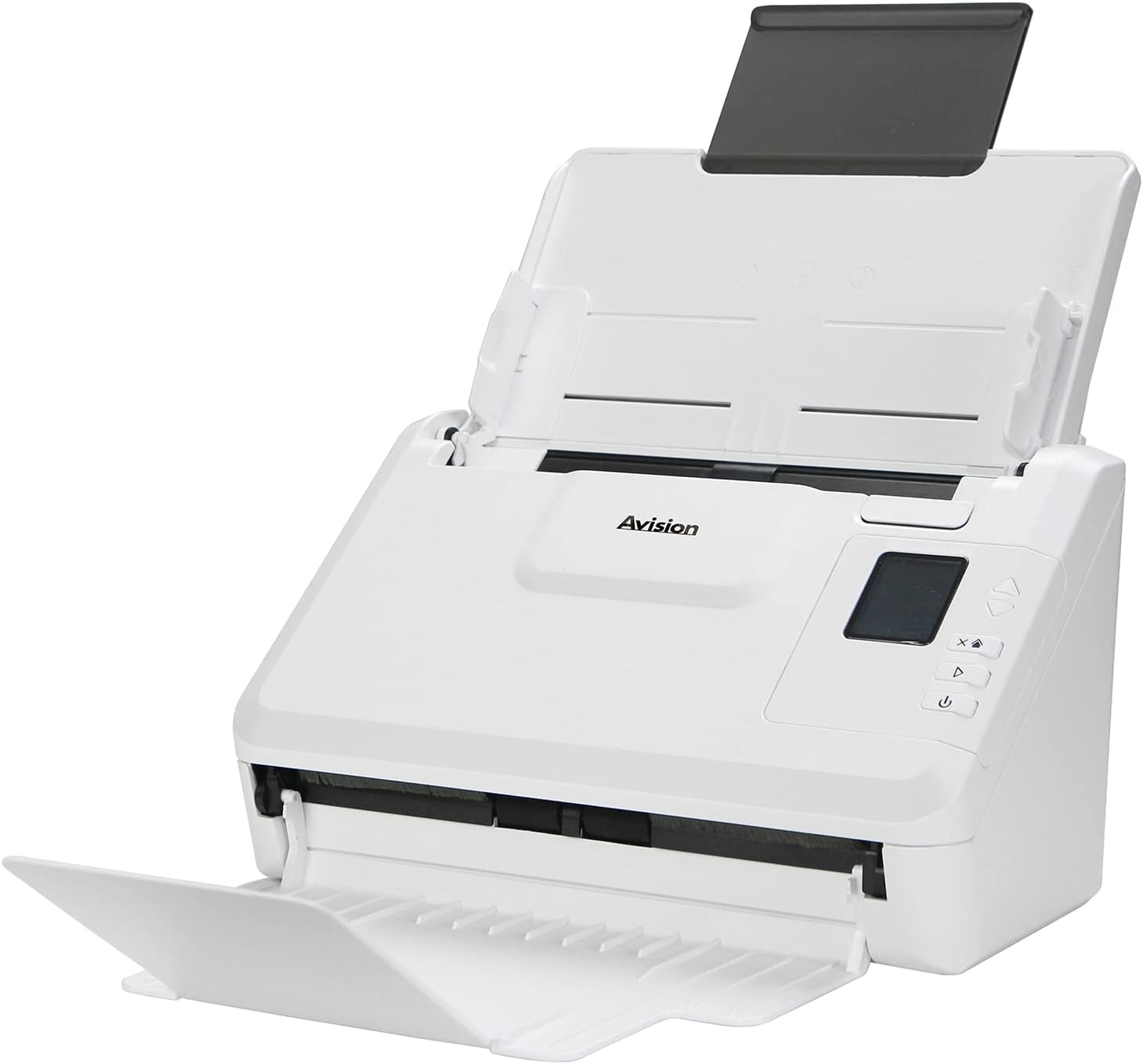
Immagine: The Avision AD340G scanner shown with its input and output trays extended, ready for document feeding. This view highlights the compact design and accessible paper path.
- Document Feeder Tray: Dove vengono caricati i documenti per la scansione.
- Vassoio di uscita: Where scanned documents are ejected.
- Pannello di controllo: Buttons and display for scanner operation.
- Porta USB: Per la connessione a un computer.
- Porta di alimentazione: Per collegare l'adattatore di alimentazione.
Impostare
1. Configurazione fisica
- Disimballare lo scanner: Estrarre con cautela lo scanner e tutti gli accessori dalla confezione.
- Place the Scanner: Position the scanner on a flat, stable surface with adequate space for the input and output trays.
- Connetti alimentazione:
- Connect the power adapter to the scanner's power port.
- Collegare l'adattatore di corrente a una presa elettrica.
- Connessione al computer:
- Collegare un'estremità del cavo USB alla porta USB dello scanner.
- Collegare l'altra estremità del cavo USB a una porta USB disponibile sul computer.
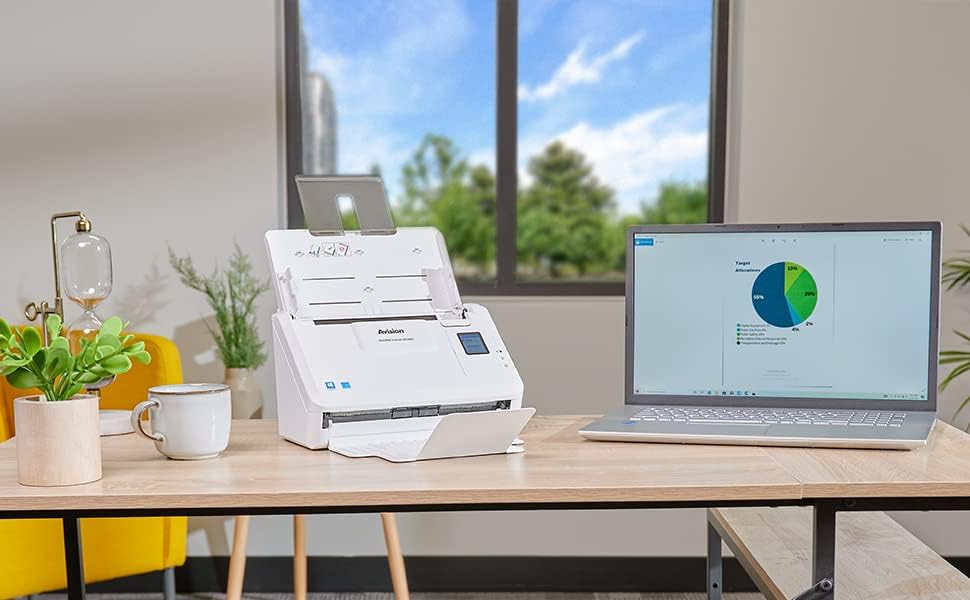
Immagine: The Avision AD340G scanner set up on a desk next to a laptop, illustrating a typical connected environment. This shows the scanner's compact footprint when in use.
2. Installazione del software
Install the necessary drivers and scanning software from the provided CD or by downloading them from the official Avision websito.
- Insert the software CD into your computer's CD/DVD drive, or navigate to the Avision support website to download the latest drivers and utilities for the AD340G model.
- Follow the on-screen instructions to complete the installation. This typically includes installing the TWAIN/ISIS drivers and the Avision scanning utility software.
- Riavviare il computer se richiesto.
Utilizzo dello scanner
1. Caricamento dei documenti
- Open the document feeder tray and extend the output tray.
- Regolare le guide della carta in base alla larghezza dei documenti.
- Place the documents face-down in the input tray, ensuring they are neatly stacked and aligned. The scanner supports up to 50 sheets.

Immagine: A hand carefully placing a stack of documents into the input tray of the Avision AD340G scanner, demonstrating the correct loading procedure.
2. Procedura di scansione
- Accendere lo scanner premendo il pulsante di accensione.
- Launch the Avision scanning software on your computer.
- Seleziona il professionista di scansione desideratofile (e.g., color, grayscale, black & white, resolution). The AD340G supports duplex scanning (both sides simultaneously).
- Fare clic sul pulsante "Scansione" nel software oppure premere il pulsante di scansione sul pannello di controllo dello scanner.
- The scanner will feed and process the documents. Once scanning is complete, the images will appear in the software.
- Review the scanned images, make any necessary adjustments (e.g., rotate, crop), and save them to your desired location and format (e.g., PDF, JPEG, TIFF).
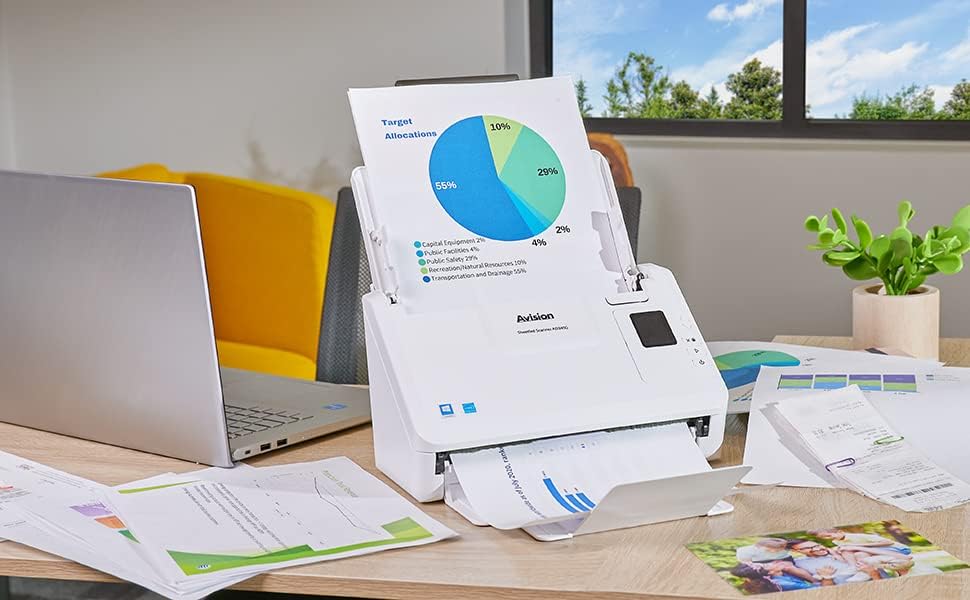
Immagine: The Avision AD340G scanner in operation, feeding a document with a pie chart. This illustrates the scanner's ability to handle various document types efficiently.
Manutenzione
Pulizia dello scanner
Una pulizia regolare garantisce prestazioni ottimali e prolunga la durata dello scanner.
- Spegnere e scollegare: Always turn off the scanner and disconnect the power adapter and USB cable before cleaning.
- Esterno pulito: Wipe the exterior of the scanner with a soft, lint-free cloth lightly dampcon acqua o un detergente delicato e non abrasivo.
- Clean Interior (Rollers and Glass):
- Open the scanner cover to access the rollers and glass scanning surfaces.
- Gently wipe the feed rollers with a clean, lint-free cloth. If necessary, use a small amount of isopropyl alcohol on the cloth for stubborn residue.
- Clean the glass scanning strips with a soft cloth and glass cleaner (non-ammonia based).
- Lasciare asciugare completamente tutti i componenti prima di chiudere il coperchio e ricollegare l'alimentazione.
Risoluzione dei problemi
| Problema | Possibile causa | Soluzione |
|---|---|---|
| Lo scanner non si accende. | Cavo di alimentazione non collegato; problema con la presa di corrente. | Assicurarsi che il cavo di alimentazione sia collegato saldamente. Provare una presa di corrente diversa. |
| Documents jam frequently. | Misaligned paper guides; worn rollers; dirty rollers. | Adjust paper guides. Clean the feed rollers. If problem persists, rollers may need replacement. |
| Scanned images are blurry or have lines. | Dirty scanning glass; incorrect resolution settings. | Clean the scanning glass. Adjust scanning resolution in the software. |
| Scanner non rilevato dal computer. | USB cable disconnected; driver not installed or corrupted. | Check USB cable connection. Reinstall scanner drivers. Try a different USB port. |
Specifiche
Key technical specifications for the Avision AD340G Document Scanner:
- Modello: AD340G
- Tipo di scanner: ADF Duplex Document Scanner
- Connettività: USB
- Risoluzione: 600 dpi (ottico)
- Velocità di scansione: 40 ppm (pages per minute) / 80 ipm (images per minute)
- Profondità del colore: 48 bits input / 24 bits output
- Capacità fogli standard: 50 fogli
- Tecnologia del sensore ottico: CIS (sensore immagine a contatto)
- Dimensioni del prodotto: 11 x 6.1 x 6.5 pollici
- Peso dell'articolo: 8 libbre
- Requisiti minimi di sistema: Windows XP/7/8/10
Garanzia e supporto
For warranty information, technical support, or service inquiries, please refer to the warranty card included with your product or visit the official Avision website. Contact information for customer support can typically be found on the manufacturer's websito.
Avision Official Websito: www.avision.com


