1. Introduzione
The Logitech Signature M650 for Business is a versatile wireless mouse designed to enhance productivity and comfort. It offers dual connectivity options, a SmartWheel for adaptive scrolling, and SilentTouch technology for quiet operation. Available in two sizes, it caters to various hand sizes for optimal ergonomic support.
Caratteristiche principali:
- Doppia connettività: Connect via Logi Bolt USB receiver for secure connections or directly via Bluetooth Low Energy.
- Scorrimento SmartWheel: Automatically switches between line-by-line precision and free-spin mode.
- Tecnologia SilentTouch: Reduces click noise by 90% for a quieter work environment.
- Design ergonomico: Contoured shape and soft thumb area for comfort, available in two sizes (M650 and M650 L).
- Pulsanti personalizzabili: Side buttons can be customized for various functions.
- Batteria a lunga durata: Up to 24 months on a single AA battery.
- Compatibilità multipiattaforma: Works seamlessly with Windows, macOS, Linux, Chrome OS, iPadOS, and Android.

Image: Logitech Signature M650 for Business Wireless Mouse and its packaging, showcasing the product and its box.
2. Impostazione
2.1. Cosa c'è nella scatola
Prima di iniziare, assicurati che tutti i componenti siano presenti:
- Mouse wireless Logitech Signature M650
- Ricevitore USB Logi Bolt
- 1 batteria AA (preinstallata)

Image: The Logitech M650 mouse, a Logi Bolt USB receiver, and a 1-meter USB cable, representing the items included in the product packaging.
2.2. Installazione della batteria
The mouse comes with one AA battery pre-installed. If you need to replace it:
- Aprire il coperchio del vano batterie sul lato inferiore del mouse.
- Inserire una nuova batteria AA, assicurandosi della corretta polarità (+/-).
- Chiudere saldamente il coperchio del vano batterie.
2.3. Collegamento del mouse
The Signature M650 offers two connection methods: Logi Bolt USB Receiver or Bluetooth Low Energy.
Option 1: Logi Bolt USB Receiver (Recommended for Secure Connections)
- Locate the Logi Bolt USB receiver, typically found inside the mouse's battery compartment or packaged separately.
- Collegare il ricevitore USB Logi Bolt a una porta USB disponibile sul computer.
- Accendere il mouse utilizzando l'interruttore di alimentazione sul lato inferiore. Il mouse dovrebbe connettersi automaticamente.

Image: The Logi Bolt USB receiver securely plugged into a laptop's USB port, demonstrating its compact size and integration.
Option 2: Bluetooth Low Energy
- Accendere il mouse utilizzando l'interruttore di alimentazione posto sul lato inferiore.
- Press and hold the connect button on the underside of the mouse until the LED indicator starts blinking rapidly, indicating pairing mode.
- Sul tuo computer o dispositivo, apri le impostazioni Bluetooth.
- Select "Logitech M650" from the list of available devices and follow the on-screen prompts to complete pairing.

Image: The Logitech M650 mouse positioned on a mousepad, with visual cues for both Bluetooth and Logi Bolt connectivity options.
3. Utilizzo del mouse
3.1. SmartWheel Scrolling
The SmartWheel automatically adapts to your scrolling needs:
- Modalità di precisione: For detailed, line-by-line scrolling, gently scroll the wheel.
- Free-Spin Mode: For rapid, long document or web page navigation, give the wheel a quick flick. It will spin freely.
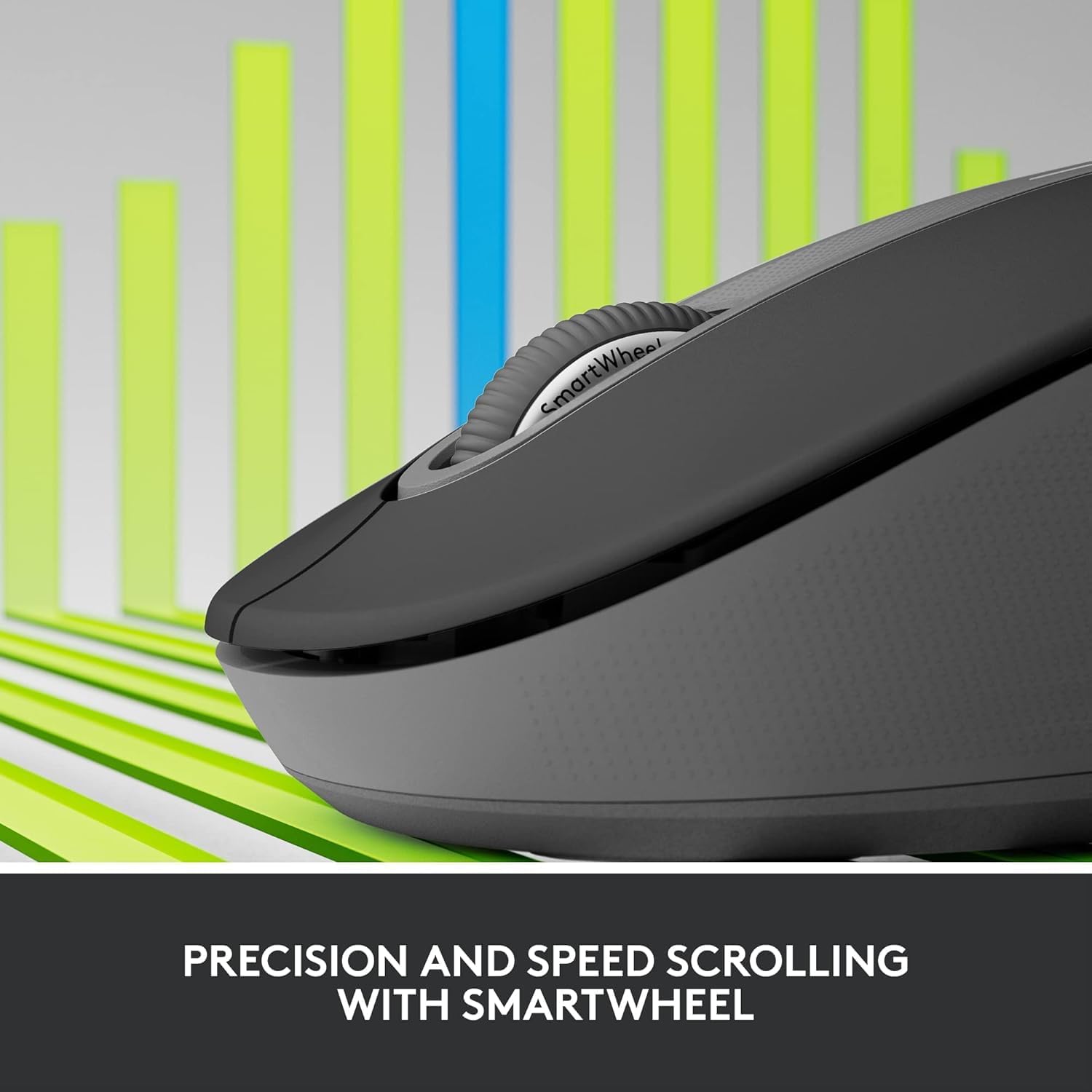
Image: A detailed close-up of the Logitech M650 mouse's SmartWheel, emphasizing its design for both precision and speed scrolling.
3.2. Pulsanti laterali personalizzabili
The Signature M650 features two customizable side buttons. By default, these buttons may perform forward/back navigation in web browsers. To customize their functions, download and install the Logitech Options+ software from the official Logitech websito.
3.3. SilentTouch Technology
Experience a quieter workspace with SilentTouch technology, which significantly reduces the sound of clicks without compromising the tactile feel.
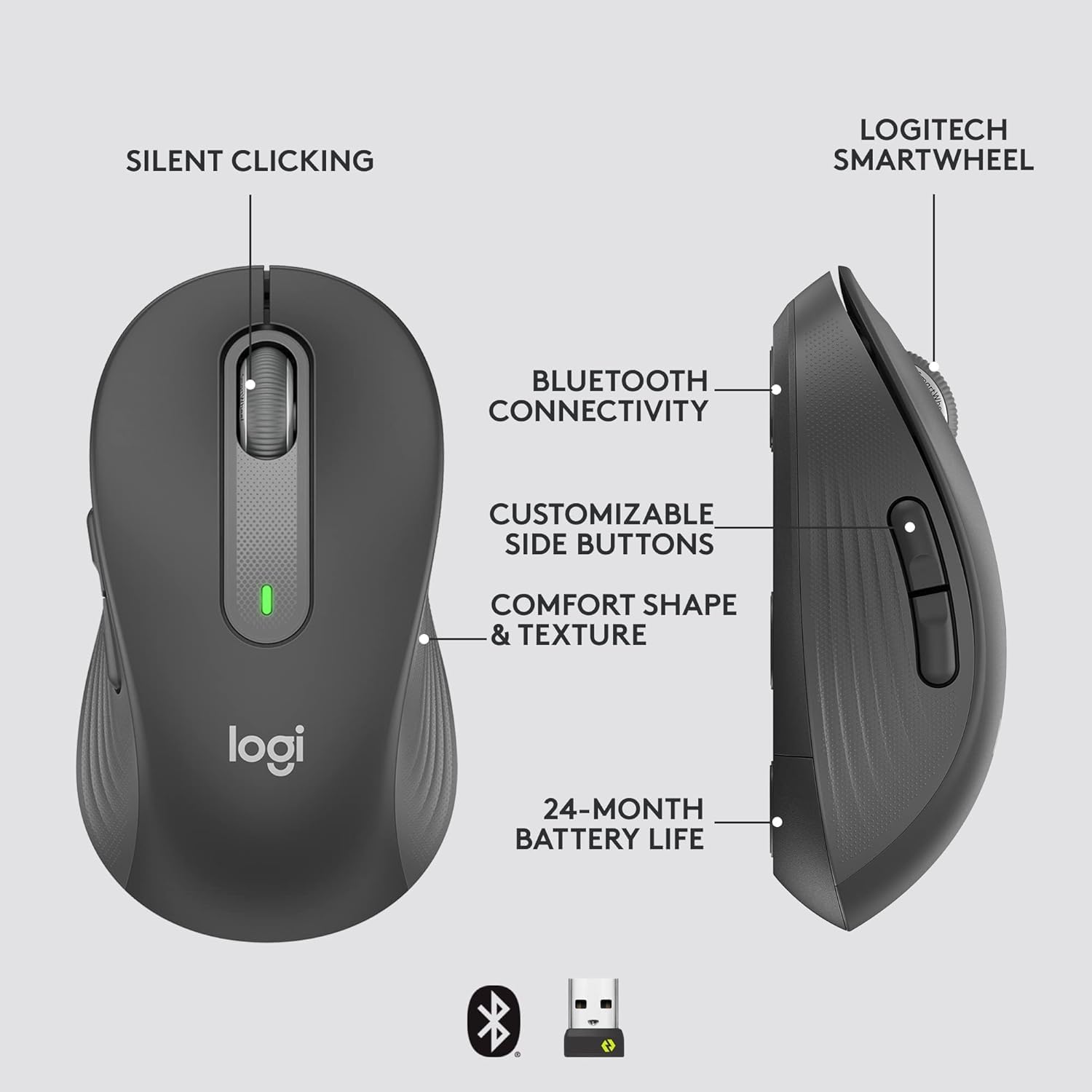
Image: An annotated diagram of the Logitech M650 mouse, highlighting key features such as Silent Clicking, Bluetooth Connectivity, Customizable Side Buttons, Comfort Shape & Texture, 24-Month Battery Life, and the Logitech SmartWheel.
4. Manutenzione
4.1. Sostituzione della batteria
The mouse uses one AA battery. When the battery is low, the LED indicator on the mouse may flash. Replace the battery as described in Section 2.2.
4.2. Pulizia
Per pulire il mouse, utilizzare un panno morbido e privo di lanugine. Per lo sporco ostinato, utilizzare un panno leggermenteampLavare il panno con acqua. Evitare l'uso di prodotti chimici aggressivi o materiali abrasivi.
5. Risoluzione Dei Problemi
5.1. Il mouse non risponde
- Controllare la batteria: Assicurarsi che la batteria sia installata correttamente e abbia una carica sufficiente. Sostituirla se necessario.
- Accensione: Verify the mouse is turned on using the power switch.
- Ristabilire la connessione:
- Logi Bolt: Try plugging the receiver into a different USB port. Ensure no obstructions are between the mouse and receiver.
- Bluetooth: Go to your device's Bluetooth settings, remove the mouse, and re-pair it.
- Interferenza: Move the mouse closer to the receiver or device. Avoid using the mouse near other wireless devices that might cause interference.
5.2. Movimento irregolare del cursore
- Sensore pulito: Assicurarsi che il sensore ottico sul lato inferiore del mouse sia pulito e privo di detriti.
- Superficie: Utilizzare il mouse su una superficie pulita, non riflettente e uniforme. Si consiglia l'uso di un tappetino per mouse.
6. Specifiche tecniche
| Caratteristica | Specificazione |
|---|---|
| Numero di modello | 910-006272 |
| Connettività | Ricevitore USB Logi Bolt, Bluetooth a basso consumo energetico |
| Tecnologia | Ottico |
| Tipo di batteria | Batteria 1 x AA (inclusa) |
| Durata della batteria | Fino a 24 mesi |
| Dimensioni (M650) | 4.22 x 2.43 x 1.49 pollici (10.7 x 6.17 x 3.78 cm) |
| Peso | 3.57 once (101.2 g) |
| Colore | Grafite |
| Compatibilità del sistema operativo | Windows, macOS, Linux, Chrome OS, iPadOS, Android |

Image: A visual comparison of the Logitech M650 and M650 L mouse sizes, indicating their respective lengths of 10.5cm and 11.5cm.
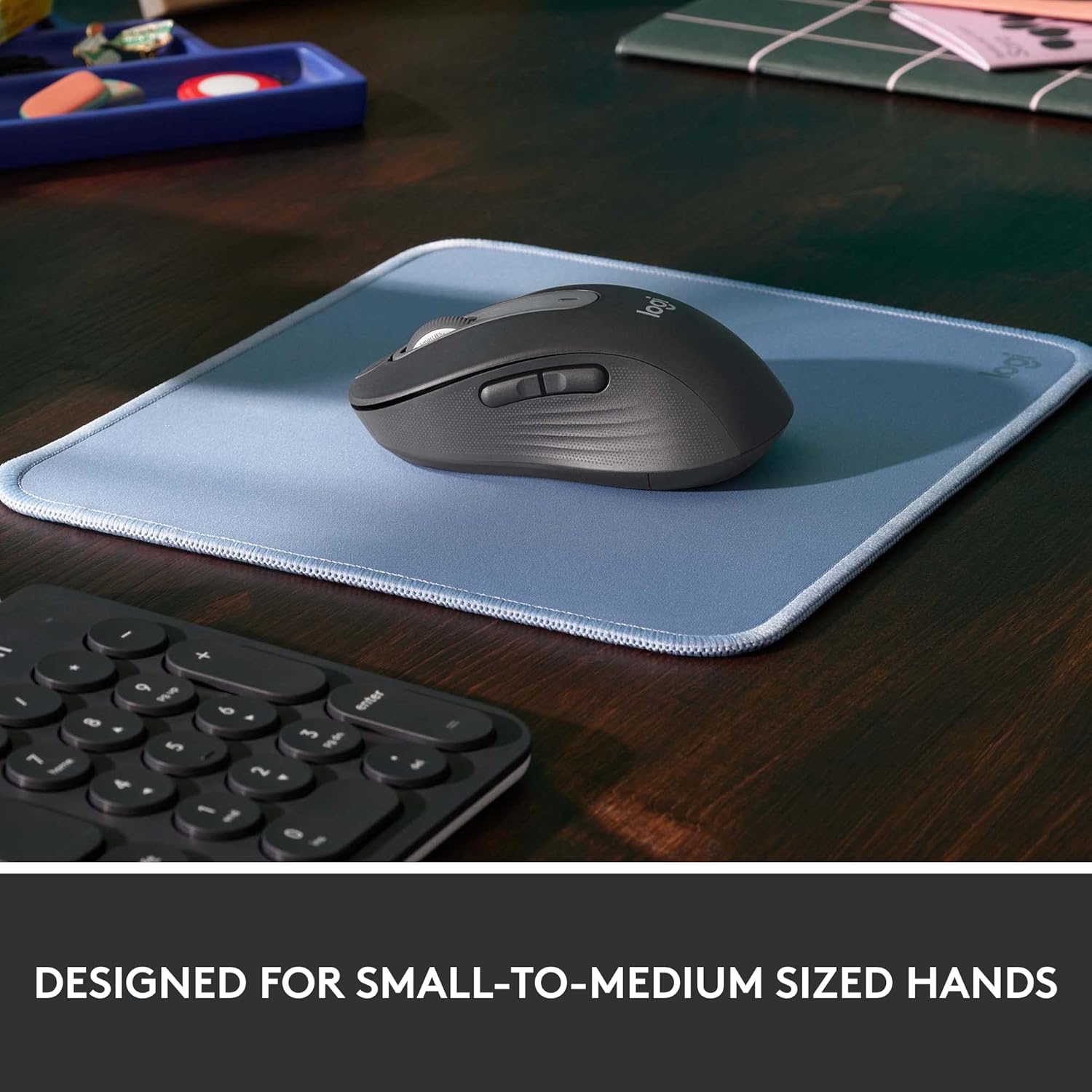
Image: The Logitech M650 mouse resting on a light blue mousepad, illustrating its ergonomic shape designed to fit comfortably in small to medium-sized hands.
7. Garanzia e supporto
I prodotti Logitech sono realizzati secondo i più elevati standard qualitativi. Per informazioni dettagliate sulla garanzia, consultare la scheda di garanzia inclusa con il prodotto o visitare il sito ufficiale del supporto Logitech. websito.
For technical assistance, troubleshooting, or to download the latest software and drivers, please visit the Logitech Support page:


