1. Introduzione
This manual provides detailed instructions for the setup, operation, maintenance, and troubleshooting of your Tera HW0004 1D Laser Wireless Barcode Scanner. Please read this manual thoroughly before using the device to ensure proper functionality and to maximize its lifespan.
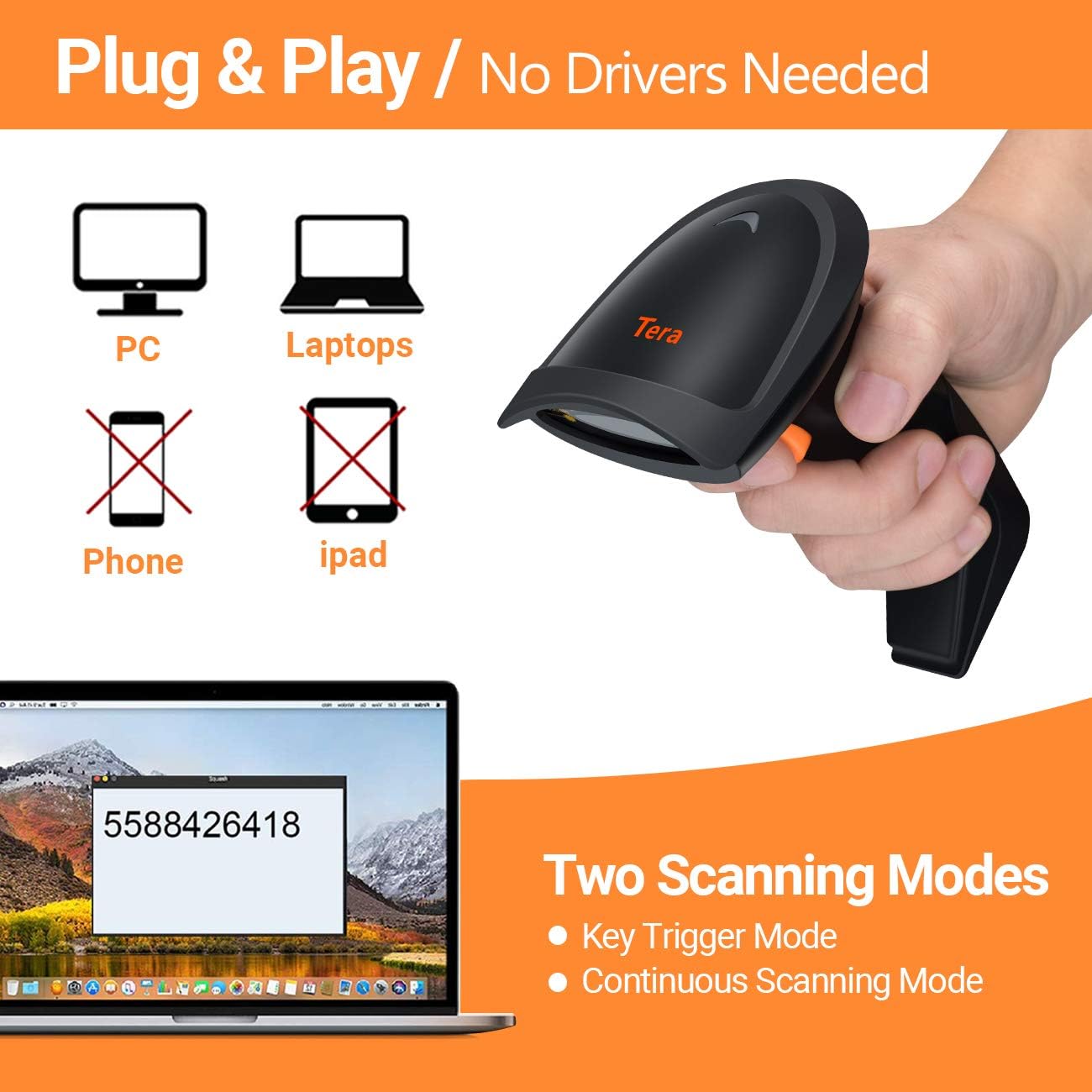
Image: The Tera HW0004 1D Laser Wireless Barcode Scanner, showcasing il suo design ergonomico.
2. Impostazione
2.1 Contenuto della confezione
- Lettore di codici a barre Tera HW0004
- Dongle wireless da 2.4 GHz
- USB 2.0 Wired Cable
- Manuale dell'utente (questo documento)
2.2 Collegamento dello scanner (Plug and Play)
The Tera HW0004 scanner offers two connection methods: 2.4GHz wireless and USB 2.0 wired. No driver or software installation is required for either method.

Image: Illustration showing the scanner connecting to PCs and laptops via USB or wireless dongle, indicating no drivers are needed.
2.2.1 Connessione wireless a 2.4 GHz
- Insert the 2.4GHz wireless dongle into an available USB port on your computer or device.
- Accendere lo scanner per codici a barre.
- The scanner will automatically pair with the dongle. A successful connection is indicated by a specific sound or light indicator (refer to scanner's LED status for details).
2.2.2 USB 2.0 Wired Connection
- Connect one end of the provided USB 2.0 cable to the scanner.
- Collegare l'altra estremità del cavo USB 2.0 a una porta USB disponibile sul computer o sul dispositivo.
- Lo scanner verrà riconosciuto come un dispositivo tastiera HID standard.
2.3 Sistemi operativi supportati
The Tera HW0004 barcode scanner is compatible with a variety of operating systems, including:
- Windows XP, Windows 7, Windows 8, Windows 10
- Sistema operativo Mac
- Android
- Linux
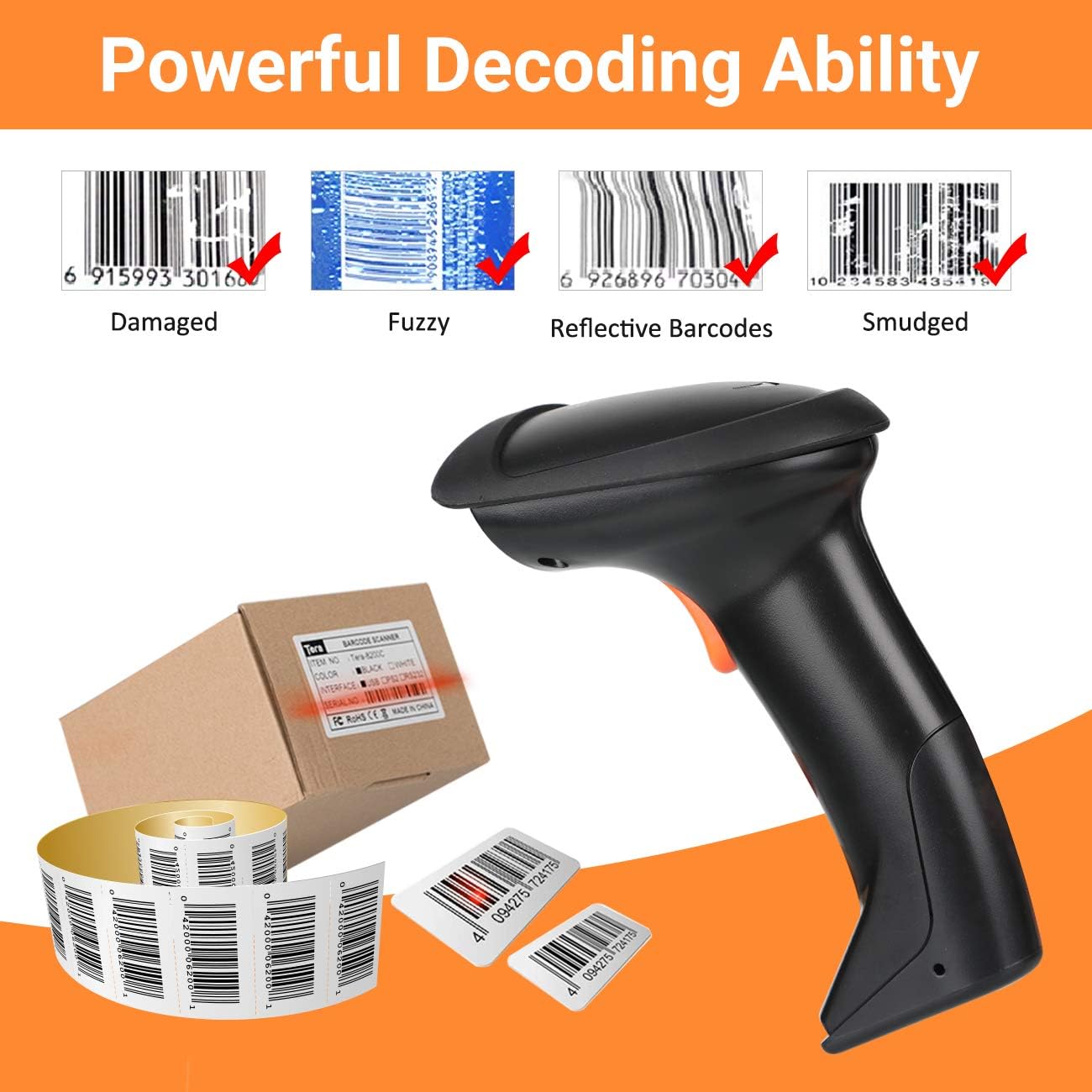
Image: Visual representation of the scanner's multifunction capabilities and compatibility with various operating systems including Windows, Android, and Linux.
3. Funzionamento dello scanner
3.1 Modalità di scansione
Lo scanner supporta due modalità di scansione principali:
- Modalità di attivazione chiave: Premere il pulsante di attivazione per scansionare ogni codice a barre singolarmente.
- Modalità di scansione continua: Lo scanner emette continuamente un raggio laser, scansionando qualsiasi codice a barre che passa nel suo campo di view senza dover premere il grilletto per ogni scansione.
3.2 Modalità di caricamento
The Tera HW0004 offers two data upload modes:

Image: Diagram illustrating the two upload modes: Instant Upload Mode and Storage Upload Mode with 16MB memory.
3.2.1 Modalità di caricamento istantaneo
In this mode, scanned barcode data is immediately transmitted to your connected device. This is suitable for real-time data entry.
3.2.2 Storage Upload Mode
When operating out of wireless signal range, or for batch processing, barcodes can be scanned and stored in the scanner's built-in 16MB memory. Data can then be uploaded to your computer at a later time when a connection is established.
3.3 Supported Barcode Types (1D)
The scanner supports various 1D printed barcode symbologies:
- Codice 39
- UPC-A/UPC-E (including Complement Code)
- EAN13, EAN8
- Codice 93
- Codice 128
- Codabar
- Industriale/Interlacciato 2 di 5
- MSI
- Codice11
- ISBN/ISSN
- Matrice 2 di 5
- E altri.

Image: Display of the scanner supporting various 1D printed barcode types and multi-language output.
3.4 Unsupported Barcode Types and Scanning Surfaces
The Tera HW0004 scanner non lo fa supporto:
- 2D codes (e.g., QR codes, PDF417)
- Scanning directly from screens (e.g., mobile phones, computer monitors)
3.5 Multifunction Settings
The scanner includes several configurable functions:
- Voice Setting: Adjust or disable audible feedback.
- Stand-by Setting: Configure the idle time before the scanner enters power-saving mode.
- Support Uppercase / Lowercase Setting: Define how character cases are handled.
- Identify Barcode Type: Enable or disable automatic identification of barcode symbologies.
- Aggiungi prefisso e suffisso: Customize data output by adding characters before or after the scanned barcode data.
- Nascondi personaggi: Configure the scanner to omit certain characters from the output.
Refer to the programming barcodes provided in the supplementary guide (if applicable) to configure these settings.
4. Manutenzione
4.1 Pulizia dello scanner
Per mantenere prestazioni ottimali, mantenere pulita la finestra di scansione dello scanner. Utilizzare un panno morbido e privo di lanugine, leggermente dampened with water or a mild, non-abrasive cleaning solution. Avoid harsh chemicals or abrasive materials that could scratch the window.
4.2 Ricarica della batteria
For wireless operation, ensure the scanner's internal battery is adequately charged. Connect the scanner to a USB power source using the provided USB cable. The charging indicator light will show the charging status.
5. Risoluzione Dei Problemi
5.1 Problemi comuni
- Lo scanner non si connette: Ensure the USB cable is securely connected or the wireless dongle is properly inserted and the scanner is powered on. Try a different USB port.
- Nessun dato in uscita: Verify the scanner is in the correct upload mode (Instant or Storage). Check if the target application (e.g., Word, Excel) is active and ready to receive input.
- Lo scanner non esegue la scansione: Ensure the laser is emitting. Check for obstructions on the scanning window. Confirm the barcode type is supported.
- Dati di output errati: Review multifunction settings for prefixes, suffixes, or character hiding. Ensure the correct keyboard language is set on your computer if experiencing character mapping issues.
5.2 Capacità di decodifica
The Tera HW0004 features powerful decoding capabilities, allowing it to read various challenging 1D barcodes:

Immagine: Examples of the scanner's ability to decode damaged, fuzzy, reflective, and smudged 1D barcodes.
- Codici a barre danneggiati: Can often read barcodes with minor damage or tears.
- Fuzzy Barcodes: Capable of decoding barcodes that are slightly out of focus or poorly printed.
- Codici a barre riflettenti: Designed to minimize interference from reflective surfaces.
- Smudged Barcodes: Can read barcodes with minor smudges or ink bleed.
For persistent issues, refer to the full programming guide or contact customer support.
6. Specifiche
| Caratteristica | Descrizione |
|---|---|
| Modello | HW0004 |
| Connettività | Wireless a 2.4 GHz, USB 2.0 cablato |
| Supporto del tipo di codice a barre | 1D Laser (Code 39, UPC-A/E, EAN13/8, Code 93, Code 128, Codabar, Industrial/Interleaved 2 of 5, MSI, Code11, ISBN/ISSN, Matrix 2 of 5, etc.) |
| Memoria | 16MB (for Storage Upload Mode) |
| Compatibilità | Windows, Mac OS, Android, Linux |
| Colore | Nero |
7. Garanzia e supporto
7.1 Informazioni sulla garanzia
Please refer to the warranty card included with your product or visit the official Tera webPer termini e condizioni di garanzia dettagliati, consultare il sito. La garanzia copre in genere i difetti di fabbricazione per un periodo di tempo specificato a partire dalla data di acquisto.
7.2 Assistenza clienti
For technical assistance, troubleshooting, or any inquiries regarding your Tera HW0004 barcode scanner, please contact Tera customer support through their official websito o le informazioni di contatto fornite nella confezione del prodotto.


