Introduzione
This manual provides comprehensive instructions for the setup, operation, and maintenance of your Targus Ambidextrous Bluetooth Mouse (Model: PMB58102GL). This compact, multi-device wireless mouse offers dual-mode connectivity (2.4 GHz and Bluetooth 5.0) and is compatible with Windows and macOS. It also features Targus DefenseGuard Protection, an antimicrobial additive that helps prevent the growth of microorganisms on the mouse surface.
Caratteristiche del prodotto
- Design ambidestro: The mouse features an oval, pebble-shaped design suitable for both left and right-handed users.
- Connettività multi-dispositivo: Connects to up to three devices using either 2.4 GHz wireless (via USB receiver) or Bluetooth 5.0.
- Protezione DefenseGuard: Infused with an antimicrobial additive (Silver Phosphate Glass (nano-)) that works continuously to protect the mouse surface by inhibiting microbial growth. This protection does not wear off.
- Essential Controls: Equipped with three essential buttons for clicking, pointing, and scrolling.
- Ampia compatibilità: Completamente compatibile con i sistemi operativi Windows e macOS.
Impostare
Contenuto della confezione
- Targus Ambidextrous Bluetooth Mouse (PMB58102GL)
- Ricevitore USB (memorizzato all'interno del mouse)
- Batteria AA (preinstallata o inclusa)
- Guida rapida
Installazione della batteria
- Individuare il coperchio del vano batteria sul lato inferiore del mouse.
- Far scorrere il coperchio per aprirlo.
- Inserire una batteria AA, assicurandosi della corretta polarità (+/-).
- Chiudere saldamente il coperchio del vano batterie.
Note: The USB receiver is typically stored inside the battery compartment for safekeeping.

Image: The underside of the Targus mouse, displaying the battery compartment, the power switch, and the multi-device pairing button.
Connecting via 2.4 GHz USB Receiver
- Rimuovere il ricevitore USB dallo slot di archiviazione all'interno del mouse.
- Collegare il ricevitore USB a una porta USB-A disponibile sul computer.
- Accendere il mouse utilizzando l'interruttore di alimentazione posto nella parte inferiore.
- Il mouse dovrebbe connettersi automaticamente al computer.
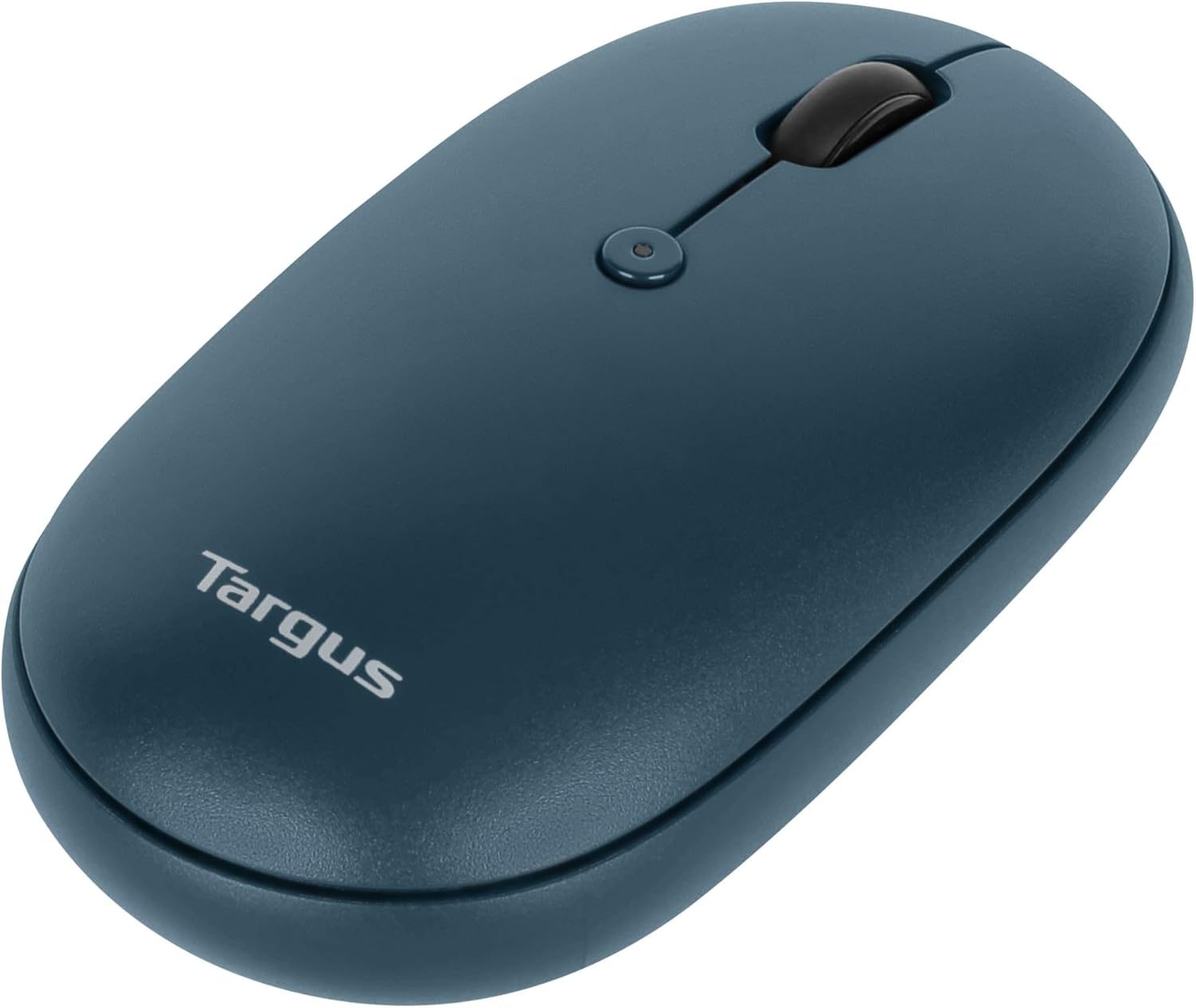
Immagine: Un angolo view of the Targus mouse, with its small USB receiver placed beside it, illustrating the 2.4 GHz wireless connection component.
Connessione tramite Bluetooth 5.0
- Accendere il mouse utilizzando l'interruttore di alimentazione posto nella parte inferiore.
- Press the multi-device pairing button on the underside of the mouse to select a Bluetooth channel (indicated by LED lights 1, 2, or 3).
- Press and hold the pairing button for 3-5 seconds until the selected LED light blinks rapidly, indicating pairing mode.
- Sul tuo computer (Windows o macOS), vai alle impostazioni Bluetooth e cerca nuovi dispositivi.
- Select "Targus Mouse" from the list of available devices to complete the pairing process.
Note: You can pair up to three devices (one via 2.4 GHz USB receiver, two via Bluetooth).
Istruzioni per l'uso
Accensione/spegnimento
Use the ON/OFF switch located on the underside of the mouse to power it on or off. Turning the mouse off when not in use conserves battery life.
Passaggio tra dispositivi connessi
If you have paired the mouse with multiple devices, press the multi-device pairing button on the underside of the mouse to cycle through the connected devices (channels 1, 2, and 3). The corresponding LED light will indicate the currently active channel.
Funzioni di base del mouse
- Clic sinistro: Selezione e attivazione primaria.
- Clic destro: Accede ai menu contestuali.
- Rotella di scorrimento: Scorre il contenuto verticalmente. La rotellina di scorrimento funziona anche come tasto centrale.

Immagine: dall'alto verso il basso view of the Targus mouse, highlighting the left and right click buttons and the central scroll wheel.
DPI Adjustment (Scroll Speed)
The mouse features a button near the scroll wheel that allows you to adjust the DPI (Dots Per Inch) setting, which controls the cursor speed. Press this button to cycle through different sensitivity levels to match your preference.

Immagine: una parte superiore angolata view of the Targus mouse, clearly showing the small button located behind the scroll wheel, used for DPI adjustment.
Manutenzione
- Pulizia: Utilizzare un morbido, damp cloth to clean the exterior of the mouse. Avoid harsh chemicals or abrasive materials.
- Sostituzione della batteria: When the mouse performance degrades or the indicator light signals low battery, replace the AA battery as described in the "Battery Installation" section.
- Magazzinaggio: Quando non lo si utilizza, riporre il ricevitore USB all'interno del vano batterie del mouse per evitare di perderlo.
Risoluzione dei problemi
| Problema | Soluzione |
|---|---|
| Il mouse non risponde. |
|
| Connessione intermittente. |
|
| Scroll wheel not working correctly. |
|
Specifiche
| Caratteristica | Dettaglio |
|---|---|
| Marca | Targa |
| Numero di modello | PMB58102GL (also AUB09QC3P5LR) |
| Tecnologia di connettività | Wireless a 2.4 GHz, Bluetooth 5.0 |
| Tecnologia di rilevamento del movimento | Ottico |
| Compatibilità del sistema operativo | Windows, macOS |
| Fonte di alimentazione | Alimentato a batteria (1x AA) |
| Peso dell'articolo | 5.3 once |
| Dimensioni del pacco | 7.28 x 6.22 x 2.52 pollici |
| Colore | Blu |
| Protezione antimicrobica | Targus DefenseGuard (Silver Phosphate Glass (nano-)) |
Video ufficiale del prodotto
Video: Un funzionario sopraview of the Targus Compact Multi-Device Wireless Mice, demonstrating key features like multi-device connectivity and design.
Garanzia e supporto
The Targus Ambidextrous Bluetooth Mouse (PMB58102GL) comes with a Garanzia limitata di 2 anni. This warranty covers specific parts and types of damage for computer keyboards, mice, and accessories. For detailed warranty information and support, please refer to the official Targus websito o contattare il servizio clienti.
Per ulteriore assistenza, visitare il Targus Store.


