Introduzione
The Logitech M705 Wireless Mouse is designed for comfort and efficiency, featuring an ergonomic sculpted shape and a long-lasting battery life. It connects wirelessly via the Logitech Unifying Receiver, allowing for seamless use across multiple compatible devices. This manual provides instructions for setting up, operating, maintaining, and troubleshooting your M705 mouse.

Image: The Logitech M705 Wireless Mouse shown with the included cleaning kit components.
Contenuto della confezione
Verifica che tutti gli articoli siano presenti nel tuo pacco:
- Mouse wireless Logitech M705
- Ricevitore USB Logitech Unifying
- 2 batterie AA (preinstallate o incluse separatamente)
- Life-Extended Cleaning Kit (microfiber cloth, q-tips, alcohol pad)

Image: The included cleaning kit, consisting of a microfiber cloth, several cotton swabs, and an alcohol cleaning pad.
Impostare
1. Installazione della batteria
- Individuare il vano batteria sul lato inferiore del mouse.
- Aprire il coperchio del vano batterie.
- Inserire le due batterie AA, assicurandosi della corretta polarità (+/-).
- Chiudere saldamente il coperchio del vano batterie.
2. Connecting the Unifying Receiver
- Remove the Logitech Unifying USB Receiver from its storage slot, typically located inside the battery compartment or near it.
- Plug the Unifying Receiver into an available USB port on your computer (PC, Laptop, Mac, or Chromebook).
- The mouse should automatically connect. If not, ensure the mouse is powered on (check the power switch on the underside).
- For advanced pairing or to connect additional compatible devices, download the Logitech Unifying Software from the official Logitech support websito.
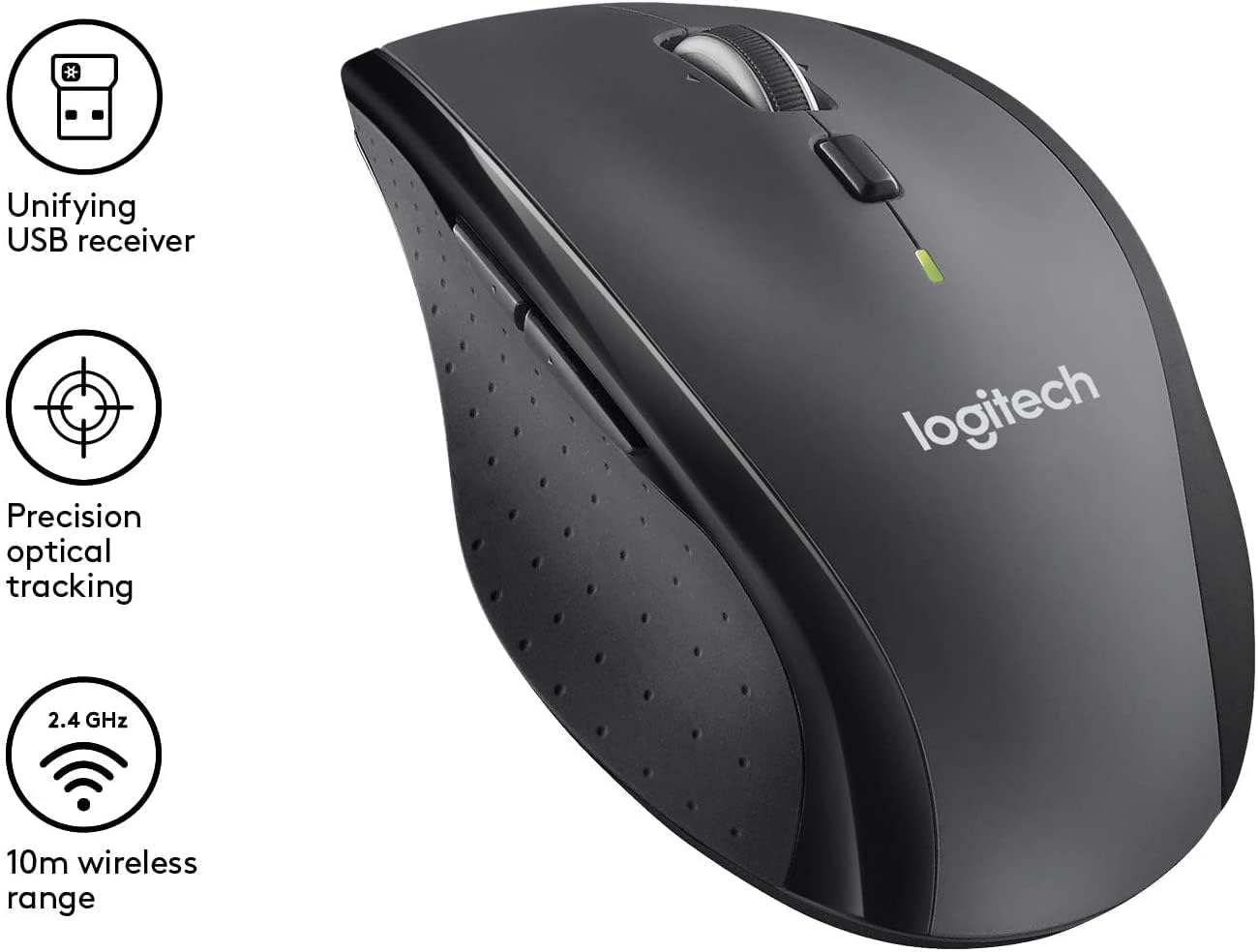
Image: The Logitech M705 mouse highlighting the Unifying USB receiver and its wireless capabilities.
Utilizzo del mouse
Funzioni di base
- Pulsante sinistro del mouse: Selezione primaria e interazione.
- Pulsante destro del mouse: Accede ai menu contestuali.
- Rotella di scorrimento: Scorre verticalmente i documenti e web pagine.
Funzionalità avanzate
- Scorrimento iperveloce: The scroll wheel can switch between precise click-to-click scrolling and hyper-fast scrolling for rapid navigation through long documents. Press the button directly below the scroll wheel to toggle between modes.
- Tilt Wheel Horizontal Scroll: Tilt the scroll wheel left or right to scroll horizontally, useful for wide spreadsheets or timelines.
- Pulsanti personalizzabili: The M705 features 7 customizable buttons. These can be configured using Logitech Options software to perform various functions, such as launching applications, controlling media, or executing specific commands.

Image: Key features of the Logitech M705 mouse, including hyper-fast scrolling, tilt wheel for horizontal scroll, and an indicator for 36-month battery life.

Image: The ergonomic design of the Logitech M705 mouse, emphasizing its contoured shape with rubber grip, seven customizable buttons, and full palm support.
Logitech Unifying Technology
The Unifying Receiver allows you to connect up to six compatible Logitech devices (such as keyboards and mice) to a single USB receiver. This frees up USB ports and simplifies your workspace. Use the Logitech Unifying Software to manage your connected devices.

Image: A diagram illustrating Logitech Unifying Technology, demonstrating how one USB receiver can connect up to six compatible Logitech devices simultaneously.
Personalizzazione del software
To unlock the full potential of your M705 mouse, download and install the Logitech Options software from the official Logitech websito. Questo software ti consente di:
- Riassegnare le funzioni dei pulsanti.
- Regola la velocità del puntatore e il comportamento di scorrimento.
- Crea impostazioni specifiche per l'applicazione.

Image: A screenshot of the Logitech Options software interface, showing options for customizing mouse buttons and scroll settings to create shortcuts and enhance productivity.
Manutenzione
Pulizia del mouse
Regular cleaning helps maintain the performance and longevity of your Logitech M705 mouse. Use the included Life-Extended Cleaning Kit for best results:
- Panno in microfibra: Gently wipe the exterior surfaces of the mouse to remove dust and fingerprints.
- Q-Tips: Use cotton swabs to clean hard-to-reach areas, such as around buttons and the scroll wheel.
- Alcohol Pad: For stubborn grime, lightly wipe surfaces with the alcohol pad, then dry with the microfiber cloth. Avoid excessive moisture near openings.
Prima di pulirlo, assicurarsi che il mouse sia spento.
Risoluzione dei problemi
Se riscontri problemi con il mouse Logitech M705, prova le seguenti soluzioni:
- No Movement/Response:
- Assicurarsi che il mouse sia acceso.
- Controllare i livelli della batteria e sostituirla se necessario.
- Assicurati che Unifying Receiver sia collegato saldamente a una porta USB funzionante. Prova una porta USB diversa.
- Avvicinare il mouse al ricevitore per escludere problemi di portata.
- Re-pair the mouse using the Logitech Unifying Software.
- Movimento irregolare del cursore:
- Pulisci il sensore ottico sul lato inferiore del mouse.
- Assicurati di utilizzare il mouse su una superficie adatta. Evita superfici altamente riflettenti o trasparenti.
- Verificare la presenza di interferenze da altri dispositivi wireless.
- I pulsanti non rispondono:
- Check if the buttons are configured correctly in Logitech Options software.
- Riavvia il computer.
- Ricevitore Unifying non rilevato:
- Prova a collegare il ricevitore a una porta USB diversa.
- Riavvia il computer.
- Assicurati che i driver del tuo sistema operativo siano aggiornati.
Specifiche
| Caratteristica | Dettaglio |
|---|---|
| Marca | Logitech |
| Numero di modello | 097855163288 |
| Tecnologia di connettività | Wireless, USB (via Unifying Receiver) |
| Tecnologia di rilevamento del movimento | Laser |
| Colore | Argento |
| Peso dell'articolo | 6.7 once |
| Dimensioni del pacco | 5.39 x 3.31 x 2.28 pollici |
| Batterie | Sono necessarie 2 batterie AA (incluse) |
| Caratteristica speciale | Wireless, Ergonomic, Customizable Buttons, Hyper-Fast Scrolling, Tilt Wheel |
Garanzia e supporto
Logitech products are manufactured to high quality standards and are backed by a limited hardware warranty. For specific warranty details, duration, and terms applicable to your region, please refer to the warranty information included with your product packaging or visit the official Logitech support websito.
Per assistenza tecnica, download di driver, FAQ e ulteriore supporto, visitare il supporto Logitech websito:


