1. Introduzione
The Poly Studio R30 is an integrated USB video bar designed for small and huddle rooms, providing a comprehensive solution for video conferencing. It combines a 4K camera, advanced microphones, and a powerful speaker into a single device, ensuring high-quality audio and video experiences. This manual provides essential information for setting up, operating, maintaining, and troubleshooting your Poly Studio R30.

Figura 1: Fronte view of the Poly Studio R30 4K Video Conference System.
2. Cosa c'è nella scatola
Verificare che tutti gli articoli siano presenti nel pacco:
- Poly Studio R30 4K Video Conference System
- Adattatore di alimentazione
- Cavo USB
- Monitorare Clamp (included for flexible mounting options)
3. Prodotto finitoview
The Poly Studio R30 integrates several key components into a sleek bar design:
- Telecamera 4K: Dispone di un campo di 120 gradi di view and 5x digital zoom for clear video.
- Serie di microfoni: An advanced 3-microphone array designed to capture voices clearly while filtering out background noise.
- Altoparlante integrato: Provides rich and clear audio output for all participants.
- Opzioni di montaggio: Includes an adjustable monitor clamp for easy attachment to displays.

Figura 2: lato view of the Poly Studio R30, highlighting its compact design.
4. Impostazione
The Poly Studio R30 is designed for quick and easy plug-and-play setup:
- Montaggio: Attach the Poly Studio R30 to your display using the included monitor clamp. Ensure it is securely fastened and positioned to capture the desired area of the room.
- Collegamento elettrico: Connect the power adapter to the Poly Studio R30 and plug it into an electrical outlet.
- Connessione USB: Connect the provided USB cable from the Poly Studio R30 to an available USB port on your PC or Mac.
- Riconoscimento del software: Your computer should automatically recognize the Poly Studio R30 as a camera, microphone, and speaker device. No additional drivers are typically required.

Figure 3: Illustration of the simple plug-and-play setup for the Poly Studio R30.
5. Istruzioni per l'uso
Once set up, the Poly Studio R30 integrates seamlessly with popular video conferencing platforms:
- Launch Conferencing Application: Open your preferred video conferencing software (e.g., Zoom, Microsoft Teams, Google Meet).
- Select Devices: In the application's audio and video settings, select "Poly Studio R30" as your camera, microphone, and speaker.
- Start Meeting: Begin your meeting. The Poly Studio R30 will automatically activate its intelligent features.
Caratteristiche principali in funzione:
- Poly DirectorAI: This technology provides automatic framing and tracking, ensuring all participants are seen clearly. It can frame groups or track individual speakers.
- NoiseBlockAI: Intelligently blocks distracting background noises, allowing voices to be heard without interruption.
- Recinzione acustica: Creates a virtual sound barrier, focusing the microphone pickup on the area within the fence and eliminating sounds from outside that zone.

Figure 4: The 120-degree field of view ensures everyone is seen in the meeting room.

Figure 5: Dynamic video with DirectorAI close-up feature for clear facial expressions and body language.

Figure 6: Remarkable audio features including NoiseBlockAI and Acoustic Fence technology.
6. Gestione
The Poly Studio R30 can be managed and configured using Poly Lens software:
- Applicazione desktop Poly Lens: Install the Poly Lens Desktop application on your PC or Mac to control device settings, customize camera behaviors, and update firmware.
- Poly Lens Cloud Management: For IT administrators, Poly Lens cloud management software allows for remote management, monitoring, and deployment of devices over Wi-Fi, providing intelligent insights and scalable control.
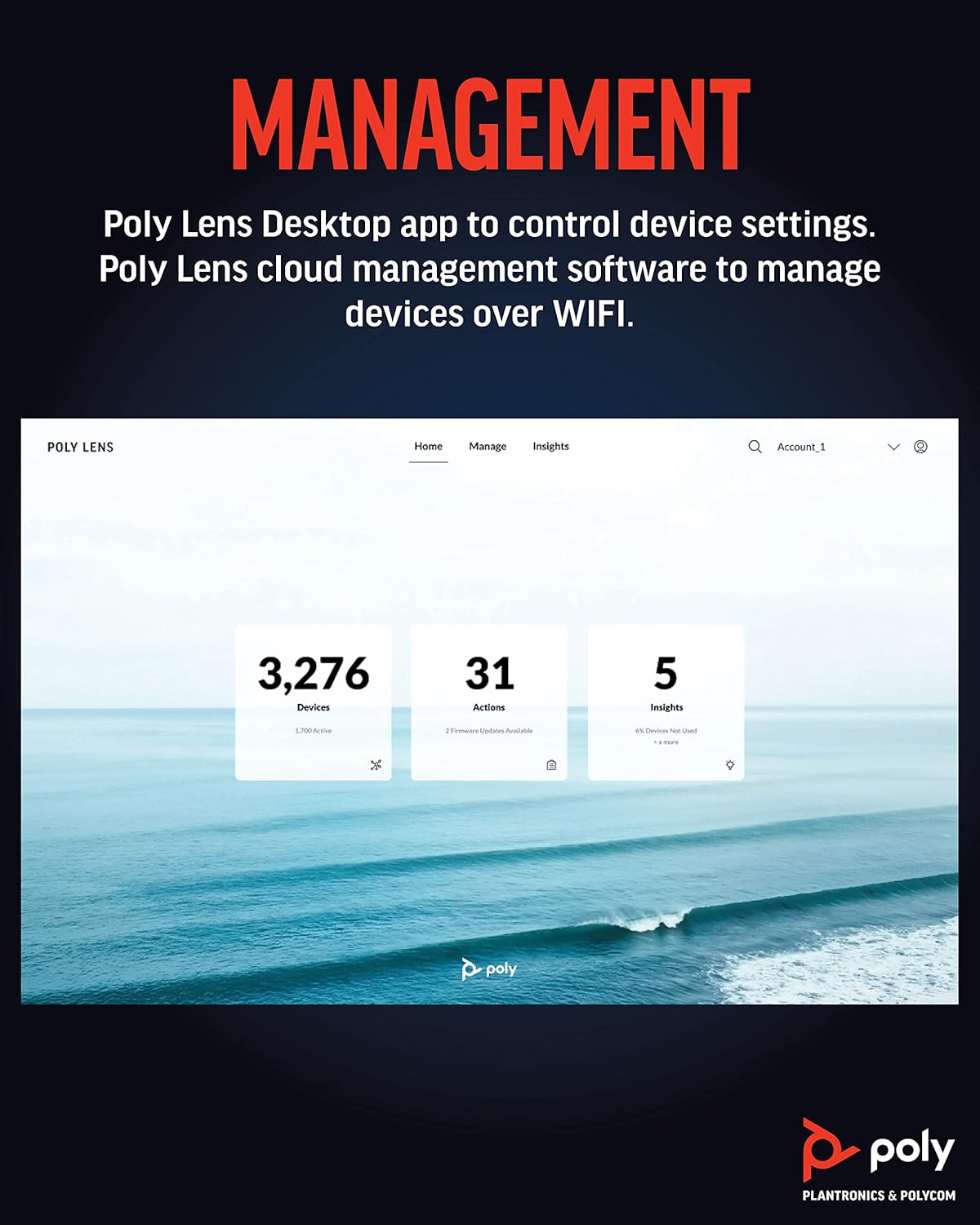
Figure 7: Poly Lens interface for device management and insights.
7. Manutenzione
To ensure optimal performance and longevity of your Poly Studio R30, follow these maintenance guidelines:
- Pulizia: Use a soft, dry, lint-free cloth to clean the exterior of the device. Do not use liquid cleaners or aerosol sprays directly on the unit.
- Cura delle lenti: Gently wipe the camera lens with a microfiber cloth specifically designed for optics. Avoid abrasive materials.
- Aggiornamenti del firmware: Regularly check for and install firmware updates via the Poly Lens Desktop app or cloud management. Updates often include performance improvements and new features.
- Magazzinaggio: Quando non viene utilizzato per lunghi periodi, conservare il dispositivo in un luogo fresco e asciutto, lontano dalla luce solare diretta.
8. Risoluzione Dei Problemi
If you encounter issues with your Poly Studio R30, try the following steps:
| Problema | Possibile soluzione |
|---|---|
| No video/audio in conferencing app |
|
| Scarsa qualità video |
|
| Poor audio quality (echo, muffled sound) |
|
| Dispositivo non riconosciuto dal computer |
|
9. Specifiche
| Caratteristica | Dettaglio |
|---|---|
| Numero di modello | Numero di telefono: 2200-69390-001 |
| Dimensioni del prodotto | 20.59 x 8.94 x 3.98 pollici |
| Peso dell'articolo | 2.87 libbre |
| Risoluzione di acquisizione video | 4K |
| Campo di View | 120 gradi |
| Digital Zoom | 5x |
| Array di microfoni | 3-microphone array |
| Tecnologie audio | NoiseBlockAI, Acoustic Fence |
| Tecnologie video | Poly DirectorAI (auto-framing, speaker tracking) |
| Tecnologia di connettività | USB |
| Colore | Nero |
| Piattaforme supportate | Zoom, Microsoft Teams, Google Meet, and other PC/Mac video applications |
10. Garanzia e supporto
Per informazioni dettagliate sulla garanzia, fare riferimento alla scheda di garanzia inclusa con il prodotto o visitare il sito ufficiale Poly website. For technical support, product registration, and additional resources, please visit the Poly support portal or contact their customer service.
You can find more information and support at the official Poly websito: www.poly.com


