1. Introduzione
This manual provides comprehensive instructions for the setup, operation, and maintenance of your Epson EcoTank L8180 Multifunction A3+ Photo Printer. Please read this manual thoroughly to ensure proper use and to maximize the performance and longevity of your device. Keep this manual for future reference.
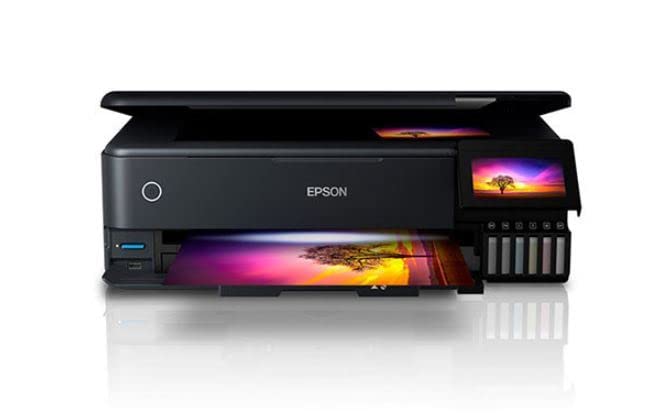
Figure 1: Epson EcoTank L8180 Printer. This image shows the front view of the Epson EcoTank L8180 printer, highlighting its compact design and front-loading paper tray.
2. Contenuto della confezione
Verificare che tutti gli articoli siano inclusi nel pacchetto:
- Stampante Epson EcoTank L8180
- Cavo di alimentazione
- Initial Ink Bottle Set (Cyan, Magenta, Yellow, Black, Light Cyan, Light Magenta)
- Guida all'installazione
- Software CD-ROM (for Windows/macOS)
- Cavo USB
3. Impostazione
3.1 Disimballaggio e posizionamento
- Remove the printer from its box and remove all protective materials, tapes, and films.
- Posizionare la stampante su una superficie piana e stabile, con spazio adeguato attorno per la ventilazione e il funzionamento.
3.2 Riempimento dei serbatoi di inchiostro
The EcoTank L8180 uses a cartridge-free ink tank system. Follow these steps to fill the ink tanks:
- Open the ink tank unit cover.
- Uncap the ink bottle for the corresponding color. Each bottle has a unique key to prevent incorrect filling.
- Insert the ink bottle into the filling port. The ink will automatically start flowing into the tank. Do not squeeze the bottle.
- Once the tank is full, the ink flow will stop. Remove the bottle and recap it.
- Repeat for all six ink colors (Cyan, Magenta, Yellow, Black, Light Cyan, Light Magenta).
- Chiudere il coperchio dell'unità serbatoio inchiostro.
3.3 Collegamento dell'alimentazione e configurazione iniziale
- Connect the power cable to the printer and then to an electrical outlet.
- Premere il pulsante di alimentazione per accendere la stampante.
- Follow the on-screen instructions on the 10.9cm color touchscreen to select your language, date, and time.
- The printer will then initiate the ink charging process. This may take several minutes. Do not turn off the printer during this process.
- Once ink charging is complete, the printer is ready for software installation.

Figure 2: Printer Touchscreen Interface. This image displays a close-up of the printer's 10.9cm color touchscreen, showing a user interacting with the interface.
3.4 Installazione del software e connettività
Install the printer software on your computer or mobile device to enable full functionality.
- For Computer (Windows/macOS): Insert the provided Software CD-ROM or download the latest drivers and utilities from the official Epson support websito. Seguire le istruzioni sullo schermo per l'installazione.
- Opzioni di connettività:
- Connessione USB: Collegare la stampante al computer tramite un cavo USB.
- Connessione Wi-Fi: On the printer's touchscreen, navigate to the Wi-Fi setup menu and follow the instructions to connect to your wireless network.
- Connessione Ethernet: Collegare un cavo Ethernet dalla stampante al router o all'hub di rete.
- Per dispositivi mobili: Download the Epson Smart Panel app from your device's app store. Follow the in-app instructions to connect your mobile device to the printer via Wi-Fi.

Figure 3: Wireless Printing from Mobile. This image illustrates the Epson EcoTank L8180 printer receiving a print job wirelessly from a smartphone, demonstrating its Wi-Fi connectivity.
4. Istruzioni per l'uso
4.1 Caricamento della carta
The printer supports various paper types and sizes, up to A3+.
- Aprire il supporto della carta ed estrarre il vassoio di uscita.
- Adjust the edge guides to the width of your paper.
- Load paper into the rear paper feed or front paper cassette, depending on the paper type and size. Ensure the print side is facing the correct direction.
- For photo paper, use the dedicated photo paper tray.
4.2 Stampa di documenti e foto
- Apri il documento o la foto che desideri stampare sul tuo computer o dispositivo mobile.
- Selezionare Stampa dal menu dell'applicazione.
- Choose the Epson L8180 as your printer.
- Adjust print settings such as paper size (e.g., A3+, A4), media type (e.g., Glossy Photo Paper), print quality, and color options.
- Clic Stampa.
4.3 Scansione di documenti
The L8180 features a flatbed scanner for scanning documents and photos.
- Sollevare il coperchio dello scanner.
- Posizionare il documento o la foto con il lato stampato rivolto verso il basso sul vetro dello scanner, allineandolo con il segno nell'angolo.
- Chiudere delicatamente il coperchio dello scanner.
- From your computer, open the Epson Scan software or use the scan function on the printer's control panel.
- Select scan settings (e.g., resolution, color mode, destination folder) and initiate the scan.
4.4 Copia dei documenti
Use the printer's control panel to make copies.
- Place the document on the scanner glass as described in Section 4.3.
- Sul touchscreen della stampante, selezionare Copia opzione.
- Regolare impostazioni quali numero di copie, formato carta e qualità.
- Premere il tasto Inizio pulsante per iniziare la copia.
4.5 Direct Printing (Memory Card/USB)
The L8180 allows direct printing from memory cards and USB drives.
- Insert a memory card into the card slot or a USB flash drive into the USB port.
- Sul touchscreen della stampante, selezionare Scheda di memoria or USB opzione.
- Browse and select the photos or documents you wish to print.
- Adjust print settings and press Stampa.
4.6 Stampa CD/DVD
The printer supports direct printing onto printable CDs/DVDs.
- Open the CD/DVD tray cover on the printer.
- Place a printable CD or DVD onto the CD/DVD tray, ensuring it is correctly seated.
- Insert the CD/DVD tray into the printer's dedicated slot.
- Use the Epson Print CD software on your computer to design and print onto the disc.

Figure 4: CD/DVD Printing Function. This image shows a printable CD being loaded into the Epson EcoTank L8180 printer's dedicated tray for direct disc printing.
5. Manutenzione
5.1 Ricarica dell'inchiostro
When an ink tank level is low, refill it using genuine Epson ink bottles. Refer to Section 3.2 for detailed ink filling instructions.
Importante: Use only genuine Epson Claria ET Premium Ink to ensure optimal print quality and prevent damage to the printer.
5.2 Pulizia della testina di stampa
If print quality declines (e.g., missing lines, faded prints), perform a print head cleaning.
- On the printer's touchscreen, navigate to Manutenzione or Impostare.
- Selezionare Pulizia della testina di stampa.
- Seguire le istruzioni sullo schermo. Questa procedura utilizza una piccola quantità di inchiostro.
- After cleaning, print a nozzle check pattern to verify improvement. If print quality is still poor, repeat the cleaning process up to three times.
5.3 Nozzle Check
Perform a nozzle check to diagnose print quality issues before cleaning.
- On the printer's touchscreen, navigate to Manutenzione or Impostare.
- Selezionare Controllo dell'ugello.
- The printer will print a pattern. Examine the pattern for any gaps or missing segments.
5.4 Printer Cleaning
Pulire regolarmente l'esterno della stampante con un panno morbido eamppanno privo di lanugine. Non utilizzare detergenti abrasivi o solventi.
6. Risoluzione Dei Problemi
6.1 Problemi comuni e soluzioni
- La stampante non risponde:
- Ensure the printer is powered on and connected securely (USB, Wi-Fi, Ethernet).
- Check for error messages on the printer's touchscreen.
- Riavviare la stampante e il computer/router.
- Verificare che nella finestra di dialogo di stampa dell'applicazione sia selezionata la stampante corretta.
- Scarsa qualità di stampa:
- Perform a nozzle check (Section 5.3) and print head cleaning (Section 5.2).
- Ensure ink tanks are adequately filled.
- Use genuine Epson ink and appropriate paper types for your print job.
- Check print settings in your application to ensure they match the paper type and desired quality.
- Inceppamenti della carta:
- Spegnere la stampante e rimuovere con cautela la carta inceppata dai vassoi della carta o dall'interno della stampante.
- Assicurarsi che la carta sia caricata correttamente e non sia piegata o curled.
- Non sovraccaricare i vassoi della carta.
- Problemi di connessione Wi-Fi:
- Assicurati che la stampante si trovi nel raggio di azione del router wireless.
- Verificare che la password Wi-Fi inserita sia corretta.
- Restart your wireless router and the printer.
- Check for any network interference.
6.2 Codici di errore
If an error code appears on the printer's screen, refer to the on-screen instructions or the Epson support websito per soluzioni specifiche relative a quel codice.
7. Specifiche
| Caratteristica | Dettaglio |
|---|---|
| Nome del modello | L8180 |
| Dimensioni del prodotto (P x L x A) | 37.9 x 52.3 x 16.9 centimetri |
| Peso dell'articolo | 14.6 kg |
| Dimensione massima del supporto | A3+ |
| Tecnologia di stampa | Ink Tank (6-colour Epson Claria ET Premium Ink) |
| Ink Colours | Cyan, Magenta, Yellow, Black, Light Cyan, Light Magenta |
| Maximum Print Resolution (Color/B&W) | 5760 x 1440 dpi |
| Maximum Print Speed (Color/B&W) | 32 ppm |
| Tipo di scanner | Pianale piatto |
| Maximum Copy Speed (Black and White) | 32 ppm |
| Stampa fronte-retro | Automatico |
| Capacità massima del foglio di input | 120 fogli |
| Metodo di controllo | Touch (10.9cm color touchscreen) |
| Tecnologia di connettività | Wi-Fi, Ethernet, USB |
| Dispositivi compatibili | Laptops, PC, Tablets |
| Compatibilità del sistema operativo | Windows XP and later, macOS |
| Cosatage | 17 Watt ora |
| Caratteristiche speciali | A3+ Borderless Photo Printing, Direct printing via memory card slot, USB port, Ethernet, CD/DVD printing |

Figure 5: Printer Dimensions. This image provides a diagram showing the physical dimensions (width, depth, height) of the Epson EcoTank L8180 printer in millimeters.
8. Garanzia e supporto
8.1 Informazioni sulla garanzia
The Epson EcoTank L8180 printer comes with a Garanzia limitata. For specific terms and conditions, including warranty duration and coverage details, please refer to the warranty card included with your product or visit the official Epson support websito.
8.2 Assistenza clienti
For technical assistance, troubleshooting, or service inquiries, please contact Epson customer support:
- Supporto online: Visit the official Epson support website for FAQs, drivers, manuals, and contact information.
- Supporto telefonico: Refer to your product documentation or the Epson websito per i numeri di supporto locale.
When contacting support, please have your printer model (L8180) and serial number ready.


